YouTube refuses to load in Safari, shows a video error, keeps buffering, blocks sign-in, or works in the app but not the browser. The usual causes are outdated Safari system software, damaged YouTube site data, blocked JavaScript or cookies, Safari extensions, network settings, or content restrictions. Start with the fastest checks, then move through the fixes that reset Safari, the connection, and the YouTube app.
Start with the quick YouTube checks
Use this first when YouTube opens but the page or video will not play correctly. It separates a temporary YouTube error from a Safari problem fast.
Select Reload in the YouTube error message, or use Safari’s Reload button in the Smart Search field.
If the same page-load error returns, wait and try again later. YouTube says some page-load errors are temporary service interruptions.
When YouTube asks you to sign in, go to YouTube, select Sign in, and use your Google Account. YouTube says some features may not work correctly when you are signed out, and it may prevent signed-out users from accessing videos when they are attempting to download material for offline use or view certain content featuring minors.
Update Safari through Apple system software
YouTube supports Safari among its latest-version browsers, so put Safari updates near the top of the list. Apple updates Safari through macOS, iOS, iPadOS, and visionOS system updates, not as a separate manual browser download on current Apple devices.
On Mac, open Apple menu > System Settings > General > Software Update. Install the update by clicking Update, Upgrade, or Restart Now.
On iPhone or iPad, open Settings > General > Software Update. Tap Download and Install, then follow the onscreen instructions.
Skip any old advice about updating or installing Safari for Windows. Apple no longer offers Safari updates for Windows or other non-Apple operating systems.
Clear YouTube website data
Use Safari’s site-data controls when YouTube still loads badly after the quick checks.
- 1.On Mac, open Safari > Settings > Privacy > Manage Website Data.
- 2.Select youtube.com or the affected website, click Remove, then click Done.
- 3.Open YouTube again in a non-private Safari window.
- 4.On iPhone, open Settings > Apps > Safari > Clear History and Website Data.
- 5.Confirm the timeframe, then tap Clear History.
- 6.To keep browsing history on iPhone, use Settings > Apps > Safari > Advanced > Website Data > Remove All Website Data > Remove Now.
Turn JavaScript and cookies back on
This fixes YouTube pages that cannot run properly or sign in because Safari is blocking core website features.
On iPhone or iPad, open Settings > Apps > Safari > Advanced, then turn on JavaScript.
On Mac, open Safari > Settings > Security, then select Enable JavaScript.
On Mac, allow cookies by opening Safari > Settings > Advanced, then deselect Block all cookies.
On iPhone, open Settings > Apps > Safari > Advanced, then turn off Block All Cookies.
Disable extensions and content blockers
Ad blockers, script blockers, privacy filters, and content blockers interfere with YouTube playback. Turn them off, reload YouTube, and turn them back on only after YouTube works.
On Mac, open Safari > Settings > Extensions, then deselect each extension’s checkbox. To remove one you no longer need, select it and click Uninstall.
For YouTube-specific content blocking on Mac, open YouTube, then go to Safari > Settings > Websites > Content Blockers. Next to the YouTube entry, choose Off.
On iPhone, open Settings > Apps > Safari > Extensions, tap the extension or content blocker, then turn it off for Safari or for the relevant profile.
Test network and privacy settings
Use this when YouTube fails in Safari across multiple pages, buffers constantly, or works on another network. Network filters, VPNs, Private Relay, and weak connections make YouTube look broken while Safari itself is working.
Try YouTube on cellular data or a different Wi-Fi network. If a VPN is on, check its settings because Apple notes that apps or websites block content from loading with VPN on.
Restart your internet connection, then run an internet speed test. YouTube lists recommended sustained speeds of 20 Mbps for 4K, 5 Mbps for 1080p, 2.5 Mbps for 720p, 1.1 Mbps for 480p, and 0.7 Mbps for 360p.
When the video buffers, select Settings in the YouTube player, choose Quality, and pick a lower or preferred quality.
Close other tabs, browsers, and programs while streaming.
If iCloud Private Relay is the trigger, temporarily show your IP address. On iPhone or iPad, tap Safari’s Page Menu button, then tap Show IP Address; on Mac, choose Safari > View > Reload and Show IP Address.
Check restrictions and blocked content
Use this when Screen Time is hiding Safari or the YouTube app, or when YouTube Restricted Mode is screening out potentially mature videos.
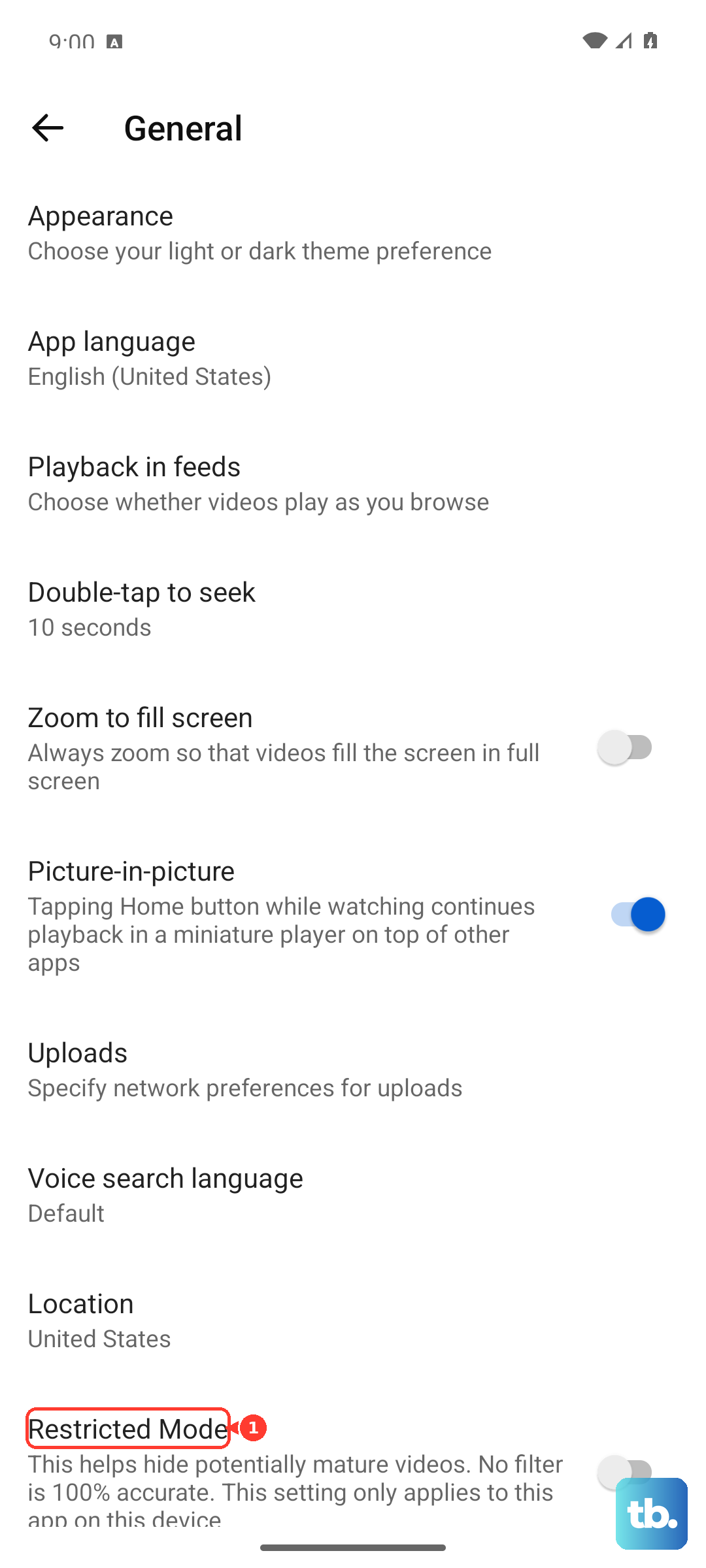
On iPhone or iPad, open Settings > Screen Time > Content & Privacy Restrictions > App Store, Media, Web, & Games > Web Content. Choose the web setting you want, and add YouTube when your selected mode requires it.
If Safari itself is hidden or blocked, open Settings > Screen Time > Content & Privacy Restrictions > Allowed Apps & Features, then allow the apps you want to use.
On Mac, check System Settings > Screen Time > App Limits and remove or turn off limits that block YouTube.
Also check System Settings > Screen Time > Content & Privacy > App Store, Media, Web, & Games for web browsing restrictions.
For YouTube Restricted Mode on desktop, sign in to YouTube, select your profile photo, open Restricted Mode, then click Activate Restricted Mode to turn it off.
Review work school or managed restrictions
A device managed by work, school, or a parent keeps YouTube restricted after Safari settings are changed. YouTube says restrictions come from an administrator, personal account, mobile network provider, or DNS.
Open YouTube’s content restrictions page and review what is setting the restriction. If DNS restrictions are moderate or strict, contact the mobile network provider to manage or turn off that setting.
Also check whether VPN, firewall, antivirus, parental-control, content blocker, profile, or filter software is installed. Use the app to turn off its features, or delete the app or profile when it is not managed and not needed, then restart the device.
Fix the YouTube app separately
This fixes cases where Safari is not the only problem and the YouTube app also will not open, closes unexpectedly, or stops responding.
Close the YouTube app, then open it again.
Restart your iPhone or iPad, then try YouTube again.
Update YouTube by opening App Store, selecting your profile picture, scrolling to pending updates, and tapping Update next to YouTube when it appears.
If the app still fails, touch and hold YouTube.
Choose Remove App, then Delete App, then Delete.
Open App Store, search for YouTube, select the official YouTube app, and tap Get.
Frequently Asked Questions
Why does YouTube work in another browser but not Safari?
Safari-specific causes include outdated Safari system software, damaged YouTube website data, disabled JavaScript or cookies, Safari extensions, content blockers, Private Relay, or Safari web restrictions.
Will clearing Safari history remove YouTube sign-in?
Yes. Clearing history and website data removes Safari cookies and site data, so YouTube can require you to sign in again afterward.
What internet speed does YouTube need?
YouTube lists sustained speeds of 20 Mbps for 4K, 5 Mbps for 1080p, 2.5 Mbps for 720p, 1.1 Mbps for 480p, and 0.7 Mbps for 360p.
Can Safari for Windows fix YouTube problems?
No. Apple no longer offers Safari updates for Windows or other non-Apple operating systems, and Safari 5.1.7 for Windows is outdated.