Razer Synapse 3 not working now points to a practical fork: move to Synapse 4, repair the current app, recover local profiles, or fix device detection. As of August 2026, Razer’s supported route is Synapse 4 because Synapse 3 updates and cloud services ended effective February 3, 2026, and the official Synapse 3 installer was removed. Start with the fixes that preserve your setup, then use a clean reinstall only after the app, login, device, and security checks are done.
Move to Synapse 4 first
Use this when Synapse 3 is installed but no longer opens, updates, or behaves reliably. Razer lists Synapse 4 for Windows 10 64-bit and Windows 11, and installing the new applications uninstalls Synapse 3.
Open razer.com/synapse-4 and click Download for Windows. Run the installer and approve Yes at User Account Control. Click CONTINUE, then click INSTALL. Log in with your Razer ID when Synapse opens.
Do not reinstall Synapse 3 as the fix. Razer’s Synapse 3 FAQ says updates and cloud services ended effective February 3, 2026, and the official installer was removed from the website.
Repair Razer Synapse in Windows
This fixes damaged app files without wiping your setup. Click Start and search for Add or remove programs.
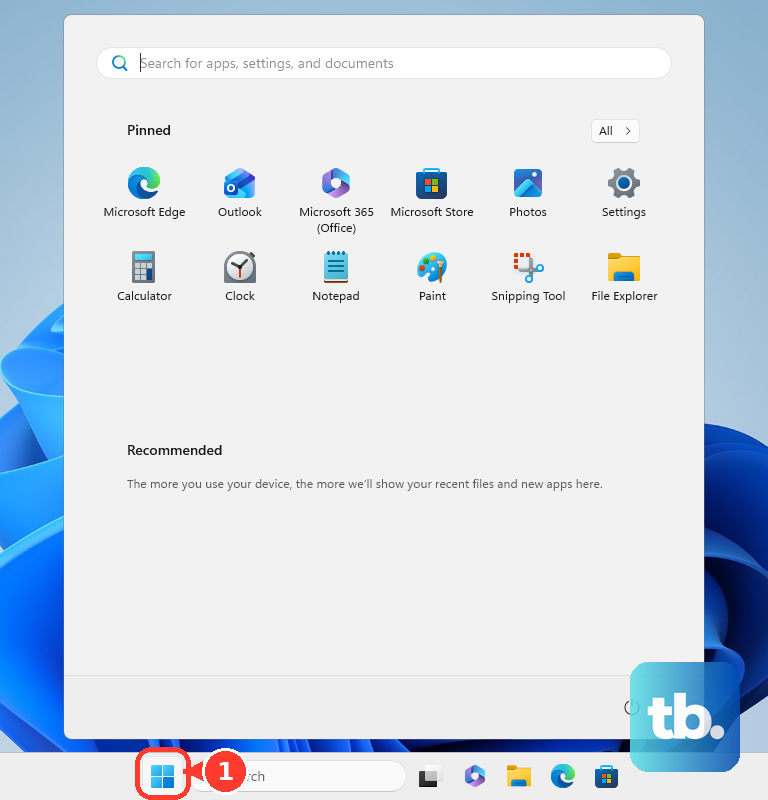
Find Razer Synapse in the installed apps list and open the three-dot menu. Select Modify, then approve Yes at User Account Control.
In Razer Gaming Software, click REPAIR. Wait for REPAIR COMPLETE.
Sign in when Synapse refuses to start
The most common account-side cause is a missing Razer ID session after Synapse launches in the background. Right-click the Razer Synapse icon in the Windows system tray.
Click Log In, then click LOG IN. Enter your email address and password. Click LOG IN again.
For installed Synapse 3, Razer says cloud sync is discontinued, but users continue logging in to access local profiles. After access returns, move the setup to Synapse 4.
Check the connection when your device is missing
Where a missing Razer device belongs depends on which Synapse you run. For Razer Synapse 4 and Razer Synapse 2.0 on Windows, Razer says to connect the device directly to the computer and not through a USB hub. For Razer Synapse for Mac, Razer says the opposite: connect the device to a USB-C hub, then allow all the required system permissions for the app.
On Windows, reconnect the device directly to the PC. Restart the PC after a first install or after an update. On a Mac, force quit Razer Synapse for Mac and relaunch it when the device still does not appear.
Confirm the device is supported by Razer Synapse for Mac, Razer Synapse 4, Razer Synapse 3, or Razer Synapse 2.0. A device that is not supported by Razer Synapse is incompatible with Synapse and does not need Synapse to work.
When the device is supported and still missing, run the repair path through Start, Add or remove programs, Razer Synapse, Modify, and REPAIR.
Bring your Synapse 3 profiles across
Use this when Synapse 4 opens but your old lighting, button, or device profiles are missing. Razer says not to uninstall Synapse 3 manually before migration because the local Synapse 3 profiles need to stay present.
Upgrade Razer Synapse, launch Synapse 4, and log in with your Razer ID. On the Dashboard, open PROFILE MIGRATION under MODULES. Expand each section, choose the profiles you want to move, and click MIGRATE PROFILES. Run the same migration later from Synapse 4 while the local Synapse 3 backup profiles remain present.
Remove blocks from Windows security apps
Security software blocks Synapse startup when Razer Synapse or RazerAppEngine is denied in the firewall or antivirus app. Open your firewall or antivirus app settings. Confirm that Razer Synapse is not blocked.
Add or allow RazerAppEngine as an exclusion or allowed app when your security app lists it. Launch Razer Synapse again after saving the change. If this method fails, check whether RazerAppEngine is stalled in Task Manager before doing a full reinstall.
Check RazerAppEngine and restart cleanly
Use Task Manager and the tray menu to rule out a stuck Synapse background process.
- 1.Open Task Manager and select Processes.
- 2.Check RazerAppEngine CPU consumption.
- 3.Right-click the Razer Synapse icon in the system tray and choose Exit Synapse.
- 4.For Synapse 4 before a clean reinstall, choose Exit All Apps.
- 5.Relaunch Razer Synapse from Start or its shortcut.
Clean reinstall Synapse 4 as the last Windows fix
Use this when repair, login, security checks, and the RazerAppEngine check do not get Synapse working. Razer’s current reinstall path is for Synapse 4 on Windows 10 and Windows 11, not for reinstalling Synapse 3.
Right-click the Razer Synapse 4 icon in the system tray and select Exit All Apps. Open Windows Settings. Go to Apps, then Installed apps. Search for Razer.
Click the ellipsis icon, choose Uninstall, and approve Yes at User Account Control. In RAZER GAMING SOFTWARE, open the ellipsis in INSTALLED APPS. Choose Uninstall All. Click UNINSTALL and wait for removal to finish.
Disconnect non-essential Razer devices, run Windows System File Checker, update Windows, install and run Intel Driver and Support Assistant when applicable, restart the PC, and install the latest Razer Synapse 4.
Use Mac and browser options for supported devices
Synapse 3 is not a Mac solution because Razer’s Synapse 3 supported-devices article says Mac OS is not supported in Razer Synapse 3.
On a Mac, use Razer Synapse for Mac Preview or Synapse Web for supported devices. To launch the Mac app, open Launchpad, type Razer in the search bar, click the app, select LOG IN, enter your email address and password, and choose LOG IN.
For Synapse Web, open synapse.razer.com in a supported browser, update your device firmware, refresh the browser, and click ADD DEVICE. Razer lists Synapse Web for Windows 11 and macOS 26 on supported browsers and supported WebHID-compatible Razer devices only.
Frequently Asked Questions
Can I still reinstall Razer Synapse 3 in 2026?
No. Razer says the Synapse 3 installer was removed from the official website after February 3, 2026. Use Synapse 4 instead.
Will installing Synapse 4 remove Synapse 3?
Yes. Razer says installing the new applications will uninstall Razer Synapse 3.
Why is my Razer device not showing in Synapse?
Connect it directly to the computer, avoid USB hubs, restart after a first install or update, and confirm the device is supported by a Synapse version before repairing the app.
Can I keep my old Synapse 3 profiles?
Yes. Use Synapse 4’s PROFILE MIGRATION tool while the local Synapse 3 profiles are still present. Do not manually uninstall Synapse 3 before migrating.