A PlayStation Network sign-in problem can leave you stuck at the login screen even when your account details are right. The fix depends on whether PlayStation services are down, your console can't connect, or your account needs attention. Start with the service check, then work through the fixes that match your error or sign-in method.
Check PlayStation service status first
This spots a service outage that you simply need to wait out.
Open status.playstation.com/en-US/ in a browser with JavaScript enabled.
Look for an alert on the service you're trying to use.
If a relevant service has an alert, wait until service resumes, then try signing in again.
Retry your account details and refresh the session
Once services are running, check your credentials and try a fresh console sign-in.
- 1.On PS5, open Settings > Users and Accounts > Account > Sign in. On PS4, open Settings > Account Management > Sign in.
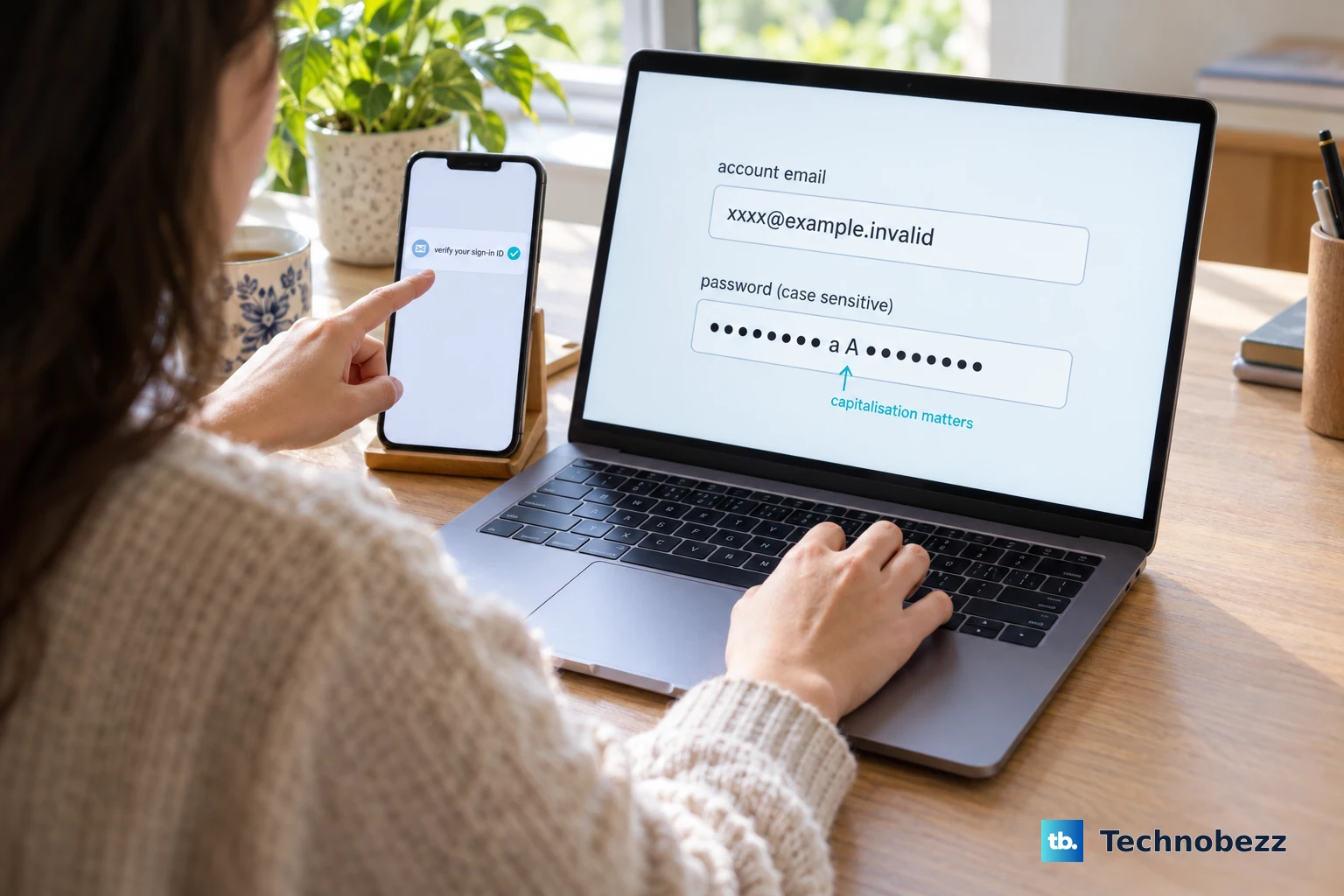
- 2.Enter the correct account email address and password. Password capitalization matters, particularly for PS5 error WS-116329-2.
- 3.If your account email is unverified, search its inbox for "PlayStation verify" and open the verification link.
- 4.If you're already signed in but the session keeps failing, sign out. On PS5, use Settings > Users and Accounts > Other > Sign Out. On PS4, use Settings > Account Management > Sign Out. Then go back to the sign-in screen.
- 5.If the problem continues, restart your console. On PS5, press the PS button and select Power > Restart PS5. On PS4, use the function screen's Power > Turn off PS4, then turn it on again.
Fix a console that cannot connect
Run the internet connection test. On PS5, open Settings > Network > Connection Status > Test Internet Connection. On PS4, open Settings > Network > Test Internet Connection.
If the connection fails, turn off your modem and router, wait at least five minutes, then restart them.
Reconnect to Wi-Fi with the correct network credentials. On PS5, open Settings > Network > Settings > Set up Internet Connection. On PS4, open Settings > Network > Set Up Internet Connection > Use Wi-Fi.
If your PS5 has weak Wi-Fi reception, move it closer to the router and clear away obstacles or interference between them.
Switch to a wired connection by plugging in a LAN cable. On PS5, select Settings > Network > Settings > Set Up Internet Connection > Set Up Wired LAN > Connect. On PS4, select Settings > Network > Set Up Internet Connection > Use a LAN Cable > Easy.
Tip: if your PS5 is on an IPv6-only network, ask your router manufacturer how to enable IPv4 connectivity, because PS5 does not support IPv6-only connections.
Recover your account in a browser
Try signing in to Account Management in a browser. If you can't access your account there either, it may have been suspended.
Forgot your password? Select Trouble Signing in? on the Account Management sign-in page and follow the on-screen prompts. Enter your account email address, then finish recovery through the secure link sent to that inbox.
You can also start password recovery from the console. On PS5, open Settings > Users and Accounts > Account > Sign In. On PS4, open Settings > Account Management > Sign In. Then follow the recovery instructions on screen.
Child accounts are different: only the family manager can reset the password. In browser Account Management, open Family Management, select the child, then select Reset Password.
If recovery still fails because you can't reach the inbox, have forgotten the email address, or spot unauthorized account changes, use Online Assistant on PlayStation's sign-in troubleshooting page.
Get through two-step verification
If sign-in stalls at two-step verification after you enter the correct email and password, work through these fixes for a missing or expired code.
Enter the code from your registered authenticator app or SMS message. Sony states that verification codes are valid for 10 minutes, so select Resend Code if yours has expired.
If the text never arrives, select Resend Code and give it a few minutes. Still nothing? Restart your phone, then check airplane mode and cellular reception. Contact your mobile carrier if reception or SMS delivery keeps failing.
Saved backup codes get you in from a browser. On the Account Management sign-in page, select Trouble Receiving Code? > Sign In Using a Backup Code, enter an unused code, select Verify, then Continue. Each backup code works once.
If you have another working account session, open Account Management > Security > Backup Codes and record your codes securely. You can't check them online while locked out, so without a working verification method or backup code, turn to PlayStation's Online Assistant.
Get past a failed passkey sign-in
This gives passkey accounts another way in.
Select Can't Sign In with Passkey on the sign-in screen.
Complete the email or QR-code authentication route it offers.
For a cross-device passkey attempt, use a supported mobile device and a current Safari, Chrome, or Edge browser.
Scan the QR code with your phone's default camera.
Lost your phone? Sign in on another device with the same registered verification method.
With no other usable device, use PlayStation's Online Assistant.
Once you're back in, open Account Management > Security > Manage Passkeys > Create a Passkey to register a replacement.
For a passkey compatibility problem with Remote Play on Mac or an incompatible browser, open Account Management > Security.
Disable Sign in with Passkey.
Create a password.
Update your console software
Install any available system software update before deeper console troubleshooting. On PS5, open Settings > System > System Software > System Software Update and Settings > Update System Software; on PS4, open Settings > System Software Update.
If a PS5 update download fails, press the PS button, open Downloads/Uploads, highlight the update, and select View Error Info > Try Again. For a failed PS4 download, open Notifications, highlight the update, press OPTIONS, select Delete, then retry through Settings > System Software Update.
Safe Mode cache clearing and database rebuilding target local system-feature problems, not account recovery or outages. A factory reset deletes all user data, so skip it for an unexplained sign-in error.
Troubleshoot sign-in that fails only in an app
Try browser Account Management before touching the app. If browser access also fails, go back to account recovery or verification troubleshooting.
For PS Remote Play, restart the app and your device.
Update PS Remote Play to the latest version.
If Remote Play still can't sign in, reinstall the official app.
For an unresponsive PlayStation App on a Pixel phone, open Settings > Apps > See all apps, select PlayStation App, then select Force stop > OK.
Reopen PlayStation App and retry.
If it still fails on Pixel, return to the app's settings and select Storage & cache > Clear cache. Other Android manufacturers use different menus.
On a Face ID iPhone, swipe up from the bottom, pause, and swipe the app preview upward to close it.
On a Home-button iPhone, double-click Home and swipe the preview upward.
Reopen the iPhone app.
Check for an app update under App Store > profile icon > App Updates.
Tip: if PlayStation App is already signed in, use Settings > Sign in on PS5 to scan your console's sign-in QR code or select Enter Code Manually.
Let the exact error code guide the next fix
This handles restrictions and connection errors that need a specific response.
Search the code on your screen in PlayStation's official error-code hub and follow the instructions for your platform.
For PS4 error CE-35285-3, sign out on the other PS4 using your account. One account can be signed in on only one PS4 at a time.
If that PS4 is out of reach, open browser Account Management > Security > Sign Out on All Devices, then sign in on your intended console.
For a suspension error, check your account email inbox and spam folder for Sony's notice.
For a temporary suspension, wait until the stated period ends.
If no notice arrived, contact PlayStation Support. Eligible permanent account suspensions have a separate appeal process.
For account-debt errors WS-37368-7 or WS-116367-4, use the assistance form on PlayStation's account-debt page and follow its repayment process.
For PS4 error WS-37397-9, rule out an outage first, then scan connected devices for malware and contact your ISP. Sony says the IP address is automatically unblocked once the underlying matter is resolved.
For persistent console connectivity problems, open PlayStation's contact guide and select PlayStation Repairs under internet-connection troubleshooting to work through its diagnostic questions.
Frequently Asked Questions
Why does my PS3 or PS Vita reject my normal PlayStation password?
PS3 and PS Vita require a generated Device Setup Password instead of your ordinary account password. Use Account Management through PlayStation's device-password support page, select Generate New Password, and enter that password with your account email on the console.
Why does my child's account keep logging out?
Playtime controls can automatically log a child out when permitted playtime ends. The family manager or authorized parent or guardian should review the child's Playtime Settings and the When Playtime Ends option, which can be set to Notify Only or Log Out.
Should I change DNS settings to fix PSN sign-in?
Sony supports public DNS troubleshooting for specific connection errors, including PS5 NW-102650-4 and PS4 NW-31175-7. Use the public DNS provider's documented addresses. For PS5, Sony describes this as a temporary troubleshooting measure.
Can Sony lift a suspension on a used PlayStation console?
Sony states that a second-hand console suspension cannot be lifted. Contact the seller for assistance.