You sign in to Windows 10 and the desktop stalls on Personalized Settings or Personalized Settings Not Responding. The fix starts with the Windows shell and update path, then moves through drivers, system files, accounts, startup items, and recovery. Use the steps in order so you solve the lockup with the least disruptive repair first. Windows 10 still runs after October 14, 2025, but Microsoft technical support and free Windows Update security fixes ended unless the device is covered by an eligible support program.
Restart from the security screen first
Press Ctrl+Alt+Del to open the Windows security screen. Select the Power icon in the lower-right corner, then choose Restart. When Windows shows Update and restart, choose it so the pending update can finish cleanly. If the same Personalized Settings Not Responding screen returns after the restart, restart Windows Explorer from Task Manager next.
Restart Windows Explorer without rebooting
Press Ctrl+Shift+Esc to open Task Manager. Find Windows Explorer in the process list, right-click Windows Explorer, and select Restart.
If Windows Explorer is not listed, select File, choose Run new task, type explorer.exe, and press Enter. Once the taskbar and desktop appear, restart the PC normally to confirm that the desktop loads again.
Remove a recent Windows update
The most common timing is that Personalized Settings Not Responding starts right after Windows installs an update. When you can reach the desktop, open Start, go to Settings, choose Update & Security, then open Windows Update.
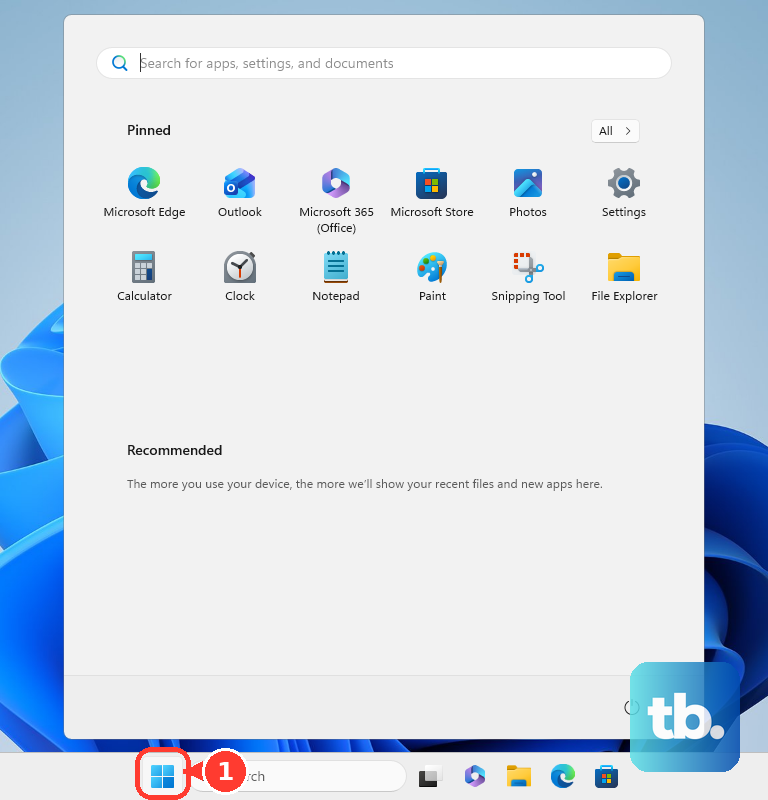
Select View update history, choose Uninstall updates, select the most recent update, and select Uninstall. Some updates cannot be removed, so use the next repair path when Windows does not offer an uninstall option. After removing the update, restart the computer and sign in again. When Windows opens normally, return to Windows Update later and check for newer fixes.
Use Safe Mode when the desktop never loads
This fixes a normal startup path that keeps hanging before you can use Windows. At the sign-in screen, hold Shift while selecting Power, choose Restart, select Troubleshoot, and open Advanced options.
Choose Startup Settings, select Restart, and after the PC restarts, select 5 or press F5 for Safe Mode with Networking. Sign in with your account password, because PIN and biometrics are unavailable in Safe Mode.
Repair Windows update and system files
Use this when the desktop loads but the same failure returns. Open Search, type cmd, right-click Command Prompt, and select Run as administrator.
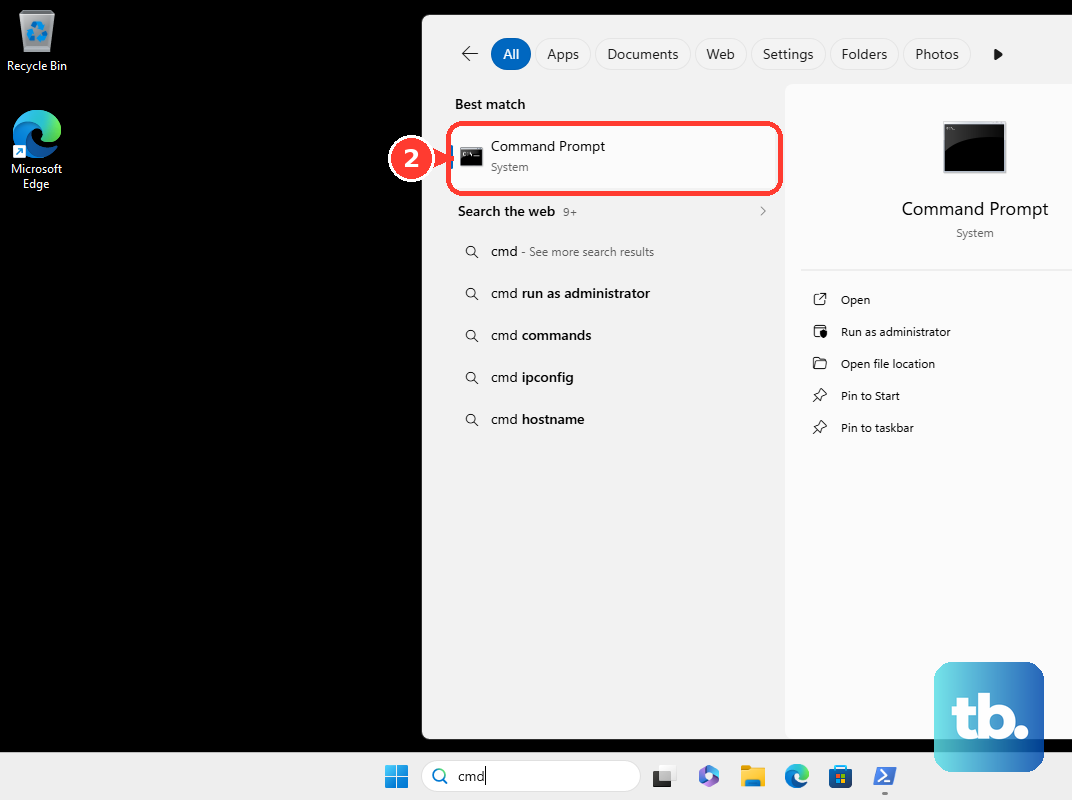
Run DISM.exe /Online /Cleanup-image /Restorehealth and keep Command Prompt open until the command finishes. Run sfc /scannow and wait until verification reaches 100%. Restart the PC after both commands complete.
For update-related trouble, open Get Help and run the automated Windows Update troubleshooter. When that does not resolve it, go to Start > Settings > Update & Security > Troubleshoot > Additional troubleshooters, select Windows Update, choose Run the troubleshooter, restart, then return to Windows Update and select Check for updates.
Fix a display driver after a black screen
Use this method when Personalized Settings Not Responding appears with a black screen after sign-in. It also applies after a Windows update or graphics driver change.
Right-click Start and open Device Manager. Expand Display adapters, then right-click the graphics device. To look for a newer driver, select Update driver and choose Search automatically for updated driver software. Restart if Windows prompts you.
To return to the earlier driver, select Properties, open Driver, choose Roll Back Driver, pick a reason, then select Yes. Rollback requires administrator permission and works only when Windows has a previous driver available.
Check whether your user profile is broken
This fixes a hang that affects one Windows account but not another. From the sign-in screen, select another account from the lower-left list. If needed, select Other user, enter that account's credentials and sign in. Once Windows loads, check updates and review which accounts have administrator rights.
If the original account keeps failing, open Settings, go to Accounts, open Other user, and select Add account. For a local account, choose I don’t have this person’s sign-in information, then select Add a user without a Microsoft account. Remove the broken account only after its local data has been backed up, because removing the sign-in from the device also removes that account's local data from the PC.
Isolate startup apps and services
Sign in as an administrator. Type msconfig in the taskbar Search box and open System Configuration. On Services, select Hide all Microsoft services, select Disable all, and select Apply.
On Startup, select Open Task Manager, then in Task Manager's Startup tab, select an enabled startup item and choose Disable. Repeat for each enabled startup item, then close Task Manager. Select OK in System Configuration and restart the PC. If clean boot helps, turn startup items and services back on later to find the cause; avoid changing advanced boot settings in System Configuration.
Scan for malware
A clean boot isolates background software and service conflicts; it does not detect or remove malware, so run a scan separately. Open Windows Security and select Virus & threat protection.
Under Current threats, select Scan options, choose Full scan, then select Scan now. If you still suspect an infection, return to Scan options and choose Microsoft Defender Antivirus (offline scan), which restarts the PC and scans from the Windows Recovery Environment.
Use recovery when Windows still will not open
Use recovery only after the quick restart, Explorer, update, driver, system file, account, and startup checks fail. These options are more disruptive, but they are the supported route when Windows cannot reach a usable desktop.
If the PC cannot reach the sign-in screen, hold the power button for 10 seconds to force shutdown, then repeat that two or three times until Windows enters Recovery Mode. Open Troubleshoot and Advanced options, then choose Uninstall Updates to remove the latest quality or feature update.
Choose System Restore when you have a restore point from before the issue began. System Restore keeps personal files, but it can undo recent apps, drivers, updates, and settings. Use Startup Repair when Windows cannot start properly.
If nothing else works, use Reset this PC from Troubleshoot, choosing whether to keep personal files or remove everything. Apps and settings are removed.
Before a reset or migration from a working desktop, open Windows Backup from Start and turn on folder and preferences backup, including personalization items such as wallpaper, color, theme, and Start layout. Consumer Windows Backup personalization requires a personal Microsoft account, OneDrive sign-in, and available storage; work or school accounts do not work with the consumer app.
On a Microsoft Entra joined or Entra hybrid joined PC, settings backup is handled by what Microsoft now calls Windows settings backup and restore (formerly Windows Backup for Organizations), which IT must turn on and which requires Windows 10, version 22H2 build 19045.6216 or later.
Do not use old registry-key deletion steps or Airplane mode toggles as a direct Personalized Settings fix. Microsoft’s current consumer repair paths are Explorer restart, update repair, driver repair, system file repair, account recovery, Windows Recovery Environment, reset, and official Windows 10 installation media. On a work or school-managed PC, contact IT before changing update or recovery settings.
Frequently Asked Questions
Why does Windows 10 get stuck on Personalized Settings Not Responding?
The desktop shell did not finish loading after sign-in. The relevant causes are Windows Explorer failing, a recent update, damaged system files, a graphics driver problem, a damaged user profile, malware, or a startup app blocking normal loading.
Will restarting Windows Explorer delete my files?
No. Restarting Windows Explorer restarts the desktop shell, taskbar, and File Explorer process. It does not remove personal files.
Can I use my PIN in Safe Mode?
No. PIN and biometrics are unavailable in Safe Mode, so use the account password.
Should I reset the PC right away?
No. Try restart, Explorer restart, update uninstall, Safe Mode, system file repair, drivers, and account checks first. Reset this PC is a later option because it removes apps and settings, even when you choose to keep personal files.