If Peacock is not loading, close the Peacock app and any background apps, reopen it, then restart your device if playback still fails. For devices other than PlayStation consoles, fully power down or unplug the device, wait 20 seconds, and turn it back on before trying Peacock again.
For PlayStation consoles, use the restart controls below. Before unplugging a console, shut it down completely and wait until its power indicator turns off.
The short version
- Close Peacock and restart your device before clearing anything.
- Pause large downloads and check the connection used for streaming.
- Use the account fixes for sign-in, payment, PIN or stream-limit messages.
- Clear app data or browser cookies, then reinstall if needed.
- Check updates, device support and your location before considering a broader reset.
| Fix | What it does | Time | Use it when |
|---|---|---|---|
| Close and restart | Relaunches the app and device | A few minutes | A spinner or black screen appears |
| Check the connection | Checks speed and network load | A few minutes | Video buffers or loads slowly |
| Check your account | Addresses sign-in and access messages | A few minutes to check | The app opens but playback is blocked |
| Clear data or reinstall | Removes local app data | A few minutes | Restarting did not help |
| Check updates | Looks for app and system updates | Under a minute to check | The app crashes or software is old |
| Clear browser data | Removes cookies and cached files | A few minutes | Peacock fails on a computer |
| Use device restart controls | Restarts a TV, player or console | A few minutes | You need the device's menu path |
| Check support and controls | Checks compatibility and restrictions | A few minutes to check | The app is missing or locked |
Close Peacock and restart your device
Close Peacock completely, close other apps running in the background, then open Peacock again. If the same spinner, black screen or playback error returns, fully power down or unplug the device, except for PlayStation consoles.
For PlayStation consoles, use the restart controls below. Before unplugging a console, shut it down completely and wait until its power indicator turns off.
Wait 20 seconds before turning the device back on or reconnecting power. Once the device has started, open Peacock and try playback again. Use the device restart controls below if you need the menu path for a TV or streaming player.
Check the connection Peacock is using
Pause large downloads, uploads and online games on the network while you try Peacock. Disconnect other devices that are using the same connection, then check whether the video loads with less network traffic. If Peacock now plays, reconnect devices one at a time and check playback after each.
Run an internet speed test on the connection you use to watch Peacock. Peacock recommends at least 3.0 Mbps for streaming, and at least 8 Mbps for certain high-quality live events and ultra-high-definition premium content. Treat these as recommended speeds rather than a promise that every video will play without interruption.
On Roku, open Settings > Network > Check connection to test that player's connection. If other devices also cannot connect to the same Wi-Fi, contact your internet provider. This helps you address a network problem before repeatedly removing the Peacock app.
Check your Peacock account and playback access
Sign out or reset your password
If you can open your account, click the account icon in the upper-right corner and choose Sign Out. Sign back in with your registered email address and password. Check the password's capitalization because Peacock passwords are case sensitive.
If you have forgotten the password, choose Sign In, then Forgot Password?. Enter the email address used for Peacock and select Continue. Follow the emailed reset instructions within 3 hours, and remember that the reset link can only be used once.
Respond to a stream limit or payment message
Peacock permits up to three concurrent streams per account. If you see a simultaneous-streams error, stop playback on another device and allow up to 10 minutes before trying again. A browser or computer crash can also leave a stream counted temporarily, so wait 10 minutes in that case.
For a payment issue, first identify who bills your subscription in your web account. Look for Payment Method under Subscriptions, or Your Plan under Plans & Payment if your account shows that tab. Use the tab your account displays to check whether Peacock or another provider manages payment.
For direct Peacock billing, its documented card-update path is Plans & Payment, then Update Payment Method under Payment Method. Enter and confirm the new details. If another provider bills you, manage payment with that provider rather than looking for Peacock's card-editing controls.
Check a profile PIN
A protected Peacock profile requires a four-digit PIN. To create or update it, open Who's Watching? in a computer or mobile browser and click the Pencil icon beneath the profile. Use the Off/On slider next to Profile Pin, enter your account password, create the PIN and select Save PIN.
Profile PIN settings cannot be changed directly on a TV. If you have forgotten the PIN and cannot regain access, use Peacock's Help Center chat for assistance. Treat a PIN prompt as an access-control issue when choosing which fix to try.
Clear Peacock app data or reinstall it
Clear the cache before deleting all app data when your device offers both choices. Cache clearing removes temporary files, while clearing storage or data removes saved app data. Have your Peacock login ready before choosing the more extensive option.
Android and Fire TV controls
On a Google Pixel, open Settings > Apps > See all apps > Peacock > Storage & cache > Clear cache. On a Samsung Galaxy, use Settings > Apps > Peacock > Storage > Clear cache. Other Android phones can use different settings labels, so follow your phone maker's app-storage controls.
On Fire TV, open Settings > Applications > Manage Installed Applications and select Peacock. Choose Clear Cache, then try the app again. If needed, return to the same screen and choose Clear Data.
iPhone and iPad reinstallation
On iPhone or iPad, touch and hold Peacock, choose Remove App, then Delete App and confirm with Delete. Reinstall Peacock from the App Store and sign in again. Deleting the app does not automatically cancel your subscription.
Reinstallation on other devices
If cache clearing is unavailable or does not help, uninstall and reinstall Peacock using your device's app store. Use the TV-specific reinstall instructions below where provided. After reinstalling, sign in and try playback before moving to a broader device reset.
Update Peacock and your streaming device
Phone and tablet updates
Check for app updates before another reinstall by opening the App Store on iPhone or iPad. Tap the My Account button or your photo. Tap App Updates if shown; otherwise, scroll down to the available updates, as on iOS 18 and iPadOS 18. Tap Update beside Peacock, or Update All for all available app updates.
On Android, open the Google Play Store and tap your profile icon. Choose Manage apps & device, tap See details under Updates available, then select Update beside Peacock.
Streaming player updates
On Roku, press Home, then open Settings > System > Software update > Check Now. This checks for both system software and app updates. On Fire TV, use Settings > My Fire TV or Device & Software, then About > Check for System Update.
TV updates
On Samsung TV, open Settings > All Settings > Support > Software Update > Update Now. On models without All Settings, the documented path goes straight from Settings to Support. Let the update finish before turning off the TV.
On LG webOS 5.0 or later, press Settings, then choose All Settings > Support > Software Update > Check for Updates. On webOS 4.5 or earlier, use All Settings > General > About This TV > Check for Updates. Keep the TV connected to power and the internet during installation.
Fix Peacock in a web browser
Check browser support and updates
For computer viewing, Peacock lists Chrome 125 or later, Firefox 127 or later and Microsoft Edge 125 or later on Windows or Mac. Safari 17.3 or later is supported on Mac. Check these requirements before spending time clearing an unsupported browser.
In Chrome, open More > Help > About Google Chrome to check for an update. Select Relaunch if offered. If that option is absent, Chrome reports that you already have its latest version.
Clear cookies and cached data
In Chrome, open More > Delete browsing data and choose a time range that includes the loading problem. Select Cookies and other site data and Cached images and files, then choose Delete data. Leave other categories unchecked if you want to keep them.
In Edge, open Settings and more > Settings > Privacy, search, and services. Select Clear browsing data, then Choose what to clear beside Clear browsing data now. For Safari and other browsers, follow the steps for clearing the cache in any browser.
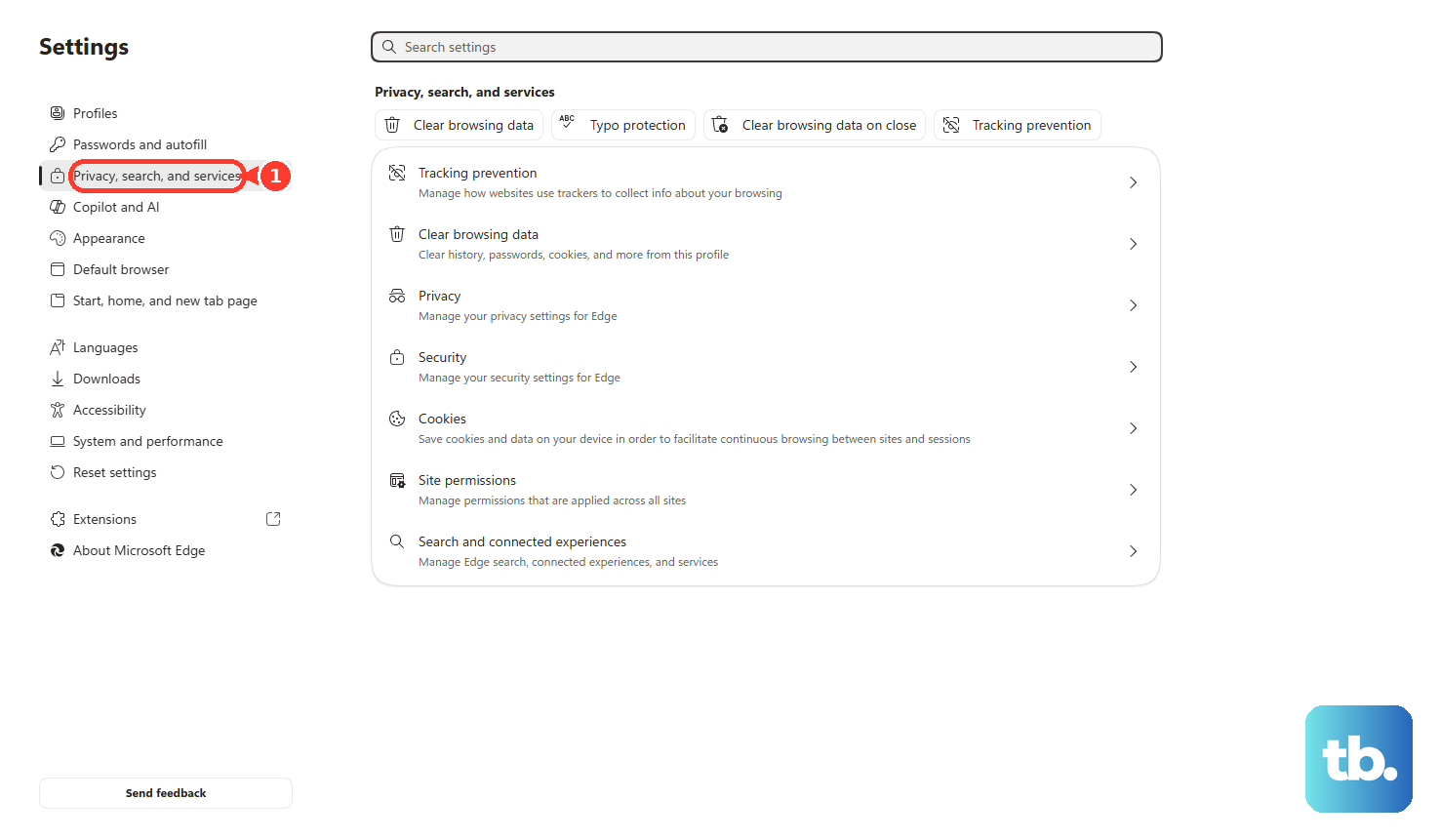
Choose a Time range, select Cookies and other site data and Cached images and files, then click Clear now. If you only want synced browsing data removed from this computer, turn off sync first under Settings > Profiles > Sync.
In current Firefox, open the menu and choose Settings > Privacy and security, then Clear browsing data. Set When to the period you want to clear, check Cookies and site data and Temporary cached files and pages, then choose Clear. Leave other categories unchecked unless you also want to delete them.
On older Firefox layouts, choose Settings > Privacy & Security and select the Clear Data button. Select the cookie and cache categories shown in that dialog, leaving other data unchecked if you want to keep it, then choose Clear.
In Safari on Mac, choose Safari > Settings > Privacy > Manage Website Data. Select Peacock's stored website data and choose Remove, or choose Remove All to clear every site's data. This targets website data without requiring you to erase your browsing history.
If you also want to clear Safari history, choose History > Clear History and select how far back to clear. If Safari history is synced through iCloud, that history is removed from your other synced Apple devices too. After deleting cookies or website data, be prepared to sign in to Peacock again.
Use the restart and reinstall controls for your device
Roku and Fire TV
On Roku, press Home and open Settings > System > Power > System restart. Skip Power if your device does not show that submenu. A system restart keeps your settings and is different from turning a Roku TV off with its power button.
If Roku keeps failing to connect to Wi-Fi, use Settings > System > Advanced system settings > Network connection reset > Reset connection. Reconnect to Wi-Fi afterward. Reserve this for connection trouble rather than using it as the first Peacock fix. For more Wi-Fi checks, see fixing a Roku TV that won't connect to Wi-Fi.
On Fire TV, open Settings > My Fire TV or Device & Software and select Restart. If the interface is frozen, hold Select and Play/Pause together for about 5 seconds. On a Fire TV Smart TV, Amazon documents holding those buttons for 3 to 5 seconds.
Apple TV and Samsung TV
On Apple TV, press TV twice quickly, move to Peacock in the app switcher and swipe up on the clickpad or touch surface. Open Peacock again from the Home Screen. For a device restart, choose Settings > System > Restart.
On Samsung TV, hold the remote's Power button until the TV turns off and back on, which takes about 5 seconds. To reinstall Peacock on the interface with a settings icon, open Apps, select Settings in the upper-right corner, find Peacock and choose Delete. Choose Reinstall instead if Delete is grayed out.
On Samsung's App Settings layout, open Apps > App Settings, select Peacock and choose Reinstall. If you deleted it, use Apps > Search, enter Peacock, select the app and choose Install. Have your login details ready because reinstalling signs you out.
LG TV and game consoles
On LG webOS 6.0 and newer, open the Home app list, choose Edit App List, select Peacock's trash icon and confirm with Yes. On webOS 5.0 or earlier, hold the selected app for 3 seconds, choose the X above it and confirm with Yes. Reinstall through Apps or, on webOS 5.0 or earlier, LG Content Store, using Search and Install.
On PS5, press PS and choose Power > Restart PS5. On PS4, open the function screen and use Power > Power Options > Restart PS4. If Peacock still cannot launch, delete the streaming app and download it again; on supported Xbox consoles, start with Peacock's general close, restart and reinstall sequence above.
Check device support and access controls
Peacock streams within the United States and the supported U.S. territories of American Samoa, Guam, the Northern Mariana Islands, Puerto Rico and the U.S. Virgin Islands. If you are elsewhere, stop troubleshooting the cache as a fix for location restrictions.
Check your exact model in Peacock's Help Center under What devices and platforms are supported by Peacock? before trying to install it again. Use the device requirements there alongside the browser minimums above when checking compatibility.
If Peacock is locked on Samsung TV, open Apps > App Settings, select Peacock and choose Unlock. Enter your TV PIN and select Done when prompted. The TV's app lock uses its security PIN, which is separate from Peacock's profile controls.
On LG TV, check the internet connection, sign in to your LG Account, accept required User Agreements and make sure LG Services Country matches your actual location. Use LG's app installation and settings instructions for the paths that match your webOS version. Those controls have different locations on newer and older TVs.
Keep broader resets for after the app, connection and access checks. A Samsung Smart Hub reset signs you out of all apps, and an LG TV reset removes account settings and installed apps. If the problem remains, sign in to Peacock's Help Center and use Get in Touch to request account-specific help.
Frequently Asked Questions
Why is Peacock stuck on a spinner or black screen?
Start by closing Peacock and background apps, then restarting the device. If playback still fails, check the connection, clear cache or app data and reinstall Peacock as needed.
What internet speed does Peacock need?
Peacock recommends at least 3.0 Mbps for streaming. For certain high-quality live events and ultra-high-definition premium content, it recommends at least 8 Mbps.
Does reinstalling Peacock clear the cache?
Deleting Peacock on iPhone removes the app and its local data before you reinstall it. Android and Fire TV offer separate cache controls, so use those before reinstalling if you want to remove temporary files first.
Why does Peacock say too many streams are active?
Peacock allows up to three concurrent streams per account, so stop playback on another device. After a stream-limit error or a browser crash, you may need to wait 10 minutes before trying again.
Will deleting Peacock cancel my subscription?
Deleting an app on iPhone or iPad does not automatically cancel its in-app subscription. Reinstall it to continue troubleshooting, and handle any subscription changes separately through the provider that bills you.
Why is Peacock asking for a PIN?
A protected Peacock profile uses a four-digit PIN, managed through a computer or mobile browser. A Samsung TV app lock uses the TV security PIN instead, so check which screen is asking before changing either setting.