One AirPod goes silent when the audio is routed wrong, one bud is not charging, the mesh is blocked, balance is shifted, or the pairing state has broken. Start with the checks that do not erase anything, then move to reset, firmware, replacement setup, and service only after the quick fixes fail.
1. Start with output volume and Bluetooth
Before you change AirPods settings, make sure your phone, tablet, or Mac is sending audio to the earbuds.
- 1.Open Control Center on your iPhone, iPad, or Mac.
- 2.Tap or click the AirPlay button.
- 3.Select your AirPods in the device list.
- 4.Play audio from the device, then raise the volume.
Keep the AirPods close to the device.
On iPhone or iPad, open Settings > Bluetooth, turn Bluetooth off, wait a few seconds, then turn it back on.
On Mac, choose Apple menu > System Settings > Bluetooth.
2. Check whether both AirPods are charging
Place both AirPods in the charging case.
Open the lid or take the AirPods out, then hold them near your iPhone or iPad.
Open Settings > Bluetooth.
Tap the Info button next to your AirPods.
Check the battery details for each AirPod.
If you use a wireless charging case on a Qi-compatible charger, place the case with the status light facing up.
If the light stays off, reposition the case, or connect a compatible cable and USB power adapter.
For AirPods Pro and AirPods 3 or later, wear the AirPods and confirm they are connected to your iPhone or iPad.
Open Settings, select your AirPods, tap Battery, then turn off Optimized Battery Charging.
For AirPods Pro 3, turn off Optimized Charge Limit from the same Battery screen, either entirely or for one day.
3. Clean the quiet AirPod and the case
Blocked speaker mesh, microphone mesh, ear tip areas, or charging contacts stop one side from playing or charging correctly. Clean the earbud first, then clean the case.
Remove the ear tips on AirPods Pro.
Inspect the speaker mesh and microphone mesh on each AirPod.
For AirPods 3 and AirPods 4 meshes, apply micellar water that includes PEG-6 Caprylic/Capric Glycerides (or use a Belkin AirPods Cleaning Kit) to a child-size soft-bristled toothbrush.
Brush the mesh in circles for about 15 seconds.
Blot the AirPod on a paper towel, then repeat the brush-and-blot pass two more times, three passes total, for each mesh.
To rinse, rinse the brush with distilled water and repeat the full cleaning pass with distilled water, then let the AirPods dry completely for at least two hours before use.
Clean the charging case with a soft, dry, lint-free cloth.
Slightly dampen the cloth with isopropyl alcohol when needed, then let the case dry.
Remove debris from the charging port with a clean, dry, soft-bristled brush.
Do not put anything into the charging ports. That damages the metal contacts.
For AirPods Pro 3, Apple also documents an optional rinse step.
Place your thumb or index finger over the ear tip hole of each AirPod to seal it, immerse each AirPod in a bowl of water for 10 seconds while shaking lightly, hold the stem, dab the ear tip onto a dry lint-free cloth for 10 seconds, then dry with the cloth.
4. Center the left and right balance
A shifted balance setting makes one working AirPod sound silent.
On iPhone or iPad, open Settings > Accessibility > Audio & Visual, then move the Balance slider to the middle.
On Mac, choose Apple menu > System Settings, click Sound in the sidebar, click Output, select your AirPods, then drag the Balance slider to the center.
Use that current iPhone and iPad path. The old Settings > General > Accessibility route is legacy for modern iOS and iPadOS.
5. Use mono audio for missing stereo channels
Mono Audio is for songs, videos, calls, or apps that place important sound in only the left or right channel. It is not a repair step for an AirPod that produces no sound at all.
On iPhone or iPad, open Settings > Accessibility > Audio & Visual > Mono Audio.
On Apple Watch, open Settings > Accessibility > Mono Audio.
On Mac, open System Settings > Accessibility > Audio > Play stereo audio as mono.
6. Restart then pair the AirPods again
A restart clears a bad AirPods session without erasing the pairing. Try it before a factory reset.
For AirPods or AirPods Pro, place both earbuds in the case.
Close the lid for at least 10 seconds.
Open the case and test audio again.
For AirPods Max, press and hold the Digital Crown and the listening mode button until the status light next to the charging port flashes amber, around 10 seconds, then release immediately.
If one side still fails, remove the pairing and connect again.
On iPhone or iPad, open Settings, tap the name of your AirPods near the top of the screen, then tap Forget This Device.
On Mac, open System Settings, click the name of your AirPods in the sidebar, then click Forget This Device.
On Apple Watch, open Settings > Bluetooth > Info > Forget Device.
On Apple TV, open Settings > Remotes and Devices > Bluetooth, select your AirPods, then choose Forget This Device.
Pair again with a device associated with your Apple Account.
7. Reset using the method for your model
Reset only after charging, cleaning, output, Bluetooth, balance, and restart checks fail. The reset control changed on newer models, so use the exact method below.
For AirPods 1, AirPods 2, AirPods 3, AirPods Pro 1, and AirPods Pro 2, put the AirPods in the case, close the lid, and wait 30 seconds.
On the paired iPhone or iPad, open Settings > Bluetooth.
If the AirPods appear in My Devices, tap the More Info button, tap Forget This Device, then confirm.
Open the lid, press and hold the setup button on the back of the case for about 15 seconds, wait until the status light flashes amber and then white, then reconnect onscreen.
For AirPods 4, AirPods 4 with Active Noise Cancellation, and AirPods Pro 3, put the AirPods in the case, close the lid, and wait 30 seconds.
On the paired iPhone or iPad, open Settings > Bluetooth, tap the More Info button when your AirPods appear, tap Forget This Device, then confirm.
Open the lid, double-tap the front of the case while the status light is on, double-tap again when the light flashes white, then double-tap a third time when the light flashes faster.
Reconnect when the light flashes amber and then white.
For AirPods Max, press and hold the Digital Crown and the listening mode button at the same time until the status light changes from flashing amber to flashing white, around 15 seconds.
8. Update the device and AirPods firmware
Back up your iPhone or iPad.
Plug it into power and connect it to Wi-Fi.
Open Settings > General > Software Update.
Tap Download and Install when an update appears, then follow the onscreen instructions.
After the iPhone, iPad, or Mac is updated, update AirPods firmware.
Turn on Bluetooth, connect the AirPods by Bluetooth, connect the iPhone, iPad, or Mac to Wi-Fi, connect the AirPods charging case to power, put the AirPods in the case, close the lid, keep the case in Bluetooth range, and wait at least 30 minutes.
Open the lid to reconnect, then check the firmware again.
For AirPods Max, plug the charging cable into the bottom-right earphone, then plug the other end of the cable into a USB charger or port.
Keep the headphones in Bluetooth range and wait at least 30 minutes for the firmware to update.
9. Finish with platform pairing replacement and service
On Android or another non-Apple device, turn on Bluetooth.
On Android, open Settings > Connections > Bluetooth.
For AirPods 1, AirPods 2, AirPods 3, AirPods Pro 1, or AirPods Pro 2, open the case with the AirPods inside, then hold the setup button for about 5 seconds until the status light flashes white.
For AirPods 4 or AirPods Pro 3, open the case next to the device and double-tap the front of the case so the status light flashes white.
For AirPods Max, hold the listening mode button for about 5 seconds until the status light flashes white.
Select the AirPods when they appear in Bluetooth devices.
On Windows 11, remove and add the AirPods again from Start > Settings > Bluetooth & devices > Devices > More options for the AirPods > Remove device > Yes.
Then pair them again.
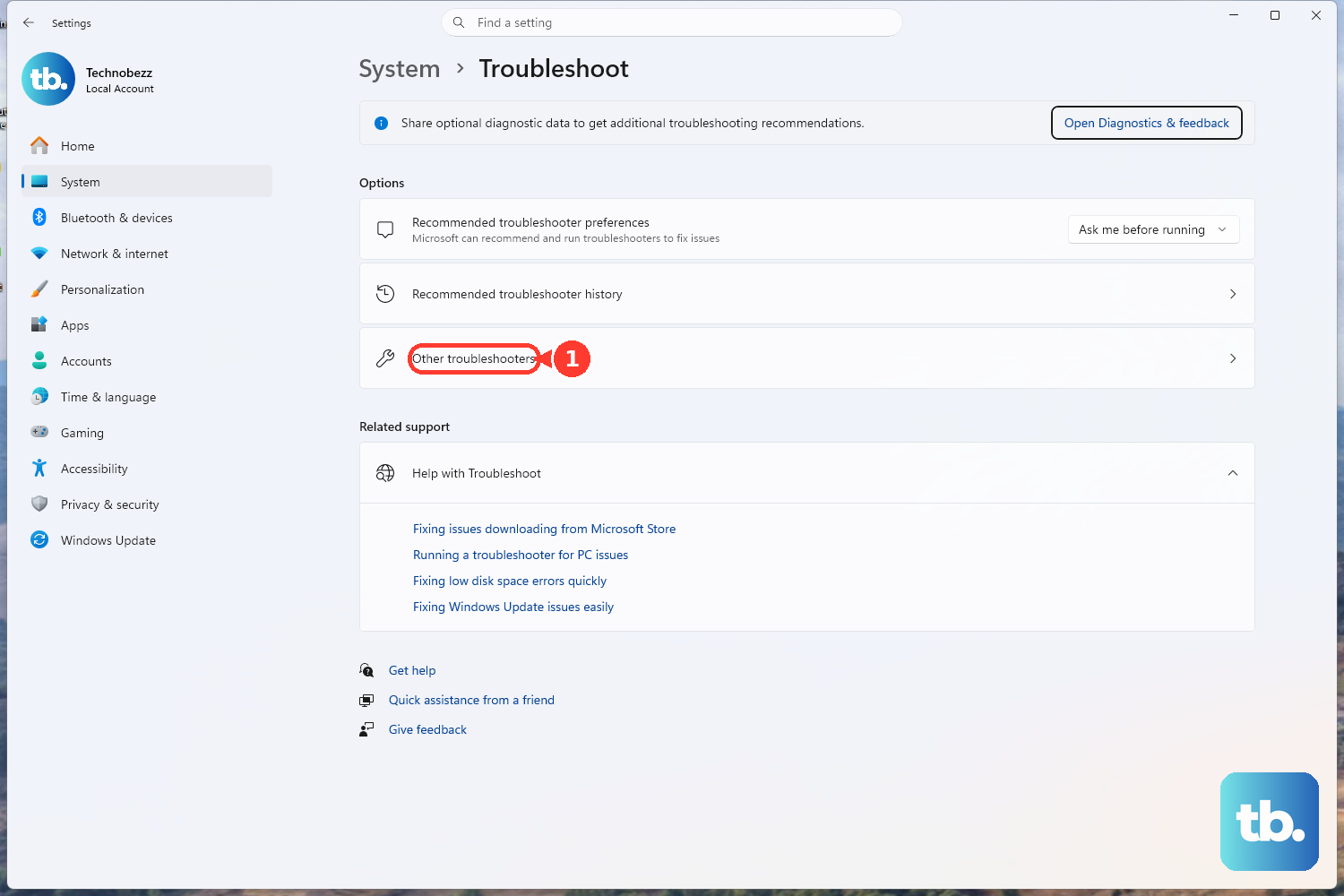
To run the Bluetooth troubleshooter, open Start > Settings > System > Troubleshoot > Other troubleshooters > Bluetooth > Run.
For driver repair, open Search > Device Manager > Bluetooth > your Bluetooth adapter name > Update driver > Search automatically for updated driver software.
If one AirPod or the case was replaced, put both AirPods in the charging case, connect the case to power, close the lid, and wait 20 minutes.
Open the lid.
If the status light already flashes white, skip the next reset step and go straight to forgetting the device.
If it does not flash white, then for older AirPods and AirPods Pro models, hold the setup button until the status light flashes amber and then white; for AirPods 4 or AirPods Pro 3, double-tap the front of the case while the status light is on, double-tap again when it flashes white, then double-tap a third time when it flashes faster until it flashes amber and then white.
With the status light flashing white, close the case lid.
Before tapping Connect, open Settings > Bluetooth, tap the More Info button if your AirPods appear, tap Forget This Device, then confirm.
Open the lid and go to the Home Screen to continue setup.
If ownership pairing blocks setup, remove the AirPods from the Apple Account in Find My.
On iPhone or iPad, open Find My > Devices, tap your AirPods, swipe up, tap Remove This Device, then tap Remove.
On Mac, open Find My > Devices, select your AirPods, click the More Info button on the map, then click Remove This Device.
When cleaning, charging, balance, pairing, reset, and updates do not restore sound, use Apple Service and Repair for AirPods.
Choose Get started, describe the issue, then choose mail-in service, Genius Bar, or Apple Authorized Service Provider inspection when offered.
Frequently Asked Questions
Does AirPods Pro noise cancellation work with only one AirPod in?
Yes, on supported AirPods 4 with Active Noise Cancellation and AirPods Pro models. On iPhone or iPad, open Settings > Accessibility > AirPods, turn on Noise Cancellation with One AirPod, then press and hold the force sensor to switch listening modes.
Why should I avoid the rear button reset on AirPods 4 and AirPods Pro 3?
AirPods 4 and AirPods Pro 3 use front-of-case double taps for reset and pairing. The rear setup button reset applies to AirPods 1, AirPods 2, AirPods 3, AirPods Pro 1, and AirPods Pro 2.
Can I use AirPods with Android if one side stopped working there?
Yes. Turn on Bluetooth, put the AirPods into pairing mode using the method for your model, then select the AirPods in the Android Bluetooth device list. Siri is unavailable on non-Apple devices, but listening and talking work.
What should I do before selling or using secondhand AirPods?
Remove them from the previous Apple Account in Find My. On iPhone or iPad, use Find My > Devices > AirPods > Remove This Device > Remove. On Mac, use Find My > Devices > AirPods > More Info > Remove This Device.