OBS desktop audio goes silent when the mixer is muted, the wrong output device is selected, macOS blocks recording access, or audio is routed to the wrong track. Start inside OBS, then check the operating system and the app playing the sound.
After each fix, play audio and watch the Desktop Audio meter. When the meter moves, OBS is hearing your computer audio.
Check the OBS audio mixer first
Open OBS Studio and look at Audio Mixer. If Desktop Audio shows a muted speaker, click the Mute Button.
Drag the Desktop Audio fader up. Play sound from the app, game, browser, or console you want to capture, then watch the Volume Meter.
If the meter stays flat, raise or unmute the sound at the source itself. Then check the operating system mixer and come back to the OBS fader.
Pick the right Desktop Audio device
The most common cause is OBS listening to a different playback device than the one your computer is using.
In OBS Studio, open Settings, then Audio, then Global Audio Devices. Set Desktop Audio to Default, or choose the exact speakers, headset, monitor, or interface playing your computer sound.
Click Apply, then OK. Play audio again and watch the Desktop Audio meter in Audio Mixer.
If you add that same device as a scene source later, return to Settings, then Audio, and set the duplicate global device to Disabled.
Add desktop audio as a source
Use this when you want desktop sound controlled per scene instead of globally. On Linux, use the Linux-specific capture source instead of Audio Output Capture.
In the Sources dock, click + and choose Audio Output Capture. Choose Create new or Add Existing, open Device, select the playback device, and click OK.
On Linux, click + in Sources, choose Audio Capture Device (ALSA/PulseAudio), select the device or monitor source, and click OK.
On Windows or macOS, capture a playback device only once. If this source is active, set the matching global Desktop Audio device to Disabled.
Fix silent recordings with tracks
A recording can play back with no desktop sound even when the OBS meter moved during recording. That happens when Desktop Audio goes to a track your player is not using.
Open Advanced Audio Properties from the gear icon at the bottom left of the Audio Mixer dock. You can also open Edit, then Advanced Audio Properties.
Find Desktop Audio and enable Track 1 for standard playback or streaming. Then open Settings, then Output, and enable the tracks you want OBS to record.
Make Windows send sound to OBS
Open Start, then Settings, then System, then Sound. Under Output, select the speakers, headset, monitor, or audio interface you want to use, then turn the volume up and unmute it.
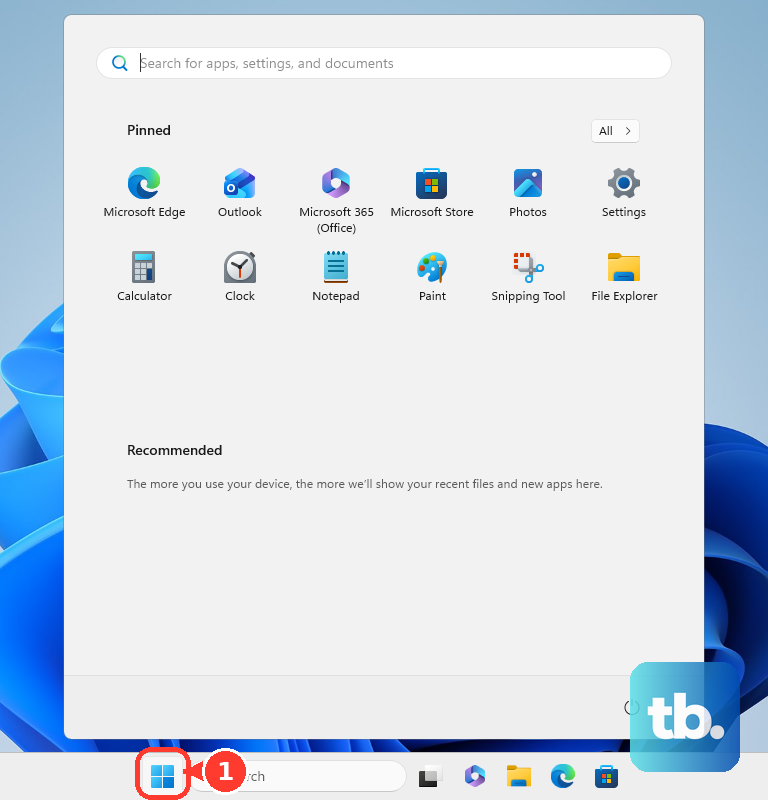
When OBS Desktop Audio is set to Default, set the Windows default playback device too. Open Start, then Settings, then System, then Sound, then More sound settings, then Playback, right-click the device, and choose Set as default.
Open Start, then Settings, then System, then Sound, then Volume mixer. Under Apps, unmute the affected app, raise its slider, and set Output device to the device OBS is capturing.
If the device is disabled, open Start, then Settings, then System, then Sound, then Advanced, then More sound settings. In Playback or Recording, open the device Properties, set Device usage to Use this device (enable), and test OBS again.
For one stubborn Windows app, add Application Audio Capture (BETA) from the OBS Sources dock, choose the window containing the audio, and set Window Match Priority. In OBS Studio 30.1 or newer, Window Capture and Game Capture can include app audio when Capture Audio (BETA) is turned on.
When a Windows app still does not route cleanly, send it through VB-Cable. Add Audio Input Capture in OBS, select CABLE Output, then use Windows Volume mixer to set the affected app output to CABLE Input.
Fix routing and muting first before changing Windows audio enhancements or default format.
Use the macOS audio capture source
Use this on OBS Studio 30 or newer with macOS 13 Ventura or later. OBS can capture all desktop audio or one specific app through its built-in macOS source.
In the OBS Sources dock, click + and choose macOS Audio Capture Source. Choose all desktop audio or a specific application, then check the new source in Audio Mixer.
If the source stays silent, open the Apple menu, then System Settings, then Privacy & Security, then Screen & System Audio Recording. On macOS 13 Ventura that entry is named Screen Recording, so open that pane if you do not see Screen & System Audio Recording. Turn recording on for OBS Studio.
If OBS Studio is missing, click the Add button below the list and add OBS Studio. For microphones, interfaces, or input devices used with desktop audio, quit OBS, open Privacy & Security, then Microphone, turn on OBS Studio, and reopen OBS.
For older routing setups, Loopback and Sound Siphon remain supported options. On current OBS and macOS, start with macOS Audio Capture Source.
Correct the Mac output device
The most common Mac-side cause is sound playing through a different output device, or the selected output being muted before OBS captures it.
Open the Apple menu, then System Settings, then Sound, then Output. Select the device you want to hear and capture, drag Output volume up, and clear Mute.
For built-in speakers, unplug headphones or external speakers, then choose your Mac speakers in Output. For external speakers, plug them in, power them on, and select them in Output.
If you use virtual-cable routing, open Audio MIDI Setup, create a Multi-Output Device, select Use for each device, and choose the Primary Device. Then select that multi-output device in System Settings, then Sound, then Output, and set OBS Settings, then Audio, then Desktop Audio to the virtual cable device.
Fix browser audio OBS cannot hear
In Microsoft Edge, find the tab with the speaker icon and select the speaker icon to unmute it.
Open the Edge tab and press Ctrl + M if you prefer the keyboard shortcut.
In Chrome, open More, then Settings, then Privacy and security, then Site settings, then Content, then Additional content settings, then Sound.
Choose the option that allows sites to play sound, then check the sound permission for the silent site.
In Firefox, right-click or Control-click the tab and choose Unmute Tabs.
Open the Firefox tab and press Ctrl + M to toggle tab audio from the keyboard.
Use the browser sound setting or tab mute control before changing OBS scenes.
Repair system audio and update OBS
Use these fixes when sound is broken outside OBS too, or when the expected audio device does not appear in OBS.
On Windows 11, open Start, then Settings, then Windows Update, then Check for updates. Install audio driver updates and restart your PC.
Open Start, type Device Manager, open Sound, video and game controllers, right-click the audio device, choose Update driver, then choose Search automatically for drivers and restart.
If the driver is corrupted, open Device Manager, then Sound, video and game controllers, right-click the audio device, choose Uninstall device, confirm when prompted, and restart your PC. Use the PC or audio-device maker's support website for the latest driver when Windows does not install the right one.
Restart Windows audio services when audio suddenly fails across apps. Open Start, type services.msc, press Enter, right-click Windows Audio and choose Restart, then right-click Windows Audio Endpoint Builder and choose Restart.
For playback problems before audio reaches OBS, open Start, then Settings, then System, then Sound, choose your output device, set Audio enhancements to Off, or change Default format under Advanced and test audio again.
Install the current OBS Studio release from the official OBS download page for Windows, macOS, or Linux. On Ubuntu 24.04 or newer, use the official OBS PPA commands shown on that page.
If this fails, go back to Settings, then Audio, confirm the Desktop Audio device, then reopen Advanced Audio Properties and confirm Track 1.
Check work or school restrictions
Managed computers can block audio or recording access even when OBS is configured correctly. On a managed Mac, device management can control microphone, screen, and system-audio recording permissions.
On managed Windows devices, microphone privacy policy can force app access on or off. That mainly affects microphones and audio inputs, not normal desktop output capture.
If OBS settings look right but permission controls are locked or keep changing back, ask your IT admin to allow OBS Studio to record screen, system audio, and microphone input on that device.
Frequently Asked Questions
Why does OBS show moving audio meters but my recording has no desktop sound?
Desktop Audio is assigned to a track your player is not using. Open Advanced Audio Properties, enable Track 1 for Desktop Audio, then make sure that track is enabled under Settings > Output.
Should I use Desktop Audio or Application Audio Capture in OBS?
Use Desktop Audio for normal system sound. Use Application Audio Capture on Windows 10 version 2004 or later and Windows 11 when you only want one supported app or window.
Why is OBS desktop audio silent on macOS?
On OBS Studio 30 or newer with macOS 13 or later, add macOS Audio Capture Source and allow OBS Studio under Screen & System Audio Recording in macOS Privacy & Security, which is named Screen Recording on macOS 13 Ventura.
Does reinstalling OBS fix desktop audio?
Updating OBS helps when you are on an old release, especially on macOS. Most cases are fixed faster by unmuting the mixer, selecting the right output device, granting permission, or correcting track routing.