Your Samsung phone shows No service, and cellular calls and texts aren't getting through. Start with coverage and a restart, then check the SIM and network settings. The steps below separate a phone problem from a carrier outage or inactive line so you know what to fix next.
Check whether service is available around you
Start with your carrier’s coverage map. Move to an area with stronger coverage, then check the signal bars and retry a call.
Check for an outage through your carrier’s website or account app. On Verizon, sign in to My Verizon and look for a Network Notification, or open Device Overview for an outage alert and line status. During an outage, service depends on the carrier restoring its network.
Confirm that your line is active, especially after activating a phone or changing carriers. If activation is incomplete or the line is suspended, contact your carrier from another working device or visit its store.
Rule out Airplane mode and restart
Open Settings > Connections > Airplane mode and turn it off.
Remove the phone’s case or cover to check for interference with reception.
Check reception again.
Open Quick settings and tap the Power icon.
Tap Restart.
Tap Restart again to confirm.
If the screen does not respond, hold the Side key and Volume down key together for more than seven seconds, until the phone restarts.
If service still does not return, check that the intended SIM or eSIM is enabled.
Make sure your line is enabled
This corrects a disabled line or the wrong default SIM on supported Galaxy phones.
Open Settings > Connections > SIM manager.
Turn on the switch beside the physical SIM or activated eSIM you want to use.
On a dual-SIM phone that offers it, open Primary SIM.
Select your active line for calls, texts, and data. This changes the default line; it does not repair the other SIM’s connection.
If your eSIM was never activated, ask your carrier for activation instructions. eSIM support depends on the phone, region, and carrier; obtain carrier instructions before replacing an existing profile.
For a carrier-supplied QR code, open Settings > Connections > SIM manager > Add eSIM.
Select Scan QR code.
Scan your carrier’s code.
Complete the activation prompts.
Restart the phone after activation.
Reseat a physical SIM carefully
Power off the phone before removing its physical SIM. Skip this procedure for an eSIM.
Eject the SIM tray using its eject hole.
Remove the SIM from the tray.
Inspect the SIM and tray for damage.
Gently wipe dirt from the SIM with a soft, dry cloth, keeping your fingers and metal objects away from the contacts.
Seat the SIM flush in the tray, aligned with its cutout and your model’s tray orientation.
Fully reinsert the tray.
Power on the phone.
If service remains unavailable, test another active, compatible SIM from your carrier. The test SIM must work with the phone’s carrier lock.
Ask your carrier for a replacement if the SIM is faulty or damaged.
Automatic network selection can restore a lost connection
A manually selected network leaves your phone without service when that network becomes unavailable. On Galaxy phones with Network operators, open Settings > Connections > Mobile networks > Network operators and turn on Select automatically. If that menu is missing, continue to the network-mode check.
For phones offering network-mode controls, open Settings > Connections > Mobile networks > Network mode and choose the automatic connection option. Some Samsung models label this Network Mode (SIM1/SIM2) and offer 5G/LTE/3G/2G (Auto Connect); the choices depend on your model and carrier.
If the connection problem involves 5G, select an offered LTE-capable alternative. Check service again after changing the mode. There is no universal LTE-only option across Galaxy phones.
Install updates and reset mobile network settings
Connect the phone to working Wi-Fi.
Open Settings > Software update > Download and install. On carrier versions using different labels, use Settings > System updates > Check for software updates.
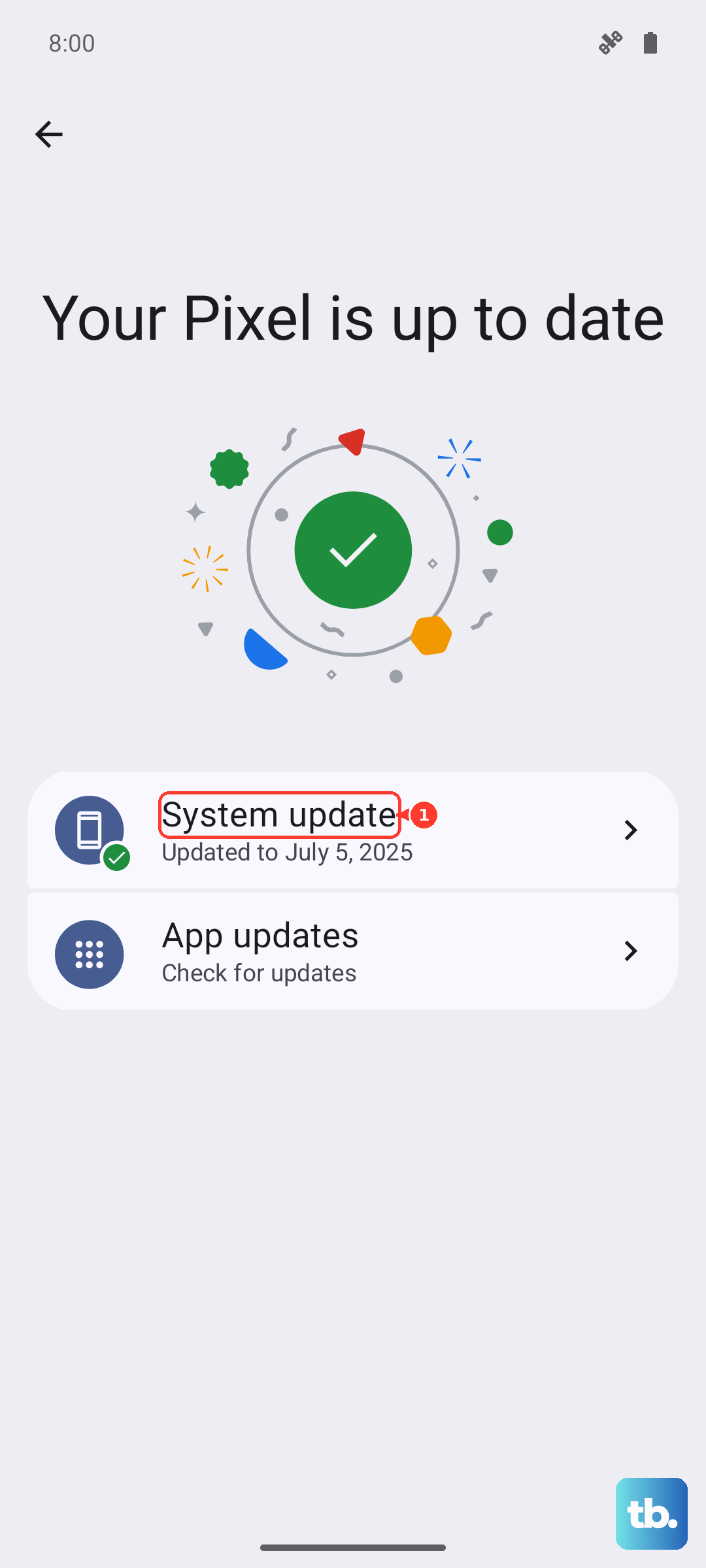
Complete the download and installation prompts for an available update.
If service is still missing, open Settings > General management > Reset > Reset mobile network settings. This resets mobile configuration without factory-erasing your phone.
Tap Reset settings.
Enter your security credentials if requested.
Tap Reset to confirm.
Use the separate mobile-network reset before considering a factory reset that erases personal data.
If the problem started after installing an app
Safe mode disables downloaded apps so you can test whether an app is interfering with service.
- 1.Open the power menu through the Power icon in Quick settings.
- 2.Touch and hold Power off.
- 3.Tap Safe mode.
- 4.Check reception and test a call.
- 5.If service returns, remove one recently installed suspect app: on the Apps screen, touch and hold the app, then tap Uninstall > OK.
- 6.Restart normally and retest. Remove other suspects individually, restarting and testing after each removal.
Get the SIM and network checked
Diagnostics and carrier support address persistent SIM or network-registration failures.
Open Samsung Members > Support > Get Started > Mobile network. Diagnostic availability and capitalization vary by app version.
Complete the mobile-network diagnostic prompts.
For a SIM-detection problem, open Samsung Members > Support > Get started > SIM.
Complete the SIM diagnostic prompts.
If service remains unavailable, contact your carrier from another working device or visit its store.
Ask the carrier to confirm that the line is active.
Ask it to investigate SIM or network registration, especially when the network is visible but the phone cannot connect.
A factory reset is the last software step
After carrier and SIM checks, use Settings > General management > Reset > Reset all settings > Reset settings > Reset for a broader settings reset. This preserves personal data, but it does not fix every cause of missing service.
Reserve a factory reset for a persistent problem after the earlier checks. Back up your data and retain your account credentials first, because this reset erases personal data. It cannot fix a carrier outage or suspended account.
Open Settings > General management > Reset > Factory data reset > Reset > Delete all. Authenticate when prompted. Complete setup and test service before restoring downloaded apps.
For impact, liquid, or SIM-tray damage, arrange an inspection through Samsung’s Support Center or an authorized walk-in service center. Seek service as well if the phone still fails after software and carrier checks.
Frequently Asked Questions
Can I make calls while my Samsung phone shows No service?
Wi-Fi Calling provides supported calling and messaging over Wi-Fi on compatible Galaxy phones with a participating carrier and active SIM or eSIM service. Connect to Wi-Fi. Open Settings > Connections > Wi-Fi Calling and turn it on. Enter the requested emergency information, then tap Save. This uses Wi-Fi for calls; cellular reception stays unchanged.
Can I update my Samsung phone through a computer?
Yes, when Smart Switch offers an update for your phone. Install Smart Switch from Samsung’s official download page on a compatible Windows PC or Mac. Connect the phone by USB, then open Smart Switch. After it detects the phone, select Update if offered and complete the prompts. Keep the cable connected until the update finishes.
What if calls work but mobile internet does not?
Check the mobile-data controls. Open Settings > Connections > Data usage and enable Mobile data. Under Data saver, disable Turn on now or allow the affected app. Under Billing cycle and data warning, turn off Limit mobile data usage—called Set data limit on some carriers—if appropriate for your plan. Check Allowed networks for apps for a Wi-Fi-only restriction on the affected app. These controls address mobile internet, not missing cellular registration.
Why did service stop after I put in another carrier’s SIM?
Check the new line’s activation and the phone’s carrier-lock status with the carrier. A locked phone requires the original carrier’s unlock process before using another carrier’s SIM. For an organization- or finance-managed phone with Knox Guard SIM restrictions, contact the organization or finance provider’s administrator to resolve the policy.