LockDown Browser breaks at the worst possible time: right before an exam, during the webcam check, or after you click the launch button and nothing happens. The fix depends on where it fails, so start with the fastest checks and then jump to the section that matches your screen.
Everything below follows current Respondus support paths for Windows, Mac, Chromebook, and iPad.
1. Confirm your device is supported
Unsupported devices will not pass LockDown Browser requirements. Check this first before reinstalling anything.
Windows: Use Windows 11 or Windows 10 version 10.0.19045, build 19045, or newer.
Mac: Use macOS 12 or newer.
Chromebook: Use ChromeOS on at least Google's Long Term Support channel. Stable channel is recommended.
iPad: Use iPadOS 15.0 or newer on an iPad.
Respondus Monitor webcam exams: Use a computer with at least 4 GB available RAM.
Windows 10 S mode, Windows 11 S mode, Windows 10 SE, and Windows 11 SE are not compatible. Use a supported computer instead.
2. Install the version from your school
LockDown Browser installs are tied to a school. A random download or another institution's copy sends you to the wrong login page.
- 1.Get the Respondus download link from your instructor, school help desk, or quiz page.
- 2.Open the institution-specific URL. The official format is https://download.respondus.com/lockdown/download.php?id=xxxxxxxxx, with your school's 9-digit Institution ID replacing the x values.
- 3.Skip third-party download portals and do not use the literal xxxxxxxxx URL.
- 4.On Windows, download LockDownBrowser-2-0-x-xx.exe, then run it while signed in as a local administrator.
- 5.On Mac, download InstallLDBPackage64c-2-0-x-xx.zip, open the zip if needed, then open Install Respondus LockDown Browser xxxxxxxxx.pkg.
- 6.Accept the default installer prompts.
If LockDown Browser opens a different school's login page, uninstall that copy, get the correct institution URL from your school, and install the proper version.
3. Launch the exam from the right screen
For most LMS exams, open a standard browser first. Sign in to your learning system, open the course, find the exam, then click the LMS button labeled Launch LockDown Browser, Launch Quiz, or View Assessment.
Canvas Classic Quizzes and Blackboard Learn Original use a different path on Windows and Mac. Open LockDown Browser from the Windows desktop icon or Mac Applications folder, sign in to your school's LMS, then open the exam.
When Launch LockDown Browser does nothing in Chrome, click Customize and Control, open Settings, type reset in Search settings, choose Restore settings to their original defaults, then click Reset settings.
In Firefox, open Menu, go to Settings, then Applications. Set the RLDB content type to open with LockDown Browser.
4. Update or repair the app
Open LockDown Browser, select the i button in the toolbar, then click Check for Update. On Mac webcam troubleshooting screens, use the Globe icon and choose Check for update.
If the app does not update from inside LockDown Browser, download the full installer again from your institution-specific Respondus URL. Run it and accept the prompts to Modify, Repair, Reinstall, or Update.
On Windows, download failures need a clean installer run. Try a different browser such as Firefox or Google Chrome. If security software changed the .exe extension, rename it back to LockDownBrowser-xxx-yy.exe, sign directly into Windows as a local administrator, run the installer, then re-enable any security software you temporarily relaxed for testing.
On Mac, a digital signature error means the Mac is below the supported macOS version. Upgrade to macOS 12 or newer, then run the installer again.
5. Fix the webcam and microphone check
Restart the computer.
Close every app that uses the camera or microphone.
Open LockDown Browser.
Next, select the i toolbar button or the Mac Globe icon, then click Check for Update.
After that, sign in to the LMS, open a course, click Help Center, then run System Check or System & Network Check.
Then click Run Webcam Check.
During the webcam check, click Change my webcam and select the real internal or external camera. Do not select a splitter or filter.
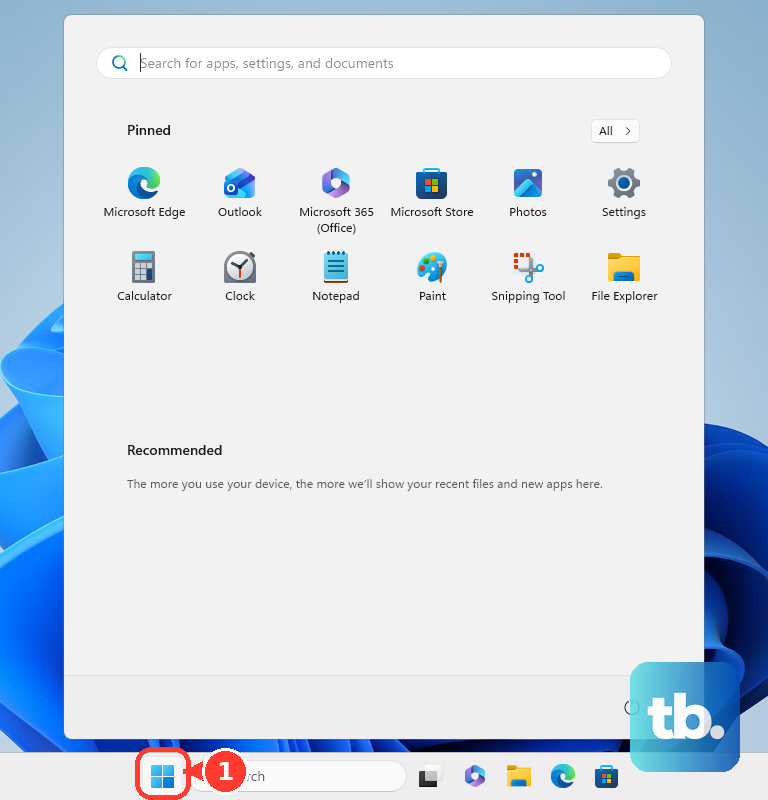
On Windows 11, open Start, Settings, Privacy & security, then Camera. Turn on Camera access, Let apps access your camera, and Let desktop apps access your camera. Then open Microphone and turn on Microphone access, Let apps access your microphone, and Let desktop apps access your microphone.
On Mac with macOS 13 or newer, open Apple menu, System Settings, Privacy & Security, then Camera and turn on LockDown Browser. Repeat under Microphone. On macOS 12, open Apple menu, System Preferences, Security & Privacy, Privacy, then turn on LockDown Browser under Camera and Microphone.
If the microphone recording is silent, turn the computer volume all the way up and make sure the operating system has not muted LockDown Browser. In Run Webcam Check, click It's not working and follow the troubleshooter.
6. Close blocked apps before the exam
LockDown Browser stops when screen capture, messaging, screen sharing, network monitor, remote desktop, virtual machine, and similar tools are running. Quit those apps before launch. If LockDown Browser offers to close them automatically, allow it.
On Mac, a warning about SSInvitationAgent or screen sharing needs Activity Monitor. Quit LockDown Browser, sign out of Messages and other messaging apps, open Finder, Applications, Utilities, then Activity Monitor. Click CPU, sort by Process Name, select SSInvitationAgent and SSMenuAgent, click the Stop button, then choose Force Quit.
7. Recover after a freeze or forced shutdown
If LockDown Browser freezes during a test and your instructor made Student Early Exit available, use it and enter the required reason. If a proctor is present, ask for the Proctor Exit Password. If no exit path works, hold the physical power button until the computer fully turns off; on Macs without a physical power button, hold Touch ID for six seconds.
After a forced Windows shutdown, install the latest LockDown Browser first. Right-click the desktop LockDown Browser shortcut, open Properties, select the Shortcut tab, append a space plus /restore to Target, start LockDown Browser with that shortcut, wait for the confirmation pop-up, then remove /restore.
If Windows restrictions remain after restarting while LockDown Browser was open, start the computer from a full power down. Open LockDown Browser, quit it immediately, log out of the Windows user account, then log back in.
8. Clear network and Chromebook errors
For server or AWS errors, confirm the internet connection works. Allow LockDownBrowser.exe on Windows or LockDown Browser on Mac through local firewall or security software. For 0x.AWS.xxx errors, first set the computer date, time, and time zone to match your physical location.
If that does not fix it, confirm the firewall allows the Respondus domains, that TLS 1.2 is enabled on Windows, and that you are not connecting through a VPN, proxy, or Tor.
On a campus, proxy, or firewall network, ask IT to allow-list the current Respondus domains: *.amazonaws.com, *.respondus.com, *.respondus2.com, *.cloudfront.net, and *.knowledgeowl.com, all over port 443 with TLS 1.2 or newer.
Chromebook extension missing: Enter Chrome://extensions/, find LockDown Browser Chrome Extension, and turn the slider on. If it is missing, install it from your institution's LockDown Browser download URL.
Chromebook session errors: Enter Chrome://settings/clearBrowserData, set Time Range to All time, select Cookies and other site data, and click Clear data. Then open chrome://settings/siteData, click Remove All, and confirm with Clear all.
D2L Brightspace stuck on Chromebook: Open chrome://settings/content/popups, allow sites to send pop-ups and redirects, then add your D2L Brightspace URL under allowed sites.
Chromebook screen recording: When Choose what to share opens, select Entire Screen, click the screen preview image so it is highlighted, then click Share.
9. Use the correct iPad or instructor fix
On iPad, install LockDown Browser by Respondus Inc. from the App Store. Respondus Monitor on iPad requires the instructor to enable iPad use for that exam.
For Blackboard Original Course View and Canvas Classic Quizzes, open the LockDown Browser app first. On first use, select your institution and server.
For Brightspace, Moodle, Blackboard Ultra, Canvas New Quizzes, Schoology, and ALEKS, open Safari or Chrome, sign in to the learning system, open the quiz, and start it so LockDown Browser launches automatically. Tap Yes when prompted to open LockDown Browser and confirm app self-lock.
Do not use the Canvas Student iPad app for LockDown Browser exams. Sakai is not compatible with the iPad edition.
Contact your instructor or school help desk when you see Invalid Profile, There is a problem with the URL for this exam, or There is a problem with the LockDown Browser settings for this exam. Also contact them when a supported Chromebook or iPad is blocked for the exam, a webcam exam title does not match the Respondus Monitor requirement, or an exam resource is supposed to open inside LockDown Browser but does not.
Frequently Asked Questions
Can LockDown Browser run on Windows S mode?
No. Respondus lists Windows 10 S mode, Windows 11 S mode, Windows 10 SE, and Windows 11 SE as incompatible. Use a supported Windows, Mac, Chromebook, or iPad device instead.
What should I do before uninstalling LockDown Browser on Windows?
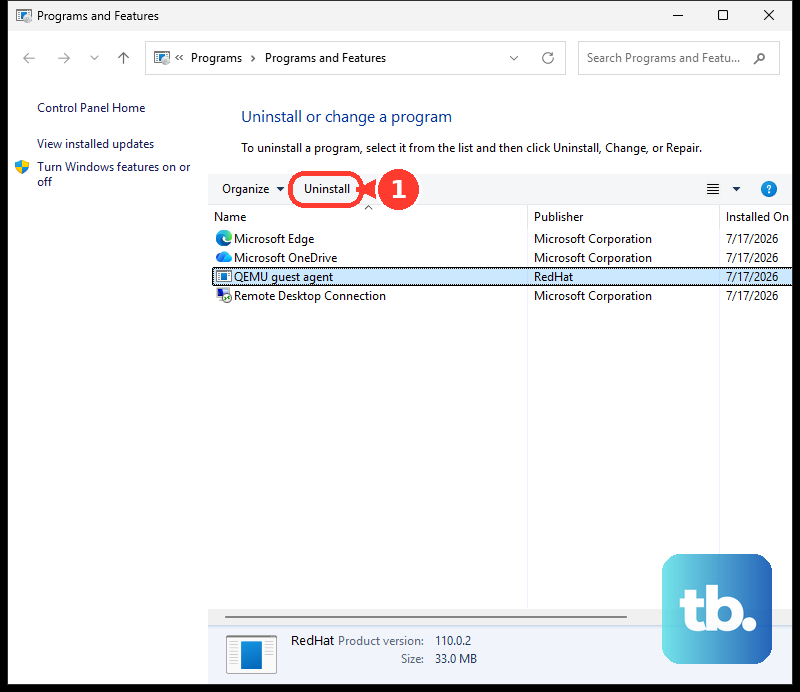
Open LockDown Browser one more time, quit it immediately, then uninstall it from Control Panel > Programs and Features. If that fails, run the installer again and choose Uninstall/Remove.
Why does my exam say webcam is required but Monitor is not selected?
That is an instructor-side settings mismatch. The instructor needs to open the LockDown Browser Dashboard, verify Respondus Monitor is enabled, and correct the exam title or Monitor setting.
Can LockDown Browser open external websites during an exam?
It depends on how the instructor set it up. A single external webpage can be linked inside the active exam and opens in a second tab with no domain setting, though links from that page are blocked. To allow multiple pages within a site, the instructor must add the link inside the exam and enter the domains under LockDown Browser Advanced Settings > Allow access to specific external web domains. Students cannot enable external access themselves.