Your iPhone's Wi-Fi won't turn on, and tapping the button gets you nowhere. First, check whether Wi-Fi is temporarily disconnected or the switch in Settings is actually grayed out. Start with the controls, then work through restarting, software updates, and resets before arranging service.
Check the Wi-Fi switch in Settings first
A temporary disconnection through Control Center dims its Wi-Fi button without disabling the radio. Open Settings > Wi-Fi. Turn on Wi-Fi. If this switch is grayed out and unresponsive, go straight to the restart section below.
Select your network. A blue checkmark beside its name confirms the connection. If Wi-Fi is still off, turn off Airplane Mode in Settings. Try the Wi-Fi switch again.
For a temporary disconnection, open Control Center by swiping down from the upper-right corner on a Face ID iPhone, or up from the bottom edge on an iPhone with a Home button. Tap the Wi-Fi button to reconnect.
If Wi-Fi turns on but won't connect, move on to connection troubleshooting. Router checks apply once Wi-Fi works; they do not fix an unresponsive switch in Settings.
Restart your iPhone when the switch is grayed out
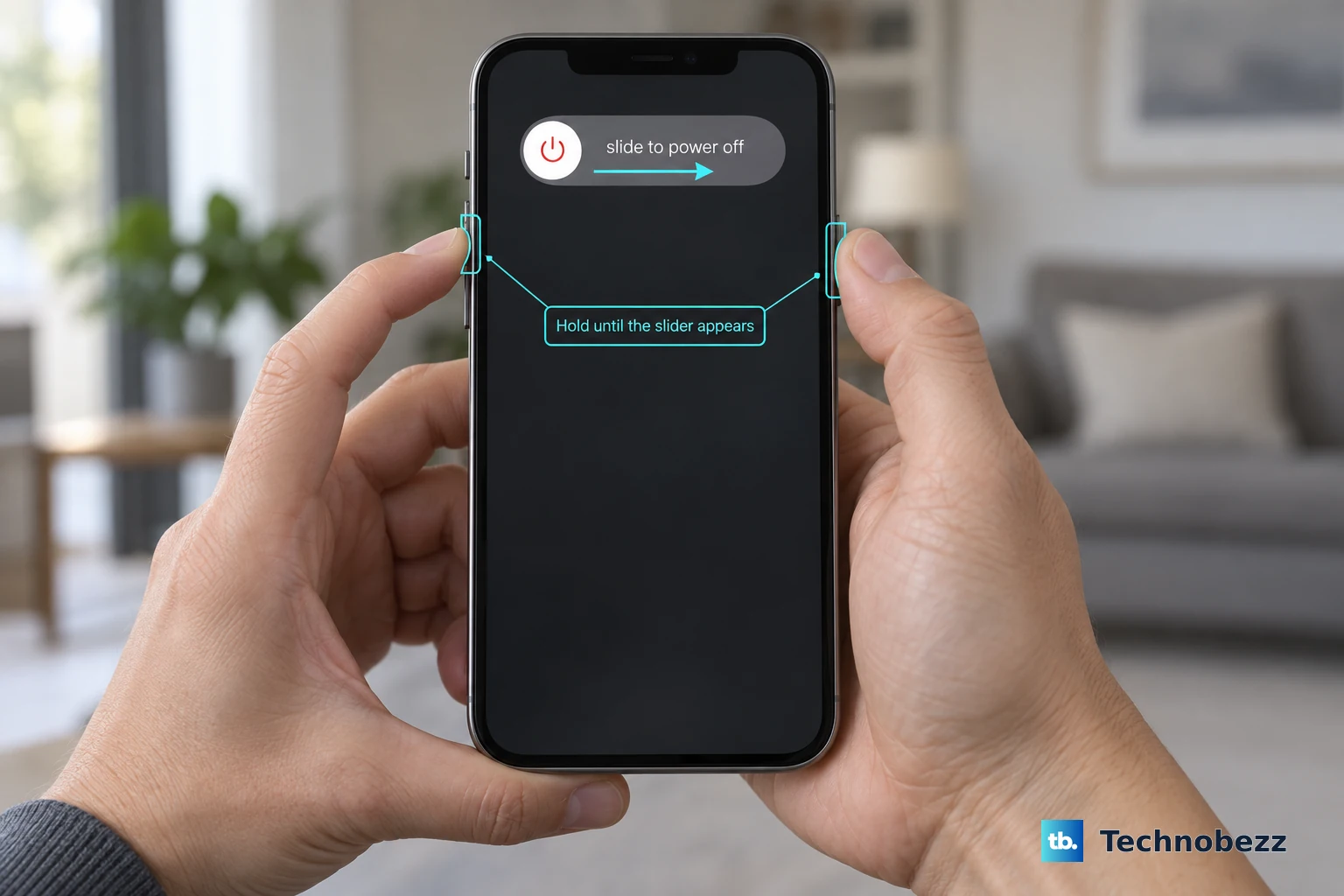
On a Face ID iPhone, hold the side button and either volume button until the shutdown slider appears. On an iPhone SE second or third generation, hold the side button instead. Drag the shutdown slider. Wait 30 seconds.
Hold the side button until the Apple logo appears. Return to Settings > Wi-Fi. Try turning on Wi-Fi. Start here for a grayed-out switch: restarting is Apple's specific recommendation for that symptom.
Rule out VPN and security app conflicts
VPN, firewall, filtering, and security software can interfere with connectivity. In the relevant app, disable its network-protection feature using the vendor's instructions; control names vary by app.
Test the switch under Settings > Wi-Fi. If the problem persists, the next check is uninstalling the VPN or security app.
To uninstall it, touch and hold the app and choose Remove App > Delete App > Delete. Removing only its Home Screen icon leaves the app installed.
Restart your iPhone before the next Wi-Fi test. If uninstalling resolves the problem, contact the software provider before reinstalling. For a work or school iPhone, consult your administrator before removing managed configurations or resetting settings.
Update iOS with a computer
A computer update gets around the iPhone's unavailable Wi-Fi connection. Back up your iPhone before updating. Connect the computer to the internet independently of this iPhone's hotspot. Connect your iPhone to the computer with a cable.
On a Mac running macOS Catalina 10.15 or later, open Finder. Select your iPhone in the sidebar. Open General. Click Check for Update.
Choose Download and Update if an update is offered. Enter your iPhone passcode if requested.
On Windows, open Apple Devices instead. Select your iPhone in the sidebar. Open General. Click Check for Update.
Select Update if an update is offered. Follow the onscreen prompts to complete the update. After updating, open Settings > Wi-Fi. Test the Wi-Fi switch again.
Reset your network settings
This removes saved Wi-Fi credentials and other network configurations, so have your Wi-Fi password ready.
- 1.Open Settings > General.
- 2.Tap Transfer or Reset iPhone.
- 3.Tap Reset.
- 4.Choose Reset Network Settings.
- 5.After the reset, return to Settings > Wi-Fi and turn on Wi-Fi.
- 6.If Wi-Fi turns on, select your network and enter its password to reconnect.
Try a broader settings reset
Reset All Settings addresses persistent Wi-Fi and system-feature problems; Apple describes it as rarely necessary.
After the simpler fixes fail, open Settings > General > Transfer or Reset iPhone. Tap Reset. Choose Reset All Settings. Your personal content remains, but preferences, network credentials, pairings, and other settings need to be reconfigured.
Once the reset finishes, open Settings > Wi-Fi. Try enabling Wi-Fi again.
Contact Apple if Wi-Fi still won't turn on
A switch that stays grayed out after troubleshooting needs an Apple assessment, as does an iPhone that cannot use any Wi-Fi network. The symptom alone does not identify a failed hardware component.
Contact Apple for diagnosis and service options. Describe which fixes you tried and whether the switch is unresponsive or turns on but cannot connect. A computer restore erases the iPhone and reinstalls compatible iOS. Apple does not promise that it fixes a grayed-out Wi-Fi switch, so ask for an assessment before committing to an erase.
Avoid heating or freezing the phone to restore Wi-Fi. Neither is an Apple-supported remedy.
If a temperature warning appears, shut down the iPhone. Move it away from sunlight to a cooler environment. Let it cool naturally before retrying Wi-Fi.
Frequently Asked Questions
Why does Wi-Fi reconnect after I disconnected it in Control Center?
The disconnection is temporary. Automatic joining resumes after restarting, changing location, or at 5 a.m. local time.
Does Reset Network Settings remove network settings installed by a profile?
No. Profile-installed network settings remain after Reset Network Settings. On a work or school iPhone, ask the administrator to review the configuration.
Can I update my iPhone over cellular instead of using a computer?
Yes, on a compatible 5G iPhone with a supporting carrier, plan, and coverage. Open Settings > Cellular; with Dual SIM, select the relevant line first. Open Cellular Data Options > Data Mode and select Allow More Data on 5G. Then check Settings > General > Software Update. Cellular update availability depends on your carrier, and downloads consume cellular data.
Should I force restart if my entire iPhone is frozen?
Yes. On iPhone 8 or later, including iPhone SE second and third generation, quickly press and release volume up. Quickly press and release volume down. Hold the side button until the Apple logo appears, then release it. Use this sequence for an unresponsive device.