iPhone Calendar not syncing with Google Calendar usually comes down to the account, a hidden calendar, slow fetching, or events being saved somewhere else. Start with the account checks, then move through the refresh and visibility fixes until your Google events show up where they should.
Add Google Calendar to your iPhone
Use this when Apple Calendar does not show any Google events at all. Apple Calendar needs your Google account added before it can display those calendars.
Open Settings, go to Apps, then tap Calendar. Tap Calendar Accounts, choose Add Account, then tap Google and sign in. Return to Calendar Accounts, tap the Google account, and make sure Calendars is turned on.
Refresh Apple Calendar and reveal missing calendars
Open the Calendar app, then tap the Calendars button. Select the Google calendars you want to see, then tap Done. Open the calendar list again and swipe down on the list to refresh events.
If only older events are missing, go to Settings, Apps, Calendar, then Sync. If a specific timeframe such as Events 1 Month Back is selected, choose All Events. If All Events is already selected, choose a specific timeframe such as Events 1 Month Back, then switch back to All Events. Wait a few minutes, then refresh the calendar list again.
Make Google the calendar for new events
The most common cause of new-event sync trouble is that iPhone is saving events to iCloud or another local calendar instead of Google.
Open Settings, go to Apps, then tap Calendar. Tap Default Calendar, then select your Google calendar.
For an event that already exists, open it in the Calendar app. Tap Calendar, then choose the Google calendar you want it to use. Siri-created calendar events follow the same Default Calendar setting.
Adjust how often iPhone checks for events
This fixes slow updates when the calendar account does not use push syncing.
Open Settings, tap Apps, then tap Calendar. Tap Calendar Accounts, then tap Fetch New Data. Under Fetch, choose Automatically, Hourly, Every 30 Minutes, or Every 15 Minutes.
Use Google Calendar directly
If Apple Calendar keeps falling behind, install the official Google Calendar app. Open the App Store, search for Google Calendar, tap Get or Update, then open the app and sign in with your Google Account.
Inside Google Calendar, tap the Menu button and make sure the box beside the calendar name is checked.
If you use more than one Google account, tap your profile photo, choose Add another account, and sign in.
If an account was disabled inside the app, tap your profile photo, go to Manage accounts on this device, and turn the account back on.
If this method fails, open calendar.google.com in a browser and sign in to confirm the events exist in Google before troubleshooting the iPhone again.
Confirm connection date and updates
The most common device-level cause is that your iPhone cannot reach Google reliably, even when the calendar settings look correct. Make sure Wi-Fi or cellular data is on, then turn Airplane Mode off. Open a browser and run a web search.
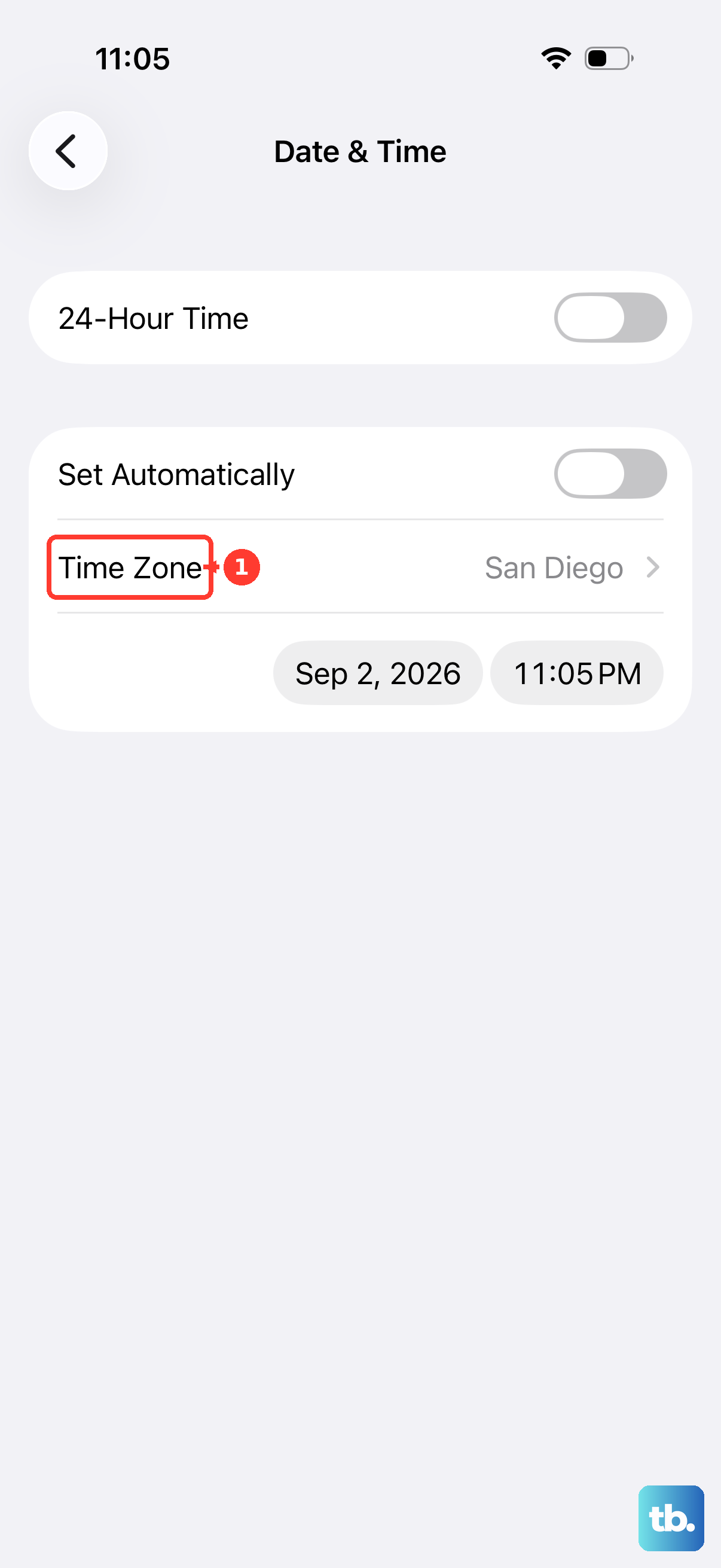
Open the App Switcher, swipe to find Calendar or Google Calendar, and swipe up on the app. Open Calendar or Google Calendar again from the Home Screen or App Library. Go to Settings, General, then Date & Time, and confirm the date, time, and time zone are correct.
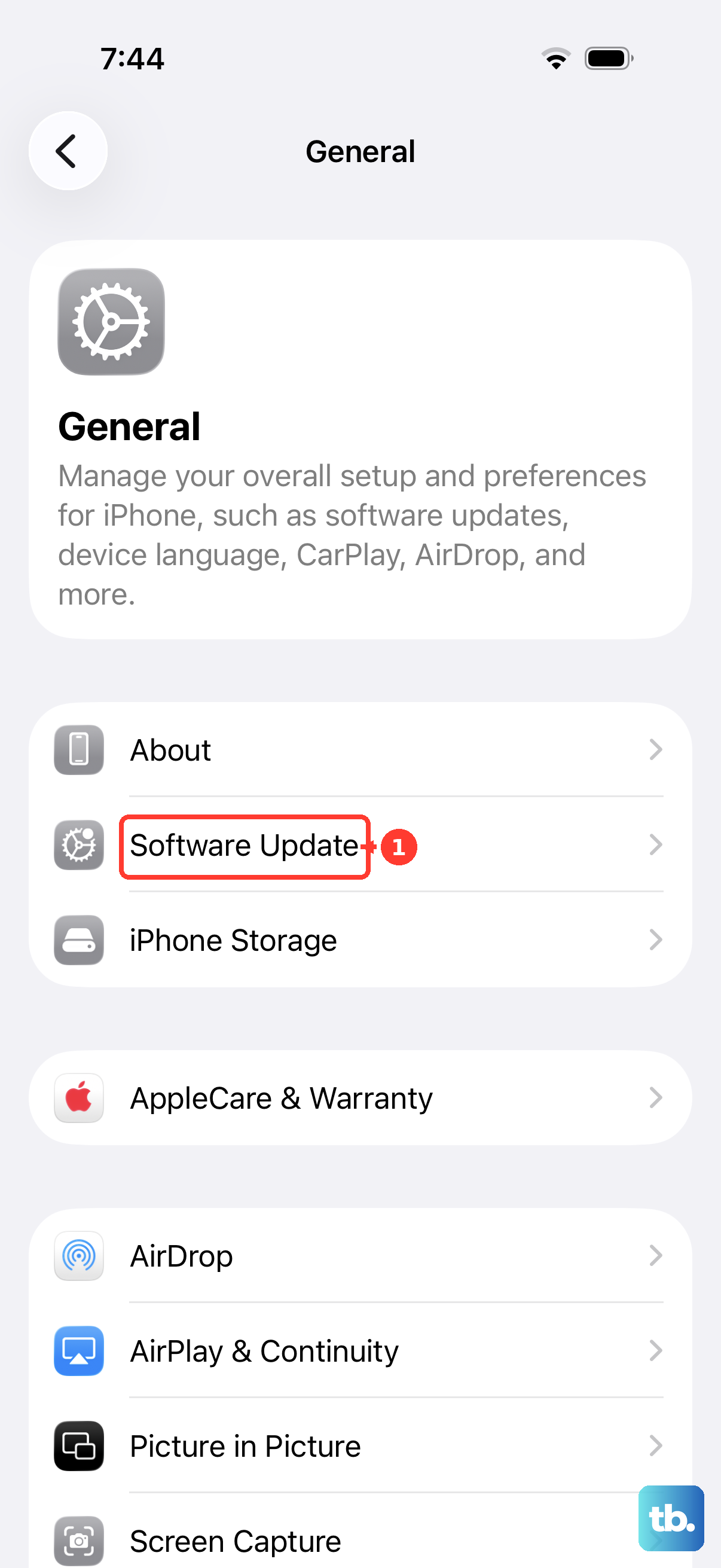
Go to Settings, General, then Software Update, and install any available iOS update for your iPhone.
Remove and add the Google account again
Open Settings, tap Apps, then tap Mail. Tap Mail Accounts, then tap the Google account. Choose Delete Account or Sign Out.
Go back to Settings, Apps, Calendar, then Calendar Accounts. Tap Add Account, choose Google, and sign in again. After the account is added again, confirm that Calendars is turned on for that Google account.
Fix shared secondary and subscribed calendars
Secondary and shared Google calendars may need to be selected before they appear in Apple Calendar. In a browser, go to https://calendar.google.com/calendar/syncselect, sign in, select the calendars you want to sync, save the change, then refresh Apple Calendar from the calendar list.
For a read-only calendar feed, open the Calendar app, tap Calendars, choose Add Calendar, then tap Add Subscription Calendar. Enter the .ics URL and tap Find.
On current iPhone software, use Settings, Apps, then Calendar for Calendar account settings.
If this method fails, use the Google Calendar app or calendar.google.com to confirm that the shared or subscribed calendar is available to your Google account.
Ask your organization about account limits
This fixes cases where your Google account is managed by a work, school, or other organization. Ask your organization whether Google Calendar is turned on for your account. For managed Apple devices, ask whether calendar accounts are configured through the organization’s device management system. Wait up to 24 hours after an organizational Google Calendar service change.
Frequently Asked Questions
Why do Google Calendar events show in the Google app but not Apple Calendar?
The Google calendar may be hidden in Apple Calendar, Calendars may be turned off for the Google account, or that calendar may not be selected for Apple Calendar sync.
Why are new iPhone events not appearing in Google Calendar?
Your iPhone may be saving new events to iCloud or another calendar. Set your Google calendar as the default calendar, then move any existing events to the Google calendar manually.
Can I clear the Google Calendar cache on iPhone?
Google documents clearing Calendar storage for Android, not iPhone. On iPhone, use the supported options: remove and re-add the account, or delete and reinstall the Google Calendar app.
Should I use Apple Calendar or the Google Calendar app on iPhone?
Use the Google Calendar app when you want the most direct connection to your Google Account. Use Apple Calendar when you want Google calendars mixed with iCloud, subscribed calendars, Siri-created events, and other iPhone calendar accounts.