Your Instagram carousel looks ready, then one slide posts cropped, squared off, or missing the Mixed option entirely. The fix starts inside the post creator, then moves to the files themselves and the app build when the crop controls are not behaving. Follow the steps in this order so you do not delete and repost until you have ruled out the faster fixes.
1. Choose Mixed before Instagram crops the carousel
Mixed must be selected while you are creating the carousel. It is not a setting you switch on after the post is live.
Open Instagram and tap Create. Choose POST, then tap Select multiple. Choose the photos and videos for the carousel, tap the resize or expand icon in the lower-left preview, and choose Mixed.
Tap Next and preview every slide. Once everything looks right, tap Share.
If Mixed is missing, start the carousel again. Select a portrait or square item first, then add a landscape item. Mixed availability varies by account, region, media type, and selection order.
2. Reframe each slide before sharing
Open Instagram and tap Create. Choose POST, tap Select multiple, and choose your media. Tap Next.
Tap a photo or video that looks cropped. Pinch, drag, or reposition it on the screen, then repeat this for every affected slide.
Tap Next and review the carousel. When the framing is correct, tap Share.
Do not trust the first preview alone. Instagram lets you adjust individual carousel items before posting, and this catches the slide that looks fine in the grid but wrong in the final preview.
This fixes framing inside Instagram's supported post formats. It does not preserve an unsupported aspect ratio.
3. Resize files to Instagram's feed range
Fix the source file before upload when Mixed still cuts off a slide. Instagram now supports a taller 3:4 feed ratio, so feed photos should be at least 1080 px wide and use an aspect ratio between 1.91:1 and 3:4.
Prepare every carousel image inside that range. Post again through Create, POST, and Select multiple.
Older guides that cite 4:5 as the portrait limit do not match Instagram's current 3:4 feed-photo guidance.
4. Prepare the photo on iPhone or Android
On iPhone or iPad, use Photos. Choose the image, tap Edit, and tap the Crop button. Tap the Aspect Ratio button, choose a preset such as Square or 5:7, and tap Done.
To crop manually, unlock the aspect ratio. Drag the crop handles, then tap Done.
On Android, open the image in Google Photos. Tap Edit, tap Crop, and open Aspect ratio. Next, choose a shape such as square, tap the checkmark, and tap Save.
On supported devices and accounts, use Auto frame to expand or fill the picture before saving. When cropping removes important content, create a padded version in an editor, then upload the padded file to Instagram.
5. Update Instagram when Mixed is missing
On iPhone or iPad, open the App Store. Tap your My Account button or profile photo, open App Updates, and tap Update next to Instagram.
On Android, open the Google Play Store. Tap your profile picture, choose Manage apps & device, and under Updates available, tap See details. Tap Update next to Instagram.
A missing Mixed button or broken crop preview belongs in the app-update bucket after you have checked the carousel order.
On Android, you can also keep Instagram current inside the app: go to Profile. Open the three-line menu, tap Settings and privacy, tap About, and tap App updates. Turn on Auto-update Instagram.
This in-app toggle is Android-only. On iPhone or iPad, update Instagram from the App Store or turn on automatic app updates in iOS Settings.
6. Clear Android cache or reinstall the app
Clear Instagram's cache on Android before rebuilding the carousel: open Settings. Tap Apps or Applications, choose Instagram, and tap Storage. Tap Clear cache, reopen Instagram, and create the carousel again.
If the crop controls still fail, reinstall Instagram. On iPhone or iPad, touch and hold Instagram, tap Remove App, and tap Delete App. Confirm with Delete, reinstall Instagram from the App Store, and sign in.
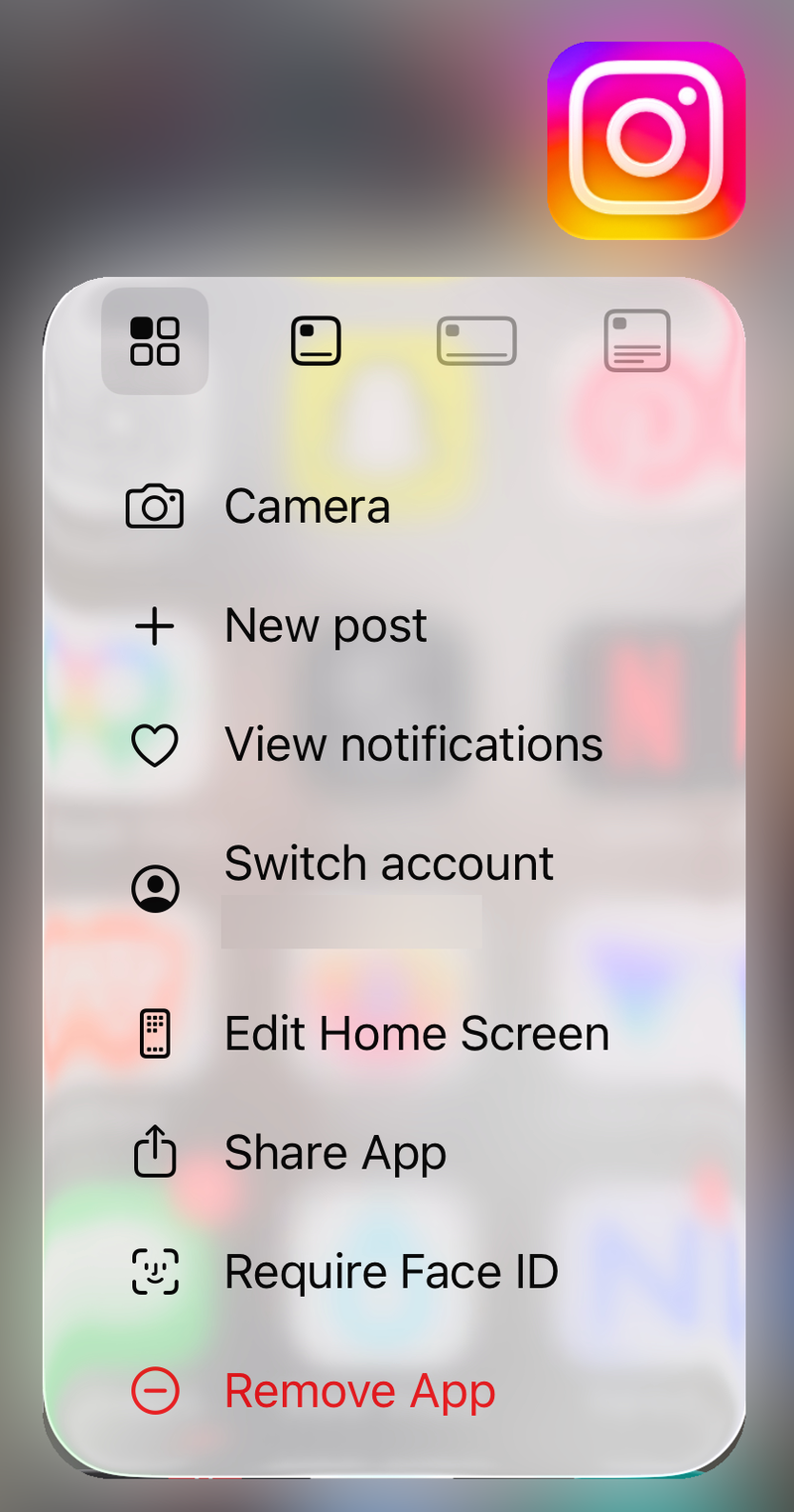
On Android, open Settings. Tap Apps, choose Instagram, and tap Uninstall. Reinstall Instagram from Google Play, then sign in.
7. Replace a carousel that already posted cropped
- 1.Open Instagram and tap Profile.
- 2.Open the affected post.
- 3.Tap the Options or more menu in the top right.
- 4.Tap Delete.
- 5.Create the carousel again with corrected media.
Instagram does not provide a reliable post-publish fix for carousel crop or aspect-ratio choices. Delete the bad carousel, correct the source files or choose Mixed during creation, and publish a new post.
When the same Mixed or crop bug repeats, report it from Instagram. Go to Profile, open the three-line menu, and below More info and support, tap Help. Tap Report a problem, add screenshots and details, and tap Send.
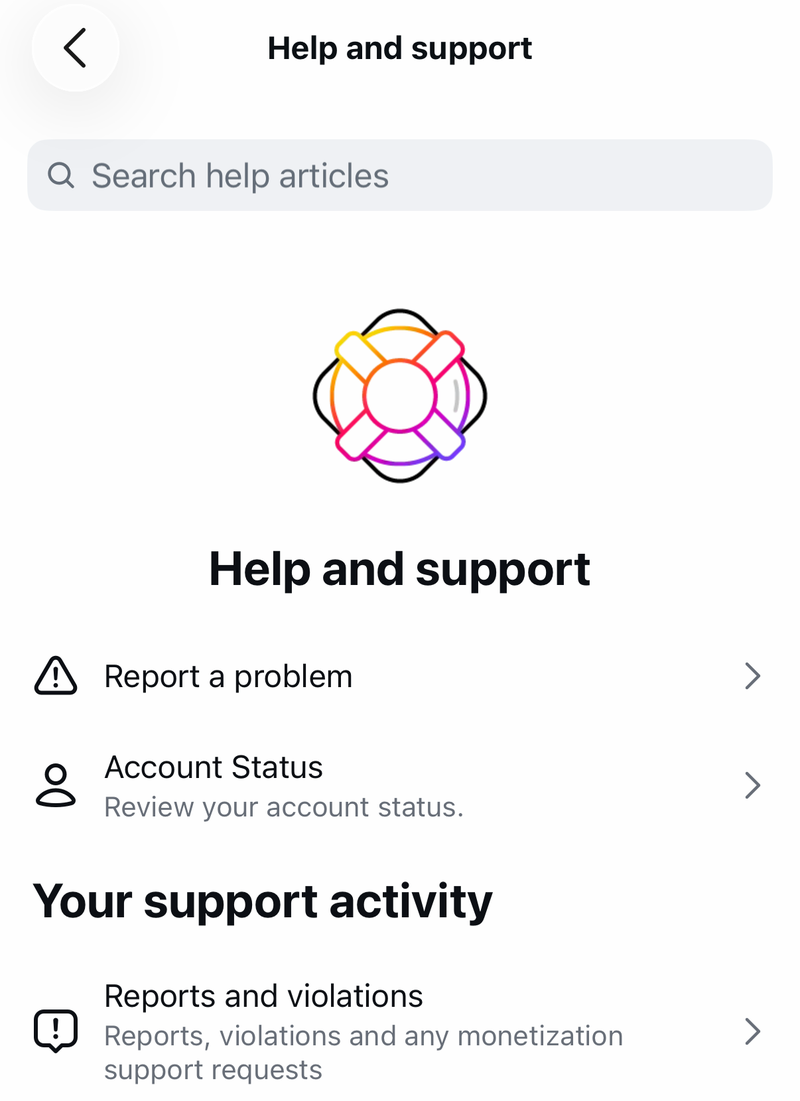
If Shake to report appears on the problem screen, use it there.
8. Match slide sizes for schedulers and API posts
Mixed is a consumer-app carousel control; API and scheduler workflows need matched assets. For Meta's Instagram Content Publishing API and scheduler workflows built on it, create the carousel children. Publish a CAROUSEL container with uniform expectations.
Meta's developer guidance says carousel images are cropped based on the first image and default to 1:1. Resize all carousel assets to the same intended aspect ratio before publishing through an API tool.
Do not sideload or roll back Instagram APKs to chase the Mixed option. Use the official App Store or Google Play version. Report the bug in Instagram if the official app still fails.
Frequently Asked Questions
Why is Instagram Mixed not showing for my carousel?
Mixed availability varies by account, region, media type, and selection order. Update Instagram, then rebuild the carousel with a portrait or square item selected before a landscape item.
Can Instagram keep every carousel slide at its original size?
No. Mixed supports different carousel shapes, but feed photos still need to fit Instagram's supported range of 1.91:1 to 3:4 and be at least 1080 px wide.
What should I do if one carousel slide is already cropped after posting?
Delete the post, resize or pad the source file, choose Mixed while creating the carousel, preview every slide, and repost it.
Does clearing cache fix Instagram Mixed aspect ratio problems on iPhone?
The verified cache step applies to Android. On iPhone or iPad, update Instagram or delete and reinstall the app from the App Store.
Can I use an old Instagram APK to get Mixed back?
No. Use the official Google Play version on Android. Rolling back or sideloading old APKs is not a supported fix.