Your Samsung Galaxy rings, but the incoming-call screen never appears. Or you only discover the call after you've missed it. Start with the display and notification settings below, then follow the fixes for calls missing on the lock screen, in another app, or from particular callers.
Make incoming calls appear full screen
If calls are hard to spot while you're using another app, choose Phone > More options (three dots) > Settings > Call display while using apps > Full screen.
The alternatives, Small pop-up and Mini pop-up, show calls in a smaller window. This setting applies specifically to calls received while using apps. The separate Keep calls in pop-up control determines what happens after you answer.
To retrieve a hidden call screen, tap its call notification in the notification panel. Open that panel by dragging down the status bar, or swiping from the top-left or top-center on One UI 7 and later with separate panels. This is a temporary workaround.
Samsung Phone settings vary by carrier and software. If Call display while using apps is absent, continue with the notification checks below.
A restart is the next quick test
Restart the phone by holding Side and Volume Down to open the power controls, then tapping Restart. Older Galaxy hardware uses a Power button instead of a Side button.
If the phone is unresponsive, hold Side and Volume Down together for at least seven seconds until it restarts.
Have someone call with your phone locked, unlocked, and while you're using another app. If the call screen still fails to appear, check the calling app's notifications next.
Restore the calling app’s notifications
Disabled calling-app notifications block visible call alerts.
Enable Allow notifications under Settings > Notifications > App notifications > the app receiving the calls.
Enable Notifications pop-up in that app's notification display options, where offered. Some system-app controls are locked; use the controls your phone lets you edit.
For category controls, enable Manage notification categories for each app under Settings > Notifications > Advanced settings.
Open the call category under Settings > Notifications > App notifications > the calling app > Notification categories. Category names vary by app, and some Samsung Phone versions have no editable incoming-call category.
Enable the category's Allow notifications control, where available.
Select Alert, where offered.
Turn on Show as pop-up, where offered. If these controls are absent, continue below.
For alerts missing only when the phone is locked, enable Settings > Notifications > Lock screen notifications.
Select Show content if you want caller details visible on the lock screen.
On One UI 7 and later, select Settings > Lock screen and AOD > Notification style > Cards for more conspicuous notifications. These changes restore lock-screen notification visibility; they do not independently guarantee a full-screen call interface.
Check what is silencing your calls
Turn off Do not disturb in Quick settings for a test. With separate notification and settings panels, open Quick settings by swiping down from the top-right corner.
If alerts disappear at predictable times, disable the unwanted schedule by touching and holding Do not disturb in Quick settings, then turning off the switch beside that schedule.
Stop an active mode through Settings > Modes and Routines > Modes > the active mode > Turn off. For gaming on supported One UI 7 and later phones, Settings > Modes and Routines > Game contains the relevant Do not disturb settings. This is the replacement for the older Game Booster priority-mode controls.
Stop a running routine through Settings > Modes and Routines > Routines > the routine under Running > Stop.
Clear the app cache and install updates
These checks target app and software problems affecting call alerts.
Clear the affected calling app's cache through Settings > Apps > the app > Storage > Clear cache.
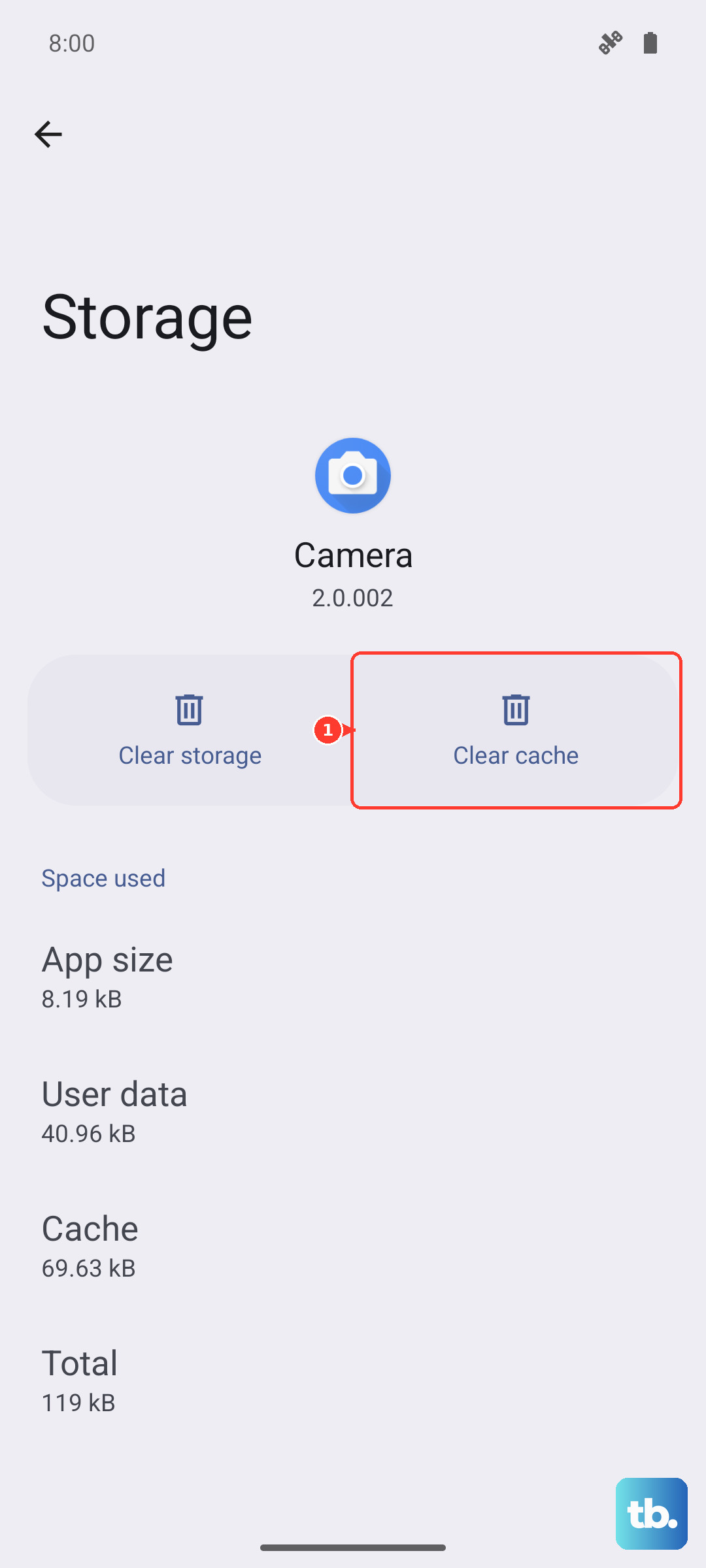
Reopen the app.
Test an incoming call.
Update an app supplied through Samsung's store from Galaxy Store > Menu > Updates.
For a Play Store app, select Play Store > your profile icon > Manage apps & device > Updates available > Update beside the app. Samsung Phone updates use the store or system-update channel supported by your device.
Install any available phone update through Settings > Software update > Download and install, following the prompts.
Test calls again after the phone restarts.
When calls come through a downloaded app
If cellular calls appear correctly but internet calls don't, focus on the affected app's background restrictions and permissions. Battery and data limits are particularly relevant here.
Turn off Power saving through Settings > Battery > Power saving.
Open Settings > Device care > Battery > Background usage limits > Sleeping apps. Some versions call the first menu Battery and device care.
Remove the affected app from that list by touching and holding it, then tapping Remove.
Repeat the removal under Deep sleeping apps if the app is listed there. The system Phone app is not necessarily included in these lists.
For calls delivered over mobile data, turn off Settings > Connections > Data usage > Data saver.
Test an incoming app call. This checks mobile-data restrictions on internet calls, not the display of ordinary cellular calls.
Open Settings > Apps > the calling app > Permissions.
Restore permissions under Not allowed that the app needs for calling. You do not need to grant every permission.
Reopen the app.
Respond to its permission requests.
If you installed another dialer, choose your intended dialer under Settings > Apps > Choose default apps > the phone-calling category.
If only certain calls are missing
Unblock a particular caller through Phone > More options > Settings > Block numbers, using the red Minus beside their number.
For missing unknown callers, turn off Block calls from unknown numbers on that screen. Older regional versions use the label Block unknown/private numbers.
On phones supporting Samsung Smart Call, temporarily turn off blocking through Phone > More options > Settings > Block spam and scam calls. On some Phone app versions, Block spam and scam calls is inside Caller ID and spam protection instead. This tests whether legitimate callers are being filtered.
On compatible phones with Android 16 and One UI 8.5 or later, turn off Auto screen calls under Phone > More options > Settings > Call screening for a test. Automatic AI answering accounts for apparently unreceived calls when it answers unregistered callers.
If second calls are missing while you're already speaking to someone, enable Call waiting under Phone > More options > Settings > Supplementary services. This requires carrier support.
If cellular calls never reach the phone, turn off Settings > Connections > Airplane mode.
Move to an area with stronger reception if the signal is weak.
Contact your carrier if calls still do not arrive, particularly after changing carriers while keeping the phone. Ask it to check active service, account standing, outages, and SIM or provisioning problems.
Test with the same caller after each change to narrow down the cause.
Use Safe mode for a stubborn problem
For persistent cellular-call problems, check for app interference before moving to resets and support.
- 1.Open Quick settings and tap the Power icon. Touch and hold Power off, then tap Safe mode.
- 2.Have someone make a normal cellular call to your phone. Safe mode disables downloaded apps, so it cannot directly test incoming calls in a downloaded internet-calling app.
- 3.If the call screen works in Safe mode, remove a recently added dialer, call blocker, or other suspect app by touching and holding its icon, then selecting Uninstall > OK. Restart and retest, removing suspect apps individually.
- 4.If simpler checks fail, select Settings > General management > Reset > Reset all settings > Reset settings > Reset. This preserves accounts, personal data, and installed apps, but does not reset every downloaded app's settings.
- 5.For a continuing problem, reproduce it, then touch and hold Samsung Members and select Error reports. Choose the relevant category, describe the issue, select Send system log data to include diagnostic logs, and tap Send.
- 6.Use Get support on Samsung's call troubleshooting page or arrange a service-center inspection if the call display remains faulty, especially with physical damage or other display trouble.
Frequently Asked Questions
Can I keep Do not disturb on and still see incoming calls?
Yes. Touch and hold Do not disturb in Quick settings. Under Allowed during Do not disturb, configure Calls and messages and App notifications. Open Hide notifications and disable the restrictions affecting your alerts, such as Hide all, Hide full screen notifications, or Don't show pop-up notifications.
What should I check if the screen stays black during a call?
Check for an obstruction around the proximity sensor. Remove any case, protective film, sticker, or screen protector covering it. Clean the phone's front with a soft cloth, then test again. Samsung says the proximity sensor cannot be disabled.
Is Clear cache the same as Clear data?
No. Clear data deletes the app's local settings and data and requires you to configure it again. Back up necessary app information before using it. Some system apps do not allow data clearing.
Can an accessibility setting block incoming calls?
Yes. Interaction control can block incoming calls and notifications, particularly when the phone is restricted to one app. Open Settings > Accessibility > Interaction and dexterity > Interaction control and disable it if it was enabled unintentionally.