Holidays missing from Samsung Calendar? Start by checking that your holiday subscription is added and selected for display. Then work through sharing and sync settings to get those dates onto your Galaxy calendar.
Show the holiday calendar in Samsung Calendar
Start with both visibility settings: the account and its holiday calendar.
- 1.Open Calendar and tap Menu, the three horizontal lines.
- 2.Open Manage calendars and turn on the Google account containing your holiday subscription.
- 3.Return to Menu and expand the drop-down beside that account.
- 4.Check your holiday calendar, such as Holidays in United States. Its name depends on your subscription.
- 5.Tap Sync now from Menu. Let synchronization finish before checking the holiday dates.
Add a holiday subscription if none is listed
No holiday calendar to select? Add your country's holidays using the same Google account connected to Samsung Calendar.
On your phone, open Google Calendar > Menu > Settings > Holidays > National Holidays. Check your country or region, then tap OK.
To use a browser instead, open calendar.google.com. Go to Settings, the gear icon, > Settings > Add calendar > Browse calendars of interest > Regional holidays > Browse all.
Check your country or region. For an existing subscription, uncheck it first. Recheck an unchecked subscription to subscribe again.
If the Google account itself is missing from Samsung Calendar, open Calendar > Menu > Manage calendars > More options, the three vertical dots, > Add account. Choose Google, then complete sign-in with the account containing your holiday subscription.
Return to Samsung Calendar's Menu. Expand the drop-down beside your account, then check the new holiday calendar.
Allow Google Calendar to share its data
Open Google Calendar > Menu > Settings > General. Turn on Share Google Calendar data with other apps if your version displays this setting.
Open your phone's Settings > Apps > Samsung Calendar > Permissions > Calendar. Select Allow where the permission is editable. Some system-app permissions are fixed.
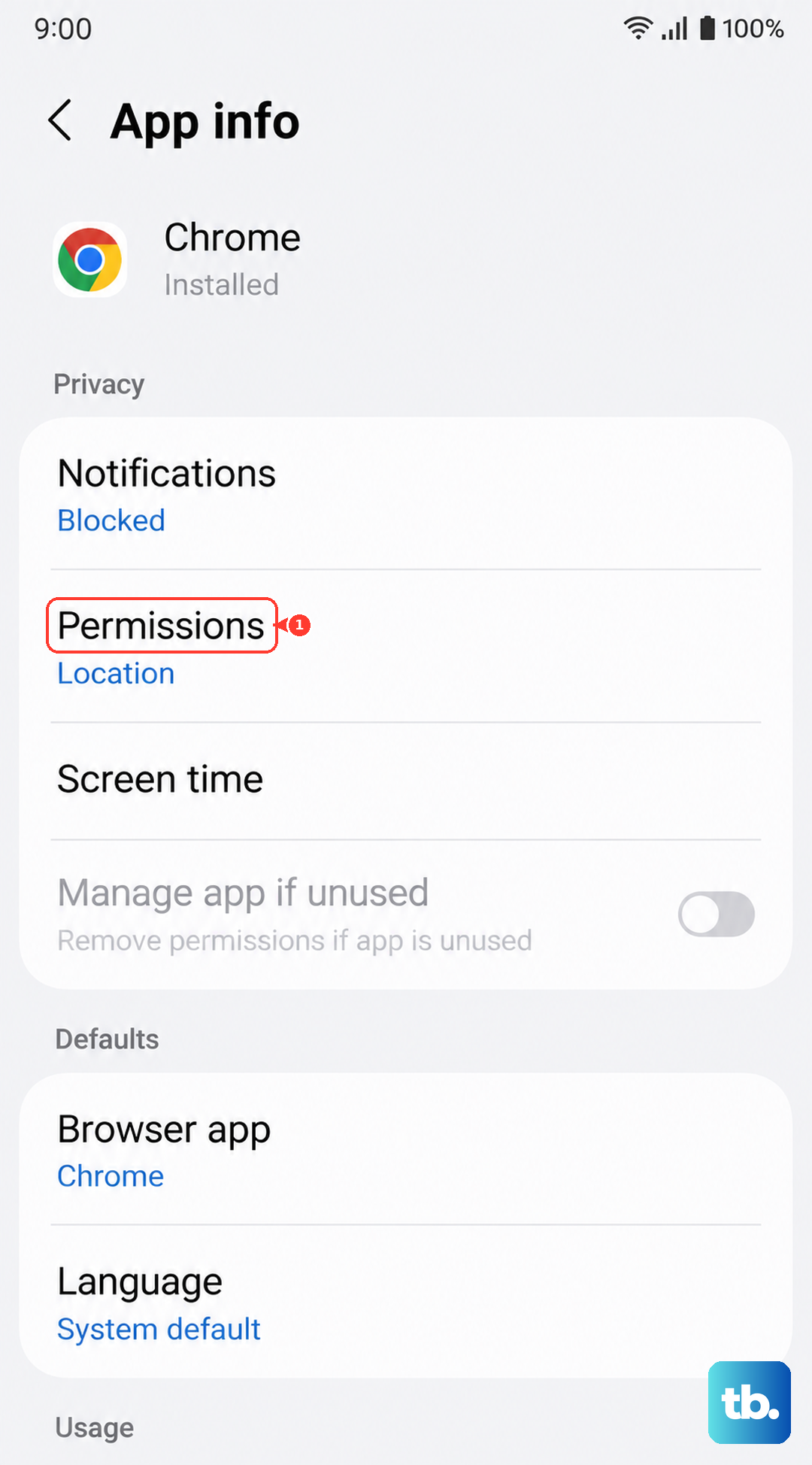
Repeat the permission change for Google Calendar if its Calendar permission was denied. Check which app you're opening when both Samsung Calendar and Google Calendar appear as Calendar.
Restore account synchronization
A disabled Calendar sync setting stops updated calendar data from reaching Samsung Calendar. Connect to Wi-Fi through Settings > Connections > Wi-Fi.
Open Settings > Accounts and backup > Manage accounts. Turn on Auto sync personal data. Some Galaxy versions call it Auto sync data.
Open your Google account's Sync account screen. Turn on Calendar, then tap More, the three dots, > Sync now.
Refresh the companion app through Google Calendar > Menu > Refresh. Run Samsung Calendar > Menu > Sync now. Let synchronization finish before checking the dates again.
Bring back missing observances and religious holidays
These settings restore excluded observances, religious calendars, and holidays you hid. For observances on Android, open Google Calendar > Menu > Settings > Holidays > National Holidays. Select your country or region, then choose All holidays.
Tap OK. For religious holidays, open Google Calendar > Menu > Settings > Holidays > Add religious holidays. Check the religious holiday calendar you want, then tap OK.
To restore one specific hidden holiday, open calendar.google.com on a computer. Go to Settings > Settings > Add calendar > Browse calendars of interest. Expand your holiday calendar.
Select the missing holidays and observances. Google's browser settings use Public holidays and Other observances for regional calendar coverage.
Open Samsung Calendar's Menu. Expand the account containing the new subscription, then check any newly added holiday calendar.
Refresh the app when holidays still will not load
Temporarily turn off Power saving through Settings > Battery > Power saving. This mode reduces background activity. Run Sync now from Samsung Calendar's Menu again.
Clear Samsung Calendar's temporary files through Settings > Apps > Calendar > Storage > Clear cache. This is separate from Clear data.
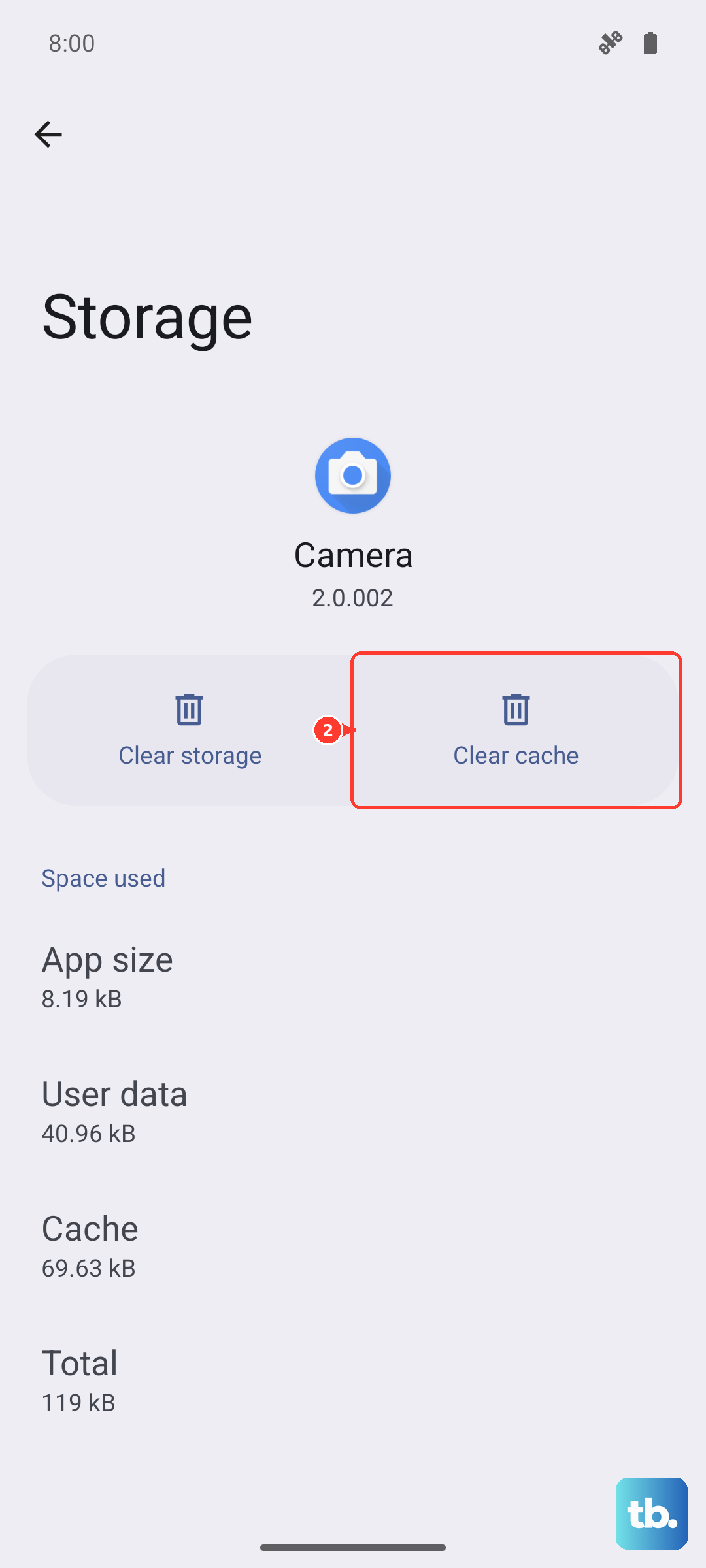
Reopen Calendar. Open Galaxy Store > Menu > Updates, then tap the update arrow beside Samsung Calendar if an update is available.
Open Play Store > your profile picture > Manage apps & device > Updates available. Tap Update beside Google Calendar if listed. Hold the Side and Volume down buttons for a few seconds to open the power menu.
Tap Restart, then tap Restart again to confirm. Keep your holiday subscription enabled, since clearing temporary files and restarting do not add one.
Check whether the provider includes the missing holiday
Check the date on calendar.google.com, especially for holidays far from the current year. The synchronization window around the current year depends on the provider.
For a holiday absent from the provider's calendar, open Samsung Calendar > Add event, the plus button, and enter its title and date. Select your Google account under My calendars to synchronize the event, then tap Save.
When creating a fixed-date holiday, open Don't repeat and choose a yearly Repeat cycle and Duration. Return with the back arrow and tap Save. Use yearly recurrence only for holidays that fall on the same date each year.
Reset Samsung Calendar as a last step
This resets the app's stored data when missing events persist. Back up unsynced and local events before clearing app data to protect them from removal.
Open Settings > Apps > Calendar > Force stop. Tap OK. Open Storage > Clear data, then confirm with Delete.
Reopen Calendar and allow synchronization to finish. Enable your Google account through Menu > Manage calendars, then return to Menu.
Expand the drop-down beside your account, then check its holiday calendar again.
For a persistent problem, open Samsung Members > Support > Error reports under Send feedback. The layout and available categories vary by region. Choose the relevant category, then describe which holidays are missing.
Select Send system log data, then tap Send.
Frequently Asked Questions
Does Alternate calendar add holiday subscriptions?
No. Alternate calendar displays lunar, Hijri, or Shamsi dates. It does not add a holiday subscription.
Can I restore all hidden holidays without using a computer?
Yes. In Google Calendar for Android, open Menu > Settings > Holidays. Select your holiday calendar, then choose All holidays or Public holidays only to restore the corresponding holidays.
Why doesn't my holiday calendar have a Sync switch in Google Calendar?
Google documents that switch for calendars you create, including calendars containing imported holiday events. It is not a universal control for built-in holiday subscriptions. For a custom calendar, open Menu > Settings, tap Show more if needed, select the calendar, and turn on Sync.
Why are my work calendar's holidays still missing?
Work-profile separation and administrator restrictions limit calendar access. Ask your administrator to check whether Google Workspace Calendar is enabled or Outlook calendar export is permitted. Enforced organizational restrictions require an administrator to change them.