Your wired headphones are plugged in, but Windows 11 keeps playing through speakers or stays silent. The fix usually comes down to output selection, volume routing, driver repair, or the physical jack. Start with the fast checks below, then move into drivers and deeper Windows repairs only if the jack still does not work.
1. Choose the headphones in Quick Settings
Start here when Windows still plays sound through laptop speakers, a monitor, Bluetooth, or another output.
Select the Speakers icon on the taskbar.
Select the arrow next to the volume slider. Windows labels it Select a sound output.
Choose your headphones or the correct speaker device.
Raise the volume slider before testing sound again.
2. Set the correct output in Sound settings
Open Start > Settings > System > Sound.
Under Output, select your headphones or the correct speakers device.
Make sure the device volume is turned up and not muted.
Select More sound settings.
Open the Playback tab.
Right-click your headphones or speakers and select Set as default.
If Quick Settings did not lock it in, use the full Sound page. When the device appears but is disabled, stay on the Playback tab, select the device, open Properties, set Device usage to Use this device (enable), then test again.
3. Check the jack, plug, and headset controls
A wired headset needs a clean connection before Windows can route audio to it.
Push the headphone plug fully into the jack.
Use the correct 3.5 mm jack if the PC has more than one audio port.
Check the cable for loose connections.
Raise any hardware volume control on the headset or speakers.
Turn off any inline mute switch.
Then do the port check. Turn off the computer, unplug cables, inspect the audio port and headphone connector for bent pins, cracks, looseness, dust, lint, or debris, then gently clear visible debris with compressed air. Reconnect the headset and test sound again.
For combo headphone and microphone jacks, match the headset plug to the PC maker’s requirements. Some systems need a TRRS headset plug or a splitter for separate headphone and microphone plugs.
4. Restart Windows and reset the PC hardware state
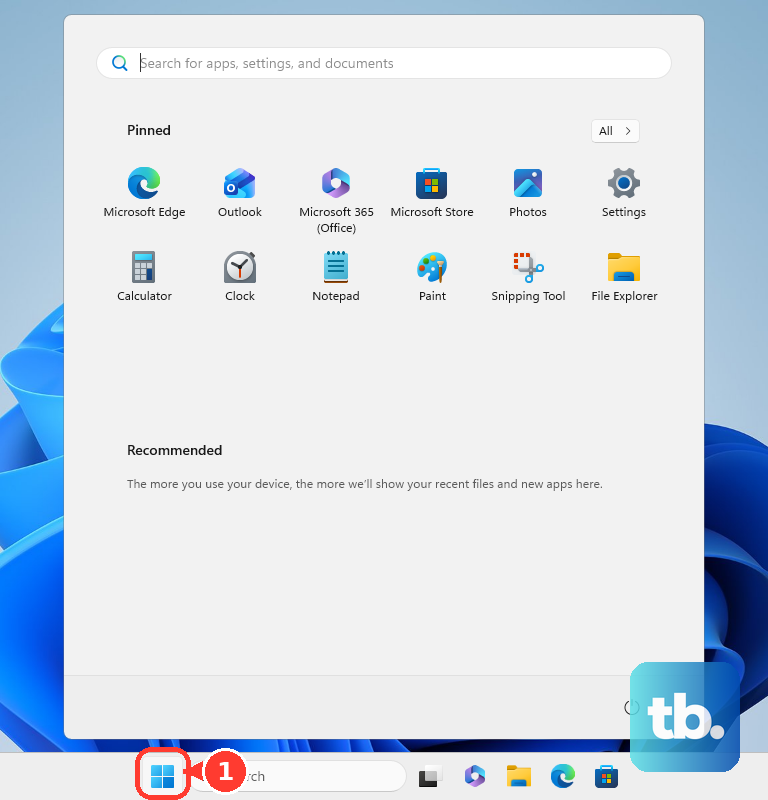
Use the normal restart first: open Start > Power > Restart. After Windows starts again, plug in the headphones and test audio.
On Dell PCs, use Dell’s power cycle path when the jack still is not detected: turn off the computer, disconnect the power cable and external devices, press and hold the power button for 15 to 20 seconds, reconnect power, turn on the computer, and test the headphones.
5. Run the Windows 11 audio troubleshooter
Open Start > Settings > System > Sound.
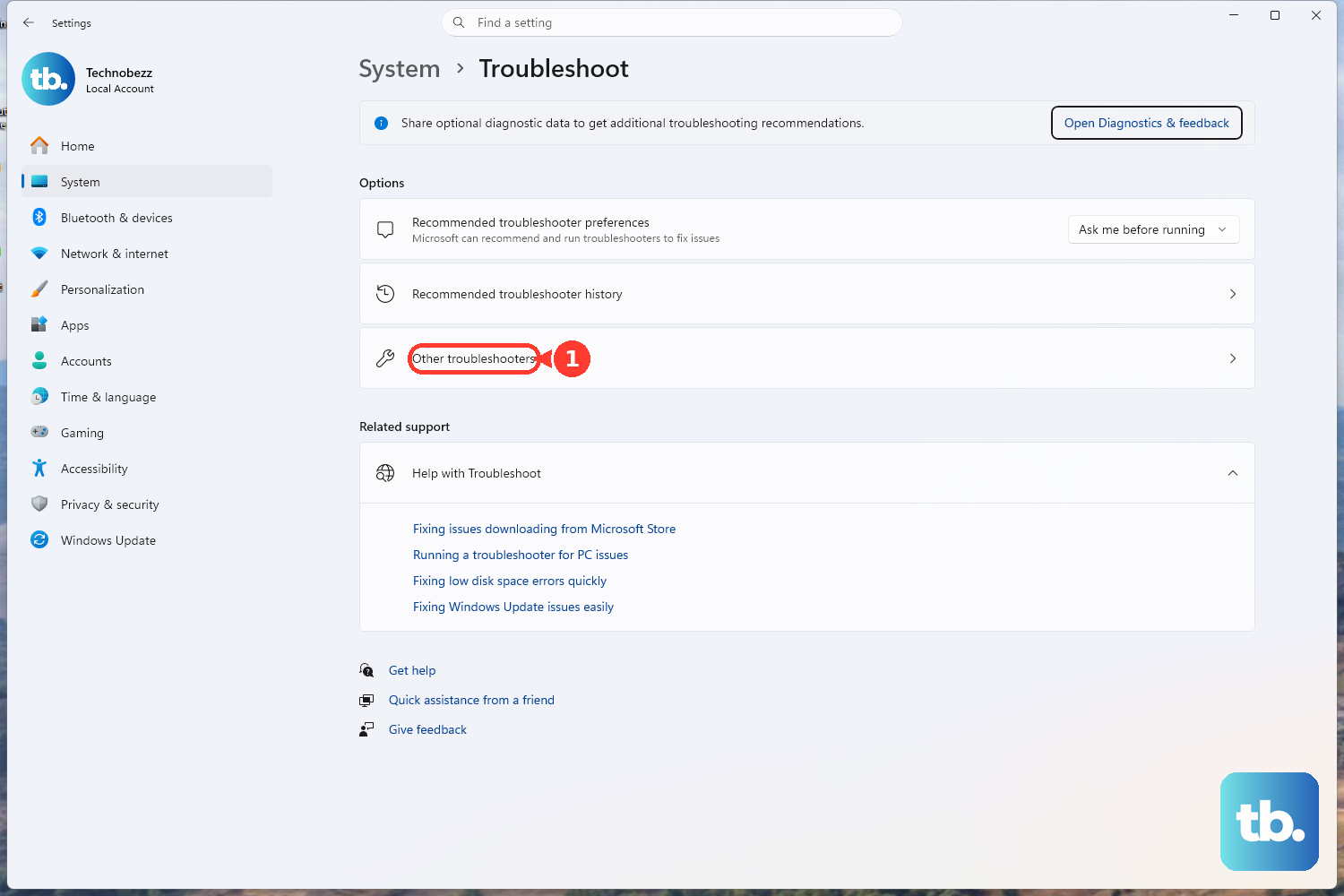
Open Get Help and run the audio troubleshooter, or go to Settings > System > Troubleshoot > Other troubleshooters and select Run next to Audio.
Follow the on-screen instructions in the audio troubleshooter or Get Help.
Use the current Windows 11 repair path from Sound settings. Skip the old Windows 10 route through Settings > Update & Security > Troubleshoot > Additional troubleshooters > Playing Audio. Current Windows 11 uses Sound and Get Help instead.
6. Fix muted apps and wrong app outputs
When headphones work for system sounds but one app stays silent, repair that app’s mixer settings.
Open Start > Settings > System > Sound > Volume mixer.
Under Apps, find the affected app.
Turn up its volume slider.
Make sure it is not muted.
Set its Output device to your headphones.
On Windows 11 builds with the enhanced mixer, press Win + Ctrl + V to open the quick volume mixer, then choose the app audio level or output device there.
For meeting apps, also set the device inside the app. In Microsoft Teams, open Settings and more > Settings > Devices, then choose the correct Primary audio device, Speaker, and Microphone. In Zoom, open the profile menu > Settings > Audio, select the correct Speaker, and use Test speaker.
7. Repair the audio driver
Open Start > Settings > Windows Update.
Select Check for updates.
Install available audio driver updates.
Restart the PC.
Open Advanced options > Optional updates > Driver updates.
Select applicable audio or OEM driver updates.
Select Download & install, then restart.
Driver repair belongs after output, app, and hardware checks. If Windows Update does not fix it, open Start, type Device Manager, select Device Manager, expand Sound, video and game controllers, right-click the audio device, choose Update driver, then select Search automatically for drivers.
For a clean reinstall, right-click the audio device in Device Manager, choose Uninstall device, confirm Uninstall, and restart. Windows attempts to reinstall the driver after restart.
If the jack stopped working right after a driver update, open the audio device Properties, select the Driver tab, choose Roll Back Driver, choose a reason, select Yes, and restart when prompted.
8. Install the PC maker’s audio package
Use the manufacturer’s driver when Windows does not install the right audio package for your exact PC or sound card.
Dell: open Dell Drivers & Downloads, enter the Service Tag or model, expand Audio, BIOS, or Chipset as needed, select Download, install the update, and restart.
HP: open HP Support Assistant and check for updates, or use HP’s support driver page for the exact PC model. On Windows in S mode, HP Support Assistant is not available, so get audio drivers through Windows Update instead.
Lenovo: open Lenovo Vantage and run the system update check, or use Lenovo Support Drivers & Software for the exact model.
Realtek Audio Control: open the Microsoft Store page, select Get or Open in Store app, and use it only when the OEM Realtek driver exposes settings through that app.
On many Dell computers with Realtek audio and Waves MaxxAudio, open your security software and check whether Waves Audio Service, WaveSvc64.exe, or WavesSysSvc64.exe is blocked or quarantined. Add the blocked Waves process to the allow list, restart, and test audio.
9. Use deeper Windows repairs last
Turn off enhancements when sound is silent, distorted, or behaving strangely: open Start > Settings > System > Sound, select the output device, then set Audio enhancements to Off. If that control is only available in the classic surface on your PC, use More sound settings > Playback > device Properties > Enhancements > Disable all enhancements > OK.
For crackling or distorted output, select the device in Sound, open Advanced, change Default format, and test audio.
If the Windows audio service is stuck, open Start, type services.msc, press Enter, right-click Windows Audio, select Restart, then right-click Windows Audio Endpoint Builder and select Restart.
When the audio device is missing, open Device Manager, expand Sound, video and game controllers, right-click the audio device, and select Enable device if it appears. If it does not appear, select View > Show hidden devices, then Action > Scan for hardware changes.
After a recent bad app, driver, or settings change, use Control Panel > Recovery > Open System Restore, select a restore point from before the headphone issue, and follow the prompts. If Windows still needs repair, open Start > Settings > System > Recovery > Fix problems using Windows Update > Reinstall now, then follow the prompts. If Fix problems using Windows Update is not shown, the PC may be managed or missing the required Windows 11 update (version 22H2 or later with the February 2024 optional update); use standard recovery options or contact IT on managed devices.
On a work or school PC, contact IT to review device installation restrictions, Windows Update driver policy, or Intune driver approvals. Those controls can block the audio device or prevent the driver from installing.
Frequently Asked Questions
Why does Windows 11 use speakers when headphones are plugged in?
Windows has another output selected. Select the taskbar Speakers icon, open Select a sound output, choose your headphones, then confirm the same device under Settings > System > Sound > Output.
Why do my headphones work everywhere except Zoom, Teams, or Chrome?
The app has its own mute, volume, or output route. Open Settings > System > Sound > Volume mixer, fix the affected app under Apps, then choose the same headset inside the app’s audio settings.
What if Windows 11 does not show my headphone device at all?
Open Device Manager, expand Sound, video and game controllers, enable the audio device if it appears, then use View > Show hidden devices and Action > Scan for hardware changes.
Can a driver update break headphone jack audio?
Yes. Open Device Manager, open the audio device Properties, use the Driver tab, and select Roll Back Driver when Windows has a previous driver package available.
Should I reset Windows to fix a headphone jack?
Use reset or OEM recovery only after output selection, hardware checks, troubleshooters, driver repair, System Restore, and Windows Update repair fail. Back up your data first.