When Grammarly stops showing up in Microsoft Word, the problem usually comes from the desktop app, Word’s view settings, a blocked app setting, or a connection issue. The fix is to use the current Grammarly for Windows or Grammarly for Mac setup and refresh the parts Word depends on. Start with the quick resets, then move into the Word-specific checks.
Restart everything first
Restart your computer before changing any Grammarly or Word settings.
Open Microsoft Word again and start typing in your document.
Give Grammarly a moment to load its suggestions.
Close Microsoft Word completely if Grammarly still does not appear.
Quick tip: after any Grammarly setting change, reopen Word so the integration can refresh.
Install the current Grammarly app
Use this when Grammarly was installed years ago, Word was recently updated, or an older tutorial told you to enable a Word-specific add-in. The current Word path is Grammarly for Windows or Grammarly for Mac.
Go to grammarly.com/desktop and download Grammarly.
Open the downloaded file and follow the prompts.
Launch Microsoft Word and start typing.
On Windows, Grammarly for Windows appears in Word as a list view of suggestions.
Do not use the old Grammarly for Microsoft Office Suite COM add-in or the discontinued Grammarly for Microsoft Word on Mac add-in as the fix. Replace those with Grammarly for Windows or Grammarly for Mac.
Switch the Grammarly widget or tab
The most common cause here is that Grammarly is already working, but Word is showing the newer docked tab experience instead of the floating widget.
On Windows, find the Grammarly icon in the system tray.
Right-click it and choose Settings.
Turn off Use docked chat launcher to bring back the floating Grammarly widget in Word.
To use the newer layout instead, turn on Use docked chat launcher.
In Word, click the Grammarly tab on the right side of the screen and select Review suggestions.
Remove Word from Grammarly’s Block List
If Grammarly was turned off for Word, remove it from the Block List and reopen the document.
On Windows, click the Grammarly icon in the system tray and choose Settings. If the icon is missing, search for Grammarly from the Start menu and launch it.
On Mac, click the Grammarly icon in the menu bar and choose Settings. If the icon is missing, open Launchpad or Finder, then open Grammarly Desktop.
Select Block List.
If Microsoft Word is listed under Blocked by you, remove it. If it is listed under Blocked by admin, you cannot remove it yourself. Ask your Grammarly Enterprise admin to update the application controls.
Close Microsoft Word completely, then reopen your document.
Restart Grammarly Desktop
On Windows, click the Grammarly icon in the system tray and choose Quit Grammarly.
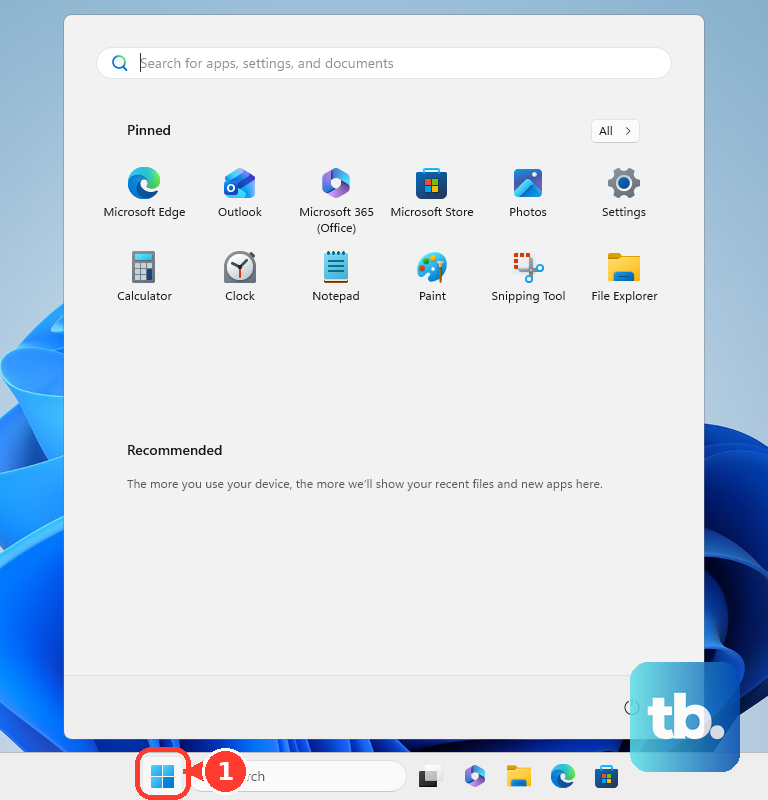
Open the Start search box, type Grammarly, and launch the app again.
On Mac, click the Grammarly button in the menu bar and choose Quit.
Open Launchpad or Finder, go to Applications, and open Grammarly Desktop.
Final check: close Word after restarting Grammarly, then reopen the document and type a few sentences.
Fix Word settings on Mac
The most common cause on Mac is Word using a layout Grammarly does not support.
In Microsoft Word, select View.
Choose Print Layout.
Close extra Word or Office documents so only one Word document stays open.
If the Grammarly icon is missing from the Mac menu bar, open System Settings, then Menu Bar.
Scroll to Allow in the Menu Bar and turn on Grammarly Desktop or Superhuman Apps Manager.
Simplify difficult Word documents
Large or complex Word files can break Grammarly’s underlines, suggestion navigation, accepted edits, cursor position, or widget counts. Test this when Grammarly works in a blank document but fails in one specific file.
Reduce inserted citations, endnotes, footnotes, images, tables, equations, tables of contents, and interference from other Microsoft Office add-ins.
Split long documents into sections that do not exceed 50 pages each.
Check each section separately in Microsoft Word.
If this method fails, open Grammarly Editor at app.grammarly.com and paste or upload the document text there.
Update or repair Office on Windows
When Word itself is outdated or damaged, refresh Office before reinstalling Grammarly again.
- 1.Open Word, create a new document, and go to File, then Account.
- 2.Under Product Information, choose Update Options, then Update Now. If needed, choose Enable Updates first.
- 3.Open Start, then Settings, then Windows Update, then Advanced options, and turn on Receive updates for other Microsoft products when you update Windows.
- 4.Right-click Start, select Installed apps, choose your Microsoft 365 or Office product, click the ellipses, and select Modify.
- 5.For Click-to-run Office, choose Online Repair, then Repair. For MSI-based Office, select Repair, then Continue.
Check compatibility and connection issues
Use this when Grammarly shows a gray widget, says Something went wrong, cannot connect, or still fails after reinstalling the current desktop app. It also applies when your computer or Office version is older.
On Windows, confirm you have Windows 10 build 1903 or newer, Chrome or Microsoft Edge 89 or newer, .NET Framework 4.7.2 or newer, and at least 4GB RAM.
For Word on Windows, confirm Office is Microsoft Office 2016 or newer, or Microsoft Office 365 installed or updated after February 2020.
On Mac, confirm you have macOS 11 or newer, Chrome 89 or newer or Safari 12.1 or newer, and an Apple Silicon Mac or an Intel Mac from 2018 or newer.
For connection errors, allow *.grammarly.com, *.grammarly.io, and *.grammarly.net on ports 80 and 443. WebSocket protocol must also work on ports 80 and 443.
On Windows, reinstall Microsoft Edge WebView2 when the Grammarly assistant window cannot open or connect.
If SmartScreen for Microsoft Edge blocks the assistant window, turn it off only to test, then turn security protection back on after testing.
If your Word copy uses a personal or family Microsoft Office account and Copilot is enabled, go to File, then Options, then Copilot. Uncheck Enable Copilot, select OK, and restart Word.
On a work or school computer, ask IT whether Microsoft Word is blocked for Grammarly or whether Office add-ins are managed centrally.
Frequently Asked Questions
Why is Grammarly not showing in Word after I installed it?
Restart the computer first, then reopen Word. If it still does not show, confirm you installed Grammarly for Windows or Grammarly for Mac from the current desktop download page, not the older Grammarly for Microsoft Office or Mac Word add-in.
Does Grammarly still have a Word add-in?
The current supported path is Grammarly for Windows or Grammarly for Mac. Grammarly for Microsoft Office is being retired, and Grammarly for Microsoft Word on Mac was discontinued.
Why does Grammarly work in one Word document but not another?
The file may be too complex or too long. Reduce citations, endnotes, footnotes, images, tables, equations, tables of contents, and other Office add-in interference, then split long documents into sections of 50 pages or fewer.
What can I use if my computer does not support Grammarly Desktop?
Use Grammarly Editor at app.grammarly.com. It can accept pasted text or supported uploads such as .doc, .docx, .odt, .txt, and .rtf, subject to upload limits.