Gmail can stop working in the iPhone Mail app for a few clear reasons: the service is down, the iPhone is offline, Mail is stuck, fetch is delayed, or Google sign-in needs to be refreshed. Start with the checks that do not remove your account, then move to account setup only if Mail still will not load, send, or update. The steps below use current Apple and Google guidance verified for August 2026.
Check Gmail and your iPhone connection first
Before changing Mail settings, make sure Gmail itself is available. Open the Google Workspace Status Dashboard in a browser, find Gmail, and check the current day for Available, Service information, Service disruption, or Service outage.
Next, confirm the iPhone is online. Open Settings, tap Wi-Fi, and join a working network, or open Settings, tap Cellular, and turn on Cellular Data.
Open Mail, go to the mailbox list, and pull down to refresh Gmail. If Gmail still does not load, refresh Mail itself and restart the iPhone before changing account settings.
Refresh Mail when the app freezes or will not update
Use this when Mail is blank, stuck, slow to refresh, or showing old Gmail messages even though the iPhone is connected. Closing Mail restarts the app without deleting your Gmail account.
On an iPhone X or later, swipe up from the bottom of the Home Screen and pause in the middle. Find Mail in the app switcher, swipe up on its preview, then open Mail again.
On an iPhone SE, iPhone 8, or earlier model, double-click the Home button. Find Mail, swipe up on its preview, then reopen Mail.
If the phone or Mail is unresponsive on an iPhone 8 or later, press and quickly release Volume Up, press and quickly release Volume Down, then hold the Side button until the Apple logo appears.
Restart and update the iPhone
This fixes Mail problems caused by a temporary iOS issue or outdated system components. Restart the iPhone first.
On an iPhone X, 11, 12, 13, or later, hold either Volume button and the Side button until the power-off slider appears. Drag the slider, wait 30 seconds, then hold the Side button until the Apple logo appears.
On an iPhone 6, 7, 8, or SE 2nd or 3rd generation, hold the Side button, drag the slider, wait 30 seconds, then hold the Side button again. On an iPhone SE 1st generation, iPhone 5, or earlier, use the Top button instead. Open Mail and refresh Gmail.
If the same problem returns, back up the iPhone before installing an iOS update. To update wirelessly, plug the iPhone into power, connect to Wi-Fi, open Settings, tap General, then tap Software Update.
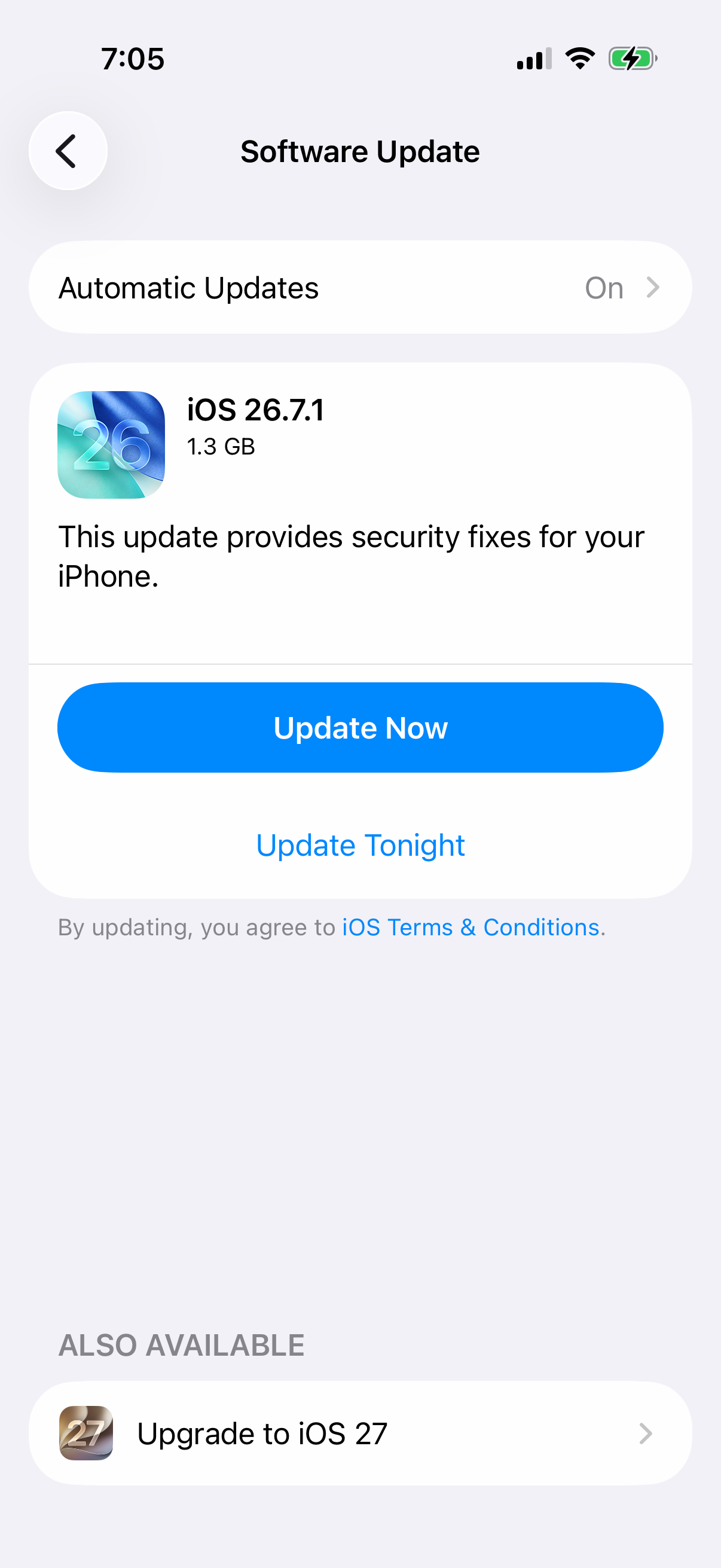
If an update appears, tap Update Now and follow the onscreen instructions. If wireless updating is unavailable and you have a Mac with macOS Catalina or later, connect the iPhone, open Finder, select the device in the sidebar, choose General, click Check for Update, then click Download and Update.
Fix Gmail fetch and data settings
Use these checks when Gmail opens in Mail but new messages arrive late, only refresh manually, or stop away from Wi-Fi.
Open Settings, tap Apps, tap Mail, tap Mail Accounts, then tap Fetch New Data.
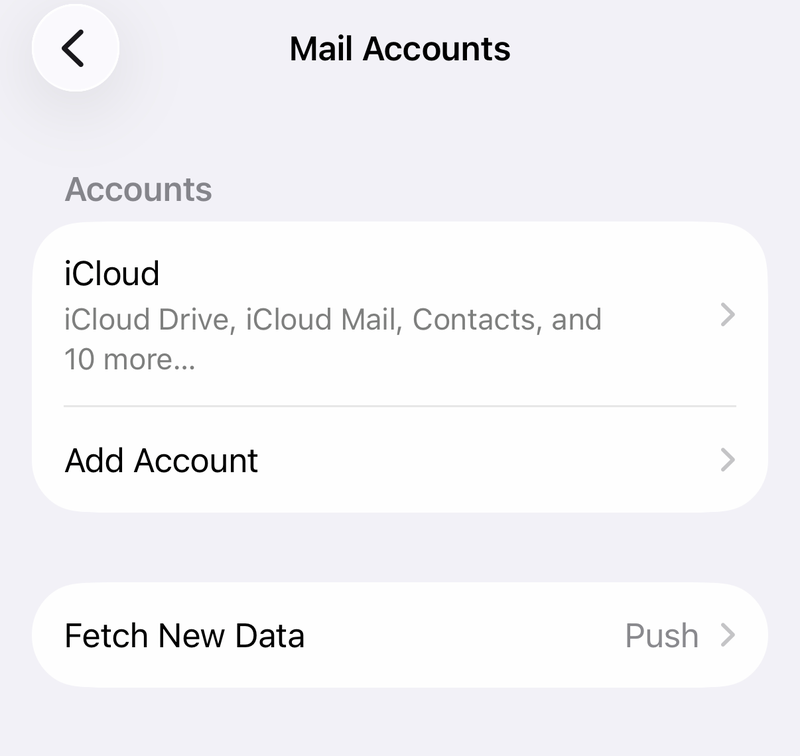
Choose Automatically, Manually, or a timed fetch schedule. Gmail uses Fetch when Push is not available, and automatic background fetch on iOS 11 or later runs only while charging and connected to Wi-Fi.
If Gmail fails only on cellular, open Settings, tap Cellular, turn on Cellular Data, and make sure Mail is allowed to use cellular data.
Turn off Low Data Mode for Wi-Fi by opening Settings, tapping Wi-Fi, tapping the info button next to the connected network, and switching off Low Data Mode.
Turn off Low Data Mode for cellular by opening Settings, tapping Cellular, then using Cellular Data Options or Data Mode.
Refresh the Gmail account switch in Mail
A Gmail account can stay signed in but stop syncing cleanly inside Mail. The quickest account-level reset is to turn Mail access for that Gmail account off and back on.
Open Settings, tap Apps, tap Mail, then tap Mail Accounts. Choose the Gmail or Google account and turn Mail off.
Wait briefly, turn Mail back on, then open Mail and refresh Gmail. If Gmail still fails after that toggle, verify the Google sign-in and add the account again using Google.
Sign in again and add Gmail the right way
Use this when Mail asks for a password, shows a username or password error, or keeps failing after the simpler resets.
- 1.Sign in to Gmail on the web at mail.google.com first, so you know the email address and password work and your mail is present.
- 2.On the iPhone, open Settings, tap Apps, tap Mail, tap Mail Accounts, tap the Gmail account, then tap Delete Account.
- 3.Go back to Mail Accounts, tap Add Account, enter your Gmail address, and choose Google when Mail asks for the provider.
- 4.Complete the Google sign-in prompts, allow Mail access, then tap Save when shown.
- 5.For a normal @gmail.com account, choose Google instead of Other. Less secure app access is no longer a fix: Google removed that setting from personal accounts and stopped supporting username-and-password sign-in for Google Workspace accounts, so if it is off for your account, leave it off. A CAPTCHA check is still a real step, though. If sign-in keeps failing from Mail, open mail.google.com in a browser, sign in, and complete the CAPTCHA test if Google shows one, then try adding the account again.
Resend Gmail stuck in Outbox
This fixes Gmail messages that Mail has not sent. Open Mail and go to the mailbox list. Tap Outbox when it appears. Open the unsent message.
Confirm the recipient address is correct. Tap Send. If the message still does not leave, use the sign-in and re-add steps above to refresh the Google account connection.
Fix notifications, links, and a missing Mail app
Sometimes Gmail is working in Mail, but the symptom looks like a Mail failure. If messages arrive but alerts do not, open Settings, tap Notifications, tap Mail, then adjust Alerts, Sounds, and Badges.
If email links or Siri compose in the wrong app, open Settings, tap Apps, tap Mail, tap Default Mail App, and choose Mail. You can also ask Siri to read or send email to test whether Mail can access the account.
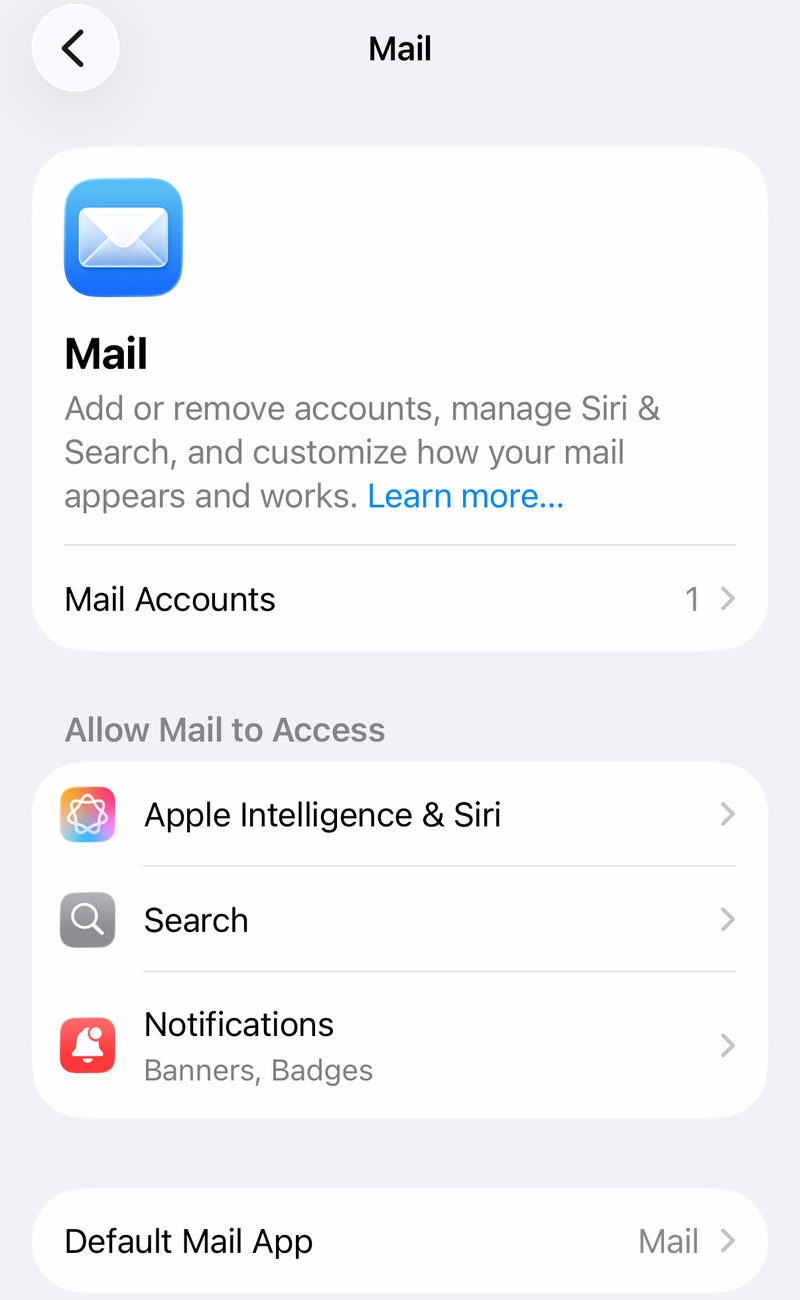
If the Mail icon is missing, swipe left on the Home Screen until App Library appears, search for Mail, touch and hold the Mail app icon, then tap Add to Home Screen. If Mail was deleted, reinstall Apple Mail from the App Store and confirm Gmail is available on the web before restoring the account.
If these symptoms persist, treat it as an account setup problem and remove then add the Gmail account again using Google.
Reset network settings and handle work accounts
Open Settings, tap General, tap Transfer or Reset iPhone, tap Reset, then tap Reset Network Settings only after the easier connection and account fixes fail. This removes saved Wi-Fi networks and VPN settings not installed by a configuration profile or device management, but it does not erase media or content.
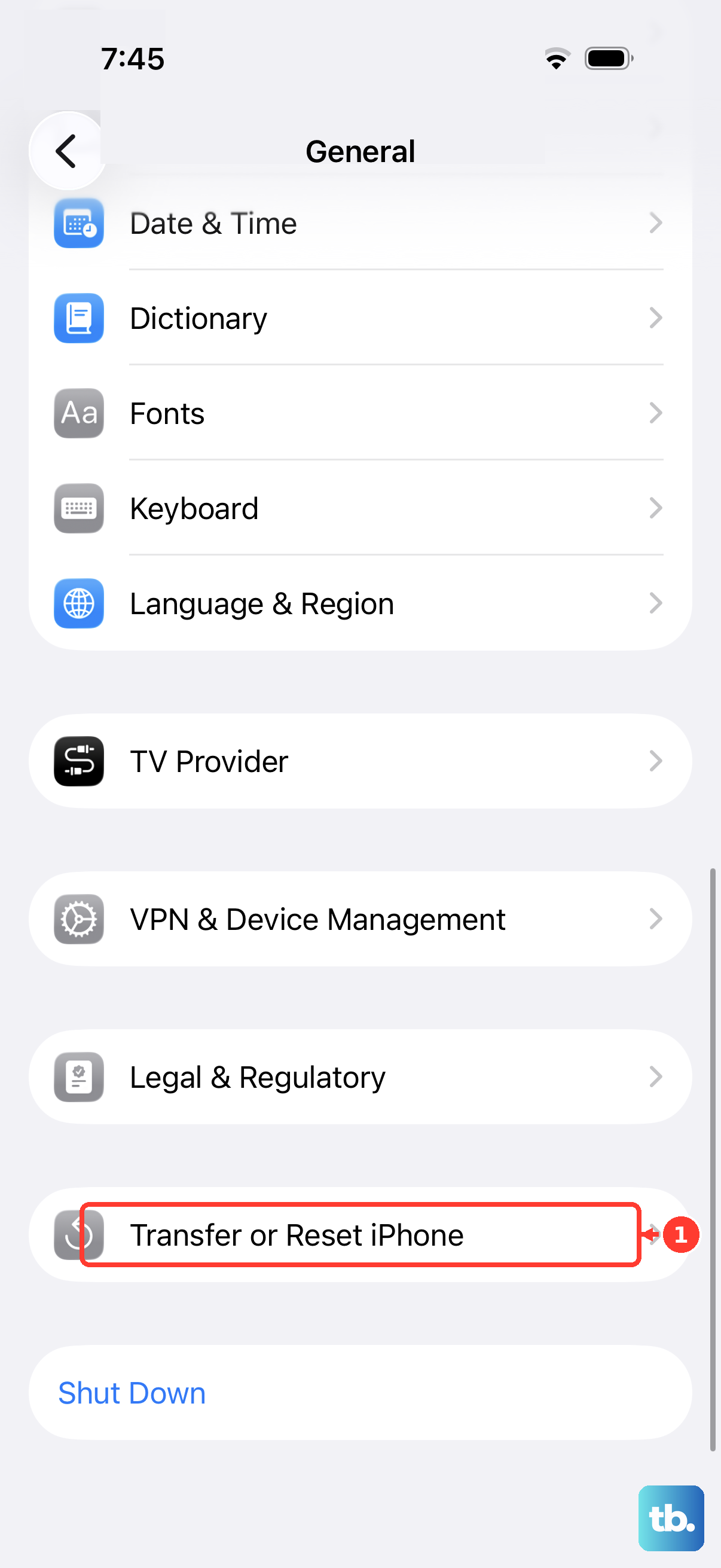
Reconnect to Wi-Fi afterward. Open Mail and refresh the Gmail mailbox once the iPhone is back online.
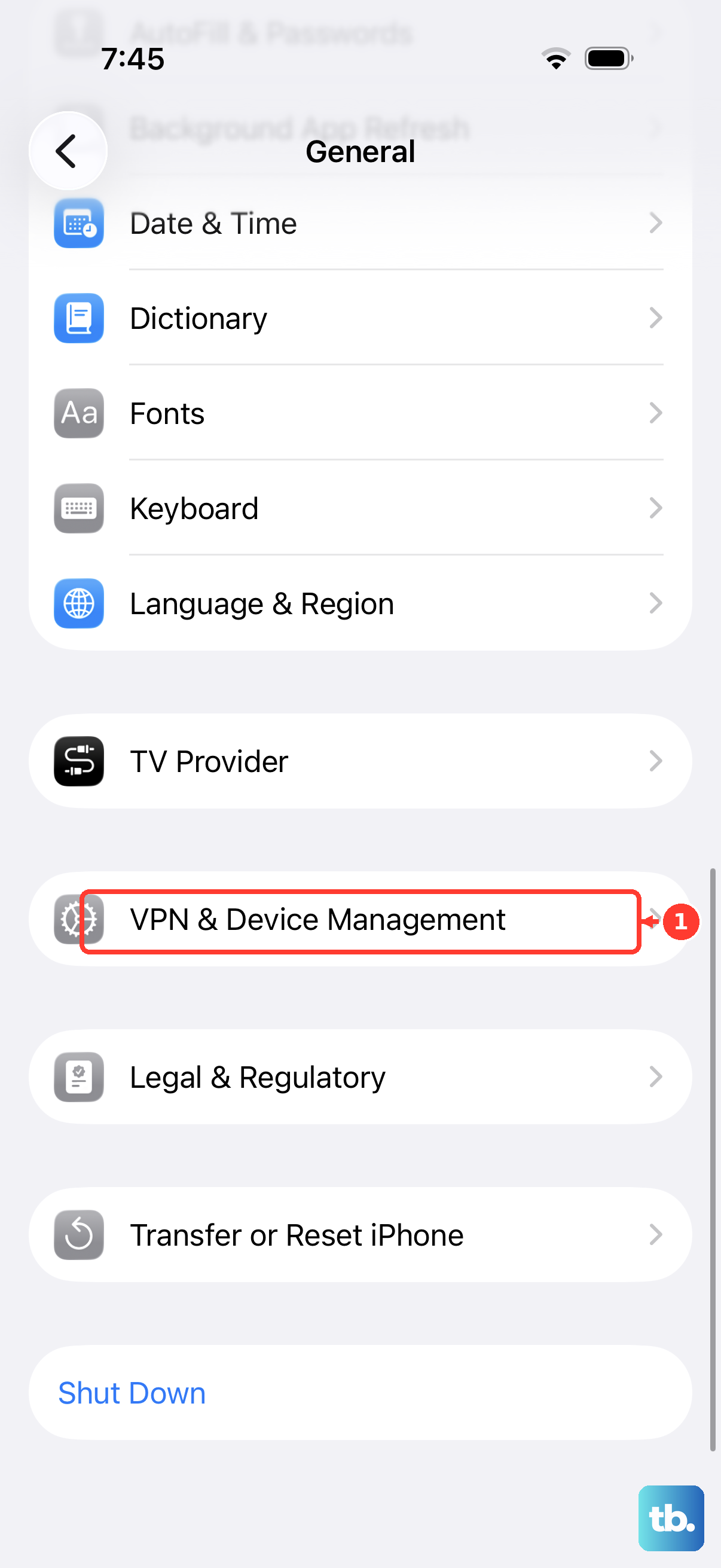
If the iPhone has a removable profile that may block Gmail traffic, open Settings, tap General, tap VPN & Device Management, select the profile, then tap Remove Profile. For managed devices, select the management entry and tap Remove Management only when your organization allows it.
For a work or school Google Workspace account, your organization can block or limit IMAP access or managed mail clients. If personal Gmail works but the work account does not, contact your admin or use the official Gmail app when Apple Mail is blocked by policy.
As a practical fallback, install or update the Gmail app from the App Store, sign in, and use it while the Mail account issue is being fixed.
Frequently Asked Questions
Why does Gmail refresh only when I open the Mail app?
Gmail in Apple Mail uses Fetch when Push is not available. On iOS 11 or later, automatic background fetch runs only when the iPhone is charging and connected to Wi-Fi.
Should I choose Google or Other when adding Gmail to iPhone Mail?
Choose Google for a normal @gmail.com account. The Google option uses the current sign-in flow, while manual Other setup is mainly for nonstandard, delegated, legacy, or admin-controlled accounts.
Will deleting the Gmail account from Mail delete my Gmail messages?
No. Before removing the account, sign in at mail.google.com and confirm your mail is there. Deleting the account from Mail removes it from the iPhone Mail app, then you can add it again.
What should I do if my work Gmail account will not work in Apple Mail?
If personal Gmail works but a work or school account fails, your organization may restrict IMAP or Apple Mail access. Contact your admin or use the official Gmail app if Apple Mail is blocked.