Gmail can fail to open on iPhone because the app is frozen, outdated, blocked by a connection problem, locked by iOS, or stuck on one Google account. Start with the fixes that leave your mail and settings alone, then move to updates, network checks, account repair, and reinstalling. By the end, you will know whether the problem is Gmail, iOS, your connection, or your Google account.
Close Gmail and open it again
The most common cause is a temporary app freeze.
Open the App Switcher. On iPhone X and later, swipe up from the bottom of the screen and pause in the middle. On iPhone SE, iPhone 8, and earlier, double-click the Home button.
Swipe right or left until you see Gmail.
Swipe up on the Gmail preview to close it.
Go back to the Home Screen or App Library, then open Gmail again.
Restart your iPhone
Use a normal restart before changing account or network settings.
- 1.On iPhone X, iPhone 11, iPhone 12, iPhone 13, or later, press and hold either volume button and the side button until the power-off slider appears.
- 2.On iPhone 6, iPhone 7, iPhone 8, or iPhone SE 2nd or 3rd generation, press and hold the side button until the power-off slider appears.
- 3.On iPhone SE 1st generation, iPhone 5, or earlier, press and hold the top button until the power-off slider appears.
- 4.Drag the power-off slider, wait 30 seconds, then press and hold the side or top button until the Apple logo appears.
Check whether Gmail is down
Before digging through iPhone settings, open the Google Workspace Status Dashboard at google.com/appsstatus/dashboard and check the Gmail row. A Gmail service incident can make the app look broken even when your iPhone is working normally.
If the Gmail row shows an incident, wait for Google to resolve it and try again later.
If Gmail shows no service issue and the app still will not open, update Gmail from the App Store next.
Update Gmail from the App Store
This applies when Gmail opens and crashes, hangs on launch, or has not been updated recently. The current Gmail App Store listing requires iOS 18.0 or later on iPhone.
Open the App Store.
Tap the My Account button or your photo at the top of the screen.
Tap App Updates.
Tap Update next to Gmail. If you see Update All, use it to install every pending app update.
To keep future Gmail fixes coming automatically, open Settings, tap Apps, tap App Store, then turn on App Updates.
Fix the connection Gmail is using
The most common cause after an app freeze is a stale or blocked network connection.
Open Safari and load a website. If the page does not load, Gmail cannot reach Google either.
Open Settings, tap Wi-Fi, turn on Wi-Fi, then tap your network name. Enter the password if iPhone asks for it.
If Wi-Fi is already connected, turn Wi-Fi off and on, or join another network.
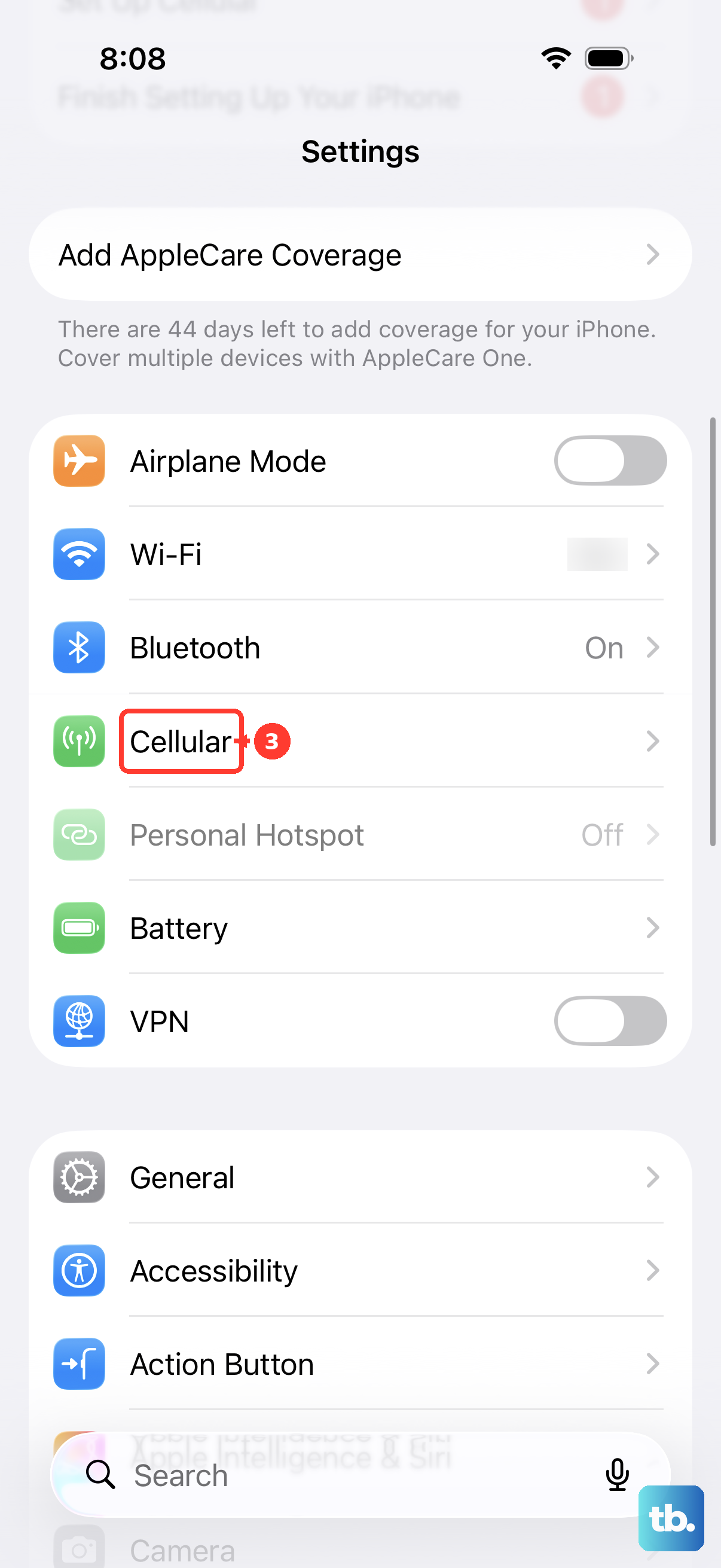
If Gmail works on Wi-Fi but not away from Wi-Fi, open Settings, tap Cellular, and turn on Cellular Data.
Scroll to the app list, tap Show All if it appears, then turn on cellular data for Gmail. If you use Dual SIM, tap Cellular Data and confirm the selected line.
Unlock or unhide the Gmail app
This fixes cases where Gmail is present but iOS asks for authentication, or the icon seems to be missing on an iPhone using iOS 18 or later.
Go to the Home Screen, locate Gmail, tap it, then authenticate with Face ID, Touch ID, or your passcode.
To turn off the lock, touch and hold the Gmail icon until the menu opens.
Tap Don't Require Face ID, Don't Require Touch ID, or Don't Require Passcode.
Authenticate with Face ID, Touch ID, or your passcode.
If Gmail is hidden, swipe left past all Home Screen pages to App Library.
Tap the Hidden folder at the bottom, authenticate, then tap Gmail.
To unhide it, touch and hold Gmail in the Hidden folder, tap Don't Require Face ID, Don't Require Touch ID, or Don't Require Passcode, then authenticate again.
Remove Screen Time blocks
Use this when Gmail will not open during certain hours, cannot be reinstalled, or Gmail web is blocked in Safari. Screen Time can restrict apps, web content, and App Store downloads.
Open Settings, tap Screen Time, then tap Downtime. If Block at Downtime is on, turn off Scheduled or change the schedule.
Go back to Screen Time, tap App Limits, select the Gmail or app category limit, then adjust or remove it.
To allow Gmail during downtime, go to Screen Time, tap Always Allowed, then add Gmail if it appears.
If Gmail web is blocked, go to Screen Time, tap Content & Privacy Restrictions, then tap App Store, Media, Web, & Games. Open Web Content and remove mail.google.com or google.com from Never Allow.
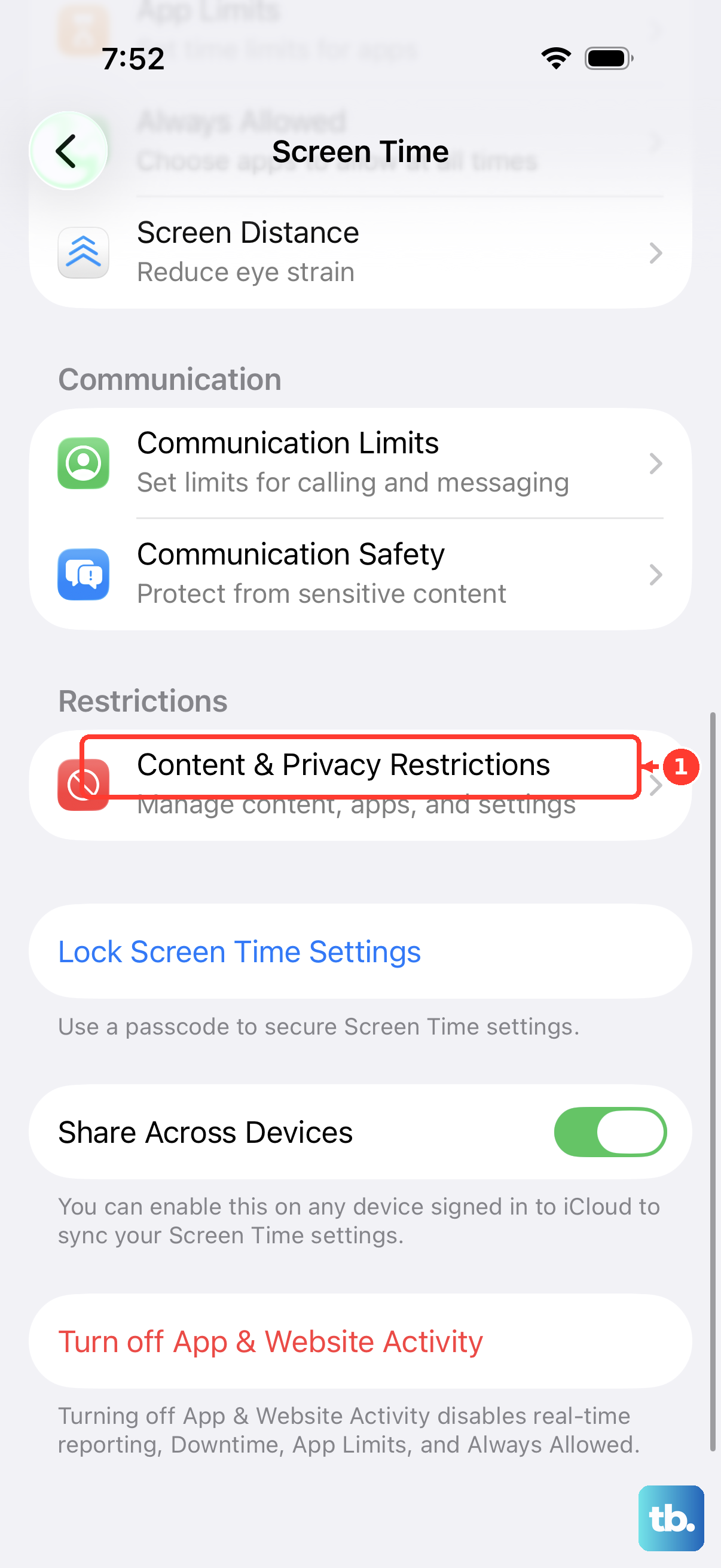
If you cannot reinstall Gmail, open Content & Privacy Restrictions, tap iTunes & App Store Purchases, tap Installing Apps, then tap Allow.
Repair the Google account inside Gmail
If Gmail opens far enough to show account controls but never reaches the inbox, remove the affected account and add it again.
Open Gmail, tap your Profile, then tap Manage accounts on this device.
Tap Remove from this device for the problem account. Google warns that this also signs you out of every other Google app on the device, such as Maps and YouTube, so continue only if that broader sign-out is acceptable, then add the account again.
To add it back, open Gmail, tap your Profile in the search bar, then tap Add another account.
Tap Google and follow the on-screen steps. If 2-Step Verification appears, complete the requested second step.
If you cannot sign in or recover the Google account, use Google's account recovery flow from the Gmail sign-in help page.
If Gmail crashes before you can reach account controls, delete and redownload Gmail instead.
Delete Gmail and reinstall it
Touch and hold Gmail on the Home Screen.
Tap Remove App.
Tap Delete App to remove it from iPhone. If you are deleting it from App Library, touch and hold Gmail, tap Delete App, then tap Delete.
Open the App Store, search for Gmail, then tap Get or the Redownload button.
Authenticate with Face ID, Touch ID, or your passcode if iPhone asks.
If storage blocks the reinstall, open Settings, tap General, tap iPhone Storage, then tap Enable next to Offload Unused Apps.
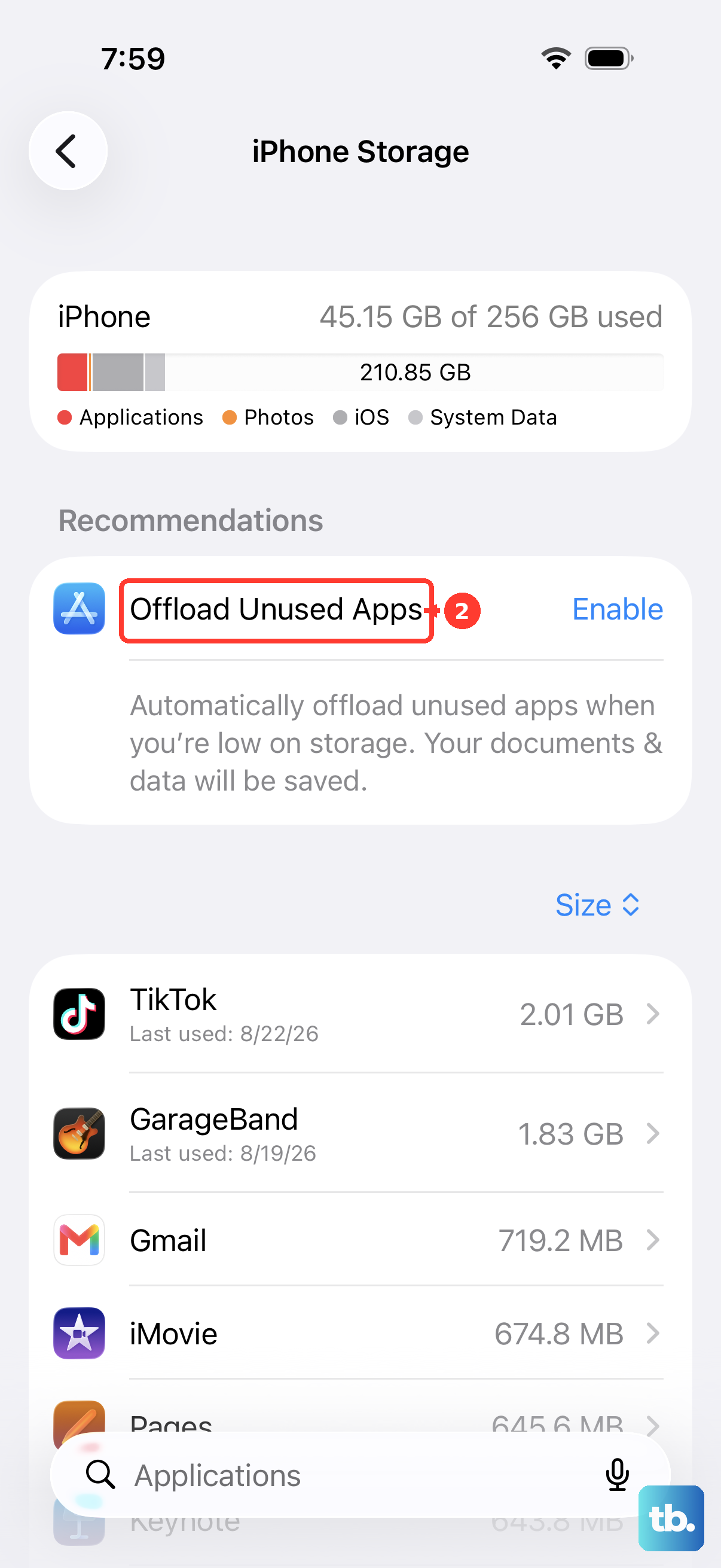
For a clean Gmail reinstall, use Delete App instead of offloading Gmail, because deleting removes local app data.
Frequently Asked Questions
Why does Gmail open on Wi-Fi but not on cellular?
Cellular data is off globally or disabled for Gmail. Go to Settings > Cellular, turn on Cellular Data, then enable cellular data for Gmail in the app list.
Can I clear the Gmail cache on iPhone?
No current iPhone setting clears the Gmail app cache. Apple’s supported path is to close Gmail, restart iPhone, update the app, delete Gmail, then redownload it.
Will deleting Gmail delete my emails?
Deleting the iPhone app can remove local app data, but Gmail messages stay in your Google account. Reinstall Gmail from the App Store and sign back in.
What if Gmail opens but old messages will not load?
Open Gmail, tap Menu > Settings, then under General tap Data usage > Sync settings and set the number of days of email to sync.
Why do email links open Mail instead of Gmail?
Gmail is not selected as the default email app. Go to Settings > Apps > Default Apps > Email, then select Gmail.