FaceTime should move from your iPhone to your iPad with a simple switch prompt, but that prompt disappears fast when Handoff, FaceTime, or account settings are out of sync. Start with the exact iPad control Apple supports, then clear the settings that block the transfer.
1. Start with the iPad Switch prompt
Keep the FaceTime call active on your iPhone. Ending the call first removes the handoff path.
- 1.On your iPad, tap Move call to this [device].
- 2.If that notification is not showing, tap the FaceTime video call button or Call button at the top of the iPad screen.
- 3.Tap Switch or Join.
- 4.Tap Switch or Join again to confirm.
Moved it to the wrong device? Look at the original device, tap Switch on the banner, then repeat the iPad handoff.
2. Update both devices before digging deeper
FaceTime Handoff from iPhone to iPad requires iOS 16 or later on the iPhone and iPadOS 16 or later on the iPad. Check each device at Settings > General > About. Then go to Settings > General > Software Update.
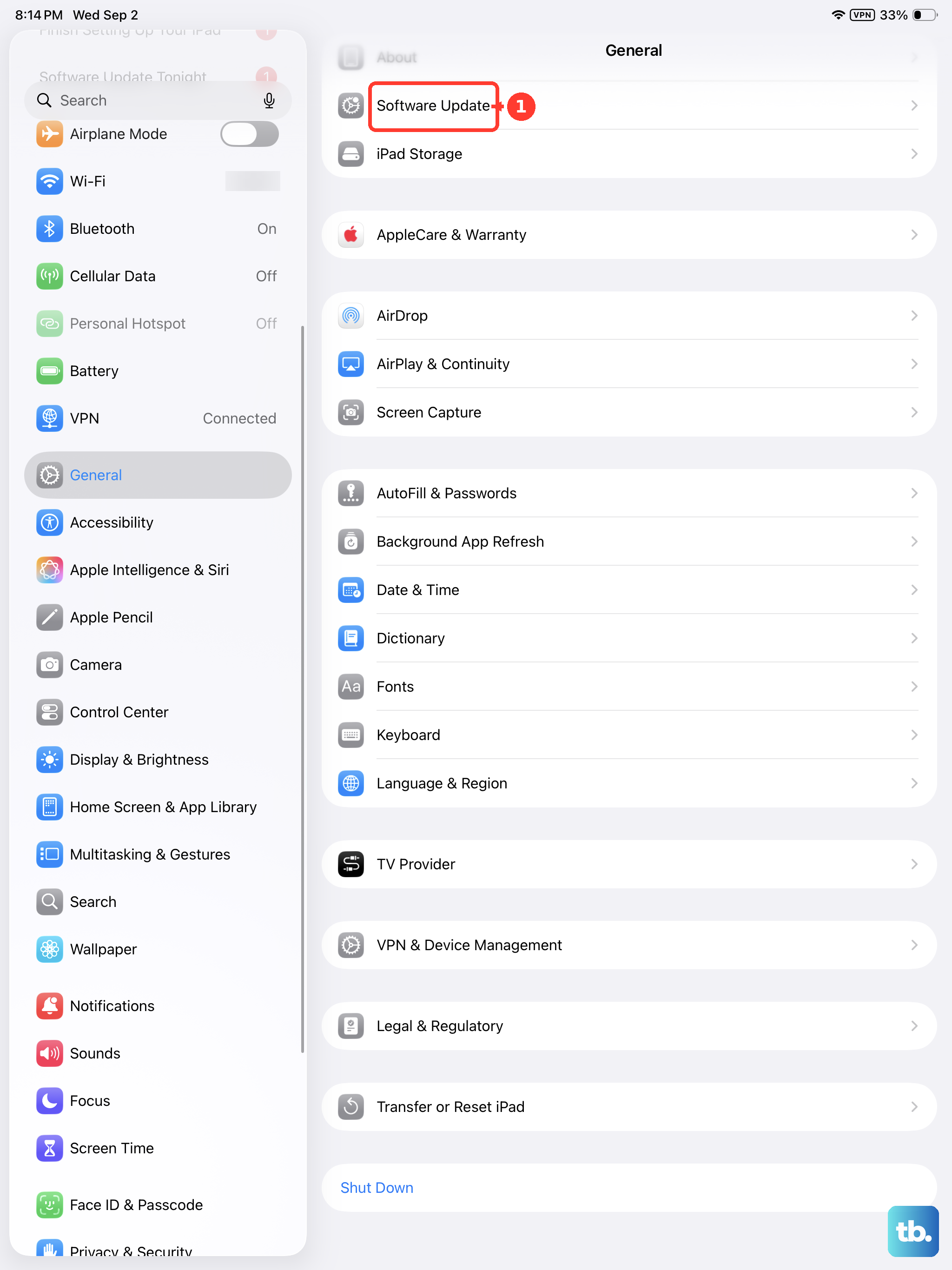
When an update appears, tap Download and Install and follow the onscreen instructions.
3. Enable Handoff on both devices
Open Settings on your iPhone. Tap General. Tap AirPlay & Continuity. Turn on Handoff.
Repeat those steps on your iPad. On some versions, the same page is named AirPlay & Handoff. Use that label when it appears.
4. Match the Apple Account and FaceTime address
Your iPhone and iPad must use the same Apple Account. Open Settings on both devices and compare the account shown under your name at the top.
Next, check FaceTime itself. Open Settings on each device. Tap Apps, then tap FaceTime. On iOS or iPadOS 16 and 17, there is no Apps section, so tap FaceTime directly in the main Settings list.
Turn on FaceTime. Under You Can Be Reached By FaceTime At, select the same phone number or email address on both devices.
That last setting is the one people miss. The contact information selected for the call must match the FaceTime settings on the iPad receiving the handoff.
5. Turn on Wi-Fi and Bluetooth nearby
Handoff needs both radios on both devices, and the iPhone and iPad need to stay within 30 feet or 10 meters. On each device, open Settings > Wi-Fi and turn on Wi-Fi. Then open Settings > Bluetooth and turn on Bluetooth.
Open Control Center and make sure Airplane Mode is off. When Airplane Mode has to stay on, tap the Wi-Fi button to switch it back on, and make sure Bluetooth stays on. Airplane Mode turns off Wi-Fi but keeps Bluetooth active, so only tap Bluetooth if it is already off.
6. Restore FaceTime when it is hidden or blocked
If the FaceTime app or setting is missing, check Screen Time restrictions first. Open Settings > Screen Time > Content & Privacy Restrictions > Allowed Apps & Features, then allow Camera and FaceTime.
For a child device, open Settings > Screen Time, tap the child’s name under Family, then open Content & Privacy Restrictions > Allowed Apps & Features and allow Camera and FaceTime. If the FaceTime app was removed, open the App Store FaceTime listing and reinstall it.
You can also open App Store, tap the My Account button or your photo, tap Apps & Purchase History, tap Your Apps, tap Not on this [device], then tap the redownload button for FaceTime.
7. Reset FaceTime sign-in and network access
When the Switch button appears but the handoff still fails, refresh FaceTime on both devices. Open Settings > Apps > FaceTime (on iOS or iPadOS 16 and 17, open Settings > FaceTime). Turn off FaceTime. Restart the iPhone and iPad.
Return to Settings > Apps > FaceTime. Turn on FaceTime and sign in when prompted. If FaceTime activation or sign-in fails on the iPad, open Settings > General > Date & Time, verify the date, time, and time zone, then turn on Set Automatically.
Test the call on a different Wi-Fi network next. If VPN or security software is blocking FaceTime network access, uninstall it, restart the device, and test the handoff again.
8. Reset Network Settings last
Save this for the end. Reset Network Settings removes saved Wi-Fi networks and passwords, cellular settings, VPN settings, and APN settings.
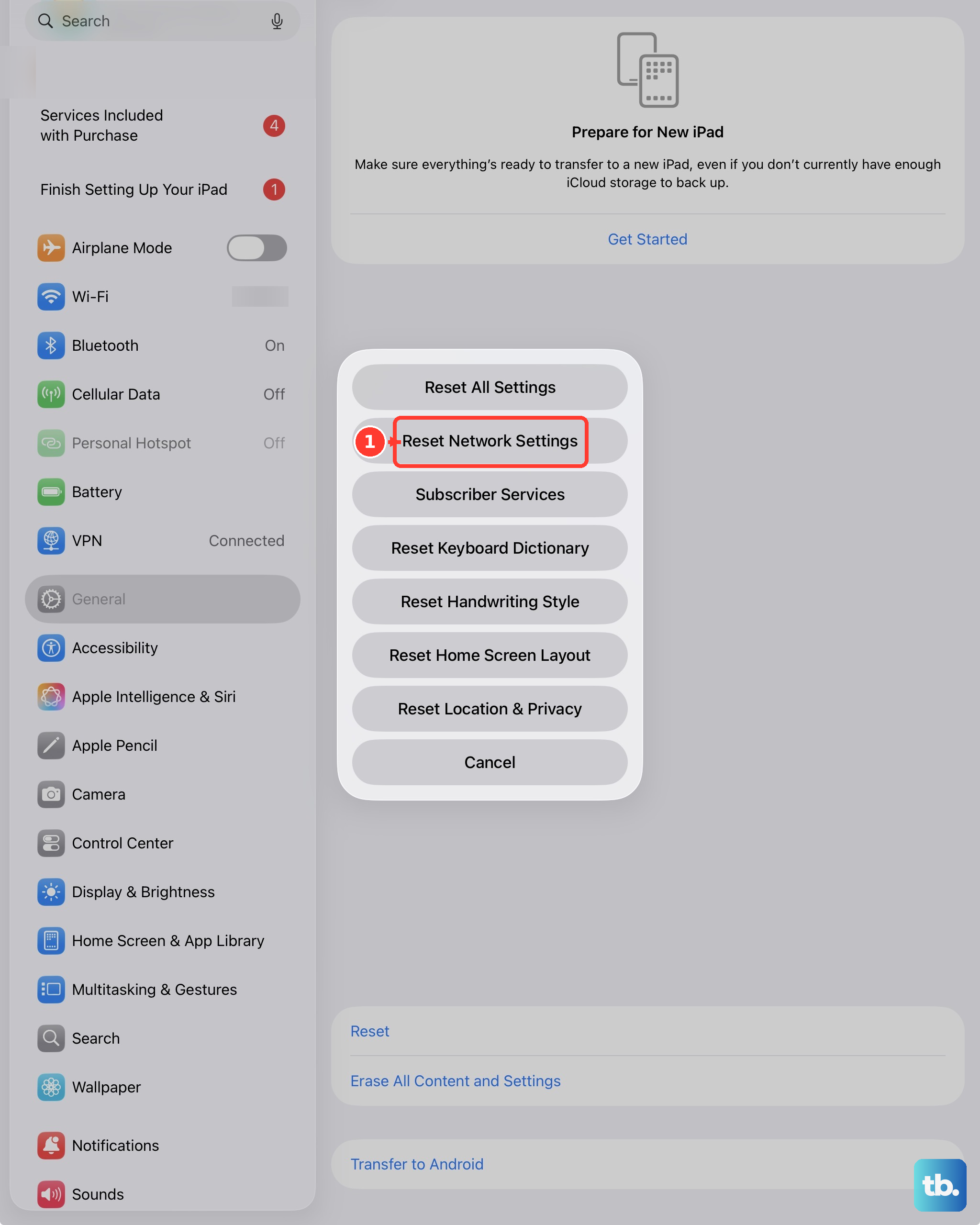
Open Settings > General > Transfer or Reset [device] > Reset > Reset Network Settings. Rejoin Wi-Fi, start a FaceTime call on the iPhone, then use the iPad Switch or Join prompt again.
9. Ignore fixes for the wrong calling feature
Calls on Other Devices is for making and receiving iPhone cellular calls on nearby devices. It is not the control for moving an active FaceTime call from iPhone to iPad.
Use the iPad’s Move call to this [device], Switch, or Join controls instead. Apple does not document Siri voice commands or FaceTime links as FaceTime Handoff replacements. FaceTime links are for joining calls, including from supported browsers on non-Apple devices.
For a work or school iPhone or iPad, contact the administrator when FaceTime or Handoff is blocked. Managed devices can have restrictions that prevent FaceTime calls or Handoff.
Frequently Asked Questions
Why does my iPad show Join instead of Switch?
Apple documents both labels for FaceTime Handoff. Tap Join, then confirm again when prompted to enter the active FaceTime call on the iPad.
Does FaceTime Handoff need the same Apple Account?
Yes. The iPhone and iPad must be signed in to the same Apple Account, and FaceTime must be enabled on both devices.
Can I transfer FaceTime from iPhone to iPad without Bluetooth?
No. Apple lists Bluetooth and Wi-Fi as Handoff requirements, so both must be enabled on the iPhone and iPad.
Will Reset Network Settings erase my iPhone or iPad?
No. It removes network-related settings such as saved Wi-Fi networks and passwords, cellular settings, VPN settings, and APN settings. It does not erase apps, photos, or personal files.