When Facebook won't open, the cause is often a stuck app session, a broken connection, damaged browser data, a VPN or profile block, or an account warning that looks like an app failure. Start with the fastest checks first, then move to app resets, browser cleanup, restrictions, and account recovery.
The fixes below stay on current iPhone, Android, Facebook, and major-browser paths. Skip the iPhone app-cache shortcut you see in older advice, because Facebook on iOS does not have a supported per-app Clear cache button.
Check the launch path and connection first
On iPhone or iPad, go to the Home Screen, swipe left to the App Library if needed, search for Facebook, then tap the Facebook app icon.
Use voice launch to separate a missing icon from an app that will not open. On iPhone or iPad, say Siri, open Facebook or Hey Siri, open Facebook. On Android, say Hey Google, open Facebook.
Fix the connection next. On iPhone or iPad, open Settings > Wi-Fi, turn on Wi-Fi, tap the network name, then enter the password or accept the terms prompt. For cellular, open Settings > Cellular, turn on Cellular Data, then turn on cellular data for Facebook.
On Android, open Settings > Network & internet or Connections, test Wi-Fi and Mobile data one at a time, then open Airplane Mode, turn it on for 10 seconds, and turn it off.
Force Facebook closed, then restart
This fixes a frozen launch, a stuck loading screen, or an app that crashes right after you tap it.
On iPhone or iPad, open the App Switcher and swipe until you find Facebook. Swipe up on the Facebook card, return to the Home Screen or App Library, then tap Facebook.
On Android, open Settings > Apps > Facebook and tap Force stop. Open Facebook again.
Restart your iPhone or iPad with the restart flow for your model.
Restart the Android phone with the flow Google documents for your model. On Pixel 6 and later, press and hold Power + Volume up for a few seconds, then tap Restart. On Pixel 5a and earlier, press and hold Power for about 30 seconds, or until the phone restarts, then tap Restart if prompted. If the phone is frozen with the screen on, hold Power for about 30 seconds to force the restart.
Update Facebook and the device software
The most common cause after a stuck session is an outdated Facebook app or device software.
On iPhone or iPad, open App Store, tap your profile icon, and open App Updates. Update Facebook if it appears. If no Facebook update appears, update iOS or iPadOS.
On Android, open Google Play Store, tap your profile icon, and open Manage apps & devices. Under Updates available, update Facebook or tap Update all.
Use the official App Store or Google Play listing when the store button says Get, Install, Open, or Update.
Reset Android cache safely
On Android, open Settings > Apps or Applications > Facebook, then open Storage or Storage & cache. Tap Clear cache, then open Facebook.
If Facebook still fails, return to Storage or Storage & cache. Tap Clear storage or Clear data; this signs you out and removes local app data. Use Clear storage or Clear data only after Clear cache, because it is the stronger reset.
Reinstall Facebook cleanly
Use a clean reinstall after force closing, restarting, updating, and Android cache clearing do not bring Facebook back. Deleting the app removes local app data.
On iPhone or iPad, touch and hold Facebook, then tap Remove App.
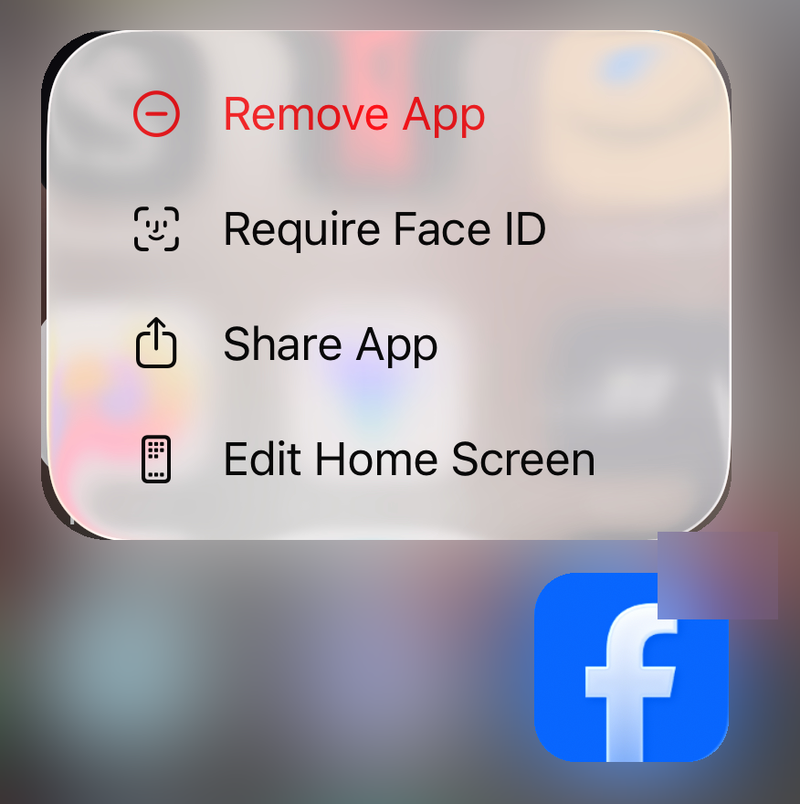
Tap Delete App and confirm with Delete. Then redownload Facebook from the official App Store page.
On Android, touch and hold Facebook, then tap Uninstall. Install Facebook again from Google Play.
Try Facebook Lite or mobile web
Facebook Lite applies on Android devices with low storage, slow networks, or older hardware. The Play listing describes it as using less data and working in all network conditions.
Open Google Play and search for Facebook Lite, then tap Install. When the Facebook app will not open but the phone browser works, enter m.facebook.com in the browser.
If Facebook Lite or m.facebook.com also fails, check browser data, VPN settings, device restrictions, and account status next.
Clean up facebook.com in your browser
For facebook.com, refresh the page, close it, and reopen it in a current version of Google Chrome, Mozilla Firefox, Safari, or Microsoft Edge. Switch to another current supported browser when one browser stays blank.
In Chrome, reset Facebook data through More > Settings > Privacy and security > Third-party cookies > See all site data and permissions, search for facebook.com, then choose Delete > Delete. For a wider Chrome reset, use More > Delete browsing data, choose a time range, select Cookies and other site data and Cached images and files, then choose Delete data.
On Safari for Mac, use Safari > Settings > Privacy > Manage Website Data, select facebook.com, then choose Remove. On iPhone, use Settings > Apps > Safari > Advanced > Website Data > Remove All Website Data > Remove Now, or use Settings > Apps > Safari > Clear History and Website Data, choose a timeframe, then tap Clear History.
In Edge, use Settings and more > Settings > Privacy, search, and services > Clear browsing data > Choose what to clear, choose a time range, select cookies and cached data, then tap Clear now. In Firefox, open Menu > Settings > Privacy & Security > Cookies and Site Data, shown as Browsing data in newer versions.
For Facebook-only removal, choose Manage Data or Manage browsing data, search for facebook.com, choose Remove All Shown or Remove Selected, then choose Save Changes. Use Clear Data only for the wider reset: it opens Clear browsing data and cookies, where the When range clears data for every site, not just Facebook.
Remove blockers and device restrictions
Run these checks when Facebook fails on one network, after a VPN or security app, on a child device, or on a work or school device.
- 1.On iPhone or iPad, open Settings > General > VPN & Device Management, select the blocking configuration profile, then tap Remove Profile.
- 2.If a VPN or security app is installed on iPhone or iPad, uninstall it, restart the device, then test Facebook.
- 3.On Android, open Settings > Network & internet > VPN, tap Settings next to the VPN, then turn it off or tap Forget.
- 4.On iPhone or iPad, check Screen Time from Settings > Screen Time > Content & Privacy Restrictions, then review iTunes & App Store Purchases and App Store, Media, Web & Games > Apps.
- 5.In Chrome on a managed computer, open More and look for Managed by your organization, or enter chrome://management; contact the device or account administrator when Facebook is blocked.
Use account recovery when the app opens
This fixes the case where Facebook opens, but login, a hacked-account warning, a suspension, or a temporary block stops you from using it.
Go to Meta's Account Recovery & Support Hub and select the issue that matches what you see. If you think the account was hacked, open facebook.com/hacked from a device you used before with Facebook. Follow Facebook's security steps.
If Facebook says your personal account is suspended or disabled, log in and follow the on-screen appeal or review prompts. Appeal before 180 days pass; Facebook says an unappealed suspension after 180 days, or an unsuccessful appeal, becomes permanently disabled.
If Facebook shows a temporary block message, stop the blocked action and wait for the restriction to expire. If you can open enough of Facebook or Facebook Lite to report the problem, use Facebook's Help Center or Fix a Problem surface.
Frequently Asked Questions
Why does Facebook open in a browser but not in the app?
The app is the failure point. Force close Facebook, update it, clear cache on Android, then reinstall it if the app still will not launch.
Is there a clear cache button for Facebook on iPhone?
No. Facebook on iPhone does not have a current Apple- or Meta-supported per-app Clear cache path. Delete and redownload the app instead.
What browser should I use when facebook.com will not load?
Use a current version of Chrome, Firefox, Safari, or Microsoft Edge. If one browser stays blank, open facebook.com in another supported browser.
Can a VPN stop Facebook from opening?
Yes. Turn off or remove the VPN, DNS filter, security app, or configuration profile, restart the device, then test Facebook again.