Windows shows the ene.sys driver cannot load message when an older RGB, lighting, keyboard, motherboard, or controller driver is blocked by Windows security. The right fix is to update, reinstall, or remove the device driver or companion app that installed it. Start with Windows Update, then move through Device Manager, MSI Center, Armoury Crate, or your hardware maker's current driver package.
Confirm Windows is blocking ene.sys
The most common cause is Windows blocking an incompatible or vulnerable driver before it loads. Right-click Start and open Event Viewer. Go to Applications and Services Logs, then Microsoft, then Windows, then CodeIntegrity, then Operational.
Look for Event ID 3077 for blocked drivers. On newer Windows driver policy blocks, check Event ID 3076 or Event ID 3077 and read the driver name, product, and process details.
Event ID 3076 means the driver was audited and still allowed to load because the policy is in audit mode, while Event ID 3077 means the driver was blocked by the enforced policy. Confirm the Windows Driver Policy is the source by reading the Policy ID in the event details: {784C4414-79F4-4C32-A6A5-F0FB42A51D0D} is the audit policy and {8F9CB695-5D48-48D6-A329-7202B44607E3} is the enforce policy.
When the log names an ENE, RGB, lighting, controller, keyboard, or companion app component, continue with the update and reinstall paths below.
Install optional driver updates from Windows Update
This fixes a blocked driver when Microsoft offers a newer compatible driver for your device. Open Start, then open Settings. Choose Windows Update.
Open Advanced options, then select Optional updates. Open Driver updates and select the available driver updates.
Choose Download and install. Restart from Start, then Shutdown or sign out, then Restart.
Update the ENE or RGB device in Device Manager
Use this when the ENE controller, RGB controller, lighting device, keyboard, or related hardware appears in Device Manager. Windows searches for a newer driver tied to that exact device. Right-click Start and open Device Manager. Expand the category that contains the ENE, RGB, lighting, controller, keyboard, or peripheral device.
Right-click the device and select Update driver. Choose Search automatically for updated driver software. When Windows shows Search for updated drivers on Windows update, select it and follow the Windows Update prompts.
Reinstall the device driver cleanly
A reinstall helps when the device appears in Device Manager but the installed driver package is damaged, outdated, or still tied to the blocked ene.sys file. Save your work and close open apps. Right-click Start and open Device Manager.
Expand the category that contains the ENE, RGB, lighting, controller, keyboard, or peripheral device. Right-click the device and choose Uninstall device. Select Uninstall.
Restart from Start, then Shutdown or sign out, then Restart. After the restart, let Windows reinstall the device automatically. When Windows does not reinstall it, install the current driver or RGB utility from the official PC, motherboard, RGB controller, keyboard, or peripheral vendor. If this method fails, manually install the correct vendor driver package through Device Manager.
Install the correct vendor driver package
Download the driver or software package for your exact laptop, motherboard, RGB controller, keyboard, or peripheral model from the manufacturer’s official support site. Extract the driver package when it arrives as a compressed file. Right-click Start and open Device Manager.
Right-click the target device and choose Update driver. Select Browse my computer for drivers, then choose Browse.... Select the extracted driver folder.
Select OK, then select Next. Use the exact model page for the download, because RGB and controller drivers are hardware-specific.
Repair MSI Mystic Light or MSI Center
Use this path on MSI systems and MSI RGB hardware supported by MSI Center or Mystic Light. The ene.sys warning comes from lighting-control software on some MSI setups, so repairing MSI Center or Mystic Light replaces the blocked component. Open the MSI Mystic Light download page. Go to MSI CENTER SOFTWARE.
Choose DOWNLOAD NOW and install MSI Center. Reboot the PC, then launch MSI Center.
Click the Feature Set icon at the top right and open Features Sets Tab. Find Mystic Light, then click the Mystic Light Install icon. Open Mystic Light from the Installed section.
When Mystic Light is already installed, use Live Update in MSI Center to select and install current software and drivers. You can also open Features Sets to download, update, or uninstall MSI feature modules such as Mystic Light.
Reinstall ASUS Armoury Crate and Aura components
The most common cause on ASUS ROG, ROG Strix, TUF Gaming, and Prime devices is a broken or outdated Armoury Crate, Aura Creator, or related service component. Open the Armoury Crate support page and choose Show More. Download the Armoury Crate Uninstall Tool.
Unzip the download and run Armoury Crate Uninstall Tool.exe. Restart the PC, then return to the Armoury Crate support page.
Download Armoury Crate & Aura Creator Installer and unzip the installer. Run ArmouryCrateInstaller.exe. Choose Armoury Crate, Aura Creator, or both, then click Start.
When Armoury Crate shows service errors, restart first. When the problem persists, reinstall Armoury Crate from the ASUS support site.
Remove the RGB app if you do not need it
Open Start, then open Settings. Select Apps and open Installed apps.
Find the RGB, lighting, keyboard, motherboard, or control app that owns the driver, such as MSI Center, Mystic Light, Armoury Crate, Aura Creator, Gigabyte RGB Fusion, ASRock Polychrome RGB, G.SKILL lighting software, a keyboard lighting tool, or a PC-builder RGB utility. Select More and choose Uninstall.
When the app is not listed there, open Control Panel, then Programs, then Programs and Features, select the program, and choose Uninstall or Uninstall/Change.
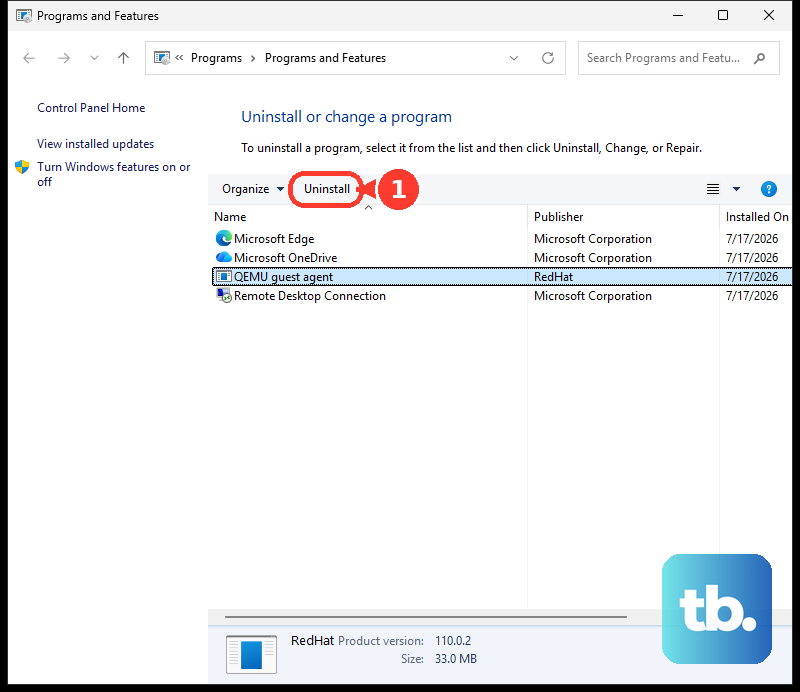
Restart afterward so Windows stops loading the old driver.
Handle uninstall failures or unstable Windows
A clean boot is useful when another startup app or service stops the RGB utility from installing, uninstalling, or running normally. Open System Configuration, then open the Services tab. Select Hide all Microsoft services and choose Disable all.
Select Apply, then open the Startup tab. Choose Open Task Manager and select each enabled startup item. Choose Disable, then close Task Manager.
Select OK and restart the PC. Install, uninstall, or run the RGB utility again. After troubleshooting, restore normal startup using Microsoft’s clean boot instructions.
When normal Windows is unstable, use Windows Recovery Environment and go to Troubleshoot, then Advanced options, then Startup Settings, then Restart. After the reboot, choose a Safe Mode startup option and remove or reinstall the RGB utility from Settings or Control Panel. If this method fails, contact the device or software vendor and ask for a WHCP-certified replacement driver for the component that installed ene.sys.
Avoid risky security switches and old fixes
Windows may name Memory Integrity when it blocks ene.sys. Turning Memory Integrity off only helps when Memory Integrity alone is blocking the driver, and Microsoft warns that it reduces protection and takes a Secured-core PC out of a Secured-core state. It does not clear a vulnerable-driver blocklist block while Smart App Control or S mode is on, and it does not lift a separate Windows Driver Policy block, which Microsoft says can only be stopped by removing that policy itself.
Some Windows 11 version 22H2 and later devices show a separate Microsoft Vulnerable Driver Blocklist switch on the Core isolation page. That switch is not the preferred consumer repair, and the blocklist remains enforced when Memory Integrity, Smart App Control, or S mode is active.
Do not rename or delete C:\Windows\System32\drivers\ene.sys as the repair path. Uninstall the owning app, use the official ASUS uninstall tool when Armoury Crate or Aura is involved, or uninstall and reinstall the device driver through Device Manager instead.
Do not install the old ASUS Aura Sync Utility for a current Armoury Crate setup. ASUS says the old Aura Sync Utility is no longer updated or supported, so use Armoury Crate and Aura Creator unless an older component specifically requires standalone Aura Sync.
On work or school PCs, contact your IT team for an approved, WHCP-certified driver replacement instead of changing Windows driver policy yourself.
Frequently Asked Questions
What is ene.sys?
It is a Windows driver tied to ENE, RGB, lighting, controller, keyboard, motherboard, or companion utility components. The warning means Windows blocked that driver from loading.
Can I just delete ene.sys?
No. Use supported removal instead: uninstall the app that installed it, use the official ASUS uninstall tool when applicable, or reinstall the device driver through Device Manager.
Why did the ene.sys warning appear after a Windows update?
Windows security blocks older or vulnerable drivers. Updating the driver, updating the RGB utility, or removing the software that owns the driver is the preferred fix.
Should I turn off Memory Integrity to fix ene.sys?
Use driver replacement or software removal instead. Turning off Memory Integrity lets an old driver load, but Microsoft warns that it reduces protection.