Docker Desktop won't open, or you've signed in to Windows and its window is nowhere to be seen. First, check whether the Dashboard is closed or the app itself has stopped. Then work through restarts, updates, and WSL checks before reaching for a reset or reinstall.
Check whether the Dashboard is simply closed
A closed Dashboard leaves Docker Desktop running without a visible window.
Select the Docker whale icon in the Windows taskbar notification area.
Select Dashboard. If the window opens, Docker Desktop is already running.
To open the window automatically, go to the Docker menu's Settings > General.
Enable Open Docker Dashboard when Docker Desktop starts.
For the app itself to start at sign-in, enable Start Docker Desktop when you sign in to your computer. These are separate settings.
Open Windows Start > Settings > Apps > Startup.
Turn on Docker Desktop if listed. These controls address automatic startup; a crash when launching needs the checks below.
Restart Docker Desktop and Windows
This restarts a stopped or unresponsive Docker Desktop app or engine.
Select Restart from the Docker notification-area menu.
If Docker still does not respond, select Quit Docker Desktop.
Launch Docker Desktop from Windows Start.
If the tray menu is unavailable, open PowerShell. The following commands require the Docker Desktop CLI plugin.
Run docker desktop status.
If the status is stopped, run docker desktop start. If it is running, use docker desktop restart instead.
If Docker still will not open, save your work.
Select Start > Power > Restart.
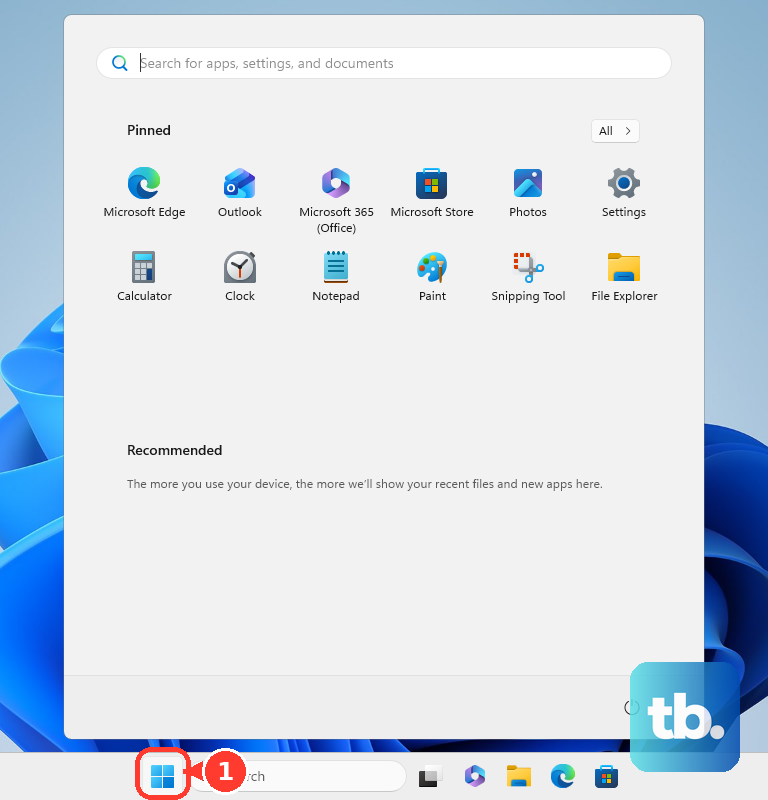
Launch Docker Desktop after Windows restarts.
Update Docker Desktop to pick up startup fixes
Some startup failures have specific fixes. Docker Desktop 4.74.0 fixed Start-menu crash loops, 4.90.0 fixed WinGet-related startup hangs and stale-socket failures, and 4.91.0 fixed graphics-related interface restart loops and corrupt-network-database startup failures.
Select Check for updates from the Docker menu.
Install the offered update.
If the menu is unavailable, open the Docker Desktop download page.
Choose Download for Windows – AMD64 or Download for Windows – ARM64 to match your processor. Docker labels the ARM builds Early Access.
Run the downloaded installer.
If the updated app still fails to open, check Windows compatibility and virtualization next.
Check Windows compatibility and enable virtualization
Docker Desktop requires a supported Windows version within Microsoft's servicing timeline, matching processor architecture, at least 8 GB of RAM, a SLAT-capable processor, and enabled virtualization. Windows Server is unsupported. Windows containers require a supported Pro or Enterprise edition.
For WSL 2, search Start for Windows features and open Turn Windows features on or off. Select Virtual Machine Platform, choose OK, and restart when prompted.
If the WSL component is missing, enable Windows Subsystem for Linux in that window. For the Hyper-V backend, enable Hyper-V, including its PowerShell management module, then restart. Hyper-V requires a supporting Windows edition and an all-users Docker installation.
If processor virtualization is disabled, open Windows 11's Settings > System > Recovery > Advanced startup > Restart now; on Windows 10, start at Settings > Update & Security > Recovery. In recovery, select Troubleshoot > Advanced options > UEFI Settings > Restart. Enable virtualization using your PC manufacturer's firmware instructions, since the controls vary by manufacturer.
Refresh WSL before trying Docker again
Save your work in every running WSL distribution. Shutting down WSL stops all running distributions and their shared virtual machine.
Select Quit Docker Desktop from the Docker menu.
Open PowerShell.
Run wsl --shutdown.
Relaunch Docker Desktop.
If startup still fails, run wsl --version in PowerShell. Docker's WSL backend requires WSL 2.1.5 or later, or WSL 2.6 or later with Enhanced Container Isolation.
Open an administrator terminal.
For an outdated WSL installation, run wsl --update. If WSL is absent, run wsl --install instead.
If Microsoft Store delivery is unavailable, run wsl --update --web-download.
Restart Windows if requested.
Tip: Docker does not require a separate Ubuntu distribution; wsl --install --no-distribution installs WSL without adding a Linux distribution.
Disable hardware acceleration for a broken interface
Use this fix when Docker's interface is distorted or unusable. Update Docker Desktop first, since newer releases include graphics-related startup fixes.
Open %APPDATA%\Docker\settings-store.json in a text editor.
Add "disableHardwareAcceleration": "always" inside the existing settings object. Keep the JSON valid, including commas between properties.
Save the file.
Restart Docker Desktop.
Docker Desktop 4.34 and earlier used settings.json; current versions use settings-store.json. Deleting either file is not a supported universal repair.
Back up before a reset or reinstall
Save your Docker data first, because these recovery options are destructive.
- 1.Fully stop Docker Desktop. If the Desktop CLI is available, run
docker desktop stop. - 2.For WSL installations using this storage layout, copy
%LOCALAPPDATA%\Docker\wsl\data\docker_data.vhdxto a safe location. Back up other WSL distributions separately. Custom or older installations use different storage layouts. - 3.If the troubleshooting interface opens, select the Docker menu's Troubleshoot > Reset to factory defaults. Try opening Docker afterward.
- 4.If the reset fails or is unavailable, uninstall Docker Desktop. On Windows 11, open Start > Settings > Apps > Installed apps, find Docker Desktop, and select More > Uninstall. On Windows 10, use Settings > Apps > Apps & features > Docker Desktop > Uninstall.
- 5.Reinstall using the matching Windows installer from the Docker Desktop download page. To restore the backed-up virtual disk, fully stop Docker Desktop and copy the disk back to the same location after reinstalling.
Collect diagnostics if Docker still will not launch
Run docker desktop diagnose in PowerShell to collect diagnostics without opening the Dashboard. This command requires Docker Desktop 4.60 or later and an available Desktop CLI.
Run docker desktop logs to inspect the logs.
If the CLI is unavailable, run resources\com.docker.diagnose.exe from your Docker installation directory with the arguments gather -upload.
If the troubleshooting interface opens, select Troubleshoot > Get support > Upload instead.
If an error dialog offers Gather diagnostics, select it as an alternative.
Copy the diagnostic ID.
Select Contact support with an eligible subscription, or Report a Bug.
Include the diagnostic ID in your report.
Tip: Collect diagnostics before resetting or reinstalling if you want help identifying the failure first.
Resolve access blocks on a managed PC
A work account requirement also blocks access when Docker Desktop itself launches. At Sign in required!, select Sign in.
Use an account belonging to the permitted organization. Docker automatically signs out accounts outside that organization.
For a virtual Windows desktop, ask the VM administrator to expose hardware virtualization to the Windows guest if it is unavailable.
If signing in still fails or settings are locked, ask IT to check your organization membership and managed configuration. The administrator needs to correct the responsible policy or setting through its management source.
Frequently Asked Questions
Should I always run Docker Desktop as administrator?
No. Administrator execution is unnecessary for many installations. WSL-only operation generally does not require docker-users membership, and the privileged Docker service is normally unnecessary for WSL 2.
Does Docker Desktop support custom WSL kernels?
No. Docker explicitly does not support custom WSL kernels. A kernel override in %USERPROFILE%\.wslconfig replaces the default WSL kernel.
Does an idle Docker engine mean Docker Desktop failed to open?
No. Resource Saver leaves the engine idle while Docker Desktop remains open. Starting a container normally wakes the engine automatically; allow several seconds.
Can I fix startup by unregistering docker-desktop in WSL?
Unregistering Docker's WSL distributions is not a supported universal recovery procedure. WSL unregister commands permanently delete the distribution's data.