Discord is stuck connecting, refuses to open, or loads your chats while calls stay silent. Start with a service check and a full restart, then use the fixes below for the part that is failing. There are separate paths for loading problems, silent calls, browser permissions, and failed streams.
Check for an outage and restart Discord
Open Discord Status to check for an active incident affecting the service you are using.
If an incident matches your problem, follow its updates before changing local settings.
For a frozen desktop app, refresh Discord with Ctrl+R on Windows or Command+R on Mac.
If it remains stuck, quit Discord completely, including its background processes in Task Manager on Windows or Activity Monitor on Mac.
Reopen Discord after 30 seconds.
Restart your computer or phone if the problem continues. This can also help complete pending updates.
Tip: Skip to the audio fixes below if chats load normally and only your calls are failing.
Update an outdated app to restore calls
A Discord client below the minimum supported version cannot join encrypted calls.
On desktop, open User Settings and scroll to the bottom to inspect your version. The minimum versions for non-Stage voice calls and Go Live are Windows 1.0.9164, macOS 0.0.320, Linux 0.0.69, and Android or iOS 247.0.
Install the latest desktop release for your platform from Discord’s download page.
On iPhone or iPad, open the App Store.
Select your profile photo or My Account.
Open App Updates.
Tap Update beside Discord.
On Android, open Discord’s listing in the Google Play Store.
Tap Update.
Check your operating system before reinstalling. Discord’s minimum supported systems are Windows 10 or later, macOS 12 or later, Android 7 or later with Google Play Services, iOS 16 or later, or a supported Linux distribution. Support for 32-bit Windows ended on June 15, 2024; current updates require a supported 64-bit Windows installation.
Upgrade an unsupported operating system before reinstalling Discord.
For a Windows client stuck on an old version or showing voice gateway error 4017, disable compatibility mode for the Discord executable. Older advice to enable Windows 7 or 8 compatibility mode is superseded, and reinstalling alone can preserve the problem.
Completely restart Discord so it can update.
Get past the Connecting screen
Try Discord on another internet connection. On a phone, switch between Wi-Fi and cellular data; for streaming on a computer with suitable hardware, try Ethernet.
Restart your modem if you see RTC Connecting, ICE Checking, Connecting, or No Route.
Restart your router.
Restart your computer.
Test Discord without your VPN. Discord voice requires a VPN that supports UDP.
Allowlist Discord in your firewall or antivirus software if it is being blocked. The controls depend on your security product.
On a work or school network, ask the administrator whether Discord is blocked or a required proxy is involved.
If changing connections and restarting equipment do not resolve the problem, check with your internet provider for a local outage, then try the app or browser fixes below.
Clear cached data when the app keeps freezing
Use the cache-clearing path for your device, then test Discord again.
- 1.On desktop, quit Discord completely before clearing its cache.
- 2.On Windows, clear the contents of
%appdata%/discord/Cache. On Mac, clear the contents of~/Library/Application Support/discord/Cache. - 3.On Android, open Settings > Apps > See All Apps > Discord > Storage & cache > Clear cache. These are Pixel labels; other manufacturers use different wording.
- 4.Reopen Discord and test the action that was failing.
- 5.If Android still has problems, return to Storage & cache and select Clear storage. This removes local app data and requires you to sign in again.
Restore sound in silent calls
A muted microphone or the wrong input or output device leaves a Discord call silent.
Turn off mute using the microphone icon beside your avatar if it is active.
Turn off deafen using the headset icon beside your avatar if it is active.
Check your headset’s physical mute switch.
Reseat the headset connection if the device is not working correctly.
Try another USB port if reconnecting does not help.
Test the headset in another application to check whether the problem extends beyond Discord.
On desktop or the web, open User Settings > Voice & Video and choose your microphone under Input Device.
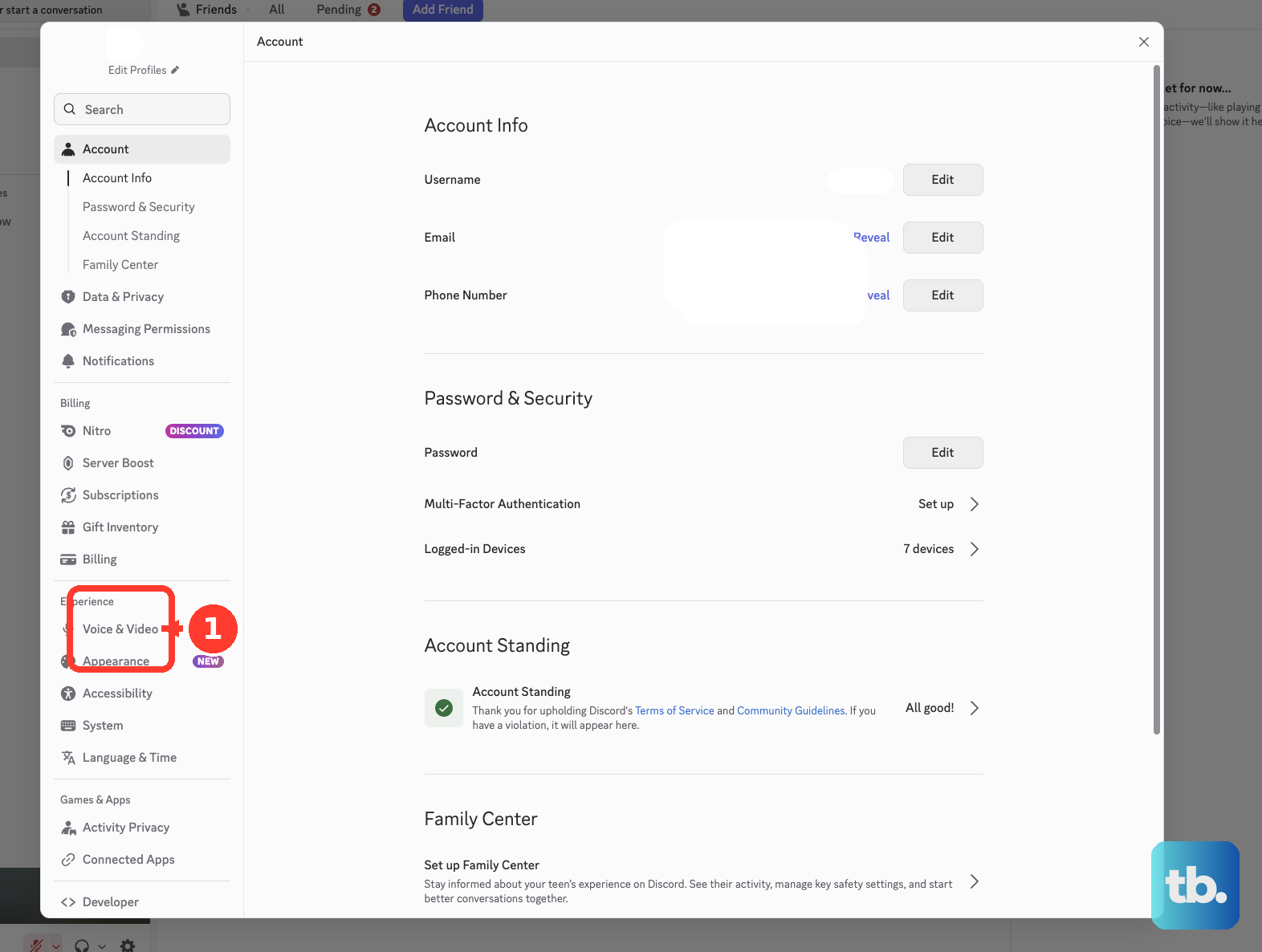
Select your headphones or speakers under Output Device.
Run the microphone test through User Settings > Voice & Video > Voice > Mic Test > Let’s Check.
Select Stop Testing afterward. Running this test during a call temporarily mutes and deafens you.
On mobile, tap your avatar.
Tap the cogwheel.
Open Voice > Input Mode.
Choose Voice Activity or Push to Talk to match how you want to speak.
If the devices are correct but audio still fails, select User Settings > Voice & Video > Debugging > Reset Voice and Video Settings on desktop or the web.
Give Discord permission to use your microphone
On Windows 11, open Settings > Privacy & security > Microphone.
Turn on Microphone access and Let apps access your microphone.
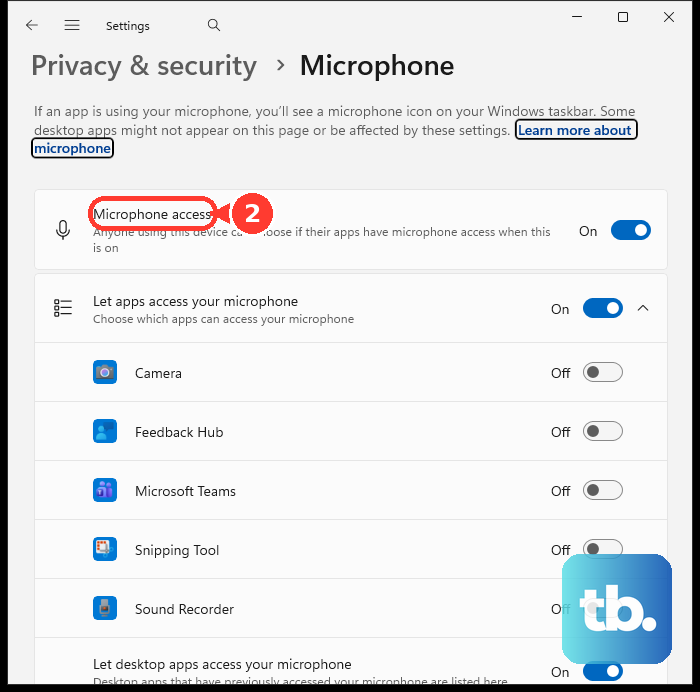
Enable Let desktop apps access your microphone on the same page.
On Windows 10, open Settings > Privacy > Microphone.
Turn on Microphone access for this device and Allow apps to access your microphone.
Enable Allow desktop apps to access your microphone.
For a blocked camera, open Camera under the same Windows privacy settings.
Enable device camera access.
Enable desktop-app camera access.
On Mac, open the Apple menu > System Settings > Privacy & Security > Microphone.
Enable Discord, or the browser you use for Discord.
On Android, open Settings > Apps > Discord > Permissions > Microphone. Use See all apps if Discord is not listed.
Select Allow only while using the app.
Repeat the Android permission change for Camera if video is blocked.
Tip: Browser calls also need website permission, so check the browser controls next if device access is already enabled.
Fix browser loading and website permissions
Open Discord in an updated desktop browser, or try another supported browser if it will not load. Discord supports Chrome 108+, Firefox 142+, Edge 86+, Opera 72+, and Safari 15.4+; mobile browsers are unsupported.
In Chrome, test Discord in Incognito. If it works there, disable extensions and re-enable them individually to isolate the problem. For persistent loading trouble, type Delete browsing data in the address bar and use Delete browsing data to clear cookies and cache.
For Chrome calls, open More > Settings > Privacy and security > Site settings > Microphone or Camera. Select the correct device and allow Discord access.
In Firefox, select the address-bar permissions icon on Discord and select X beside the blocked microphone or camera permission, then retry the call and select Allow. In Safari on Mac, use Safari > Settings > Websites > Microphone or Camera and set Discord to Allow. In Edge, select Allow when Discord requests access.
Target video and screen-sharing failures
These fixes address lagging video, failed streams, and blocked screen-sharing audio.
For video or streaming lag on desktop, open User Settings > Voice & Video > Video and turn off Hardware Acceleration.
Retest the video or stream.
For processing errors 2008–2009 or 2011–2015, enable Hardware Acceleration in the same video settings instead.
Restart Discord after enabling it for those errors.
For a struggling stream, open its three-dot menu > Stream Quality and lower Frame Rate.
Lower Resolution in the same menu if the stream still struggles.
On Mac, open the Apple menu > System Settings > Privacy & Security > Screen & System Audio Recording.
Enable Discord for screen sharing and captured system audio.
For sound-sharing error 1001, approve Discord’s sound-sharing permission request when it appears as you start the stream.
Reinstall only after the simpler fixes fail
Use the instructions for your platform to repair a persistent installation problem.
- 1.Before a desktop reinstall, quit Discord and terminate its remaining processes in Task Manager or Activity Monitor.
- 2.On Windows, press Windows+R, open
%appdata%, and delete only its Discord folder. Repeat for%localappdata%, then restart Windows. - 3.On Mac, use Finder > Go > Go to Folder to open
~/Library/Application Supportand/Library/Application Support. Remove the Discord folders if present, remove Discord from Applications, and empty Trash. Then restart your Mac. - 4.Reinstall the desktop app from Discord’s download page, selecting the appropriate platform.
- 5.On iPhone or iPad, delete Discord, redownload it from the App Store, and sign in again. Deleting the app can remove locally stored data.
- 6.If the problem persists, submit a bug report through Discord’s support portal. Include the exact error, steps that reproduce it, affected client, and system specifications.
Frequently Asked Questions
Why does Discord work in one server but not another?
Ask a server administrator to check Server Settings > Roles and the affected channel’s permission overrides, including Connect, Speak, or Send Messages as relevant. An authorized moderator must clear Server Mute or Server Deafen if either is applied.
Will resetting my password remove Discord’s MFA requirement?
No. A password reset does not bypass MFA. At the authenticator prompt, choose Verify with something else, then Use a backup code, and enter an unused eight-digit backup code. Select Confirm. SMS recovery is available only if you previously configured SMS MFA.
Why are Discord notifications missing when messages still arrive?
Check the server’s Notification Settings for unintended muting, then check the affected channel and category. Under User Settings > Notifications, enable Enable Desktop Notifications and your desired Sounds. Change Do Not Disturb to Online through your avatar’s status menu. Check whether your operating system’s Focus mode is suppressing notifications.
What should I do if Discord will not install on my phone?
Check available storage and remove unneeded files if necessary. Retry the installation over Wi-Fi instead of cellular data, or vice versa.