Discord stuck on a blank window, connecting screen, or update loop leaves you outside your chats. Start with an outage check and a complete restart, then follow the fixes that match your symptoms. There’s a browser workaround here too, plus cleanup steps if Discord won’t load on the web.
Check whether Discord is down
A matching outage calls for service recovery before local troubleshooting. Open Discord Status. Check API and Gateway.
Under Client, check Desktop or Web, depending on where Discord fails. Read active incidents for symptoms that match yours. If an incident matches, wait for recovery. Retry Discord after service returns.
Give Discord a complete restart
No matching outage? Try a quick reload, then close the app completely if it stays stuck.
- 1.Select the open Discord window and press Ctrl+R. Continue if it still won’t load.
- 2.Close Discord, including its system-tray instance.
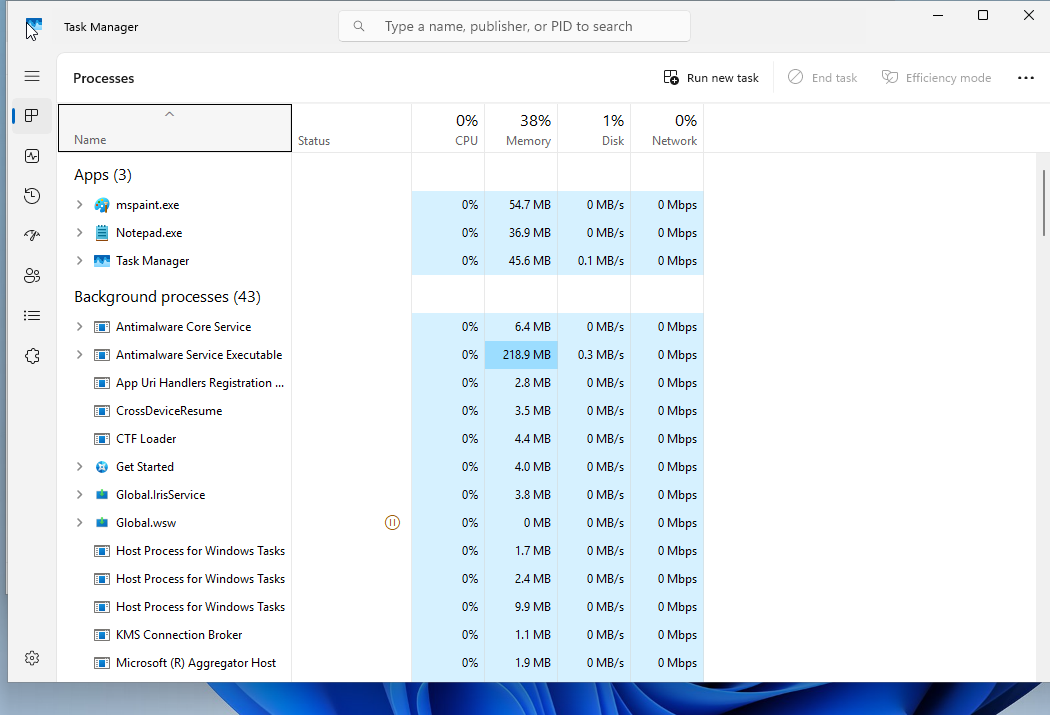
- 3.Open Task Manager and end every remaining Discord process.
- 4.Wait 30 seconds, then reopen Discord.
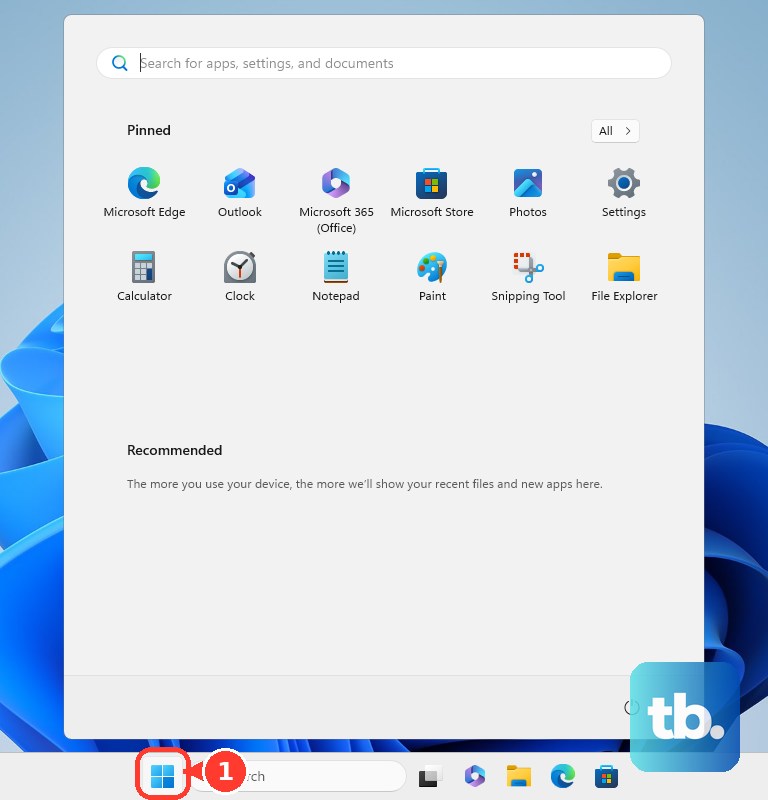
- 5.If it remains stuck, save your work and select Start > Power > Restart. Launch Discord after Windows restarts.
Clear the desktop app’s cache
Fully close Discord, including any remaining processes in Task Manager.
Press Windows+R to open Run. Enter %appdata%/discord/Cache and press Enter. Delete the contents of that Cache folder.
Reopen Discord. Keep this cleanup limited to Cache; the reinstall below resets the app’s full local data.
Test Discord in your browser
Open Discord in a supported browser and sign in. The web client gives you another way to reach your chats while the desktop app is stuck.
If it works, keep using it while you troubleshoot the desktop app. A successful browser login provides a useful comparison, but it doesn’t repair the installed app.
If the browser test fails too, try the connection checks next. If only the browser fails, skip to the Chrome cleanup section.
Fix connection settings that block loading
Use these checks when Discord stays on the connecting screen, both clients fail, or an installation or update stalls. Pick the check that matches your symptoms.
For a persistent connecting screen, open Start > Settings > Time & language > Date & time. Set Set time automatically to On. Confirm that the time zone is correct. Retry Discord.
On hotel, airport, or café Wi-Fi, open a browser. Complete the network’s sign-in prompt. If no prompt appears, visit an HTTP page to trigger it. Retry Discord after signing in to the network.
To compare connections, connect your PC to another available network. Retry Discord there. This test helps distinguish a problem with the original network from an app problem.
If a VPN is active during a failed installation or update, disconnect it through its own app. Retry the installation or update.
For a personally configured proxy, open Settings > Network & internet > Proxy. Turn off the proxy or setup script you configured. On Windows 11, open the configuration dialog for Use a proxy server or Use setup script to change the corresponding setting. Save the changes.
Retry Discord. This check applies especially to ERR_PROXY_CONNECTION_FAILED. If the proxy settings are managed, ask the administrator to review them.
If Windows Firewall is blocking Discord, open Windows Security > Firewall & network protection > Allow an app through firewall > Change settings. Select the check box next to Discord. If it isn’t listed, use Allow another app and enter the path to Discord’s executable. Confirm the change, providing administrator authorization if Windows requests it.
For antivirus, parental-filter, or ISP security blocking, allowlist Discord in the product responsible. If that product has no clear control, contact its vendor or your ISP. Discord directs affected Xfinity users to Xfinity Support.
Get Discord working in Chrome again
Open Discord in a Chrome Incognito window. If it loads there, return to your normal Chrome window. Open More > Extensions > Manage extensions. Turn off your extensions.
Retry Discord. Re-enable one extension. Test Discord after enabling it. Repeat that enable-and-test sequence for each remaining extension to identify the one that interferes.
If extensions aren’t the cause, open More > Delete browsing data. Choose All time as the time range. Select Cookies and other site data and Cached images and files, leaving unrelated categories unchecked. Select Delete data.
Reopen Discord. Sign in if prompted. Keep your sign-in details handy for the cookie cleanup.
Check your PC’s compatibility
This identifies unsupported Windows installations that a cache cleanup won’t fix. Search Start for about. Open About your PC.
Check System Type for 32-bit or 64-bit Windows. Discord ended desktop support for 32-bit Windows on June 15, 2024. If Windows is 32-bit, move to a supported 64-bit Windows installation or use a browser that meets Discord’s requirements. The desktop app requires Windows 10 or later.
Compare your browser version with Discord’s minimums: Chrome 108, Firefox 142, Edge 86, or Opera 72. Use a current, updated browser that meets those requirements.
Reinstall if startup or updates still fail
A clean reinstall applies when Discord keeps failing at startup or updating after the earlier checks. Deleting its AppData folders resets local app data.
Terminate every Discord process in Task Manager. Close any Discord browser sessions. On Windows 11, open Start > Settings > Apps > Installed apps. Find Discord.
Select More > Uninstall. Follow the removal prompts. On Windows 10, locate Discord in Start. Right-click it and select Uninstall.
After removal, press Windows+R to open Run. Enter %appdata% and press Enter. Delete the Discord folder in that location. Press Windows+R again.
Enter %localappdata% and press Enter. Delete the Discord folder there too. Select Start > Power > Restart. Open Discord’s official download page.
Under Windows, select x64 or ARM64 to match your PC. Run the downloaded installer.
Get help with a persistent loading failure
If Discord still won’t load, open the Discord Help Center and select Submit a request. Describe the symptom: a blank window, connecting screen, update loop, or error message.
Include screenshots, exact errors, steps that reproduce the problem, your system specifications, and the troubleshooting you’ve already tried. Mention whether Discord loads in a browser or on another network.
Frequently Asked Questions
Does resetting Chrome delete saved passwords or bookmarks?
No. Chrome keeps saved bookmarks and passwords when you reset its settings. For persistent browser configuration problems, open More > Settings > Reset settings > Restore settings to their original defaults > Reset settings.
Should I install Discord PTB or Canary to fix loading problems?
Keep Stable for everyday use. PTB and Canary are diagnostic options, and testing releases carry a risk of additional bugs. Discord also offers browser comparisons at https://ptb.discord.com/ and https://canary.discord.com/.
What should I do if Discord fails only on my school or work network?
Ask the network administrator whether Discord is blocked and have them review the applicable restrictions. Discord’s own guidance for a work or school network is to check with your network admin, because Discord could be blocked there.
How do I try running Discord as administrator?
Close Discord. Right-click its shortcut and select Run as administrator. This troubleshooting option requires administrator authorization.