Discord noise suppression not working means background noise keeps transmitting after you expect Discord's built-in Krisp processing to handle it. The fault sits in one of five places: Krisp is off, Discord is using the wrong mic, microphone access is blocked, high CPU usage turned Krisp off, or a voice setting is cutting into the input.
Start with the in-call switch, then move through mic selection, permissions, voice settings, and the current Discord troubleshooting fixes. Save reinstalling Discord and support tickets for the end.
Turn Krisp back on in the call
When you are already connected to a Voice Channel on desktop or in the browser, select the Noise Suppression icon and turn Krisp on.
From desktop or browser settings, open User Settings, go to Voice & Video, open Noise Suppression, then select Krisp.
On mobile, tap the channel name in the top-left corner, scroll to Noise Suppression, tap to the right of Krisp, then swipe back down to close the menu. From mobile settings, tap your avatar, tap the cogwheel, open App Settings, choose Voice, open Noise Suppression, then tap Krisp.
Discord supports Krisp on Windows, Linux, Mac, Android, and iOS. On Mac, Krisp requires an Apple CPU and macOS 12 or later; in the browser, Discord lists Krisp support for Chrome and Firefox desktop browsers.
Lower CPU load when Krisp keeps switching off
The most common cause of Krisp switching off mid-call is very high device CPU usage.
Close resource-heavy apps, reduce game or streaming load, then return to Discord and enable Krisp again from Noise Suppression.
Discord says Krisp automatically turns off when CPU usage is really high and continues doing that until the CPU load drops. Handle this first on desktop while gaming or streaming.
Pick the right microphone before testing
This fixes cases where Discord is suppressing noise on the wrong input or receiving no mic signal.
Open User Settings.
Go to Voice & Video.
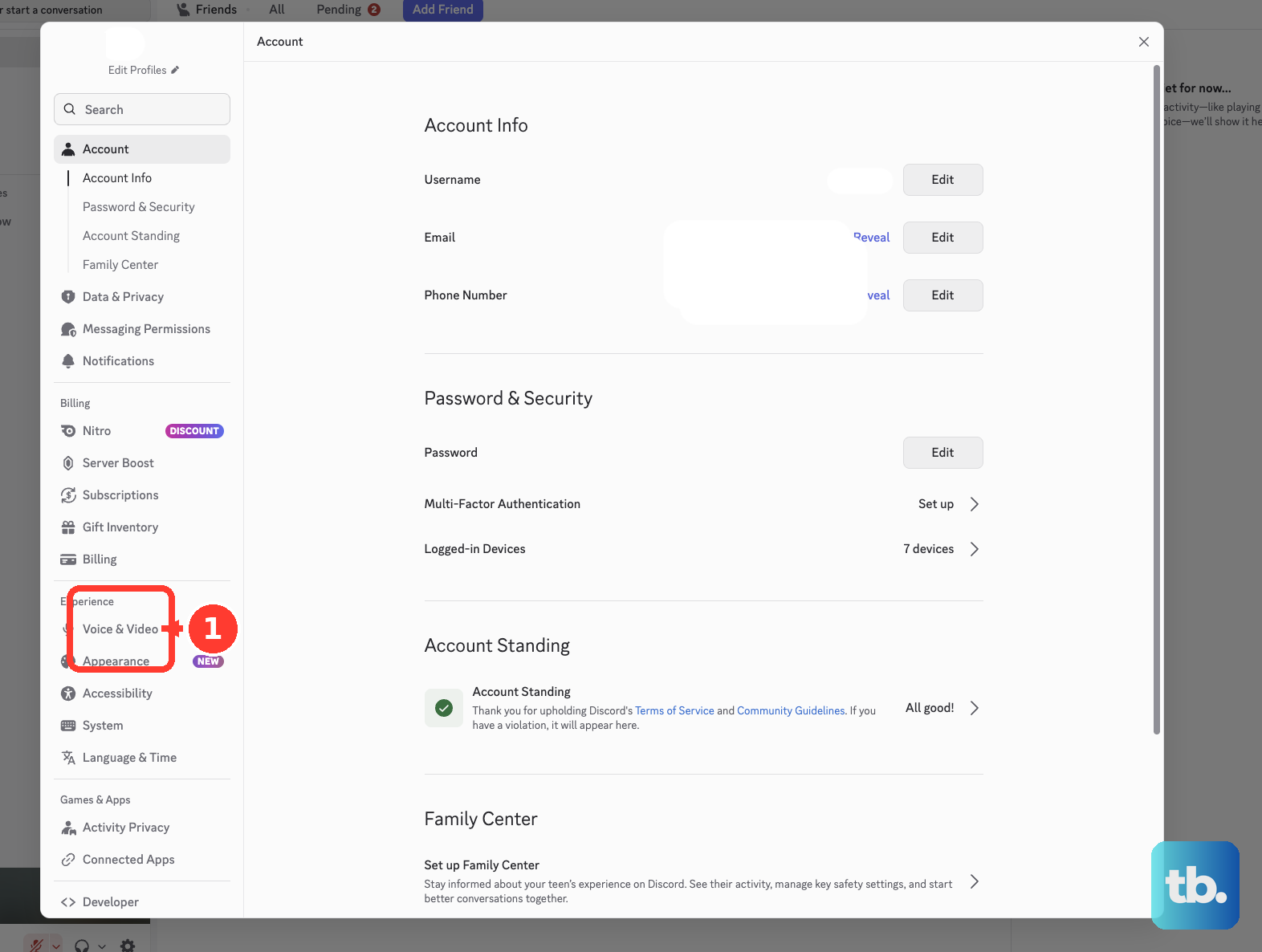
Open the Voice tab.
Open the Input Device dropdown.
Choose the microphone or headset you want Discord to use.
Open Mic Test.
Select Let's Check.
Confirm Discord receives your voice before judging Noise Suppression.
Allow microphone access on your device or browser
Use this when Discord cannot hear you, Mic Test fails, or noise suppression has no microphone audio to process. Fix the operating system permission first, then fix the browser permission when you use Discord web.
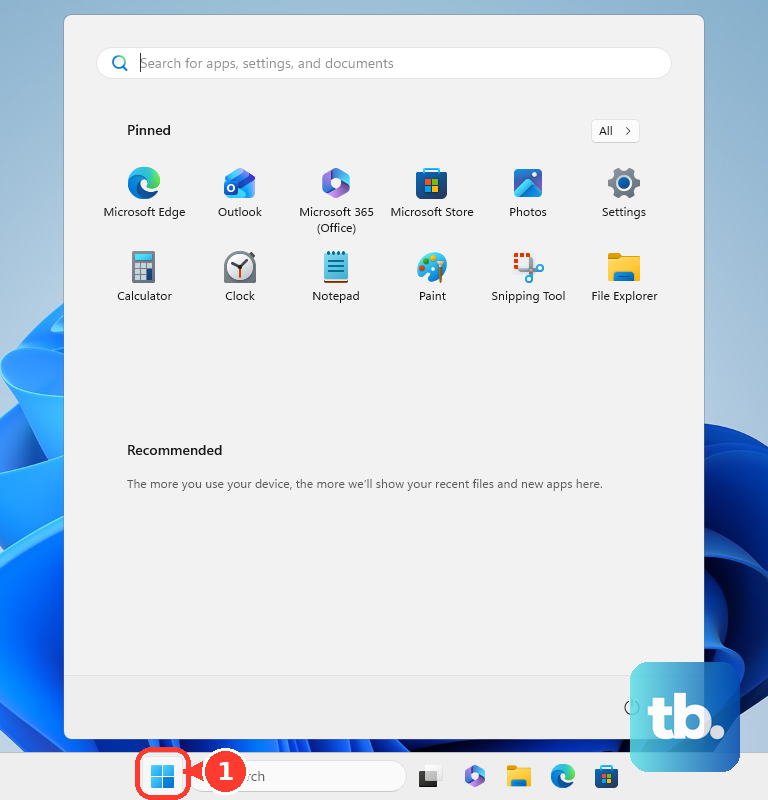
On Windows, open Start, then Settings, Privacy & security, and Microphone. Turn on Microphone access, turn on Let apps access your microphone, and for desktop Discord also turn on Let desktop apps access your microphone.
On Mac, open the Apple menu, then System Settings, Privacy & Security, and Microphone. Turn access on for Discord or for the browser you use with Discord.
On iPhone or iPad, open Settings, then Privacy & Security, and Microphone. Turn access on for Discord.
On Android, open Settings, then Apps, Discord, Permissions, and Microphone. Choose Allow, then check that system microphone access is not globally off.
In Chrome for Discord web, open the ellipsis menu, then Settings, Privacy and security, Site Settings, and Microphone. Remove Discord from Not allowed to use your microphone, rejoin a voice channel, and select Allow when prompted.
In Firefox, open the Menu button, then Settings, labeled Preferences in some builds. Open Privacy & Security, then Permissions, shown as Permissions and data in current Firefox, and open Microphone Settings. Search for http://discord.com, change Block to Allow, select Save Changes, then return to Discord and unmute your mic.
Fix input mode and sensitivity problems
Input mode applies when Discord hears the mic but speech cuts off, background noise transmits, or Push to Talk is controlling when your voice goes through.
Open User Settings, then Voice & Video, and check Input Mode. Choose Voice Activity when you want Discord to transmit speech automatically, or choose Push to Talk when you want Discord to transmit only while you hold a shortcut.
For Push to Talk, select Edit Keybind, press the shortcut key, and adjust Push to Talk Release Delay if the release timing needs a change. Push to Talk in the browser works only when the browser window is in focus.
For Voice Activity, use Automatically determine input sensitivity. When you turn automatic sensitivity off, move the input sensitivity slider so background noise does not transmit while softer speech still does.
If this method fails, reset Discord voice settings next.
Reset Discord voice settings
The most common cause at this point is a bad Discord voice setting conflicting with microphone or audio processing.
Open User Settings, then go to Voice & Video. In the Debugging tab, select Reset Voice and Video Settings.
After the reset, choose your microphone again under Input Device, run Mic Test, and turn Krisp back on under Noise Suppression.
Refresh Discord with Ctrl + R on Windows or Linux, or Cmd + R on macOS. If the setting still fails to apply, fully quit Discord, check Task Manager on Windows or Activity Monitor on macOS, wait 30 seconds, then reopen Discord.
Use current Discord voice troubleshooting toggles
Run these Discord-supported fixes when Krisp is available but voice quality, connection, or mic behavior still feels wrong.
- 1.Open User Settings and Voice & Video, then change Audio Subsystem from Standard to Legacy, or from Legacy back to Standard.
- 2.Open User Settings, Voice & Video, and the Voice tab, then disable Ensure Quality of Service High Packet Priority.
- 3.On Windows, right-click the Discord shortcut and select Run as administrator.
- 4.Check the headset, microphone, or webcam connection, confirm no hardware mute is engaged, and test a different USB or input jack port.
- 5.On Windows, update audio, webcam, and graphics drivers; for headset companion software, install current software or firmware from the hardware vendor.
- 6.On Windows, open Sound Control Panel, then Recording, right-click the selected recording device, open Properties, and disable optional microphone enhancements available for that device.
Check versions, support, and reinstall Discord
Discord voice chat requires minimum client versions after March 2, 2026, so an outdated client blocks normal voice behavior before noise suppression gets a fair test. On desktop, select the User Settings cogwheel next to your username and scroll to the bottom of the settings panel to check the version number.
On iOS, open Settings, General, iPhone Storage, and Discord. On Android, open Settings, then Apps or Apps & notifications, All apps, and Discord, then scroll down to the version.
Discord's listed voice-chat minimums are Windows 1.0.9164, macOS 0.0.320, Linux 0.0.69, Android 247.0, and iOS 247.0. Browser minimums include Chrome 86, Firefox 142, Edge 86, Safari 15.4, and Opera 72.
Compare your device with Discord's OS and browser requirements: Windows 10 or newer, macOS 12 Monterey or newer, Linux on Ubuntu 20.04 or newer, Debian 11 or newer, openSUSE 16.2 or newer, or Fedora Linux 32 or newer, Android 7 or newer with Android 10 recommended, iOS 16.0 or newer, Chrome 108 or newer, Firefox 142 or newer, Opera 72 or newer, Edge 86 or newer, and Safari 15.4 or newer.
If Discord is current but still misbehaves, uninstall Discord and download a fresh copy from https://discord.com/download. Windows, macOS, and Linux users should use the desktop installer, while mobile users should use the Apple App Store or Google Play Store.
If this method fails, test Discord Beta or PTB only to compare against Stable. Discord says Beta has more bugs than Stable, so use it to check whether a newer build fixes the problem.
Clean up mobile voice settings
The most common cause on phones is a mobile setting interfering with voice processing or background microphone capture.
In the Discord mobile app, tap your avatar in the bottom-right corner, tap the cogwheel in the upper-right corner, then open Voice. Toggle Auto Sensitivity, Noise Suppression, Echo Cancellation, Noise Reduction, and Automatic Gain Control, then test voice again.
On iOS, open Voice, then Developer Settings, Cache Actions, and Clear Caches. For Discord calls that fail while you use other apps, open User Settings, then Notifications, and turn Integrate calls with the Phone app on; if it is already on, turn it off and back on.
Turn off battery saver or low power mode in your device settings, then test Discord voice again. If the issue follows the network, switch from Wi-Fi to mobile data, or from mobile data to Wi-Fi, then rejoin the voice channel.
Ignore older Voice Filters advice as a current fix. Discord says that as of August 19, 2025 it is ending the Voice Filters experiment and starting to roll it back, and that the feature will not be available until further notice.
Frequently Asked Questions
Can I use another noise suppression app with Discord?
Yes. On supported Windows RTX hardware, NVIDIA Broadcast can remove noise before Discord receives the mic signal; choose the real mic in NVIDIA Broadcast, enable Noise Removal, then select NVIDIA Broadcast as Discord's Input Device. Standalone Krisp can also work through its virtual microphone.
Why does noise suppression fail in only one server or channel?
A server mute, deafen, or channel permission can block voice in that location. Look for a slash through the mic or headset icon; server admins can check channel permissions such as Connect and Speak.
Which Discord shortcuts make the mic look dead?
On desktop or browser, Ctrl + Shift + M on Windows or Cmd + Shift + M on Mac toggles mute. Ctrl + Shift + D or Cmd + Shift + D toggles deafen, and Ctrl + / or Cmd + / opens Keyboard Shortcuts.
What should I send Discord support if nothing works?
Send your OS and Discord version, affected client, screenshots of Voice & Video settings, input and output devices, a detailed description, reproduction steps, and the Debug log from the Voice & Video Debugging tab.