Cricut Maker Bluetooth not working usually shows up as a missing machine, failed pairing, dropped setup, or a disconnect right before cutting. The fix depends on your Maker model and the device running Design Space. Start with the fastest reset, then move through the exact Windows, Mac, iPhone, iPad, and Android fixes that match your setup.
Reset the Cricut Bluetooth connection
Start here because this clears stale pairings, refreshes the machine, and puts the device back in range.
- 1.Open your device's Bluetooth settings and unpair the Cricut machine from every computer, phone, and tablet you used with it.
- 2.Unplug the Cricut machine from power, then restart your computer, phone, or tablet.
- 3.Plug the Cricut machine back in, press Power, and keep it within 15 feet of your device.
- 4.Turn on Wi-Fi and Bluetooth on the computer, phone, or tablet.
- 5.Update Cricut Design Space, pair the machine again, then retry New Product Setup or your project.
Choose the right Maker connection path
The most common cause is using the wrong pairing method for the Cricut Maker model in front of you.
Cricut currently lists Bluetooth Low Energy connection for Cricut Explore 5 and Cricut Joy 2, which connect inside the app instead of system Bluetooth settings. Open Design Space, select the machine picker icon in the upper right on Windows or Mac, or in the upper left on iPhone, iPad, and Android, then choose your machine's Bluetooth ID.
Wait for the machine picker to show Connected with a green dot. If Design Space asks for setup or firmware, click Setup or Update.
Cricut lists Cricut Maker, Maker 3, and Maker 4 as standard Bluetooth machines that pair in your device's system Bluetooth settings. Keep the machine powered on and within 10 to 15 feet. Open your device's Bluetooth settings, select the Cricut Bluetooth device code, enter 0000 when asked for a PIN, then return to Design Space and continue New Product Setup.
Do not manually pair Cricut Explore 5 or Cricut Joy 2 in system Bluetooth settings, because Cricut says BLE machines should not be paired that way. Do not use a Cricut Wireless Bluetooth Adapter for Maker models; Cricut documents that adapter for the oldest Explore machines.
Make Cricut visible on Windows
Use this when a Windows PC cannot find your Cricut Maker, Bluetooth is disabled, or an old Cricut pairing blocks the new connection.
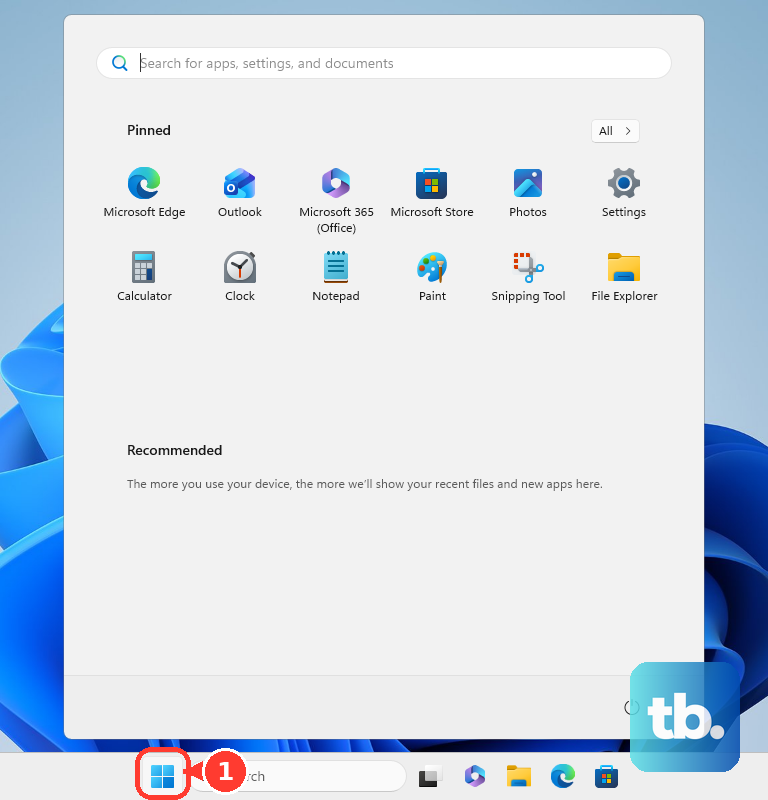
On Windows 11, open Start, then Settings, then Bluetooth & devices, then Devices. Under Bluetooth devices discovery, choose Advanced.
Press Windows + A, turn Airplane mode off, then open Settings, then Bluetooth & devices. Switch Bluetooth off, wait a few seconds, then switch it back on.
Remove an old Cricut entry before pairing again. On Windows 11, open Start, then Settings, then Bluetooth & devices, then Devices, select More options next to the Cricut device, then Remove device, then Yes. On Windows 10, open Start, then Settings, then Devices, then Bluetooth & other devices, select the Cricut device, then Remove device, then Yes. Repeat the pairing process afterward.
Allow Bluetooth on Mac
Open Apple menu, then System Settings, then Privacy & Security, then Bluetooth, then Applications.
Turn on the switch next to Cricut Design Space on macOS Sonoma 14 or later.
Open System Settings, then Bluetooth, click the i next to the saved Cricut device, choose Forget This Device, and confirm it. On the older Mac path, open System Preferences, then Bluetooth, then click the X next to the Cricut device name.
Pair the Cricut again with the machine powered on and within 10 to 15 feet of the Mac. Select the Cricut Bluetooth device code and enter 0000 when the PIN prompt appears.
If Design Space still cannot see the machine, quit Design Space, reopen it, and select the machine again.
Repair mobile pairing
This fixes iPhone, iPad, and Android cases where Design Space cannot discover the Cricut even though Bluetooth is on.
On iPhone or iPad, open Settings, then Privacy & Security, then Bluetooth. Enable Cricut Design Space when it appears in the app list.
Open Settings, then Bluetooth, tap the i next to the Cricut device, then choose Forget This Device. Pair the machine again from Bluetooth settings and enter 0000 when the PIN prompt appears.
On Android 13 or later, open Settings, then Apps, then Design Space, then Permissions. Allow Nearby devices.
To clear a stale Android pairing, open Settings, then Bluetooth, tap the gear icon next to the Cricut machine, and tap Forget. Pair it again while the machine is powered on and within 10 to 15 feet.
Update Design Space and firmware
Use this when Bluetooth connects but setup, registration, firmware updates, or cutting still fails inside Design Space.
- 1.Install or update Design Space from design.cricut.com on Windows or Mac, the App Store on iPhone or iPad, or the Google Play Store on Android.
- 2.On Windows or Mac, use the Canvas machine dropdown in the upper right of Design Space to choose the correct Cricut model.
- 3.On iPhone or Android, open the Design Space menu, choose Machine Selection, and select the model you are using.
- 4.Complete New Product Setup or Machine Setup when the machine is new or reset, because registration happens during setup.
- 5.Install the firmware update when Design Space offers it, or open Settings, then Machines, then Update Firmware, then Start.
Switch to USB for setup or firmware
A USB connection fixes Bluetooth dropouts during setup, firmware updates, or cutting from a Windows or Mac computer. Connect the Cricut machine to a compatible computer with the included USB cable, then run setup, the firmware update, or the project again in Design Space.
This works with Cricut Maker, Maker 3, Maker 4, and other Cricut cutting machines that have USB ports. USB does not connect Cricut Maker 4 to mobile devices, so use a Windows or Mac computer for this fallback.
If USB works but Bluetooth fails again, return to the permission and stale-pairing fixes for your device.
Clear Windows and app problems
This fixes cases where Windows Bluetooth or Design Space is blocking the Cricut connection.
On Windows 11, open Start, then Settings, then System, then Troubleshoot, then Other troubleshooters. Next to Bluetooth, select Run and follow the prompts.
Install Windows updates by opening Start, then Settings, then Windows Update, then Check for updates. Restart when Windows asks.
Update the Bluetooth driver from Device Manager. Open Bluetooth, select the Bluetooth adapter, choose Update driver, then Search automatically for updated driver software, and restart when Windows asks.
When Design Space is blank, stuck, or behaving strangely, clear the desktop app cache or reinstall the app from Cricut's official download page or the mobile app store. On iPhone or iPad, use Offload App instead of deleting Design Space when you need to preserve local projects, downloaded images, or fonts.
Check compatibility and model issues
The most common cause at this stage is an unsupported device, a model-specific firmware issue, or a device-specific Bluetooth fault.
Check the Design Space requirements first. Use Windows 10 or later, macOS 12 or later, iOS 17 or later, or Android 11.0 or higher. Do not use Chromebook, Unix, or Linux because Cricut says Design Space is not supported there.
For Cricut Maker 3, watch the power light when you turn the machine on. If it shows a red light for 2 seconds and you also see pairing failure, intermittent drops, or Design Space errors -45 or 237, install the firmware update when Design Space offers it.
For Google Pixel 8 with Cricut Maker 4, open Settings, then Apps, then See all apps, then the three-dot menu, then Show System, then Bluetooth legacy, then Storage & Cache, then Clear cache. If the problem continues, open Settings, then System, then Reset options, then Reset Bluetooth & Wi-Fi, and reconnect your Wi-Fi and Bluetooth devices afterward.
On a work or managed computer, Windows Bluetooth driver repairs and connection settings require administrative rights. Use a personal supported device or ask your IT contact for Bluetooth access.
After the supported steps fail across more than one supported device, contact Cricut Member Care from Cricut's Bluetooth help page.
Frequently Asked Questions
Why is my Cricut Maker not showing up in Bluetooth?
The machine is out of range, saved as a stale pairing, blocked by app Bluetooth permission, or being connected through the wrong path. Cricut lists Maker, Maker 3, and Maker 4 as standard Bluetooth machines that pair in system Bluetooth settings, while Explore 5 and Joy 2 connect through the Design Space machine picker.
What is the Cricut Maker Bluetooth PIN?
Enter 0000 if a Cricut Maker pairing prompt asks for a PIN or pairing code. Cricut notes that Explore Air 2 and older machines may require that code and newer machines do not, so many Maker pairings finish without ever showing the prompt.
Can I use Cricut Maker without Bluetooth?
Yes. On a compatible Windows or Mac computer, connect a Maker-family machine with the included USB cable for setup, firmware updates, or cutting. USB does not connect Cricut Maker 4 to mobile devices.
Should I delete and reinstall Cricut Design Space?
Use reinstall after Bluetooth reset, permissions, pairing, machine selection, and firmware fixes fail. On iPhone or iPad, use Offload App instead of deleting Design Space when you need to preserve local projects, downloaded images, or fonts.