Chrome should open PDFs in the browser, but a bad setting, stuck tab, extension, cache problem, or managed policy can make the viewer go blank, freeze, or download every file instead. Start with the PDF setting that controls Chrome's built-in viewer, then move through the fixes that clear the common breakpoints.
These steps use current Chrome desktop menus and skip old fixes like chrome://plugins, which no longer applies to modern Chrome.
1. Turn Chrome PDF Viewer Back On
Use this first when PDFs download instead of opening in a Chrome tab.
- 1.Open Chrome.
- 2.Select More.
- 3.Go to Settings > Privacy and security > Site Settings.
- 4.Open Additional content settings.
- 5.Select PDF documents.
- 6.Choose Open PDFs in Chrome.
Chrome has a built-in setting for that exact behavior. For the direct route, type chrome://settings/content/pdfDocuments in the address bar and press Enter.
2. Reload Chrome When PDFs Go Blank
Select Reload on the PDF tab. Then quit Chrome with Alt+F, then X on Windows or Linux, or Command+q on Mac. Open Chrome again and load the PDF. After that, restore closed tabs with Ctrl+Shift+t on Windows or Command+Shift+t on Mac.
Restart the computer if Chrome still freezes, crashes, or shows a blank PDF tab. A blank PDF tab or frozen viewer often comes from a broken browser session. Clear that before changing deeper settings.
3. Open Embedded PDFs In A New Tab
When a PDF is trapped inside a page frame, the page frame can fail while Chrome's PDF viewer still works. In the PDF viewer, use Menu > Open in new tab instead of fighting the page.
Open the PDF page in Chrome. In the PDF viewer, select Menu. Select Open in new tab.
If you only need the file, select Download in the PDF viewer. For edited PDFs, choose With your changes or Without your changes when Chrome offers those options.
4. Clear PDF Auto Open Rules
Download a PDF in Chrome. Next, select Recent download history. Right-click a recently downloaded PDF. Uncheck Always open files of this type.
If Chrome downloads a PDF and immediately launches it somewhere else, the per-file auto-open rule is the setting to check. Open the same PDF link again; if Open PDFs in Chrome is enabled, Chrome keeps the PDF in a browser tab.
5. Update Chrome And Test Incognito
Update first, then test the link in a clean Incognito window. Go to More > Help > About Google Chrome. Select Relaunch.
If Relaunch is not shown, Chrome is already on the latest version. Open More > New Incognito window. Open the PDF link there.
An outdated Chrome build or messy browser state can break PDF loading. You can also use Ctrl+Shift+n on Windows, Linux, or ChromeOS, or Command+Shift+n on Mac. On Android, skip the Incognito test because Chrome can't open PDFs in Incognito and prompts you to download the file instead.
6. Disable Extensions That Hijack PDFs
Test PDF tools, download managers, privacy extensions, security extensions, and any corrupted extension from More > Extensions > Manage extensions.
Open More > Extensions > Manage extensions. Turn off the most likely PDF or download extension. Open the PDF again.
If needed, select Repair for a corrupted extension. Select Remove > Remove for an extension you do not use. Turn extensions back on one at a time until the PDF problem returns.
If Adobe Acrobat is installed, open Extensions > Manage Extensions > Adobe Acrobat and toggle it off. To use Acrobat as the PDF surface instead, select the Acrobat icon near the address bar and turn on Use Acrobat in Chrome.
7. Delete Browser Data And Stop Rendering Glitches
Open More > Delete browsing data. Choose a Time range, such as All time. Select the data types to remove, including cached files and cookies as needed. Select Delete data.
Bad cached files, cookies, site data, and graphics rendering problems can leave PDFs blank or frozen, so clear the browser data first. For graphics-related PDF failures, go to More > Settings > System, turn off Use graphics acceleration when available (older Chrome versions label this Use hardware acceleration when available), then restart Chrome.
8. Reset Chrome Or Reinstall From Google
When the viewer still fails, reset Chrome settings. This keeps saved bookmarks and passwords, but resets extensions, content settings, cookies and site data, startup pages, pinned tabs, and related settings.
Open More > Settings. Select Reset settings. Select Restore settings to their original defaults. Select Reset settings.
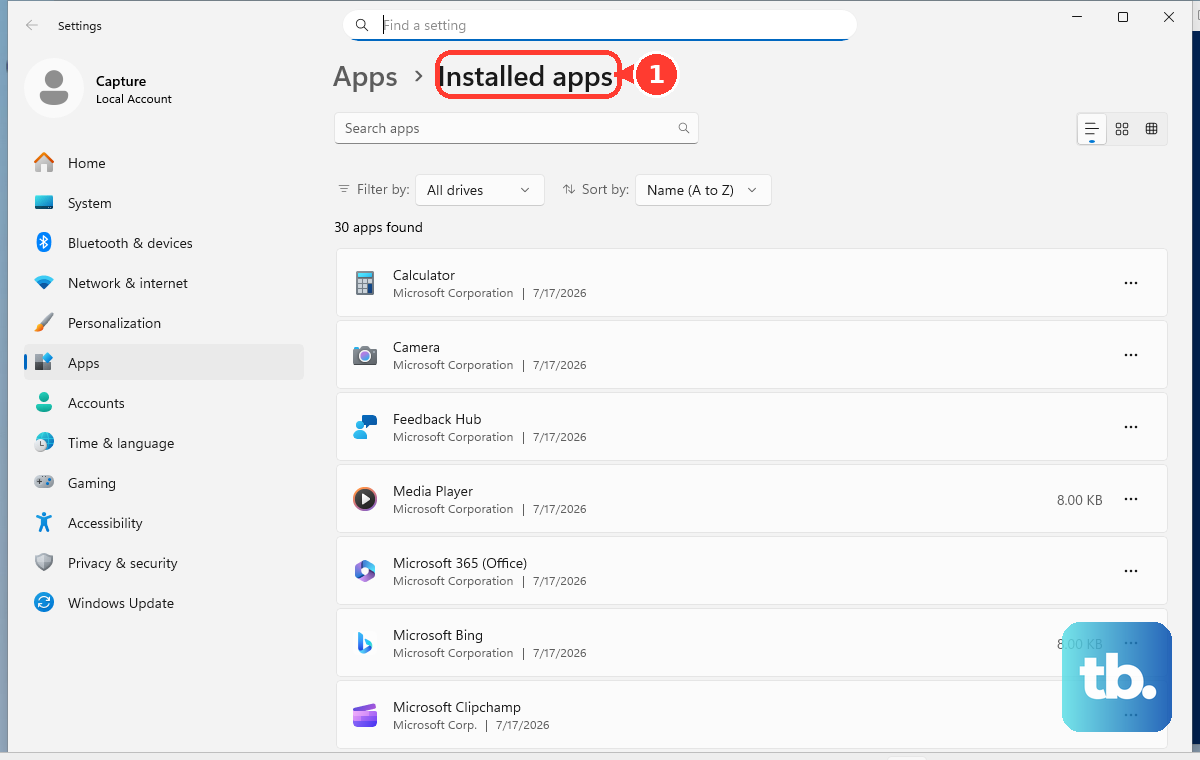
If Chrome itself is damaged, uninstall it and reinstall it from Google's Chrome download page. On Windows 11, close Chrome and go to Start > Settings > Apps > Installed apps > Google Chrome > More > Uninstall > Uninstall. On Mac, quit Chrome, open Finder > Applications, then drag Google Chrome to Trash.
9. Check Work Or School Management
Open More and look for Managed by your organization. Type chrome://management in the address bar and press Enter. Type chrome://policy in the address bar and press Enter. Select Reload policies.
Look for AlwaysOpenPdfExternally or extension policies. Managed Chrome settings can force PDFs to download or force extension behavior, so check this before you keep resetting a browser controlled by an admin. On a work or school device, contact the admin. The AlwaysOpenPdfExternally policy turns off Chrome's internal PDF viewer when it is enabled.
Frequently Asked Questions
Why does Chrome download PDFs instead of opening them?
Chrome is set to download PDFs, a per-file auto-open rule is sending downloaded PDFs outside Chrome, or a managed policy is forcing external PDF handling. Turn on Open PDFs in Chrome, clear Always open files of this type, then check chrome://policy for AlwaysOpenPdfExternally on managed devices.
Why is a PDF blank in Chrome but works after downloading?
A blank PDF tab points to a stuck tab, cached data, an extension conflict, or hardware acceleration. Reload Chrome, test Incognito on desktop, disable extensions, delete browsing data, and turn off Use hardware acceleration when available.
Can Chrome open PDFs on Android?
Yes, on Android 12 and up. In Chrome for Android, tap the PDF link normally. Do not use Incognito for this test on Android because Chrome can't open PDFs in Incognito and prompts you to download the file instead.
How do I open PDFs outside Chrome on Windows 11?
Set the external PDF reader in Windows with Settings > Apps > Default apps, search for .pdf, then choose the app for that file type. In Chrome, pair that with PDF documents > Download PDFs when you want PDFs handled outside the browser.
What old Chrome PDF fixes should I avoid?
Do not use chrome://plugins or old Adobe Reader browser plug-in instructions for current Chrome. Use Chrome's current PDF documents setting, Chrome extensions, or the built-in PDF viewer controls instead.