Capture card audio not working in OBS usually means the wrong source is selected, the mixer is muted, the console is sending surround sound, or the operating system is blocking the device. Start inside OBS, then move outward to the console, cables, drivers, and permissions. By the end, OBS should either capture the card audio or point you to the exact device setting that is stopping it.
Start with the capture card source in OBS
Use this when the capture card video appears in OBS but the audio meter stays flat. Most consumer USB and PCIe cards go in as a Video Capture Device, and Windows capture cards often expose a separate audio endpoint. OBS keeps separate source types for some hardware, so use Blackmagic Device for Blackmagic Design cards, AJA Device for AJA hardware, and Video Capture Device (V4L2) on Linux, where Video Capture Device is not available.
In OBS, go to the Sources dock and click +.
Choose Video Capture Device, open Properties, and select your capture card from the Device drop-down.
If the source already exists, select it in Sources, open Properties, click Deactivate, then click Activate.
On Windows, stay in Properties, scroll to the bottom, turn on Use Custom Audio Device, and choose the capture card audio device from Audio Device.
Click OK and watch the OBS Audio Mixer for movement.
Add the card as its own audio input
This helps when OBS sees the capture card as a microphone-style input, especially on macOS or with cards that do not pass audio through the video source.
In the Sources dock, click + and choose Audio Input Capture.
Name the source clearly, then open the Device drop-down.
Select the capture card audio device, such as Cam Link 4K or Game Capture HD60 S+, then click OK.
Open Settings, choose Audio, and disable the same capture card if it is also set as a global audio device.
One clean source prevents echo, doubled audio, and confusing mixer meters.
Fix the OBS mixer and recording track
Once the source exists, the OBS mixer decides whether you hear it, stream it, or record it.
- 1.In Audio Mixer, find the capture card source, click the speaker Mute button if it is muted, and raise the Fader.
- 2.Open Settings, go to Audio, and set the correct Monitoring Device for your headphones or speakers.
- 3.Go to Edit, open Advanced Audio Properties, and set the capture card source to Monitor and Output.
- 4.In Advanced Audio Properties, check the capture card source on Track 1 for normal recording playback.
- 5.If sound comes from one side, enable Downmix to Mono for the capture card source.
Switch the console to stereo audio
This fixes silent HDMI audio caused by Dolby, DTS, 5.1, 7.1, or another surround format that your capture card does not handle. Elgato is explicit that all of its capture devices record stereo (2.0) PCM only, so bitstream, Dolby Digital 5.1, DTS, and Dolby Atmos will not come through. A few current cards go further: AVerMedia lists 5.1-channel passthrough and capture for the Live Gamer 4K 2.1, but only on Windows and only through Streaming Center or its OBS plugin, with LPCM still limited to stereo. Check your exact model before you assume surround is the problem, and set the console to stereo on any stereo-only card.
On the console or source device, open its audio settings and choose Stereo, Stereo uncompressed, or Linear PCM.
On Xbox, press the Xbox button, go to Profile & system, open Settings, choose General, select Volume & audio output, open HDMI audio, and choose Stereo uncompressed.
On Nintendo Switch, open System Settings, choose TV Settings, and set TV Sound to Stereo. Nintendo's US and Australian instructions and Elgato's own guide all call that menu TV Settings, while Nintendo's UK instructions call it TV Output, so use whichever label your console shows.
On Switch 2, open System Settings, choose Audio, select TV Sound, and choose Stereo.
On PlayStation, remove headphones from the controller, set Audio Format (Priority) to Linear PCM, and disable HDCP for external gameplay capture.
Check the HDMI and USB chain
Use this when OBS loses both video and audio, the capture card disappears, or passthrough audio is silent. The signal has to travel from the source, through the capture card, to the display and computer before OBS can capture it.
Connect the console or source device to the capture card’s HDMI In.
Connect the card’s HDMI Out to the TV or display.
Connect the capture card to the computer by USB.
Unplug and reconnect the capture card USB cable, then plug it directly into a USB 3.0 or USB 3.2 port on the computer.
Reseat the HDMI cables and try another HDMI cable if the TV, monitor, or passthrough output has no sound.
For AVerMedia passthrough setups, use a monitor or TV that supports HDMI audio or has speakers.
Close vendor capture software, Teams, Zoom, Discord, and browser tabs that are using the capture card, then reopen OBS.
Allow Windows to use the capture card
The most common Windows-side cause is that the capture card audio endpoint is treated like a microphone, and OBS needs permission to use it.
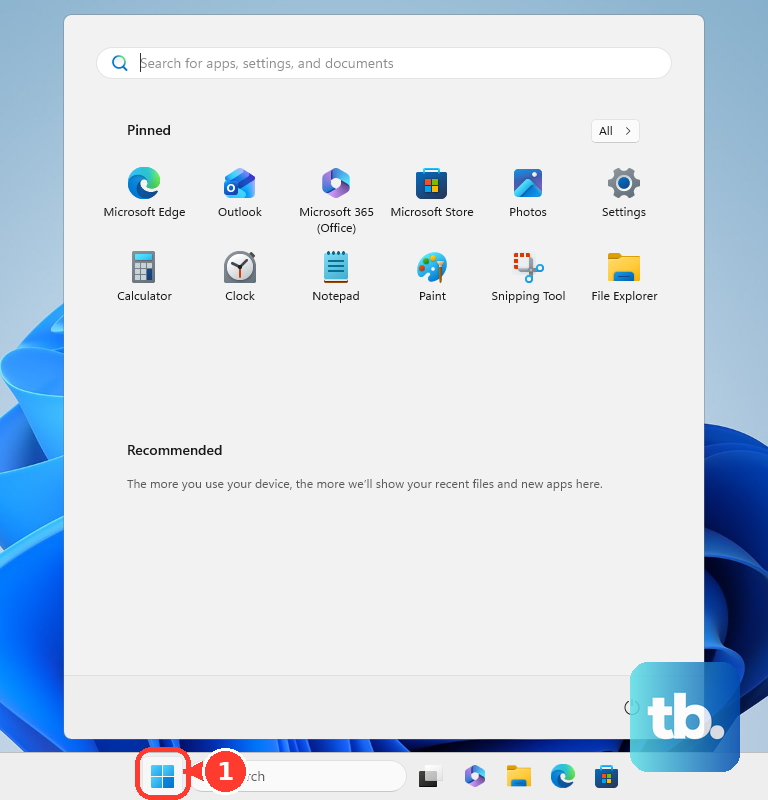
Open Start, go to Settings, choose Privacy & security, and open Microphone.
Turn on Microphone access, Let apps access your microphone, and Let desktop apps access your microphone.
If the capture card is not detected, open Privacy & security, choose Camera, and turn on Camera access, Let apps access your camera, and Let desktop apps access your camera.
Open Device Manager, expand Sound, video and game controllers, right-click the capture card audio device, and choose Enable device when that option appears.
If the device is missing, choose View, select Show hidden devices, open Action, and choose Scan for hardware changes.
Check Windows monitoring output
Select the taskbar Speakers icon.
Choose the arrow next to the volume slider, then select the correct headphones or speakers.
Right-click the Volume icon, open Volume mixer, and raise or unmute the system and OBS sliders.
Open Start, go to Settings, choose System, open Sound, select your output device, and set Audio enhancements to Off.
This Windows output check affects what you hear locally, not whether OBS is receiving the capture card signal.
Grant macOS permissions and inspect Audio MIDI Setup
On a Mac, open the Apple menu, choose System Settings, and go to Privacy & Security. Open Microphone and turn on access for OBS Studio.
Open Camera and turn on access for OBS Studio if the capture card is not recognized as a video source. When your workflow also captures desktop or system audio, open Screen & System Audio Recording, turn on access for OBS Studio, then restart OBS if macOS prompts you.
For a card that exposes configurable audio settings, open Finder, choose Go, open Utilities, launch Audio MIDI Setup, and select the capture card in Audio Devices. Adjust the available channel volume or format settings shown for that device.
Use the current macOS path, System Settings > Privacy & Security, for OBS permissions.
Update OBS and the capture card utility
Use this when the source appears inconsistently, the audio endpoint disappears after reconnecting, or the vendor utility shows the wrong audio input. Install the current OBS Studio release from the official OBS download page for your operating system.
Elgato owners should use the official Elgato Downloads page for Elgato Studio, 4K Capture Utility, Capture Device Utility, drivers, and firmware tools.
In Elgato Studio, open the software settings panel, go to the Audio section, and switch between HDMI and Analog depending on how your audio is connected.
In 4K Capture Utility on Windows, open the settings wheel, choose Settings, open Device, then set Audio Input to HDMI Audio or Analog Audio. Elgato now lists 4K Capture Utility as legacy software, with development stopped in March 2026, so reach for it only on the older cards it still covers and prefer Elgato Studio everywhere else.
On macOS, use Capture Device Utility to switch compatible cards between HDMI Audio and Analog Audio. On macOS 14.2 Sonoma or newer, use Elgato Studio instead.
For current Elgato cards, add the card directly in OBS and use Elgato Studio for device settings, with Capture Device Utility as the macOS alternative for compatible cards and the legacy 4K Capture Utility only for older hardware.
Frequently Asked Questions
Why does OBS show the capture card meter moving but I hear nothing?
Set a Monitoring Device in OBS, then open Advanced Audio Properties and set the capture card to Monitor and Output. Also check the Windows or macOS output device and volume.
Why is my capture card audio in the recording missing but the mixer moves?
The source is not assigned to the recorded track. In Advanced Audio Properties, check the capture card on Track 1, then make sure that track is enabled in OBS Output settings.
Should I use HDMI Audio or Analog Audio on an Elgato capture card?
Use HDMI Audio when sound comes through the HDMI source. Use Analog Audio when using Chat Link, Chat Link Pro, or another 3.5 mm line-level connection to the card.
Why does my PS5 capture card audio disappear when I plug in a headset?
PS5 does not output sound over HDMI when headphones are plugged into the controller. Unplug the headset or use a supported analog or chat-link setup and set the capture card to Analog Audio.