An ASUS ROG Zephyrus G14 runs hot when firmware is outdated, a performance profile is holding the CPU or GPU high, the discrete GPU stays active, or the vents cannot breathe. Start with software and airflow fixes before touching diagnostics or service.
The steps below use current ASUS, Microsoft, NVIDIA, and G-Helper guidance. They focus on fixes you can apply without opening the laptop.
Update the laptop before tuning anything
Install BIOS, firmware, chipset, graphics, ASUS System Control Interface, and ASUS utility updates before changing thermal settings. Open the ASUS support page for your exact G14 model, then use Driver & Tools and BIOS & FIRMWARE to install the relevant downloads for your Windows version.
For the 2025 G14 family, use the GA403 support page as the official ASUS download entry point. Select the exact model and OS when prompted, because files differ across GA401, GA402, GA403, and other submodels.
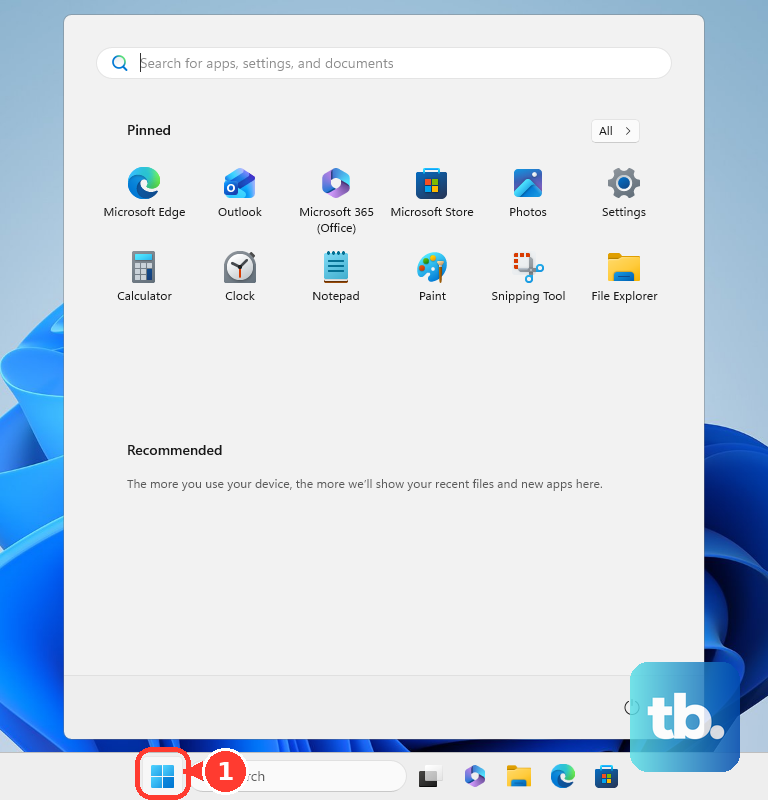
After the ASUS updates, open Start, go to Settings, choose Windows Update, and select Check for updates. Then open MyASUS from Windows search and use System Update for ASUS-provided packages. Not every device supports that page; if System Update is missing, stay with the exact-model ASUS support page instead.
Use a cooler Armoury Crate mode
Use this when the G14 is hot or loud during normal work, after gaming, or while plugged in. Turbo and overclocked-style profiles are performance modes, not low-heat modes.
Open Windows search, type ARMOURY CRATE, and launch the app.
Go to Home, open Operating Mode, and choose Performance for everyday use.
Choose Silent for browsing, streaming, writing, and light work.
Choose Windows when you want Windows power settings to control the laptop. Turbo works only while charging, and the available modes depend on power state and G14 model.
Cut heat from the GPU and background apps
When the laptop feels hot outside games, reduce discrete-GPU use and stop abnormal background load.
- 1.Open Armoury Crate, go to Home, then open System Settings and GPU Performance or GPU Power Saving. ASUS supports this feature only on 2022-series and later models that carry both integrated and discrete graphics, so if you do not see it, skip ahead to the Task Manager step.
- 2.Choose Eco Mode to disable the discrete GPU when you are not gaming, or choose Optimized Mode to use Eco on battery and Standard while plugged in.
- 3.If the laptop is in Ultimate Mode, switch to Standard, restart when prompted, then choose Eco Mode or Optimized Mode.
- 4.In System Settings, use Free Up Memory to stop apps you do not need, then close GPU-using apps shown under GPU Performance. ASUS notes that this stop action will not work while the laptop is on AC power or when the process is driving an external display, so unplug first, or close those apps normally or through Task Manager.
- 5.Press Ctrl + Shift + Esc, sort Processes by CPU or Memory, select the abnormal app, and choose End task.
Make Windows run cooler
Open Start, then Settings, then System, then Power & battery.
Set Power mode to Best power efficiency for the lowest heat and power use, or choose Balanced for mixed everyday use.
If Power mode is not shown, open Control Panel, go to System and Security, then Power Options, and select Balanced.
Turn on Energy saver from Settings, System, Power & battery, then Energy saver.
For startup heat, open Settings, choose Apps, then Startup, and switch unneeded apps to Off.
Tip: remove a repeated heat source from Start, All apps, right-click the app, and choose Uninstall.
Adjust fan behavior for your workload
Use this when cooler operating modes help, but sustained work or gaming still pushes the laptop hotter than your target. Armoury Crate Manual Mode gives supported G14 models stronger fan response and model-specific CPU or GPU thermal controls.
In Armoury Crate, open Home, choose Operating Mode, select Manual, then open Edit Manual Mode.
Raise the Fan Curve points at higher temperatures so the fans respond earlier.
Use the CPU and GPU controls shown on your model, including CPU Temperature Limit, platform power limits, or GPU Thermal Target. ASUS states that some models expose only Fan Curve when overclocking controls are not supported.
On current GA403-style keyboards, press the dedicated fan-icon key to toggle fan mode without opening Armoury Crate. If function keys are set to F1-F12 behavior, use Fn with the printed fan-mode key; Fn + Esc switches hotkey behavior on supported models.
Clean the vents and improve airflow
Shut down the laptop and disconnect power before working around the vents.
Place the G14 on a firm, flat surface so intake and exhaust areas stay open.
Keep clear space around the vents during gaming, charging, and long creative workloads.
Use a cooling pad or stand when the laptop sits on a desk for extended sessions.
Clean dust with commercially available compressed air cans held at a distance, and keep the can upright while spraying.
Tip: avoid powerful air compressors, because ASUS warns against them for laptop cleaning.
Use browser and gaming power savers
This fixes heat from heavy tabs, browser background work, and supported NVIDIA gaming power features.
In Microsoft Edge, open Settings and more, then Settings, then System and performance.
Under Performance, turn on Energy saver, the feature Edge used to call efficiency mode. While Energy saver is on, Edge sleeps background tabs on its own schedule: 30 minutes of inactivity for moderate savings, five minutes when it is maximizing savings. To pick your own interval under Put inactive tabs to sleep after a set time, turn Energy saver off first.
Add sites to Always keep these sites active only when those sites need background activity.
In Google Chrome, open More, then Settings, then Performance. Turn on Energy Saver and use Memory Saver when inactive tabs consume resources.
For NVIDIA notebook GPUs, open NVIDIA Control Panel, then System Information, and check WhisperMode. When the system lists WhisperMode as supported, enable and configure WhisperMode in the NVIDIA app, which has replaced GeForce Experience; when it is missing or not ready, keep Armoury Crate on a balanced, quiet, whisper, or similar mode and update the notebook BIOS from ASUS support.
Consider G-Helper only as an Armoury Crate alternative
G-Helper is a third-party, open-source control utility for ASUS laptops, including ROG Zephyrus G14 models. It is not ASUS-supported, so use it only when you want an alternative to Armoury Crate.
If Armoury Crate is malfunctioning, use ASUS cleanup first. Open the Armoury Crate support page, go to Driver & Utility, select Windows 10 64-bit, download Armoury Crate Uninstall Tool, unzip Armoury_Crate_Uninstall_Tool.zip, run Armoury Crate Uninstall Tool.exe, and restart. ASUS says to select Windows 10 64-bit for that uninstall tool even on current Windows 11 systems.
To reinstall Armoury Crate, open the Armoury Crate download page, choose Driver & Tools, select Windows 11 64-bit, download the installer, unzip ArmouryCrateInstallTool.zip, run ArmouryCrateInstaller.exe, choose Armoury Crate or Armoury Crate + Aura Creator, and press Start.
In G-Helper, choose Silent, Balanced, or Turbo, then choose Eco, Standard, Ultimate, or Optimized for GPU mode. Open Fans + Power for fan curves, power limits, GPU temperature limits, and exposed AMD undervolting controls, then use Updates to check BIOS and driver links from official ASUS sources.
When heat still will not settle
Open MyASUS from Windows search and go to System Diagnosis.
Choose Diagnostic Tool, check Fan under customized diagnosis, then run Checkup. Diagnostic items vary by model, so if Fan is not listed, continue with the remaining steps below or contact ASUS.
If the diagnostic reports a fan error, use ASUS service; ASUS recommends an ASUS service center for detected fan issues.
Use System Restore when overheating began right after a software or driver change, and restore from a point created before the problem started.
Reset or reinstall Windows only after updates, fan modes, process checks, ventilation, cleaning, and diagnostics fail, and back up personal files first.
Tip: skip older registry edits that expose CPU boost settings; current ASUS consumer guidance uses updates, Armoury Crate or MyASUS controls, ventilation, diagnostics, restore, reset, and service.
Frequently Asked Questions
Is it normal for the ASUS ROG Zephyrus G14 to get hot while gaming?
Gaming uses the CPU and discrete GPU heavily, so heat and fan noise rise. Use Performance or Manual Mode, keep vents clear, and use the discrete GPU mode required by the game.
Should I rely on third-party temperature readings to decide if the laptop is defective?
No. ASUS says third-party temperature software does not measure chassis temperature and should not diagnose hardware issues by itself. Use MyASUS fan diagnosis and ASUS service for hardware decisions.
Why does the fan keep running after I put the G14 to sleep?
ASUS explains that in Sleep, the CPU and GPU remain operational, so the fan continues until the machine cools. Use Hibernate when you want the CPU, GPU, and fan to stop after cooling.
What should I do if my school or work manages the G14 power settings?
Ask the administrator to enforce cooler power behavior through management tools. For a personal laptop, use the Windows and Armoury Crate settings in the main steps.