Your SD card isn't showing up in Windows 11, and you need the files on it. Start by checking whether Windows detects the card, then work through the connection, drive-letter, and reader-driver fixes below. These checks cover both SD and microSD cards. If yours holds irreplaceable files, copy or recover them before attempting file-system repairs, formatting, or creating a volume.
Look in This PC first
Looking in Home instead of This PC leaves you in the wrong File Explorer view for checking connected drives. Open File Explorer.
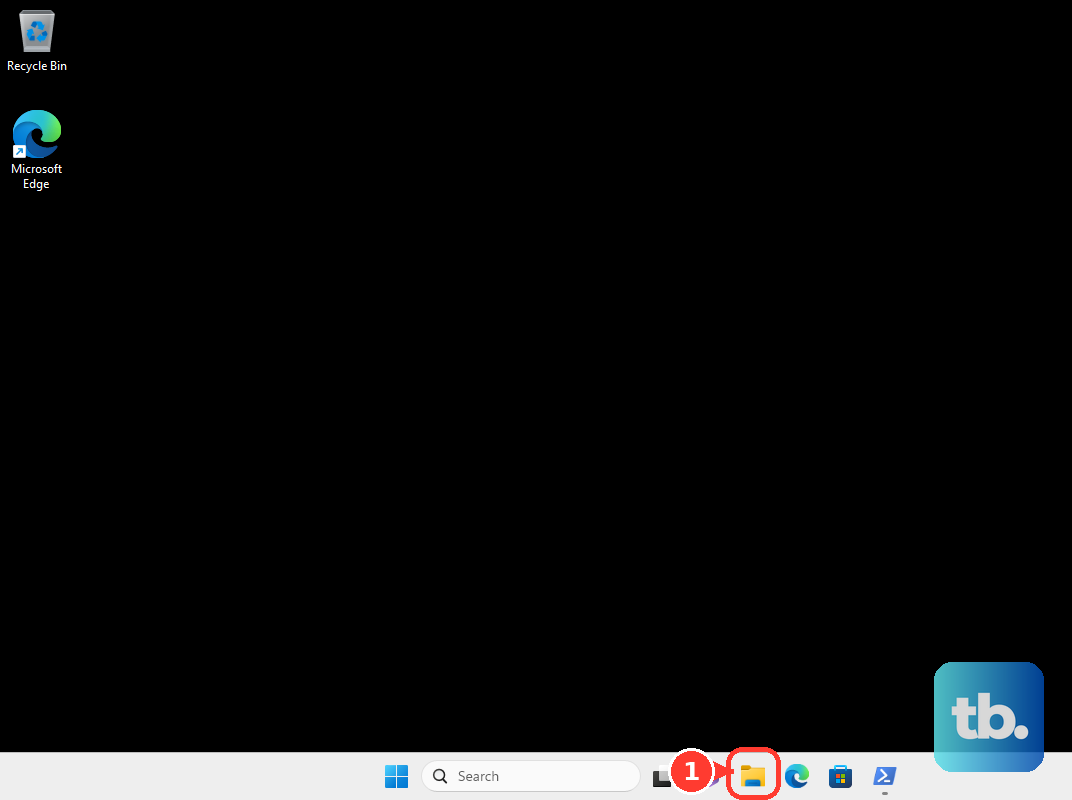
Select This PC to look for the card. If the sidebar is missing, restore it through View > Show > Navigation Pane.
To make This PC your default view, open See more > Options. Set Open File Explorer to to This PC, then select Apply.
Find out whether Windows detects the card
Open Disk Management from the right-click menu on Start. Identify the card by its capacity before making any changes. Don't mistake another disk for your card.
If an external reader or card is missing, reconnect it to the computer. Then select Action > Rescan Disks in Disk Management.
Check the card's status. A detected volume without a drive letter needs a different fix from a card that's absent entirely. An unreadable RAW file system or unexpected Unallocated space calls for file recovery before formatting or repartitioning. Use the displayed capacity and status to choose the next fix.
Test the connection when the card is missing
Use these checks when the card is absent from Disk Management or its connection is unreliable. They help isolate the card, reader, adapter, or computer responsible.
Remove the card and inspect the card and slot for debris, damage, or a loose fit. Reinsert the card securely in the correct orientation, without forcing a tight fit.
Check the computer or reader manufacturer's supported card types and capacities. Physical fit alone doesn't establish support for the card's SD, SDHC, SDXC, or SDUC standard.
If you're using a microSD-to-SD adapter, test the card in a compatible reader with a native microSD slot. Connect an external USB reader directly to the computer, bypassing any hub or dock. Try another USB port or compatible card slot. For a reader with a detachable cable, test a compatible data cable instead of a charging-only cable.
Restart the computer with the card and reader connected, then check This PC again. Test another compatible card in the original reader. Try the original card in another compatible reader.
Test the original card on another computer. If that computer reads the card, copy your files before further repairs. Replace the component these tests identify as faulty.
Give a detected card a drive letter
A missing drive letter keeps an otherwise accessible card volume from appearing as a drive in This PC.
Using an account with administrative permissions, open Change Drive Letter and Paths from the card volume's right-click menu in Disk Management. Select Add if the volume has no letter, or Change to replace an existing letter. Choose Assign the following drive letter.
Select an unused letter, then confirm with OK. Select Yes if prompted.
If Change Drive Letter and Paths is disabled, check the volume's status before proceeding. A volume must be ready for a letter; don't format a card containing needed files just to enable this option.
For a card whose disk entry displays Offline, select Online from that disk entry's right-click menu, if available. If Online is unavailable, continue with the detection and driver checks.
Enable the reader or repair its driver
Open Device Manager from the right-click menu on Start. The reader's name and category depend on your hardware. For a disabled reader, including one reporting Code 22, select its entry and choose Enable Device.
Select Action > Scan for hardware changes to rescan connected hardware. To check for a reader-driver update, use the reader entry's right-click menu to select Update driver, then choose the option to search automatically for drivers.
If the problem began immediately after a reader-driver update, open the reader's Properties > Driver > Roll Back Driver. Choose a reason, confirm with Yes, and restart if prompted. Rollback requires administrative permissions and an available previous driver.
If updating doesn't resolve a malfunctioning reader installation, save your work before reinstalling it. From the reader's right-click menu in Device Manager, select Uninstall device > Uninstall. Restart the computer; Windows attempts to reinstall the driver.
Restore access to a card Windows can see
For a detected BitLocker-protected card on Windows 11 Pro, Enterprise, or Education, select Start, enter BitLocker, and select Manage BitLocker to open the BitLocker Drive Encryption Control Panel applet. Microsoft also supports unlocking the drive from File Explorer. The BitLocker Drive Encryption tool isn't available on Windows 11 Home.
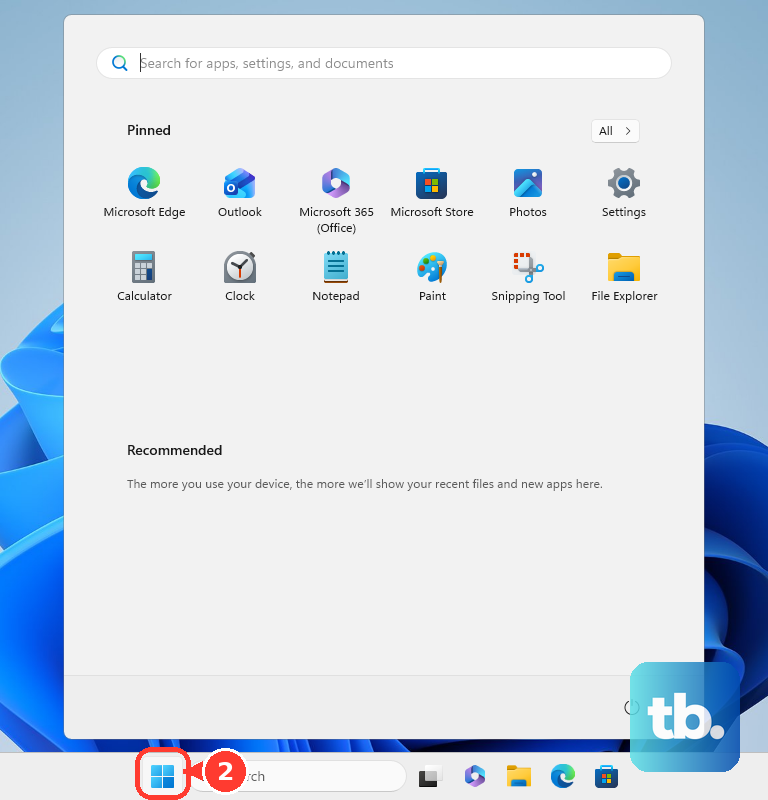
Select Unlock drive and supply the requested recovery key. Unlocking restores access to encrypted storage; it doesn't repair hardware detection.
Before repairing a readable card with file-system errors, back up its files. Open Properties from the card's right-click menu in File Explorer. Select Tools, then select Check under Error checking.
Follow the scan or repair prompts displayed for that volume. File-system checks require a detected, addressable volume; CHKDSK doesn't repair absent hardware or an unreadable RAW file system. On a work or school computer, ask IT about removable-storage restrictions if access remains blocked.
Save formatting for a detected card's last resort
Formatting addresses file-system problems on a detected card and makes existing files inaccessible. Back up or recover needed files before proceeding. For a failed card containing important files, use the vendor's data-recovery referral before attempting to format it.
Identify the card again by capacity in Disk Management. Formatting cannot make absent hardware appear, and resetting partitions cannot fix a reader reporting no media. Select Format from the card volume's right-click menu. Choose file-system settings supported by the camera or other device that will use the card.
Confirm with OK only when you're ready to lose access to the existing files. For an empty card shown as Unallocated, or one whose files have already been recovered, select New Simple Volume from the unallocated region's right-click menu.
Select Next and choose the volume size in the wizard. Choose a drive letter, then configure the Format Partition settings.
Review your choices and finish the wizard. Replace a card confirmed to have failed, or pursue its warranty.
Frequently Asked Questions
Does the lock switch stop an SD card from appearing in Windows 11?
The switch on a full-size SD card or microSD adapter primarily affects writing and formatting. For those problems, remove the card, move the switch to the unlocked position, and reinsert it. Unlocking isn't a general fix for a missing device.
How do I check for hidden files when my SD card looks empty?
Open the card in File Explorer, then select View > Show > Hidden items. This reveals hidden files on an already mounted card; it doesn't make undetected hardware appear.
Where can I find my SD card's BitLocker recovery key?
Follow the Microsoft-account recovery-key link on Microsoft's recovery-key support page. Sign in to the account that saved the key and match the key ID. An account doesn't automatically contain every removable-drive key. For an organization-managed key, use the work or school account recovery route or contact IT.
Does a hidden reader entry in Device Manager mean Windows detects my card?
No. A non-present reader entry doesn't establish that Windows currently detects the card. To inspect hidden entries, open Device Manager and select View > Show hidden devices.