An iPhone X stuck on Unable to Activate leaves you unable to finish setup. The next step depends on whether the screen mentions an unavailable server, a SIM problem, or an account linked to the phone. Start with the quick checks below, then follow the fix that matches your message.
Check activation service and restart your iPhone
Rule out a temporary service problem before changing anything on the phone. On another device, open Apple System Status and check iOS Device Activation. If its indicator is not green, wait until service returns before retrying. If the error says the activation server is temporarily unavailable or cannot be reached, wait a few minutes and retry activation.
To restart your iPhone X, hold either volume button and the side button until the power-off slider appears. Drag the slider, then wait 30 seconds. Hold the side button until the Apple logo appears, then retry setup.
If the screen is frozen, force restart instead. Quickly press and release Volume Up. Quickly press and release Volume Down. Then hold the side button. Release it when the Apple logo appears.
Switch to a reliable Wi-Fi connection
Apple recommends switching from cellular data to reliable Wi-Fi when activation fails. During setup, select a working Wi-Fi network and enter its password.
Test that network on another device. If that device also cannot get online, the connection needs attention before you retry activation. Move closer to the router, then retry activation.
If the connection still fails, restart the router and modem by disconnecting and reconnecting their power. For internet access that keeps failing across devices, contact your internet service provider.
If activation still fails, try another Wi-Fi network. With a working connection established, use the SIM-specific steps below for a SIM alert or try computer activation.
Resolve the SIM error with your carrier
A SIM-related alert needs a carrier check. The iPhone X uses a physical nano-SIM, and an invalid or incompatible SIM message during computer activation also belongs with your carrier.
Contact your carrier to confirm that your plan is active. Reseat the SIM in its original, correctly fitting tray. Check that the tray closes completely and is not loose. If reseating does not help, try another compatible SIM.
If you do not have another card, ask a carrier store to test one and replace yours if necessary. When the phone's settings are accessible, open Settings > General > About.
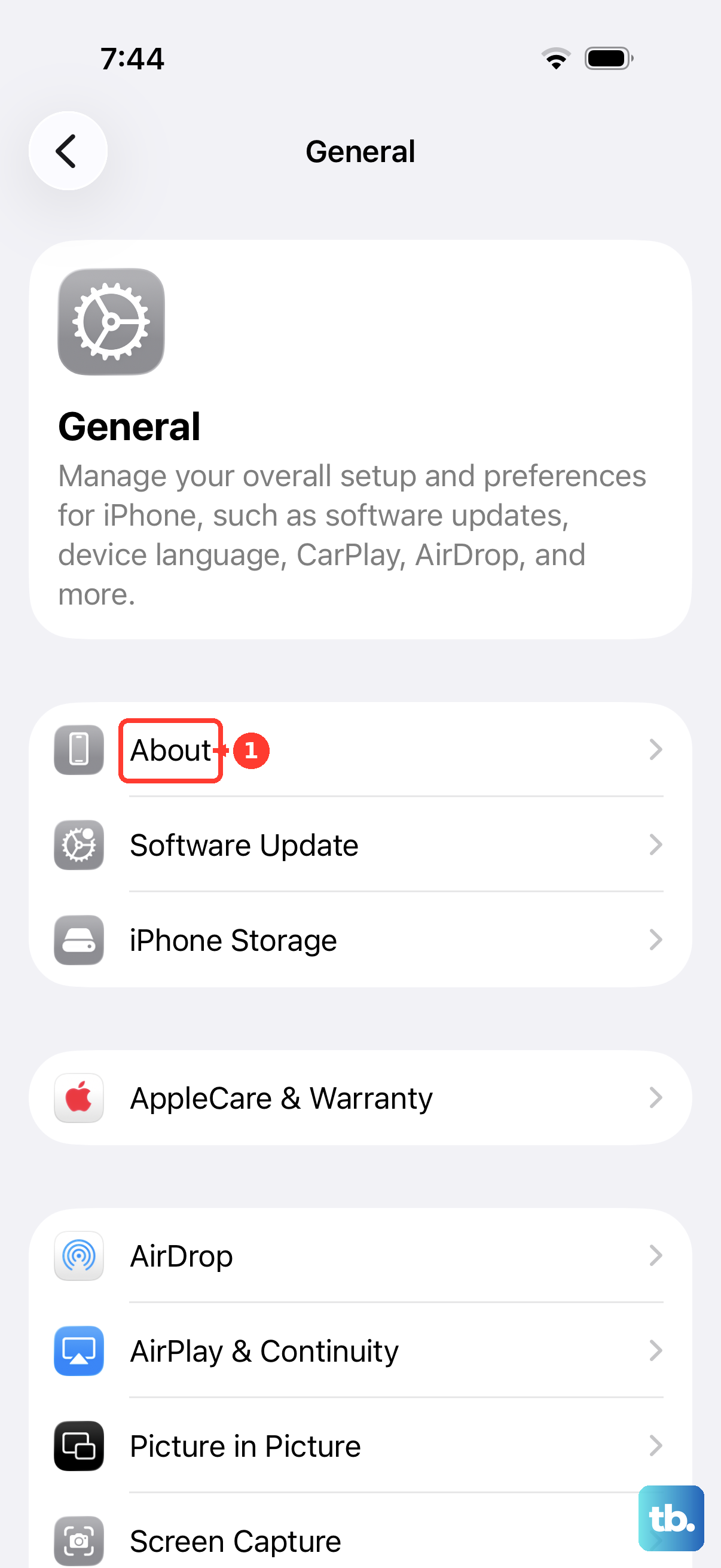
If a carrier settings update appears, select OK or Update. For a phone you are moving to another carrier, check Settings > General > About > Carrier Lock when Settings is accessible. No SIM restrictions means the phone is unlocked. Only the current carrier can authorize an unlock.
If the phone is locked, request an unlock from that carrier. After the carrier confirms completion, replace the old SIM with the new carrier's SIM to activate.
Try activation through a computer
Use Finder on a Mac running macOS Catalina or later, or Apple Devices on a compatible Windows PC.
- 1.Update the computer's software and connect it to the internet. On Windows, install Apple Devices from the Microsoft Store if needed, using Apple's download page.
- 2.Connect your iPhone X to the computer with a cable that supports data and charging.
- 3.Choose Allow on the Mac if Allow accessory to connect? appears. Tap Trust on the iPhone if that prompt appears.
- 4.Select your iPhone's name in the Finder or Apple Devices sidebar. If Finder's sidebar is hidden, choose View > Show Sidebar.
- 5.Wait for activation. Seeing Set up as New or Restore from Backup means activation succeeded.
- 6.If the phone is missing from the sidebar, inspect its Lightning port for debris. Then try another data-capable cable, another USB port, or another computer.
Clear Activation Lock through the linked account
iPhone Locked to Owner means Activation Lock is enabled. You need the account associated with the iPhone, and restoring iOS does not remove that ownership requirement.
Enter the linked account and password on the Activation Lock screen, or use the device passcode when offered. For a secondhand iPhone, ask the previous owner to authenticate. For removal through a browser, have the linked owner sign in at icloud.com/find. This route supports offline devices; Apple also allows some iPhones to be removed while online.
Have the owner select the iPhone, then have the owner click Remove This Device.
If the linked account is yours but you forgot its password, start the password-reset process at iforgot.apple.com. Follow any request to continue verification on a trusted device. After resetting the password, retry authentication on the Activation Lock screen.
If account recovery or owner removal does not clear the lock, open Apple's Activation Lock support page and select start an Activation Lock support request to submit proof-of-purchase documentation. Removal is subject to Apple's review.
Fix remaining network problems when Settings is accessible
If you can get beyond setup, open Settings > Wi-Fi. These connection fixes require access to Settings or apps and are unavailable from a blocked activation screen.
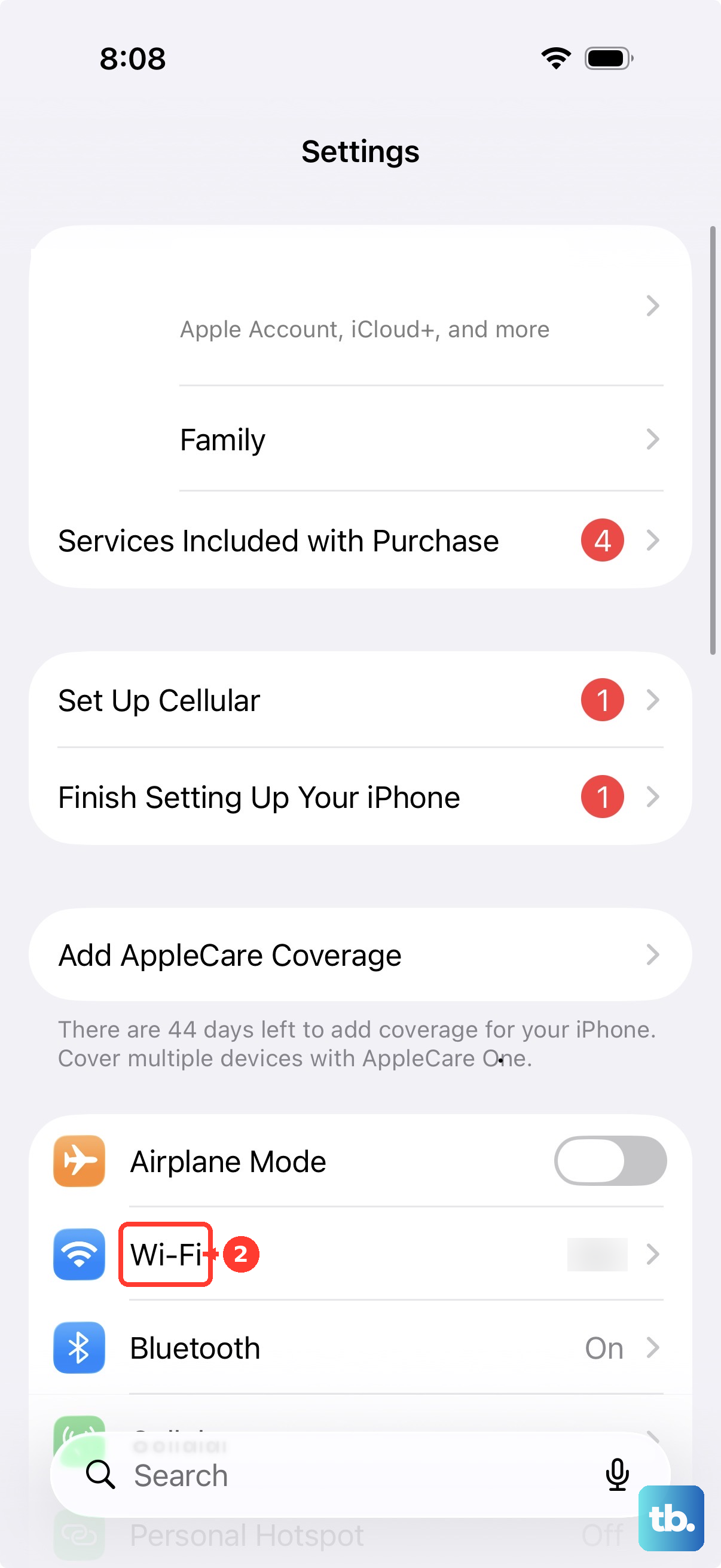
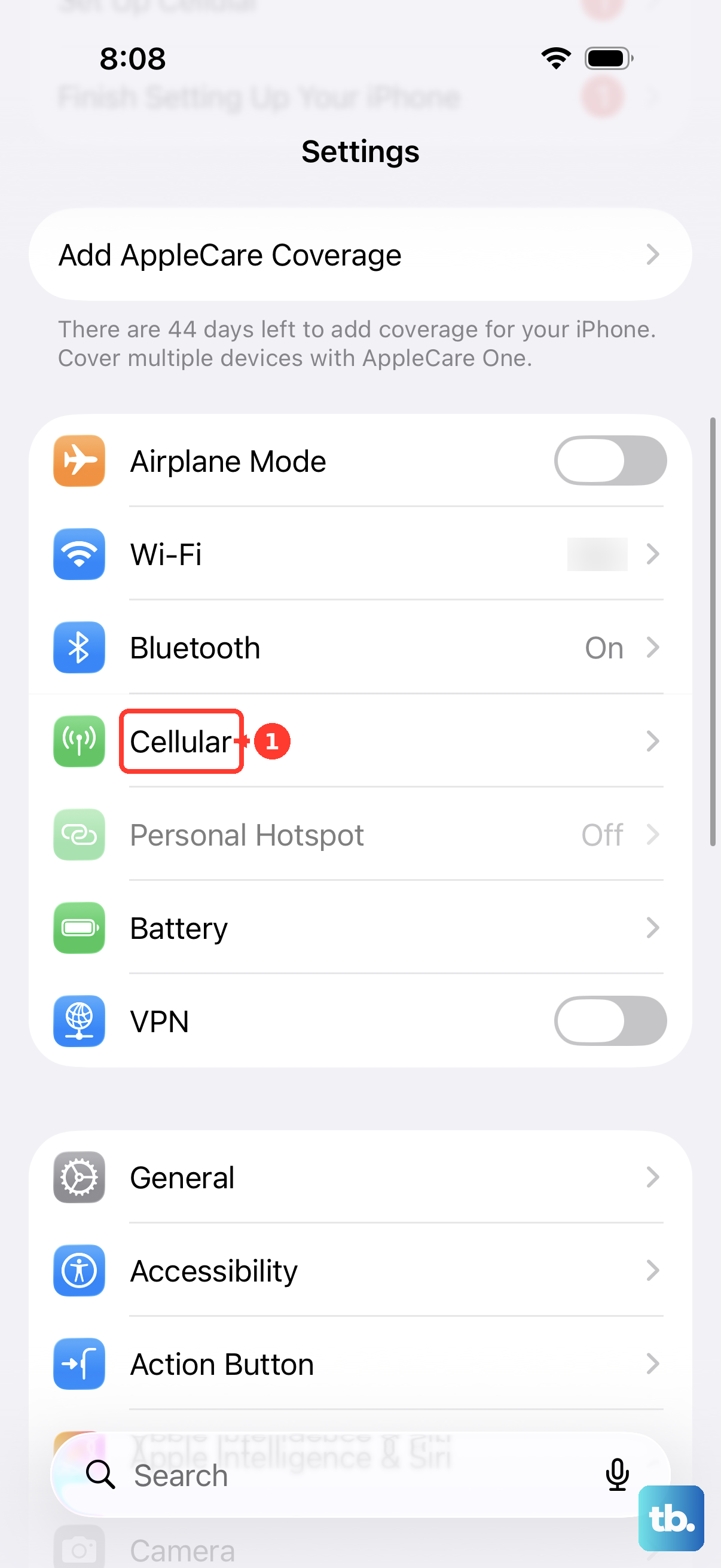
Turn on Wi-Fi, then select your network. Turn off Airplane Mode in Settings. Turn off Wi-Fi Assist under Settings > Cellular.
If VPN or security software is interfering with Wi-Fi, hold its Home Screen app icon. Select Remove App, then select Delete App. Tap Delete.
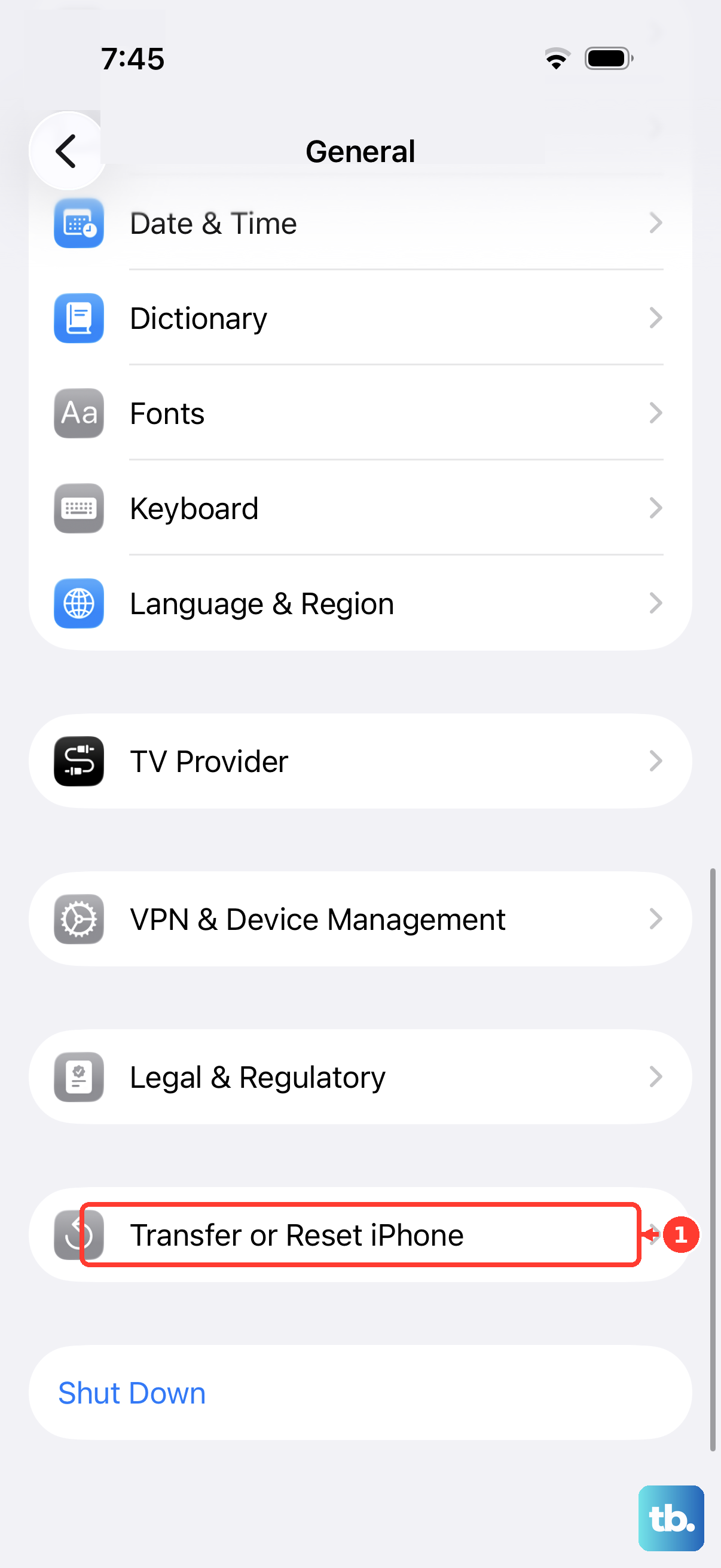
Restart the iPhone, then retest Wi-Fi. For an unresolved connection problem, select Settings > General > Transfer or Reset iPhone > Reset > Reset Network Settings. This clears saved network credentials and cellular, VPN, and APN settings.
Rejoin your Wi-Fi network after the reset. For a managed network, consult IT before resetting network settings.
Use recovery mode for invalid activation information
Recovery mode addresses activation information that is invalid or cannot be obtained. Connect the iPhone X to your computer, then open Finder or Apple Devices.
Quickly press and release Volume Up on the iPhone. Quickly press and release Volume Down. Hold the side button until the computer-and-cable screen appears. Keep holding past the Apple logo; releasing there performs a force restart instead.
Select your iPhone in Finder or Apple Devices. Choose Update first if you have not already tried updating. This reinstalls iOS while retaining personal data. Leave the phone connected until the update finishes.
If updating does not resolve the error, reenter recovery mode using the button sequence above. Choose Restore to erase the phone and reinstall iOS. This deletes its data and does not remove Activation Lock.
If the download takes longer than 15 minutes and the phone exits recovery mode, let the download finish. Reenter recovery mode after the download completes to continue.
Get help when activation still fails
For a persistent SIM or carrier-lock error, contact your carrier. If recovery update or restore fails, or the buttons prevent you from entering recovery mode, select Get service on Apple's recovery support page to request help. Give Apple Support the exact activation error and explain which troubleshooting steps you completed.
Apple lists the iPhone X as obsolete and has discontinued hardware service and service-provider parts ordering for obsolete products. An Apple hardware repair is no longer a standard remedy for this model.
If these routes do not resolve Activation Lock on a workplace or school phone, contact the owning organization's IT team. It can clear eligible managed Activation Lock cases.
Frequently Asked Questions
Does deleting the Find My app turn off Activation Lock?
No. Deleting Find My does not turn off its protection. When the owner's Settings are accessible, open Settings > [your name] > Find My > Find My iPhone. Turn it off, enter the account password, then tap Turn Off.
Can I use an eSIM instead of replacing the SIM card?
No. The iPhone X uses a physical nano-SIM and does not support eSIM.
My carrier confirmed an unlock, but I have no other SIM. What can I do?
After the carrier confirms unlocking, back up the iPhone, erase it, then restore the backup. When Settings is accessible, select Settings > General > Transfer or Reset iPhone > Erase All Content and Settings > Continue. Enter the passcode and account password when requested. Erasing deletes the phone's contents, so complete the backup first.
Can I install the latest major iOS version to fix activation?
The iPhone X remains on the iOS 16.7.x branch. To install its compatible update on Windows, connect the phone by cable, select it in Apple Devices, and open General. Select Check for Update if necessary, then Update to install the version offered.