Your Asus laptop turns on, shows the ASUS or ROG logo, and never reaches Windows. The cause is usually a recent BIOS or hardware change, a connected device blocking boot, firmware state, BIOS settings, or damaged Windows startup files. Start with the fast, low-risk fixes, then move to Windows recovery only if the laptop still refuses to load.
Give the laptop time after recent hardware or BIOS changes
Connect the AC adapter.
Leave the laptop on the ASUS or ROG logo screen for about 5 to 10 minutes.
Do not force it off during this wait if the problem started after a BIOS update, battery disconnect, battery or CMOS battery replacement, memory module replacement, EC reset, or RTC reset.
On newer Intel Lunar Lake or later ASUS platforms, leave it alone while Working on Memory Training appears.
If Windows loads, let it finish starting before you shut down or restart again.
When nothing changes after 10 minutes, move to a forced restart.
Force a clean restart and remove attached devices
Hold Power until the power indicator turns off, wait a few seconds, then press Power again. This is the current first restart path for ASUS and ROG devices stuck at the logo screen.
If the laptop lands on the same loading screen, shut it down again and disconnect anything attached to it. Remove the external keyboard, mouse, external drives, printers, optical discs, card-reader media, adapter cards, and external monitors before starting it again.
A connected device can block normal boot or send the laptop back to the ASUS logo or Automatic Repair screen. Keep everything unplugged until Windows starts successfully.
Clear the back cover warning
Some ASUS and ROG notebooks with an Ambient Light Sensor can stop at a Back Cover was Opened warning after the bottom cover has been opened and reattached.
Press Power at that warning to shut the laptop down, then press Power again to start it.
You can also press Ctrl + Alt + Del at the same warning to restart.
If the laptop still sticks at the ASUS or ROG logo after the warning clears, try the EC reset next.
Reset the firmware state
The most common cause here is a startup, battery, keyboard, touchpad, hardware, or power-related state that needs an EC reset, which ASUS also calls a hard reset and documents together with an RTC reset in one combined procedure.
Remove external devices and turn the laptop off.
Connect the power adapter.
Press and hold Power for 40 seconds.
On ASUS models that use the 20-second reset behavior, release Power after the power indicator rapidly flashes for 3 to 5 seconds and stops.
Turn the laptop on again and watch whether it passes the ASUS or ROG logo. If it starts, reconnect accessories only after Windows finishes loading.
Restore BIOS defaults
Shut the laptop down completely.
Hold F2, press Power, and release F2 when the BIOS configuration screen appears.
In the UEFI BIOS interface, press F9 or choose Default, then select Ok.
Press F10 or choose Save & Exit, then select Ok to restart with default BIOS settings.
On models with MyASUS in UEFI, use F7 or Advanced Settings, then Save & Exit, Restore Defaults, Confirm, Save Changes and Exit, and Confirm.
If BIOS opens normally but Windows still will not load, the problem is more likely in Windows startup or recovery.
Run Windows Startup Repair
Use Windows Recovery Environment when the laptop reaches firmware but cannot load Windows.
- 1.Shut the laptop down, hold F9, press Power, and keep holding until Windows Recovery Environment appears. If F9 fails, repeat the same process with F12.
- 2.Open Troubleshoot, then Advanced options.
- 3.Choose Startup Repair and follow the prompts.
- 4.If the hotkey path does not work, power on, hold Power for 15 seconds to shut down, repeat that failed-start interruption three times, then power on and let Windows Recovery Environment open.
When Windows keeps hanging after repair
The most common cause at this stage is a startup app, service, driver, or recent system change that loads during normal Windows startup.
From Windows Recovery Environment, open Troubleshoot, then Advanced options, Startup Settings, and Restart. Press 4 or F4 for Enable Safe Mode, or press 5 or F5 for Enable Safe Mode with Networking.
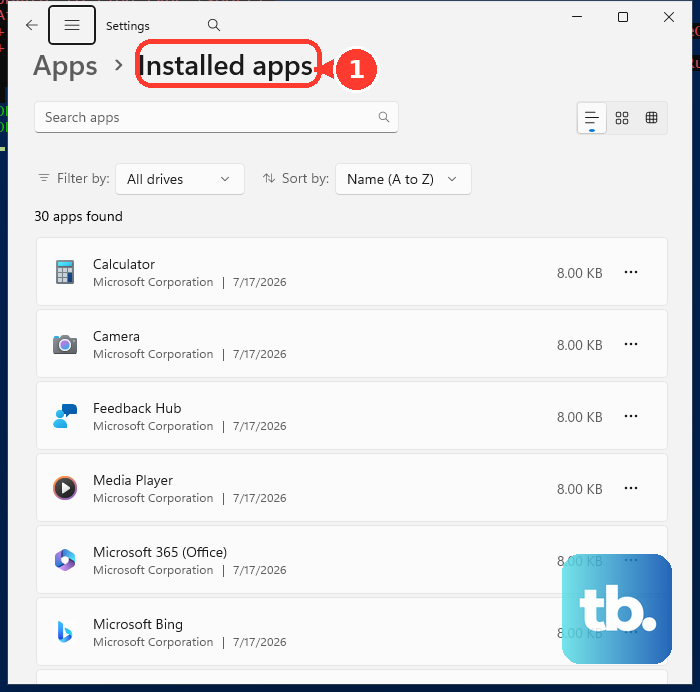
After you reach Safe Mode or the desktop, remove a recently installed app from Start, Settings, Apps, Installed apps, the app's More menu, and Uninstall.
You can also isolate startup items with a clean boot. Open System Configuration, use the Services tab, select Hide all Microsoft services, choose Disable all, open Task Manager, disable enabled startup items on the Startup apps tab in Windows 11 or the Startup tab in Windows 10, close Task Manager, choose OK in System Configuration, and restart.
Undo a recent update or Windows upgrade
When the loading problem began after a Windows update, use Windows Recovery Environment and open Troubleshoot, Advanced options, and Uninstall Updates. Choose Uninstall latest quality update or Uninstall latest feature update when that option is shown.
If the issue started soon after a Windows upgrade and you can reach the desktop, open Settings, System, Recovery, and Go back. This rollback is typically available for 10 days after upgrading, keeps personal files, and removes apps, drivers, and settings added after the upgrade.
On Windows 11 devices with Quick Machine Recovery available, Windows Recovery Environment can also offer Troubleshoot, Advanced options, and Quick machine recovery. Connect Ethernet or supported Wi-Fi and let Windows check Windows Update for a remediation; Quick Machine Recovery is meant for known widespread boot issues, not every stuck-loading case.
If update removal, rollback, or Quick Machine Recovery does not get Windows loading, use System Restore or Reset this PC.
Reset Windows only after repair options fail
Enter Windows Recovery Environment with F9 or F12, or use the repeated failed-start method if the hotkey does not work.
Choose Troubleshoot, Advanced options, and System Restore, then follow the on-screen instructions and pick a restore point from before the loading problem began.
Use System Restore first when a restore point exists, because it keeps personal files but can remove recent apps and drivers.
If there is no useful restore point, choose Troubleshoot, Reset this PC, and Keep my files. Select your account, enter the password when asked, choose Local reinstall or Cloud download, then select Reset; this keeps personal files but removes installed apps, drivers, and settings.
For a fresh reinstall, choose Remove everything instead. This deletes personal files, apps, settings, ASUS preinstalled software, and Microsoft Store apps.
Use the erase options only when you are ready to lose what they remove.
Frequently Asked Questions
Why is my Asus laptop stuck on the ASUS or ROG logo?
The usual causes are recent BIOS or hardware changes, connected devices blocking boot, firmware state issues, changed BIOS settings, corrupted Windows startup files, or a recent app, driver, or update.
How long should I wait at the ASUS loading screen?
After a BIOS update, battery disconnect, memory replacement, EC reset, or RTC reset, connect AC power and wait about 5 to 10 minutes at the ASUS or ROG logo screen.
What key opens recovery on an Asus laptop?
Use F9 from a complete shutdown to open Windows Recovery Environment on supported ASUS Windows 11 and Windows 10 PCs. If F9 does not work, repeat the same startup with F12.
Does Reset this PC delete my files?
Keep my files preserves personal files but removes installed apps, drivers, and settings. Remove everything deletes personal files, apps, settings, ASUS preinstalled software, and Microsoft Store apps.