Your Astro A10 mic can go silent even when game audio still sounds fine. The usual causes are right at the surface: a muted boom, a loose 3.5 mm cable, the wrong input device, or an app that has microphone access blocked.
Start with the headset hardware, then move to the device or app where voice chat is failing. The fixes below use current vendor paths for the A10 and skip the old software advice that does not apply to this headset.
1. Unmute the boom mic first
Flip the boom microphone down toward your mouth. On the Astro A10, the boom arm is the mute switch. Down is unmuted. Up is muted.
Test it before changing any settings. If the mic works after that, the headset was muted at the hardware level.
2. Reseat the A10 cable properly
The A10 uses a wired 3.5 mm connection, and a half-seated cable can leave the headphones working while the microphone side drops out.
- 1.Push the gray end of the Inline Volume Control Cable firmly into the headset.
- 2.Plug the black end into the PC headset jack, controller, or compatible phone/tablet headset adapter.
- 3.On a PC with separate pink and green audio jacks, connect the headset through a PC splitter.
- 4.Turn the inline volume wheel up, then test voice input again.
If the cable crackles, cuts in and out, or only works at a certain angle, replace it with the official A10 Volume Control Cable.
3. Select the mic in Windows 11
Select Start, then open Settings.
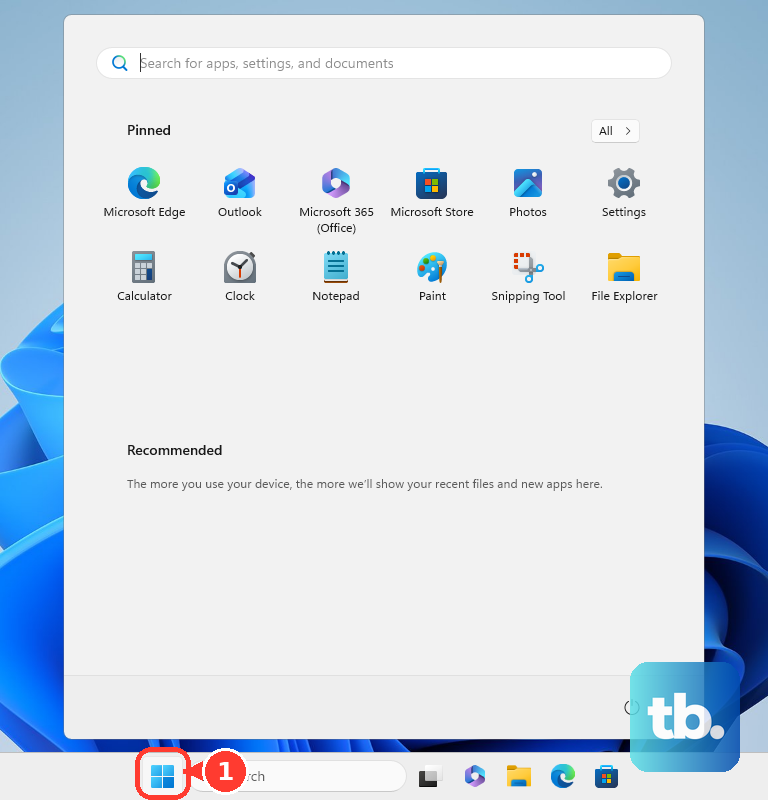
Go to System > Sound.
Under Input, open Choose a device for speaking or recording.
Select the headset microphone, audio adapter, controller, or interface that carries the A10 input.
Select the arrow next to that input device.
Under Input settings, select Start test, speak into the mic, then select Stop test and Play.
Raise the Input volume slider if the recording is too quiet.
If your keyboard or laptop has a dedicated microphone icon key, press it once, then run the Windows input test again.
4. Reenable Windows microphone access
Windows can see the A10 input and still block apps from using it.
Open Start > Settings > Privacy & security > Microphone.
Turn on Microphone access, then turn on Let apps access your microphone.
For Discord, Chrome, Steam, and desktop games, also turn on Let desktop apps access your microphone.
If the recording device is disabled, go to Start > Settings > System > Sound > More sound settings.
Open the Recording tab, right-click the headset input, select Enable, then open Properties and set Device usage to Use this device.
When the mic is detected but too quiet, stay in the device Properties, open the Levels tab, and raise the microphone level.
5. Fix Discord and browser voice chat
Discord: Select the cogwheel icon, open Voice & Video, choose the correct Input Device, and run Mic Test.
If Discord detects audio but nobody hears you, check Input Mode and choose Voice Activity or Push to Talk.
To clear broken voice settings, open Voice & Video > Debugging > Reset Voice and Video Settings, then select the input device again.
Chrome desktop: Open More > Settings > Privacy and security > Site settings > Microphone.
Select the correct default microphone and allow the site.
Chrome Android: Open More > Settings > Site settings > Microphone.
Turn microphone access on, tap the blocked site, then tap Allow.
Microsoft Edge: Open Settings and more > Settings > Privacy, search, and services > Site Permissions > All sites.
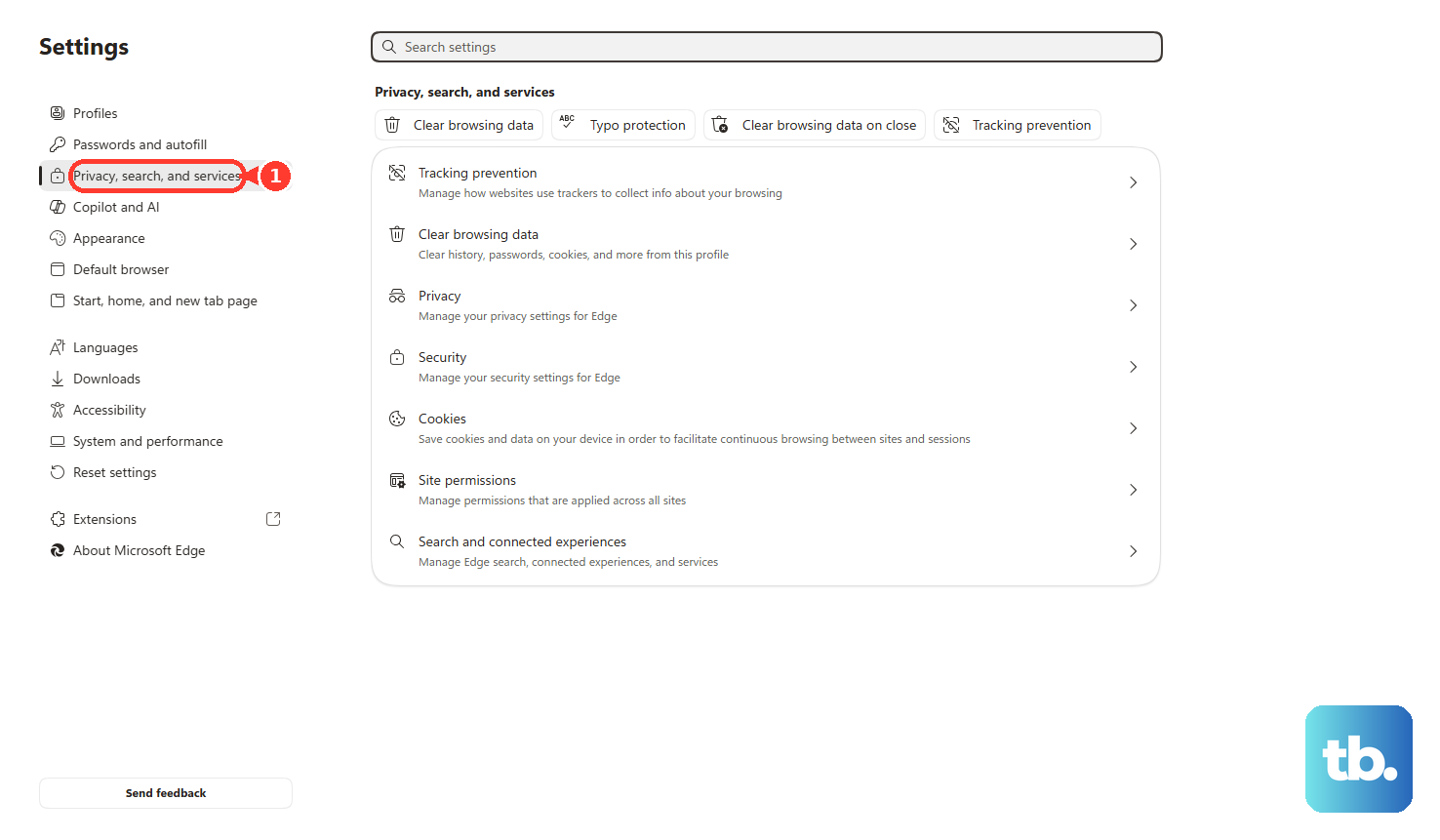
Select the website and set Microphone to Allow.
Firefox: Open Menu > Settings (older Firefox: Preferences) > Privacy & Security.
Under Permissions, select Settings next to Microphone, then remove the blocked exception or set the site to Allow.
Safari on Mac: Open Safari > Settings > Websites > Microphone.
Set the site to Ask or Allow.
On Discord servers, a channel permission can block your voice even when the A10 works elsewhere.
Hover over the channel, select the cog icon, open Permissions, and allow the relevant voice permissions such as Connect and Speak.
6. Set the input on Mac iPhone and Android
On Mac: Open the Apple menu > System Settings > Sound > Input.
Select the input device for the headset, adapter, controller, or audio interface, then raise Input volume.
Next, open Apple menu > System Settings > Privacy & Security > Microphone.
Turn access on for the app, then quit and reopen that app.
In apps that support Mic Modes, click Video in the menu bar, open Mic Mode, and test Standard, Voice Isolation, or Wide Spectrum.
On iPhone or iPad: Go to Settings > Privacy & Security > Microphone and turn on the app that needs the mic.
Use a device or adapter that supports headset microphone input.
On Android: Open Settings > Apps, select the app, tap Permissions, tap Microphone, then choose an available Allow option.
On Android 12 or later, swipe down from the top twice and tap the microphone tile to turn microphone access on.
If the tile is missing, tap Edit or Add and drag the microphone tile into Quick Settings.
7. Check console chat settings
Xbox: With the A10 plugged into the controller, go to Profile & system > Settings > Devices & connections > Accessories.
Select your controller and adjust the available headset audio or mic monitoring settings.
Then open Profile & system > Settings > Account > Privacy & online safety > Xbox privacy > View details & customize > Communication & multiplayer and allow voice communication.
PS5: Press the PS button, open the control center, then select Mic.
Change Input Device, unmute the mic, and use Adjust Microphone Level until your voice lands in the Good range.
The full settings path is Settings > Sound > Microphone.
PS4: Open Settings > Devices > Audio Devices > Adjust Microphone Level.
For headset audio routing, open Output to Headphones and choose Chat Audio or All Audio.
Nintendo Switch 2 GameChat: GameChat now needs a paid Nintendo Switch Online membership and a phone number registered to your Nintendo Account (verified by text message).
Open System Settings > Audio > Audio Input.
Select the correct Input Microphone, raise microphone input volume, and select Test Microphone.
During GameChat, press the C Button, open Settings > Chat Audio, and check mute options such as Mute Microphone When Entering a Chat Session.
Nintendo Switch app voice chat: This feature needs an active Nintendo Switch Online membership and is available to members age 13 and older.
Connect the A10 to the smart device you use for voice chat.
Open the Nintendo Switch App, sign in with your Nintendo Account, start compatible multiplayer software on the console, then select Smart Device Voice Chat > Start.
8. Skip unsupported A10 software fixes
Do not use Astro Command Center or Logitech G HUB as an A10 mic fix.
Logitech’s current Astro Series Software page lists supported Astro devices for those tools, and the A10 is not listed for Command Center or G HUB microphone controls.
Use the fixes that apply to the A10: the flip-to-mute boom, the Inline Volume Control Cable, the correct 3.5 mm jack or splitter, operating system input selection, app permissions, and platform voice settings.
If the mic still fails after those checks, use Support from Logitech’s official A10 product page for warranty or service options.
Frequently Asked Questions
Why can I hear game audio but my Astro A10 mic is not working?
The headphone and microphone signals can fail separately. Flip the boom mic down, reseat both ends of the inline cable, select the A10 input device, and allow microphone access for the app.
Does Astro Command Center fix the Astro A10 mic?
No. Logitech’s current Astro Series Software page does not list the A10 as supported for Astro Command Center or Logitech G HUB microphone controls.
Why does my Astro A10 work in Windows settings but not in Discord?
Discord is using the wrong input, Push-to-Talk is active, voice settings are damaged, or the server/channel blocks speaking. Select the correct Input Device, run Mic Test, check Input Mode, and verify Connect and Speak permissions.
Do I need a splitter for the Astro A10 on PC?
Use a PC splitter when the computer has separate pink and green audio jacks. A single headset jack does not need that splitter.
Why is my Astro A10 mic very quiet?
Raise Input volume in Windows Sound settings, raise the microphone level from the Recording device Levels tab, or use Adjust Microphone Level on PS5 or PS4.