Alexa says Spotify is unavailable, plays from the wrong service, or ignores the speaker you picked in Spotify Connect. The fix starts in the Alexa app, then moves through Spotify settings, Wi-Fi, profiles, and device software in the order that solves the most common setup breaks first.
Use the current Alexa mobile app paths below. The old alexa.amazon.com music-settings route is not the current Spotify setup method.
1. Link Spotify in the Alexa app
Install or update the Amazon Alexa app from Amazon's Alexa App page or your device's app store. Then install or update Spotify from Spotify's download page or your app store.
Open the Alexa app and sign in with your Amazon Account. Tap More, then tap Settings. Under Alexa Preferences, tap Music & Podcasts. Tap Link New Service, then tap Spotify and follow the on-screen instructions.
Start here if Spotify is missing from Alexa or you just set up a new Echo. Spotify's current Alexa page lists the feature for Premium, so use the Premium account you want Alexa to play from.
After linking, return to Music & Podcasts and check Manage Services. Spotify should appear there.
2. Make Spotify the default service
If Alexa plays music but chooses the wrong app, set Spotify as the default music service for the Alexa account or profile you are using.
Open the Alexa app, then tap More and Settings. Tap Music & Podcasts, then tap Your Default Services. Select Spotify, then tap DONE.
For profile-specific defaults, open Music & Podcasts, tap the Profile tab, open Your Default Services, and select Spotify. For podcasts, say on Spotify at the end of the request.
3. Say the request with Spotify named
- 1.Say Alexa, play Discover Weekly on Spotify.
- 2.Try an artist, album, playlist, or podcast and add on Spotify at the end.
- 3.Repeat the same command after setting Spotify under Your Default Services.
This quick test tells you whether Alexa is routing the request to the wrong service or failing to play Spotify at all. If naming Spotify works, keep Spotify as the default and use on Spotify for podcast requests.
4. Relink Spotify to refresh the account
Use this when Alexa says Spotify is unavailable, the wrong Spotify account is linked, or Spotify worked before and then stopped.
Open the Alexa app, then tap More and Settings. Under Alexa Preferences, tap Music & Podcasts. Tap Spotify, then tap Disable Skill.
Go back to Music & Podcasts, then tap Link New Service. Choose Spotify and follow the prompts.
If you want to remove old authorizations from Spotify too, open Spotify's Apps page, sign in, click Remove Access for the app, then link Spotify again in the Alexa app.
5. Restart Echo and repair Wi-Fi
Unplug the Echo or Alexa-enabled device from power. Wait 30 seconds, then plug it back in.
Open the Alexa app, then tap Devices. Select your Echo or Alexa-compatible speaker and tap the gear icon. Check the network listed under Wi-Fi Network.
A streaming failure needs a clean Echo restart and a verified Wi-Fi connection before deeper account changes.
If Spotify buffers or fails to start, restart the router or modem while the Echo is unplugged, then plug the Echo back in.
On a school, workplace, hotel, dorm, or other managed network, ask the network administrator whether Spotify or streaming services are restricted.
6. Update apps and Echo software
Old software breaks sign-in screens, music-service menus, and playback handoff. Update the pieces that handle the connection.
Alexa app: Open your app store, search for Amazon Alexa, then tap Install or Update.
Spotify on iPhone: Open the App Store, tap your Apple ID image, find Spotify, then tap UPDATE.
Spotify on Android: Open the Google Play Store, search for Spotify, then tap UPDATE.
Spotify desktop: Open Spotify, click your profile picture, then click Update Spotify now when the blue update dot appears.
Echo software: Say Check for software updates, then keep the Echo powered on and connected while it checks and installs updates.
If the Alexa app settings are slow or Music & Podcasts will not load, force stop the Alexa app, sign out, then uninstall and reinstall it.
7. Use Spotify Connect from the Spotify app
Open Spotify and start playing audio. Open the Connect device picker, then select the Echo or Alexa-compatible speaker. If several devices have the same name, try each one.
When voice playback fails, send audio to the Echo from Spotify instead.
If the Echo does not appear, connect the phone, tablet, or computer running Spotify and the Alexa speaker to the same Wi-Fi.
On iPhone, open Settings, tap Spotify, then turn on Local Network.
In Spotify mobile, open Settings, tap Apps and devices, and test Local device visibility.
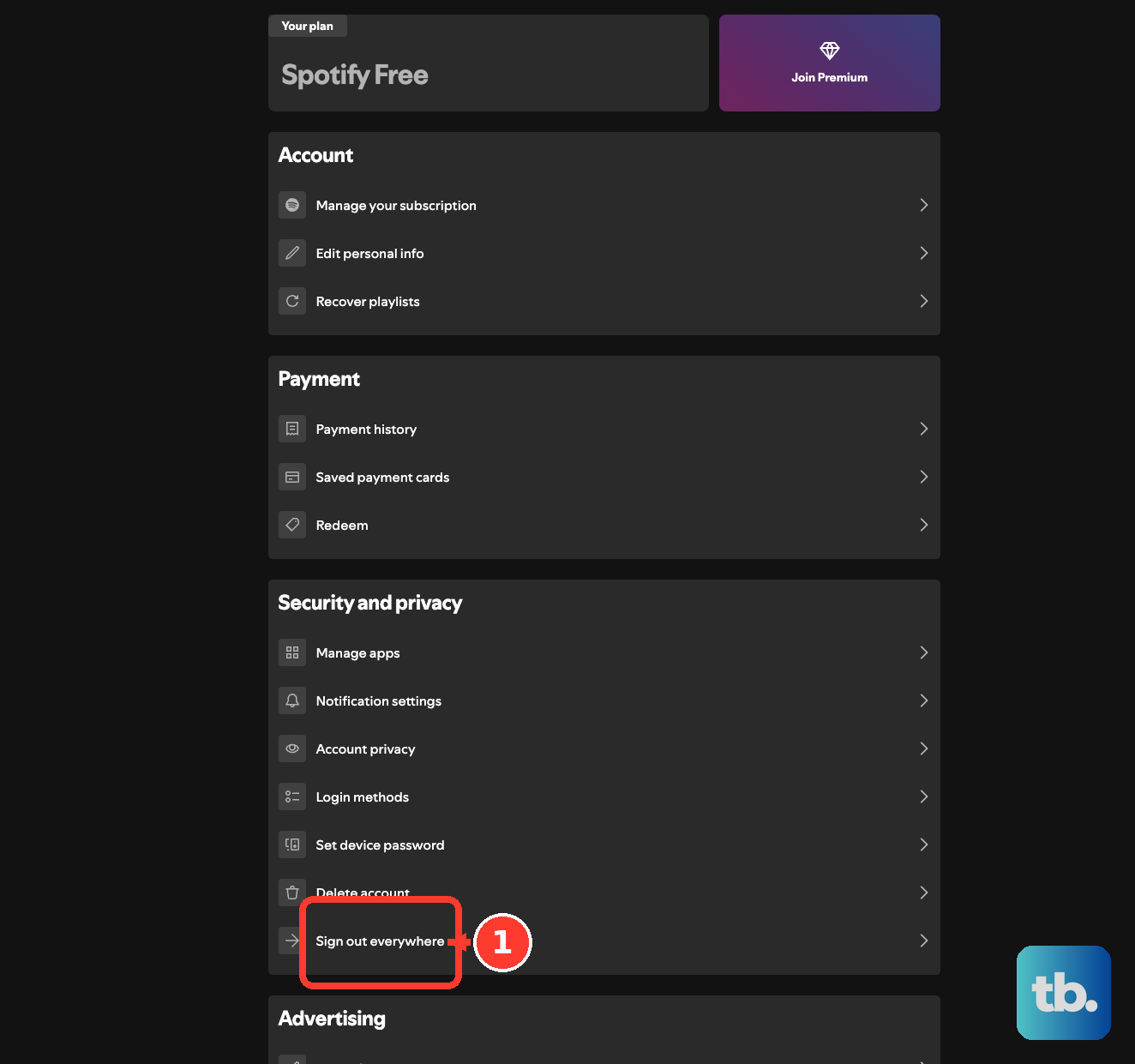
If playback jumps to another device, open the Spotify Connect device list, tap the three dots next to the unfamiliar device, and choose Log out of this device. From the Spotify account page, use Sign out everywhere, then reset the Spotify password.
8. Remove filters and profile blocks
Use these fixes when Spotify works for some songs, some people, or some speakers but not others.
Alexa explicit filter: Open Alexa app > More > Settings > Music & Podcasts > Explicit Language Filter, then switch the filter off.
Spotify explicit content on mobile: Tap your profile picture, open Settings and privacy, then switch Allow Explicit Content on.
Spotify explicit content on desktop: Click your profile picture, open Settings, then switch Allow playback of explicit-rated content on.
Premium Family member: Open the Premium Family page, click the member, then switch Explicit content on.
Child profile: Open Parent Dashboard, tap the settings icon next to the child's profile, then open Alexa Settings > Manage Music and turn on the music service.
Speaker group: Check for a Spotify issue, check Do Not Disturb on the devices in the group, then delete the speaker group and make a new one.
9. Reinstall Spotify or reset Echo last
On iPhone, tap and hold Spotify, tap Remove App, tap Delete App, then install Spotify from the App Store.
For a cleaner iPhone reinstall, open Spotify Settings and privacy, tap Data-saving and offline, tap Clear next to Clear cache, then delete and reinstall the app.
On Android, open Settings > Apps > Spotify, tap Uninstall, then install Spotify from Google Play.
For a cleaner Android reinstall, open Settings > Apps > Spotify > Storage or Storage & cache memory, tap Clear storage and Clear cache, uninstall Spotify, delete com.spotify.music from Internal Storage > Android > data if it is present, restart the phone, then reinstall Spotify.
Save these for the end. Reinstalling Spotify removes the app and Spotify warns that downloaded music and podcasts need to be downloaded again afterward.
For Echo Dot 2nd through 5th generation, press and hold Volume down and Microphone off for 20 seconds, wait for the light ring to turn off and on again, then set it up again in the Alexa app.
For Echo 3rd or 4th Generation, press and hold Microphone off and Volume down for 20 seconds.
For Echo Show, say Go to settings, or on Alexa+ select Menu > Settings, or on the original Alexa swipe down and select Settings, then open Device Options > About this Device and choose Reset to Factory Defaults.
Frequently Asked Questions
Why does Spotify disappear from Alexa after I change Amazon accounts?
The Echo is tied to an Amazon account. Deregister it from the Amazon Devices page, then set it up again in the Alexa app with Devices > plus icon > Add Device > Amazon Echo.
Can I use Bluetooth instead of the Spotify Alexa link?
Yes. Pair the phone to the Echo from Alexa app > Devices > your device > Device Settings > Bluetooth Devices > Pair A New Device. Use this only as Bluetooth playback, not as a fix for the native Spotify link.
Why are Spotify songs grayed out before I send them to Alexa?
Usually Spotify is in Offline Mode, which grays out anything you have not downloaded. In Spotify mobile, open profile picture > Settings and privacy > Data-saving and offline, then switch Offline mode off. If only explicit songs are grayed out, that is the explicit filter instead: turn Allow Explicit Content on, or adjust the Premium Family or child restrictions.
What should I check if Spotify stops working after travel?
Update the Spotify country or region from the Spotify account page. Premium accounts need a payment method from the new country or region, and Free accounts can use Spotify abroad for up to 14 days.