Your Turtle Beach microphone is silent, cutting out, or working in one app but not another. The fix starts with the headset itself, then moves through the input, permission, chat, firmware, and console settings that block mic audio.
Work through these in order. The early checks solve the simple mute and connection problems, and the later ones handle platform-specific voice chat issues.
1. Start with the headset mute
Flip the boom mic all the way down or forward. On current flip-to-mute Turtle Beach headsets, the mic is muted when the boom is up or back, then unmuted when it is down or forward. If your headset plays mute tones, listen for the unmute tone.
If your model uses a mute LED, check that status before changing settings on your PC or console. For models with Mic Monitor, turn the mic down and back up with the headset controls after unmuting.
If you still cannot hear yourself, keep the boom down. Reseat the connection next.
2. Reseat the boom and cable
Pull the removable mic boom straight out of the headset, then push it fully back into the headset mic jack. For a 3.5 mm headset, push the headset plug fully into the controller or PC jack.
On a PC with separate green and pink audio jacks, if your headset uses a single 3.5 mm plug, connect a PC splitter cable. With that splitter cable connected, plug its mic connector into the pink microphone port and its headphone connector into the green port.
If your headset already has separate headphone and mic plugs, put the mic connector in the pink port. This catches the loose-boom and half-seated plug problems before you spend time changing software settings.
3. Reconnect the wireless transmitter
Wireless Turtle Beach headsets that use a USB dongle, transmitter, or dock need the transmitter paired in the correct platform mode.
- 1.Power off the headset.
- 2.Unplug the USB transmitter.
- 3.Wait about 10 seconds.
- 4.Plug the transmitter back in.
- 5.Set the transmitter to the matching platform using your model's own control. Some models have a physical mode switch, while others, such as Stealth 700 Gen 3, use the CrossPlay button to choose the active transmitter. Follow the switch or button labeled in your model's guide.
- 6.Power the headset on and confirm that it pairs.
Use this for current transmitter-based models such as Stealth 500, Stealth 600 Gen 3, Stealth 700 Gen 3, Stealth Pro, and Stealth Pro II. Transmitter compatibility is version-specific, so match the transmitter to your platform. For example, the Stealth 500 for Xbox transmitter works for audio only on Xbox, not on PC, PlayStation, or Nintendo Switch.
4. Pick the Turtle Beach mic in Windows
Windows needs the Turtle Beach mic selected as the input device. Open Start > Settings > System > Sound > Input, then select the Turtle Beach or headset microphone. Use the microphone test meter or recording test.
Allow microphone access by opening Start > Settings > Privacy & security > Microphone. Turn on Microphone access, then turn on Let apps access your microphone. Turn on the app toggle shown for your voice app, then turn on Let desktop apps access your microphone.
If Windows does not detect the headset correctly, open Start. Type Device Manager, then select Device Manager. Expand Sound, video and game controllers or Audio inputs and outputs.
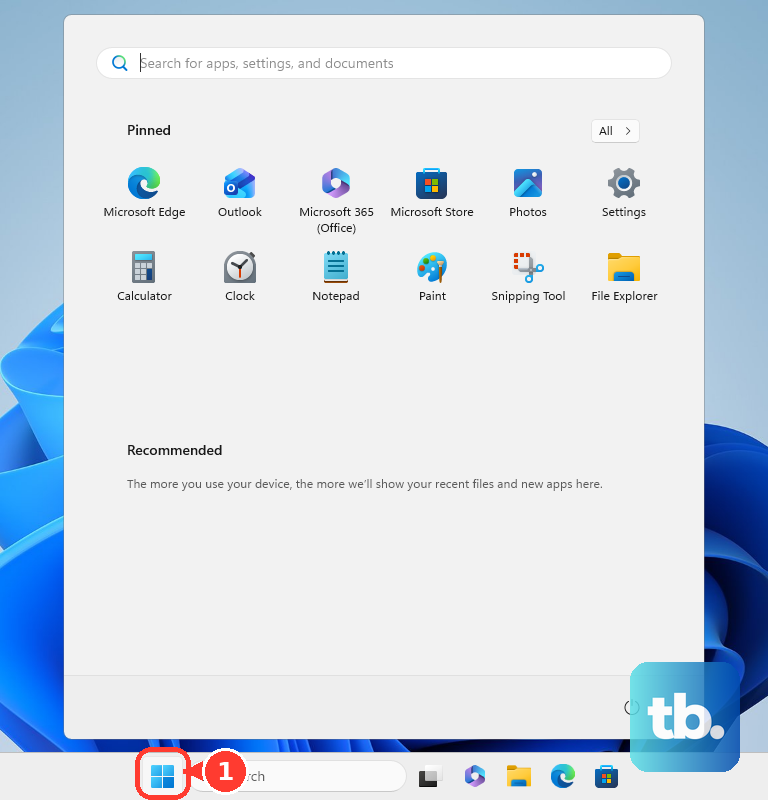
Right-click the headset or audio device. Choose Update driver > Search automatically for drivers. If that fails, right-click the device, choose Uninstall device, confirm, and restart the PC.
5. Allow the mic in your chat app
Xbox Game Bar on Windows: Press Windows logo key + G. In the Xbox Party widget, select Party Settings. Under Audio input, choose the Turtle Beach microphone, then use the microphone icon to mute or unmute yourself.
Discord: Open User Settings > Voice & Video. Under Input Device, select the Turtle Beach microphone. Under Mic Test, select Let’s Check, then turn off Discord mute and deafen.
Microsoft Teams: Open Settings > Devices. Under Microphone, choose the connected Turtle Beach mic. In a meeting, open audio device settings, then choose the mic from the Microphone dropdown.
Chrome web apps: Allow microphone access when the site asks. To set it manually, open Settings > Privacy and security > Site settings > Microphone, then allow the site.
If Discord still cuts your voice, restart the device and try another USB port. Turn off Krisp Noise Suppression, then reinstall Discord from discord.com/download.
6. Select the mic on Mac
On macOS, open Apple menu > System Settings > Sound > Input. Select the Turtle Beach or headset microphone, then raise Input volume if that control appears.
Apps need microphone permission too. Quit the app, then open Apple menu > System Settings > Privacy & Security > Microphone. Turn on access for the app, then reopen it.
If your voice sounds filtered instead of missing, open an app that supports Mic Modes. Click Video in the menu bar, then click Mic Mode. Choose Standard, Voice Isolation, or Wide Spectrum.
7. Fix console voice chat
Console chat has its own mute, input, party, and family controls. Check the console after the headset works on another device.
PS5: Press the PS button. Open the control center, then choose Mic. Change Input Device, mute or unmute the mic, and use Adjust Microphone Level. The full path is Settings > Sound > Microphone.
DualSense: Press the controller mute button to mute or unmute the mic. Press and hold it to mute both mic and speakers. Orange means the mic is muted.
Xbox Series X|S and Xbox One: Make sure the headset mic is not physically muted. In party chat, press Y to toggle mute. For party audio, press the Xbox button, open Parties & chats, select the party or person, and unmute as needed.
Nintendo Switch 2 GameChat: During GameChat, press the C Button to open the menu. Use the Mic Button to switch the microphone on or off. For settings, select the gear icon, then review Chat Audio or Sound Settings.
Switch 2 GameChat does not support Bluetooth microphone input, so if your Turtle Beach headset is paired over Bluetooth you can hear chat but cannot talk. Use a wired 3.5 mm headset connection or the console's built-in mic instead.
For child accounts, review family or parental controls on PlayStation, Xbox, or Nintendo Switch 2. Those settings block voice communication even when the headset is working.
8. Tune Swarm II and recover the headset
For current Swarm II-compatible models, install the current software from Turtle Beach Support > Downloads. Open Swarm II, select your headset, and open MICROPHONE.
Turn Microphone Mute off, then raise Mic Sensitivity. Adjust Mic Monitoring or MONITORING. Lower or turn off Noise Gate if speech is being cut off.
On Stealth 500, Stealth 600 Gen 3, Stealth 700 Gen 3, and related models with secondary dials, move the lower volume dial to adjust Mic Monitor volume. For a hard reset on current models, use the correct button combo.
For Stealth 500 or Stealth 600 Gen 3, hold QUICKSWITCH + MODE for 10 seconds, then release. For Stealth 700 Gen 3, hold CROSSPLAY + MODE for 10 seconds, then release. Wait while the headset powers off and back on.
If a firmware update or detection process fails, open Swarm II. Connect the headset or transmitter as instructed, then click the triple-dot icon next to the headset model. Click RECOVER. Do not click Reset for that recovery process.
9. Contact Turtle Beach support
If the mic still fails after the headset controls, transmitter, device input, app permissions, firmware, and reset checks, go to Turtle Beach Contact Support. Use the chat icon in the lower-right for the 24/7 AI chatbot troubleshooting flow, or submit a support request for possible hardware failure or warranty help.
On a school or work-managed computer, stop here and ask the administrator to review microphone access policy. Windows privacy settings and Microsoft Edge audio-capture policy can block mic access and leave the controls unavailable to the user.
Frequently Asked Questions
Why can I hear game audio but my Turtle Beach mic does not work?
Playback and microphone input use separate settings. The headset can play audio while the boom is muted, the mic boom is loose, the wrong input device is selected, or microphone permission is blocked.
Why does my Turtle Beach mic cut out when I talk quietly?
Open Swarm II, go to MICROPHONE, raise Mic Sensitivity, and lower or turn off Noise Gate. A high Noise Gate setting can cut off quieter speech.
Which Turtle Beach app should I use for current headsets?
Use Swarm II for current supported models such as Stealth 500, Stealth 600 Gen 3, Stealth 700 Gen 3, Atlas Air, and Stealth Pro II.
Why does my Turtle Beach mic work on PC but not on console?
The console is blocking or routing voice chat separately. Check PS5 Mic settings, Xbox party mute and communication permissions, or Nintendo Switch 2 GameChat mic and parental controls.