A Surface keyboard that stops typing leaves you stuck at sign-in or interrupts your work. Start with the connection, then check updates and the settings that match your symptoms. If typing still fails, testing the keyboard outside Windows helps separate a software problem from a keyboard that needs service.
Reconnect the keyboard before changing settings
Return a folded Type Cover to the front of the screen in its typing position. Surface intentionally ignores key presses while the cover is folded behind the tablet.
Unplug your Surface from power, then detach the keyboard from the tablet. Inspect the connection for debris, damage, or anything blocking it. Reattach the keyboard with every attachment magnet touching the tablet’s bottom edge.
If you recently bought or switched keyboards, check Microsoft’s compatibility table. Surface Go needs a Surface Go Type Cover, and the Surface Pro 12-inch (1st Edition) Keyboard has its own connector.
Keep standard Type Covers and the 12-inch keyboard attached while testing, because neither supports wireless typing.
Restart Windows and install updates
Keep the keyboard attached while you restart and install updates.
- 1.Save your work, then select Start > Power > Restart. If the tablet is unresponsive, Surface Pro 5th generation and later, every Surface Pro X, and every Surface Go use this forced restart: hold the Power button until the Surface shuts down, restarts, and displays the Windows logo, approximately 20 seconds, then release it. Use the normal restart whenever the tablet responds.
- 2.Connect the Surface to power and charge it to at least 40% before updating.
- 3.Open Start > Settings > Windows Update > Check for updates and install available updates. The alternative route is Surface > Help & support > Check for updates.
- 4.Search for View optional updates. Under Driver updates, install applicable entries named Surface.
- 5.Restart after installation and test the keyboard again.
- 6.For a Surface Pro 13-inch Flex Keyboard or Surface Pro 12-inch (1st Edition) Keyboard, open Surface, select the attached keyboard among the accessories at the bottom, and expand Firmware Update. Install any offered update, then disconnect the keyboard from the Surface and reconnect it before testing. Other Surface keyboards do not support this app-based firmware workflow.
Clear debris when only a few keys fail or repeat
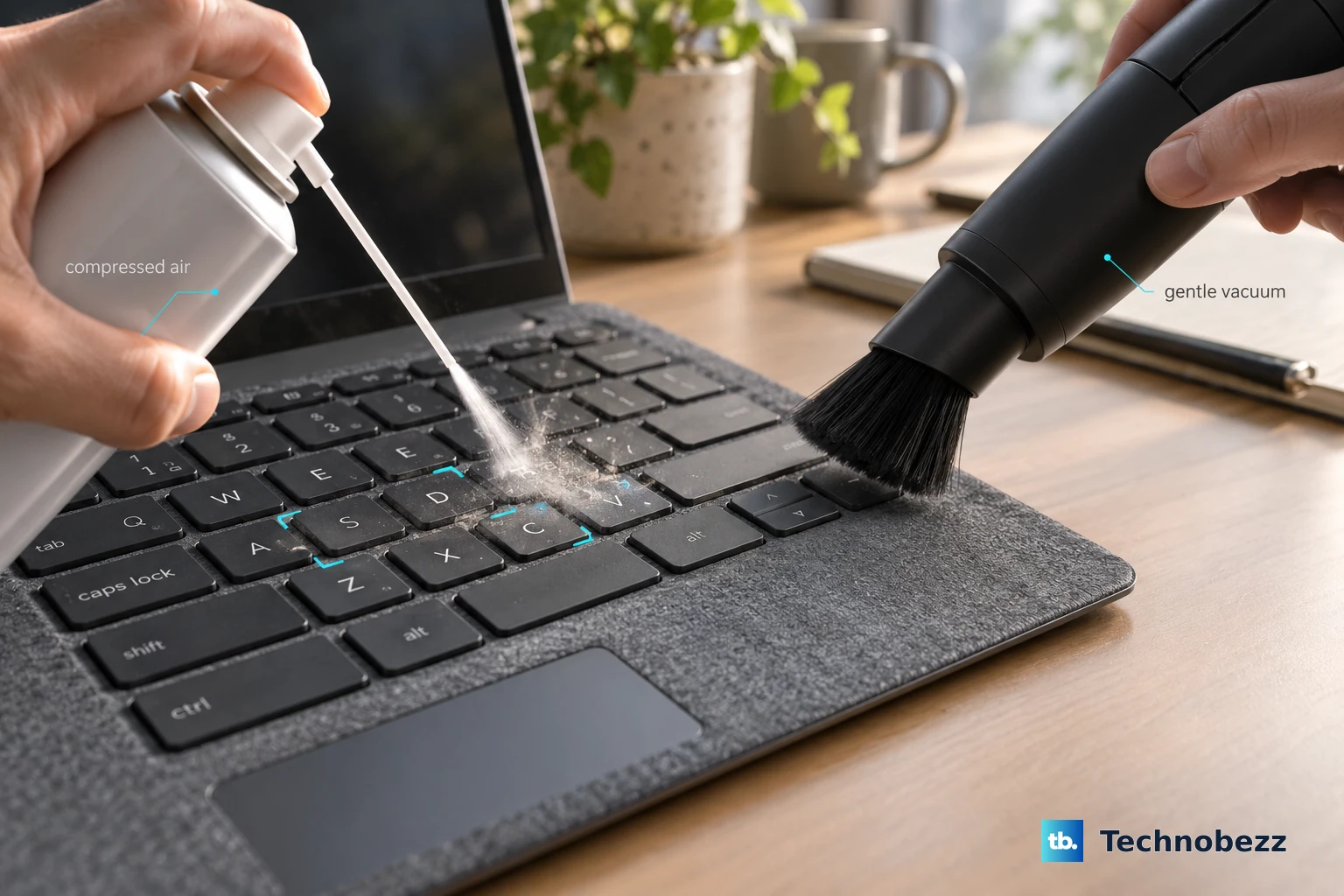
Debris between keys is a cause of missed or repeated presses. Inspect the spaces around the affected keys. Remove dust with compressed air, or gently vacuum the keyboard’s top using a dusting brush.
Test those keys again. Arrange service if dropped or repeated keystrokes persist.
Correct typing that behaves incorrectly
A keyboard that types the wrong character needs a different check from one that ignores every press. Match the setting to what is actually going wrong.
For ignored brief or repeated presses, open Start > Settings > Accessibility > Keyboard. Turn off Filter keys. For unexpected modifier behavior, turn off Sticky keys on the same page.
For wrong characters, select the taskbar input-language icon and choose the desired keyboard layout. Windows+Spacebar also switches between installed layouts.
For top-row keys that perform the wrong action, press Fn. With its LED on, the top row supplies F1–F12; with it off, the keys perform their printed special actions.
If you use PowerToys and key assignments or shortcuts changed unexpectedly, close PowerToys. Retest typing and shortcuts. Its Keyboard Manager remaps keys and shortcuts, but those remaps do not apply at password or sign-in screens.
If these changes fail, test typing in another app. For a failure confined to one app, open Microsoft Store > Check for Updates and install that app’s available update before continuing with whole-device troubleshooting.
Restore a wireless keyboard connection
For a Flex Keyboard that works attached but fails when detached, reattach it to charge. Detached operation requires Windows 11 and a compatible 13-inch Surface Pro.
Open Surface and choose Keyboard at the bottom to check the battery beneath the keyboard name. After allowing it to charge, detach the Flex Keyboard. Hold Esc for approximately five seconds until the Fn LED illuminates.
Reattach it for at least 30 seconds. Test detached operation again.
For any Bluetooth keyboard connection, open Start > Settings > Bluetooth & devices. Turn Bluetooth on. If it is already on and the connection has failed, turn it off. Wait a few seconds before turning Bluetooth back on.
Open quick settings from the taskbar Network/Sound/Battery area. Turn Airplane mode off. For a separate wireless keyboard, check battery orientation. Replace depleted batteries, or charge a rechargeable model with its supplied cable.
If that standalone Bluetooth keyboard still fails, open Settings > Bluetooth & devices. Select the keyboard’s More options menu and choose Remove device. Put the standalone keyboard in its manufacturer’s pairing mode. Select Add device > Bluetooth.
Choose the keyboard. Complete any PIN instructions shown on screen. For continuing Bluetooth trouble, open Settings > System > Troubleshoot > Other troubleshooters > Bluetooth > Run. Follow the troubleshooter’s automated checks.
Use attachment to pair a Flex Keyboard and its Esc reset for wireless failure before trying standalone-keyboard troubleshooting.
Test an attached keyboard outside Windows
Press Caps and Fn several times and watch their indicator lights, if fitted. No lights are a warning sign of a hardware problem, not proof by themselves. Responsive lights with failed typing call for a test in Surface UEFI.
Shut down the Surface and wait 10 seconds. Hold Volume Up, press and release Power, then release Volume Up when UEFI appears.
Test whether the arrow keys change the selected menu item. A keyboard that responds here but fails in Windows points toward a Windows-side problem. Failure in UEFI warrants further hardware checks and support.
To enter UEFI through Windows instead, open Start > Settings > System > Recovery. Beside Advanced startup, select Restart Now. Choose Troubleshoot > Advanced Options > UEFI Firmware Settings > Restart.
Use Surface diagnostics before deeper repairs
On a personal Surface, search Start for Surface Diagnostic Toolkit. If it is absent, install it from its Microsoft Store listing. For an organization-managed Surface, ask IT to use the Business edition.
Open Surface Diagnostic Toolkit. Follow its checks and recommended actions. Test typing again.
If the problem began after installing a clean or custom Windows image, select your exact model on Microsoft’s driver page. Surface Go uses its separate driver page; Surface Pro X uses Windows Update.
For a model with a listed MSI package, open its Download Center page. Select Download. Choose the package matching your installed Windows version. Do not substitute another model’s package.
Run the downloaded MSI. Restart the Surface.
If diagnostics and the correct drivers do not resolve the failure, use the UEFI result to choose your next move: try Windows recovery when the keyboard works in UEFI, or contact support when it also fails outside Windows.
Repair Windows after the keyboard passes the UEFI test
A keyboard that works in UEFI but fails in Windows points toward a Windows-side problem. Before resetting, open Settings > System > Recovery > Fix problems using Windows Update > Reinstall now. This repair preserves apps and files on eligible Windows 11 installations.
Confirm your restart preference. Select OK. Keep power and internet connected throughout the repair.
If the repair fails or the option is absent, back up your files before using the reset path. Open Settings > System > Recovery > Reset this PC > Reset PC. Choose Keep my files. Select Cloud download.
Complete the reset prompts. This keeps personal files and the apps that came with your Surface, but removes apps and drivers you installed and changes you made to settings. Windows recovery addresses software problems; physically damaged keys or connectors need service.
Get help for a keyboard that still will not respond
Open Surface > Help & support > Get help. Describe the keyboard problem.
For service, visit your Microsoft account’s devices page. Select your device to inspect warranty coverage. Select Register device if your Surface is missing from the account.
Choose the device needing service. Keyboard-specific requests start on Microsoft’s device repair page. Select Next. Follow the service-request instructions.
Before buying a replacement, match the keyboard to your exact Surface model using Microsoft’s compatibility table. For a work or school Surface, ask your IT helpdesk to review the connection and device restrictions before attempting Windows recovery.
Frequently Asked Questions
How can I type while my Surface keyboard is not working?
Use touch to open Start > Settings > Accessibility > Keyboard. Turn on On-Screen Keyboard. At sign-in, select Accessibility > On-Screen Keyboard.
What should I do if the keyboard works but its touchpad does not?
Attach the keyboard. Open Settings > Bluetooth & devices > Touchpad and turn it on. If it still fails, install available updates through Windows Update.
Why is my Surface keyboard backlight off?
The backlight has an off setting. Press the key bearing the keyboard-backlight symbol to cycle brightness. On supported models, automatic brightness is controlled under Start > Settings > Bluetooth & devices > Keyboard > Change keyboard brightness automatically when lighting changes.
How do I troubleshoot a USB keyboard connected to my Surface?
Unplug and reconnect the keyboard. If it still fails, try another USB port. Bypass any USB hub, or check that the hub has power. For a keyboard with a USB wireless receiver, unplug the receiver for about 10 seconds before reconnecting it.