A slow laptop turns simple work into waiting: apps drag, tabs freeze, fans ramp up, and clicks land late. The fastest path is to remove obvious load first, then move through updates, storage, startup apps, browser pressure, health checks, repair tools, and reset options in that order. Use the Windows 11, macOS, and Chromebook steps that match your laptop.
Start with the fastest wins
Clear the live load first; many slow laptops recover before deeper settings are needed.
- 1.On Windows 11, select Start > Power > Restart.
- 2.On a Chromebook, turn it off, turn it back on, then open only the apps and windows you need.
- 3.On Windows 11, press Ctrl + Shift + Esc, open Processes, right-click an app you are not using, and close it.
- 4.On a Mac, open Activity Monitor, find apps using heavy CPU or memory, and quit the ones you are not using.
- 5.On a Chromebook, press Shift + Esc to open Task Manager, then close apps or windows you are not using.
Update the system and drivers
This fixes slowdowns tied to outdated system files, missing fixes, and driver trouble.
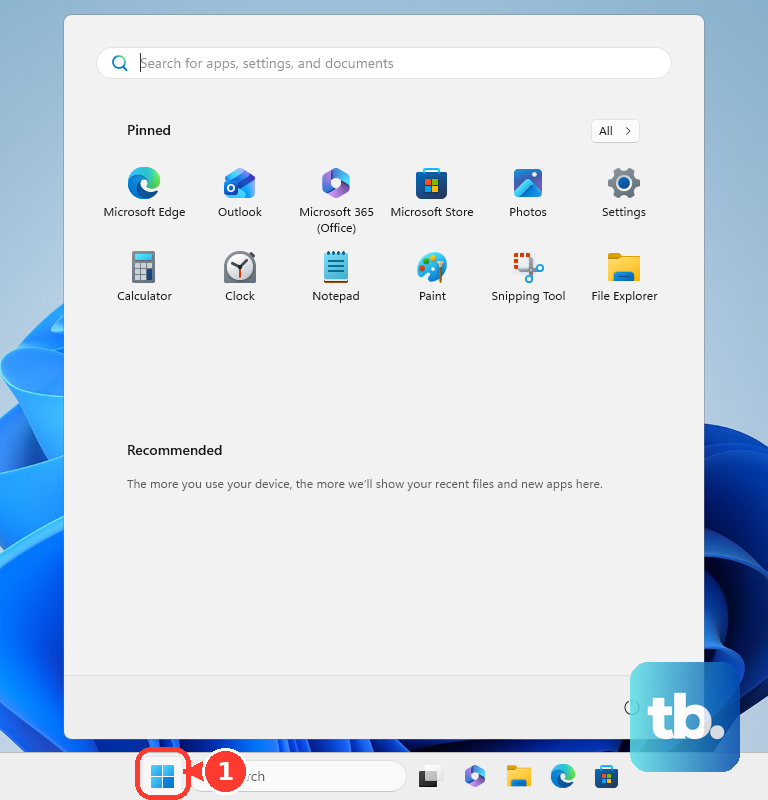
On Windows 11, open Start > Settings > Windows Update > Check for updates.
Select Download & install when updates appear.
Open Start > Settings > Windows Update > Advanced options > Optional updates.
Select the available updates, then choose Download & install.
For one Windows device that is causing errors or slowdowns, open Start, type Device Manager, and select Device Manager.
Expand the device category, right-click the device, select Update driver, then choose Search automatically for updated driver software.
On a Mac, open Apple menu > System Settings > General > Software Update.
Click Update, Upgrade, or Restart Now when new software is offered.
On a Chromebook, open Settings > About ChromeOS > Check for updates.
Install the available update and restart when prompted.
Free space when storage is tight
Low storage makes the system fight for working room. Start with built-in cleanup, then remove files and apps you no longer need.
On Windows 11, open Start > Settings > System > Storage > Storage Sense, then select Run Storage sense now.
Open Start > Settings > System > Storage > Temporary files, check the files to remove, and select Remove files.
Disk Cleanup remains a current Microsoft cleanup option. Open Start, type Disk Cleanup, select Disk Cleanup, and choose the drive to clean up.
On a Mac, open Apple menu > System Settings > General > Storage, then use the storage recommendations you want.
Move Mac files to another disk or external storage device, then delete unneeded files from the startup disk.
On a Chromebook, delete files you do not need, move files to Google Drive, clear browsing data and download history, uninstall apps you are not using, and remove extra user accounts when needed.
If the laptop stays sluggish after cleanup, move to startup apps and background activity next.
Stop background apps from loading
On Windows 11, press Ctrl + Shift + Esc to open Task Manager.
Open Startup apps, right-click an app you do not need at sign-in, and select Disable.
Open Start > Settings > Apps > Installed apps.
Find an app you no longer use, select More options, then choose Uninstall.
For a Windows app that exposes background controls, open Start > Settings > Apps > Installed apps, then select More options > Advanced options.
Under Background app permissions, set Let this app run in the background to Never.
On a Mac, open Apple menu > System Settings > General > Login Items & Extensions.
Under Open at Login, remove apps that do not need to start automatically. Under App Background Activity, turn off background items you no longer need.
On a Chromebook, open the Launcher, right-click an app you do not need, and select Uninstall.
Leave security, backup, and device utilities enabled unless you no longer use them.
Scan for malware and check Windows health
This fixes performance trouble tied to unwanted software, security problems, Windows health warnings, or corrupted system files.
On Windows 11, open Start > Settings > Privacy & security > Windows Security > Virus & threat protection.
Select Quick scan.
Open the Windows Security app.
Go to Device performance & health.
Select any item with a yellow mark and review the recommendation.
Install Microsoft PC Manager from the Microsoft Store when the Store listing is available on the PC.
Use Microsoft PC Manager for storage cleanup, startup app management, and performance optimization.
For corrupted Windows system files, install the latest Windows updates and restart first.
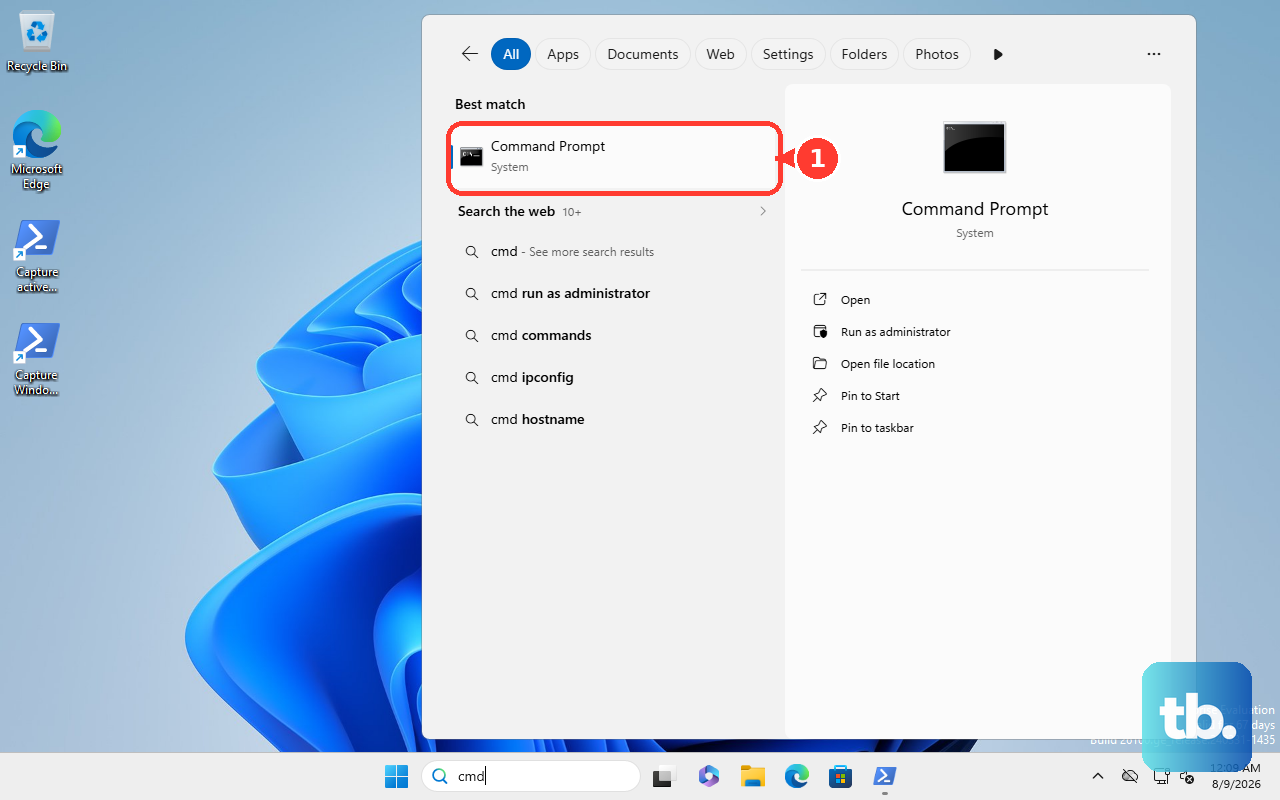
Open Command Prompt as administrator and run DISM.exe /Online /Cleanup-image /Restorehealth.
When it reports The operation completed successfully, run sfc /scannow in the same window.
Tame a browser that is dragging the laptop down
Browsers hit performance hard when tabs, extensions, cached site data, or sleeping-tab settings need attention.
- 1.In Chrome, open More > More tools > Task Manager, select Memory, choose a task, and select End Process.
- 2.In Chrome, open More > Settings > Performance > Memory Saver, turn Memory Saver on, and choose the tab deactivation level.
- 3.In Chrome, including Chrome on a Chromebook, open More > Extensions > Manage Extensions, then turn off or remove extensions you do not need.
- 4.In Edge, open edge://settings/system and adjust Sleeping tabs settings so inactive background tabs release resources.
- 5.In Safari, open Safari > Settings > Extensions, deselect an extension checkbox to turn it off, or select the extension and click Uninstall.
- 6.In Safari, open Safari > Settings > Privacy > Manage Website Data, select one or more websites, then click Remove or Remove All.
Adjust performance, notifications, and cooling
On Windows laptops with a visible power mode setting, open Start > Settings > System > Power & battery, then set Power mode to Best performance.
For a leaner Windows interface, open Start, type Adjust the appearance and performance of Windows, and open it. On the Visual Effects tab, select Adjust for best performance.
To reduce Windows interruption load, open Start > Settings > System > Notifications, then turn off notifications for apps you do not need. For drive maintenance, open Start, type Defragment and Optimize Drives, open it, select the drive, and choose Optimize; Windows defragments HDDs and runs TRIM for SSDs through this tool.
On a Mac, open Activity Monitor and look for kernel_task using a large percentage of CPU. Quit apps or processes using CPU intensely and improve cooling conditions, because kernel_task reduces CPU availability when temperature is high.
Use safe mode and repair tools
This fixes deeper slowdowns from startup conflicts, disk problems, or hardware trouble.
On Windows, use a clean boot when background services are the likely cause.
Search for msconfig and open System Configuration.
Select Services, choose Hide all Microsoft services, select Disable all, and select Apply.
Open Startup > Open Task Manager, disable enabled startup items, and restart.
To undo the clean boot, open System Configuration, select General > Normal Startup, open Services, and select Enable all.
Re-enable the startup items you disabled in Task Manager.
On an Apple silicon Mac, shut down, press and hold the power button until Loading startup options appears, select a volume, hold Shift, then click Continue in Safe Mode.
On an Intel Mac, restart or turn on the Mac, then press and hold Shift until the login window appears.
To repair a Mac disk, open Disk Utility, choose View > Show All Devices, select each volume, container, and disk in order, then click First Aid and Run or Repair Disk.
If Disk Utility says the disk is about to fail, back up and replace the disk.
For Mac hardware diagnostics, shut down an Apple silicon Mac, press and hold the power button until startup options appear, then press Command-D.
On an Intel Mac, turn it on and immediately press and hold D; use Option-D if that does not work.
To reset Chromebook hardware, also called a hard reset, use it only after the other fixes above have failed, because it can delete some files in your Downloads folder. Turn the Chromebook off, press and hold Refresh, tap Power, and release Refresh when it starts up.
On a Chromebook tablet, press and hold Volume Up and Power for at least 10 seconds, then release.
Reset only after the safer fixes fail
A reset is the last consumer fix after you back up important files and try the less disruptive steps above. It clears stubborn system problems, but it changes settings and removes local data depending on the reset option.
On Windows 11, open Settings > System > Recovery. Under Recovery options, select Reset PC, choose your reset options, and follow the on-screen instructions.
On macOS Ventura 13 or later, open Apple menu > System Settings > General > Transfer or Reset > Erase All Content and Settings. Use it after backup and after less destructive fixes fail. Erase All Content and Settings needs macOS Monterey 12 or later on a Mac with Apple silicon or an Intel Mac with the Apple T2 Security Chip, and on Monterey it sits under System Preferences. On any other Mac, erase and reinstall macOS instead.
On a Chromebook, sign out, press and hold Ctrl + Alt + Shift + r, select Restart, then select Powerwash > Continue. Follow the on-screen steps and sign in with your Google Account.
Work and school laptops block some settings, health reports, startup controls, or clean boot changes through management policy. Use the consumer settings you have access to, then contact your IT administrator for restricted controls.
Skip old troubleshooting moves that no longer apply. Apple silicon Macs do not need an SMC reset, Safari legacy .safariextz extensions no longer load, and Command-S single-user mode is disabled in macOS Mojave or later.
If a reset or Powerwash does not restore normal speed, run the platform hardware diagnostics or repair path next.
Frequently Asked Questions
Why is my laptop slow even after restarting?
Restarting clears the current load, but low storage, startup apps, outdated drivers, browser extensions, malware, disk trouble, and heat-related CPU limits still need separate fixes.
Should I delete apps or disable startup apps first?
Disable startup apps first when you still use them. Uninstall Windows apps you no longer need through Settings > Apps > Installed apps, and Chromebook apps from the Launcher. On a Mac, Login Items & Extensions only stops an item from opening at login or running in the background; to uninstall a Mac app, run its own uninstaller or drag it from the Applications folder to the Trash.
Can a browser slow down the whole laptop?
Yes. Chrome, Edge, and Safari use memory and CPU through tabs, extensions, cached site data, and background tabs. Use the browser task manager, Memory Saver, Sleeping tabs, and extension controls.
When should I reset my laptop?
Reset only after updates, cleanup, startup fixes, malware scanning, browser fixes, and repair tools fail. Back up important files first because reset options change settings and remove local data depending on the option.