When Zoom says it failed to detect your microphone, the app cannot reach the mic, lacks permission, or is listening to the wrong input. Start with Zoom's audio controls, then move through device, browser, Bluetooth, and update fixes in the order below.
Pick the right microphone in Zoom
Open the Zoom desktop app, sign in, click your profile picture, and go to Settings then Audio. Under Microphone, open the drop-down menu and choose the microphone you want Zoom to use.
Click Test microphone, speak normally, and listen for the replay. If Zoom hears you but the level is too low, adjust Input Volume.
If this method fails, join a Zoom test meeting at https://zoom.us/test and follow the on-screen prompts to test your microphone outside your regular meeting.
Reconnect computer audio before blaming the mic
A microphone looks broken when Zoom has not connected meeting audio. In the meeting controls, click Join audio, Join Audio, or Audio, then choose computer audio.
On iPhone, iPad, or Android, tap Join Audio, then choose Wifi or Cellular Data or Call Over Internet. The label depends on your device and meeting state.
For future meetings on desktop, click your profile picture, open Settings, then Meetings & webinars. Under Join experience, turn on Automatically connect to computer audio.
Switch mics while joining or inside a meeting
Use Zoom's built-in switcher when the selected microphone fails the test.
- 1.While joining a meeting, click Test speaker and microphone.
- 2.If the microphone replay fails, use the microphone drop-down or click No, Try Another Microphone.
- 3.When the replay works, click Yes.
- 4.Click End test, then choose Join audio.
- 5.During a meeting, click the up arrow beside Mute, Unmute, or Audio, then choose another microphone or open Audio settings.
Fix mute controls first
This fixes cases where Zoom detects the microphone, but nobody can hear you.
In the meeting toolbar, look for Mute, Unmute, or the microphone icon.
Click or tap the muted microphone icon to unmute.
Check your headset, USB microphone, laptop keyboard, or inline headset cable for a physical mute button or switch.
Turn that mute control off before testing Zoom again.
On the Zoom desktop app, sign in, click your profile picture, open Settings, then Audio, and enable Press and hold "Space" key to temporarily unmute.
In a meeting, hold Space while the Zoom window is active.
Keyboard users can toggle mute with Alt + A on Windows or Linux, or Command + Shift + A on macOS and iPad with a keyboard.
Allow microphone access on your device
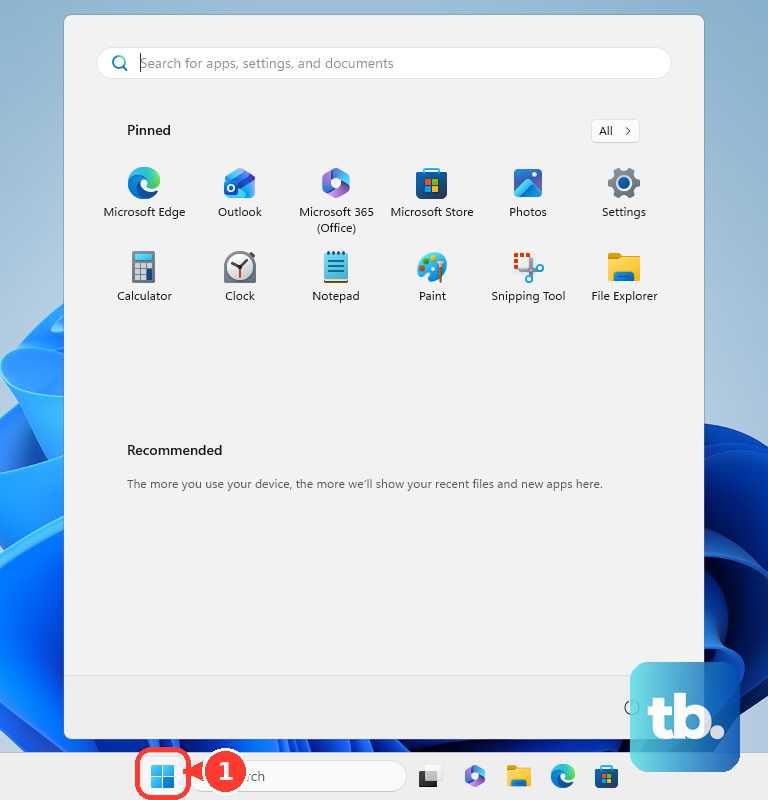
On Windows 11, open Start, then Settings, Privacy & security, and Microphone. Turn on Microphone access, turn on Let apps access your microphone, and for the Zoom desktop app, turn on Let desktop apps access your microphone.
On Mac, open the Apple menu, then System Settings, Privacy & Security, and Microphone. Turn access on for zoom or Zoom Workplace, then restart Zoom when your Mac asks.
On iPhone or iPad, open Settings, then Privacy & Security, and Microphone. Turn access on for Zoom.
On Android, open Settings, then Apps, Zoom Workplace, Permissions, and Microphone. Choose Allow or Allow only while using the app; if Android's global microphone switch is off, open Settings, Security & privacy, Privacy, Privacy controls, and turn on Microphone access.
Select and test the microphone in Windows or macOS
On Windows, open Start, then Settings, System, Sound, and Input. Select your microphone, open its Properties page, use Start test, speak normally, then choose Stop test and Play.
Adjust Input volume when the test playback is too quiet. For a Bluetooth microphone on Windows, use Add device and follow the pairing prompts before testing it again in Zoom.
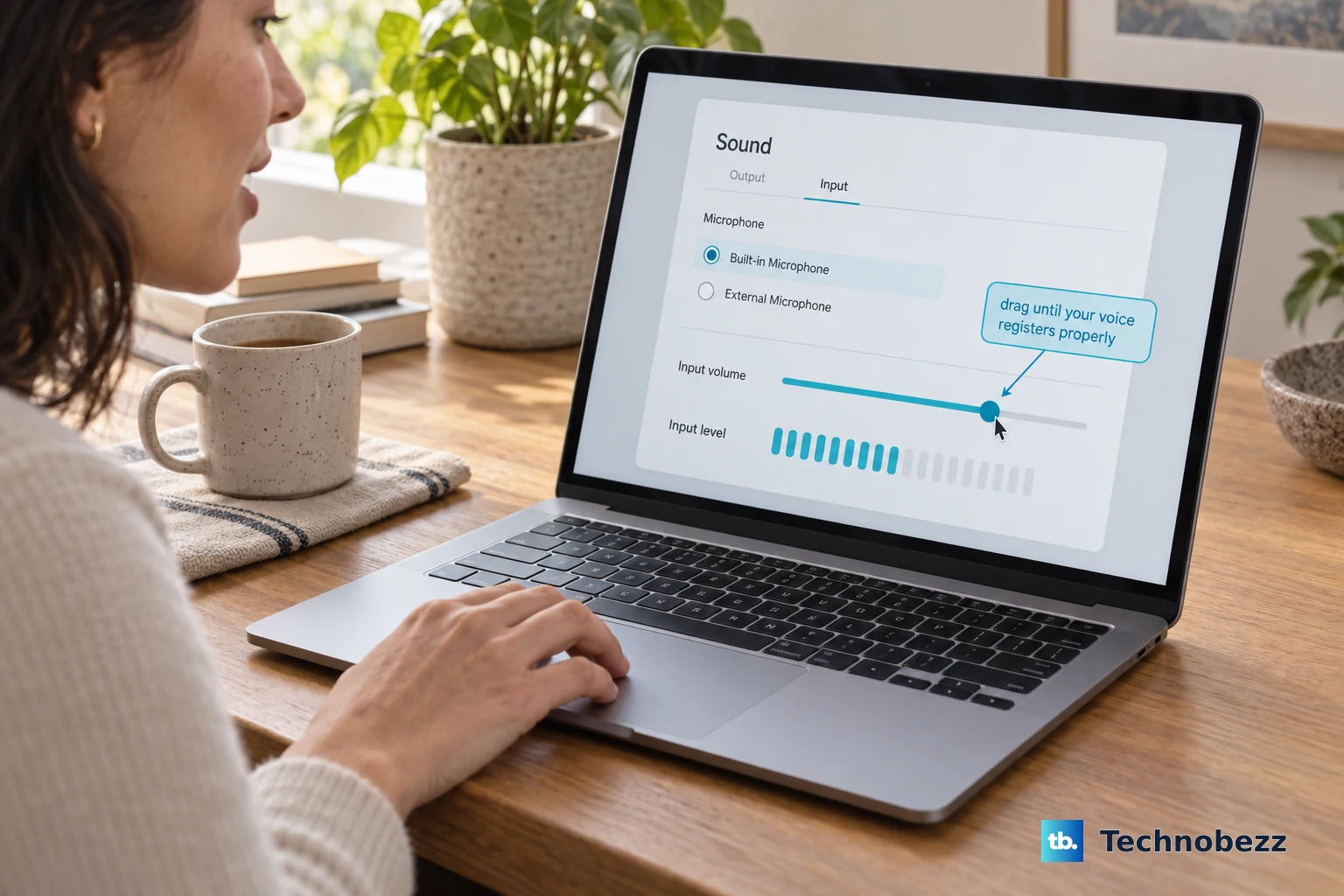
On Mac, open the Apple menu, then System Settings, Sound, and Input. Select the microphone in the input list and drag the input volume slider until your voice registers properly.
If this method fails, test Zoom with another microphone or headset so you can separate a device problem from a Zoom setting problem.
Repair Bluetooth and mobile audio
Use this when Zoom cannot detect a Bluetooth headset, keeps using the built-in mic, or stops hearing you on a phone or tablet. Bluetooth audio can stay connected to another device, and another app can already be using the microphone.
In Zoom, open Audio settings, test the microphone, and select the Bluetooth headset as the active mic.
Stop other music or audio apps, then disconnect the headphones from other devices.
Unpair the Bluetooth headphones, pair them again, and test Zoom once more.
On Android, make sure Zoom has nearby-device permission when Bluetooth audio still does not work.
On iPhone, iPad, or Android, close other apps that are using the microphone from the app switcher or multitasking screen.
Restart the device, reopen Zoom, and rejoin the meeting.
If the mobile app still cannot use the microphone, uninstall Zoom Workplace and reinstall it from the Apple App Store or Google Play.
Allow browser microphone access for Zoom Web App
Fix browser-based Zoom meetings by allowing the site and the browser to use your microphone.
- 1.In the Zoom Web App, open the meeting toolbar, click your profile picture, go to Settings, then Audio, and use Test Mic under Microphone.
- 2.In Chrome, open More, Settings, Privacy and security, Site settings, then Microphone, and set the blocked Zoom site to Allow.
- 3.In Firefox, open Settings, then Privacy & Security Permissions and data, Permissions, and Microphone Settings..., set the Zoom site to Allow, and click Save Changes.
- 4.In Safari on Mac, open Safari, Settings, Websites, then Microphone, choose the Zoom website, and set it to Ask or Allow.
- 5.After changing browser permission, exit the call, rejoin it, restart the browser, and restart the computer if the microphone still fails.
Update or reinstall Zoom
On the Zoom desktop app, sign in, click your profile picture, and choose Check for Updates.
If Zoom finds a newer version, let it download and install.
If Check for Updates is missing, Zoom was installed with the MSI installer, which turns off AutoUpdate and removes that button. Your IT team may have deployed it, or you may have installed the MSI edition yourself, and a Zoom account admin controls whether the option is shown to users.
Contact your IT team when Check for Updates, microphone toggles, or browser microphone settings are locked or unavailable.
For a clean reinstall, remove the old copy first. On Windows, uninstall Zoom Workplace from Control Panel; on Mac, open Zoom and choose Uninstall Zoom Workplace from the menu bar. Then download Zoom Workplace from the official Zoom Download Center at https://zoom.us/download.
Zoom also offers the CleanZoom uninstaller on Windows for leftover files, but it removes cryptographic keys, so you permanently lose the ability to decrypt end-to-end encrypted Zoom Mail messages and Zoom Phone voicemails. Use the standard uninstall when you plan to reinstall on the same device.
Use the Zoom Workplace download for Windows, Mac, or Linux, or install the mobile app from Google Play or the Apple App Store.
When Zoom runs in a browser, update that browser too.
Chrome updates from More, Help, and About Google Chrome; Edge updates from Settings and more, Help and feedback, and About Microsoft Edge; Firefox updates from the Firefox menu and About Firefox; Safari updates through Apple software updates.
After any update or reinstall, rejoin the Zoom test meeting before your next real call.
Frequently Asked Questions
Why does Zoom say it failed to detect my microphone even though the mic works elsewhere?
Zoom can be set to a different input, blocked by system microphone permission, disconnected from computer audio, or missing browser permission if you joined from the web app.
Why is Zoom not listed in Windows microphone app permissions?
The Zoom desktop app is handled as a desktop app on Windows. On Windows 11, turn on Microphone access, Let apps access your microphone, and Let desktop apps access your microphone.
Can I use Zoom in a browser if the desktop app cannot detect the mic?
Yes. Join through the Zoom Web App, allow microphone access when prompted, then choose and test the microphone in the web app audio settings.
What should I do if my work computer blocks microphone settings?
Contact your IT administrator. Managed Zoom, Windows, and browser policies can remove update controls or lock microphone access.