Your Lenovo laptop can lose Wi-Fi because Windows has the radio turned off, airplane mode is active, the saved network profile is stale, the router needs a restart, or the wireless driver is damaged. Start with the controls and connection profile before using resets, because those fixes solve the most common Windows 11 Lenovo Wi-Fi failures. The steps below use current Windows 11 and Lenovo paths, with Windows 10 details included only where the same vendor path still applies.
Turn Wi-Fi back on and leave airplane mode off
Wi-Fi turned off or airplane mode left on disables the wireless radio, so check both before anything else.
Select the Network, Sound, or Battery icons on the right side of the taskbar. Turn on Wi-Fi, select Manage Wi-Fi connections, choose your network, select Connect, enter the network password, and select Next.
You can also open Start, go to Settings, choose Network & internet, open Wi-Fi, and turn on Wi-Fi. Choose the network, select Connect, enter the password, and select Next.
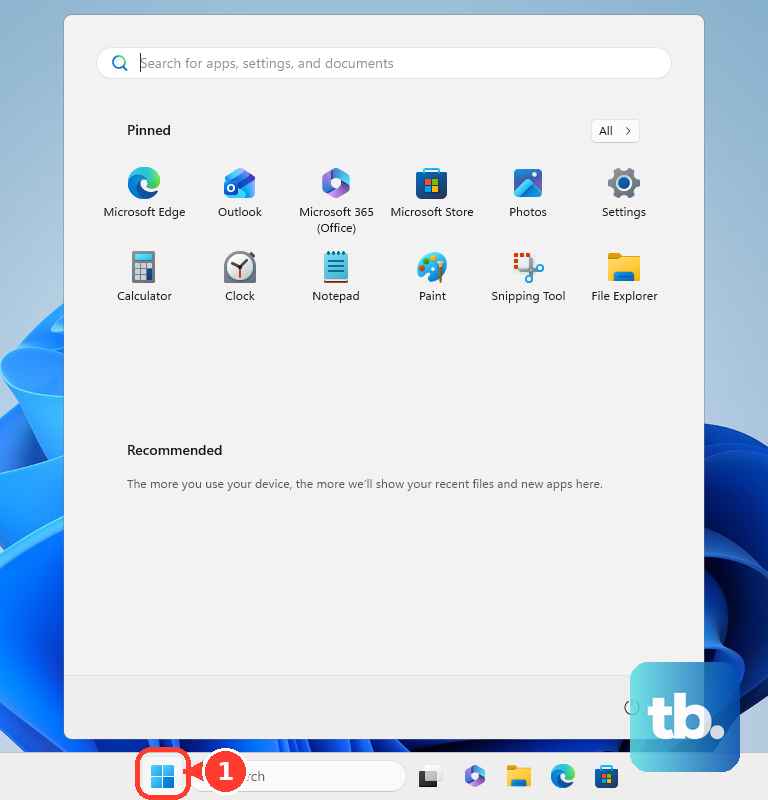
Open Settings > Network & internet > Airplane mode and turn off Airplane mode. On current ThinkPad keyboard layouts, Lenovo identifies F8 as Airplane Mode; press F8, or press Fn+F8 when FnLock changes the function-key behavior.
Inspect the front and side edges of the laptop for a physical wireless switch. Move the switch to On when your Lenovo model includes one.
Older Lenovo, ideapad, and ThinkPad models use different wireless keys. Press Fn+F5 or F5 and set Wireless Network Card to On in the Lenovo Wireless Device Settings window, or press F7 on models that put the wireless key there. You can also press Win+X, open Windows Mobility Center, and select Turn wireless on when that tile appears. On a model with a physical switch, turn the switch on before pressing Fn+F5, and search your model's user manual for the wireless key location.
Forget the network and reconnect cleanly
Use this when the Lenovo sees your Wi-Fi name but refuses to join, loops on connecting, or keeps asking for the password.
- 1.Open Settings and select Network & internet.
- 2.Select Wi-Fi, then open Manage known networks.
- 3.Select your Wi-Fi network and choose Forget.
- 4.Return to the Wi-Fi list, select the same network, and choose Connect.
- 5.Enter the network password and select Next.
Check the password without guessing
A wrong or old Wi-Fi password looks like a laptop problem after a router replacement or password change. Use another Windows 11 PC that is already connected to the same network to confirm the password.
On the connected Windows 11 device, open Settings > Network & internet > Properties. Next to Wi-Fi network password, select Show, then use that password on the Lenovo laptop.
Windows 11 also joins from a Wi-Fi QR code. Open the Camera app, select the barcode mode icon, point the camera at the Wi-Fi QR code, select the link that appears, and confirm adding and connecting to the Wi-Fi network in Settings.
If Windows still will not join with the confirmed password, restart the modem and router next.
Restart the router and test the signal
A full power cycle of the modem and router creates a new connection to your internet provider.
Unplug the router power cable. Unplug the modem power cable, and remove the modem backup battery when it has one. Wait at least 30 seconds.
Plug the modem back in first and wait for its lights to stop blinking. Plug the router back in, wait a few minutes, and try connecting the Lenovo again.
Move closer to the router or access point. When separate 2.4 GHz and 5 GHz network names appear, connect to the other one.
Test a trusted phone hotspot or another Wi-Fi network. That separates a Lenovo laptop problem from a single-router, band, or signal problem.
Run Windows and Lenovo diagnostics
Open the Get Help app.
In Search, enter connect to network and internet.
Select Run network diagnostics and complete the troubleshooting steps Windows provides.
Go to Lenovo Support, detect or select your laptop model, open Troubleshoot & Diagnose, and follow the network or hardware diagnostic flow.
Open Lenovo Vantage, run the PC hardware scan or troubleshooter, and use System Update or update management to check for Lenovo updates, including Wi-Fi drivers. On a Snapdragon (ARM) Lenovo laptop, Vantage has no hardware scan, so shut the laptop down, press Fn+Insert or Insert, and select UEFI Diagnostics from the Novo button menu. Get Wi-Fi driver and BIOS updates for an ARM model from Windows Update.
Lenovo Solution Center reached end of support in April 2019, so use Lenovo Vantage or Lenovo Support diagnostics instead.
Update or repair the Wi-Fi driver
A missing, damaged, or recently changed Wi-Fi adapter driver can stop the laptop from finding or joining networks.
Start with Lenovo's official driver path. Go to Lenovo PC Support, enter or detect your exact Lenovo model, open Drivers & Software, and either choose Manual Update and filter by Networking: Wireless LAN, or choose Automatic Driver Update and select Scan Now. Download the Wi-Fi driver offered for that exact model.
Check Windows Update next. Open Start > Settings > Windows Update > Advanced options > Optional updates. Select the Wi-Fi or network driver, choose Download and install, then right-click Start, choose Shutdown or sign out, and select Restart.
Use Device Manager when Windows is already seeing the adapter. Right-click Start, open Device Manager, expand Network adapters, right-click the Wi-Fi adapter, select Update driver, choose Search automatically for updated driver software, select Close, and restart when prompted.
Install a downloaded Lenovo driver from the same adapter menu. Select Browse my computer for drivers, choose Browse..., select the extracted driver folder, choose OK, and select Next.
If Wi-Fi stopped right after an update, open the adapter's Properties, select the Driver tab, choose Roll Back Driver, pick a reason, and confirm with Yes. If the adapter is present but disabled, right-click it in Device Manager and select Enable device.
Reinstall the adapter after a bad update
A corrupted adapter installation can leave the laptop unable to connect even though the hardware is still present in Windows. Before uninstalling anything, download a backup Lenovo Wi-Fi driver for your exact model.
Select taskbar Search, type device manager, and open Device Manager. Expand Network adapters, right-click the Wi-Fi adapter, select Uninstall device, check Attempt to remove the driver for this device, and select Uninstall.
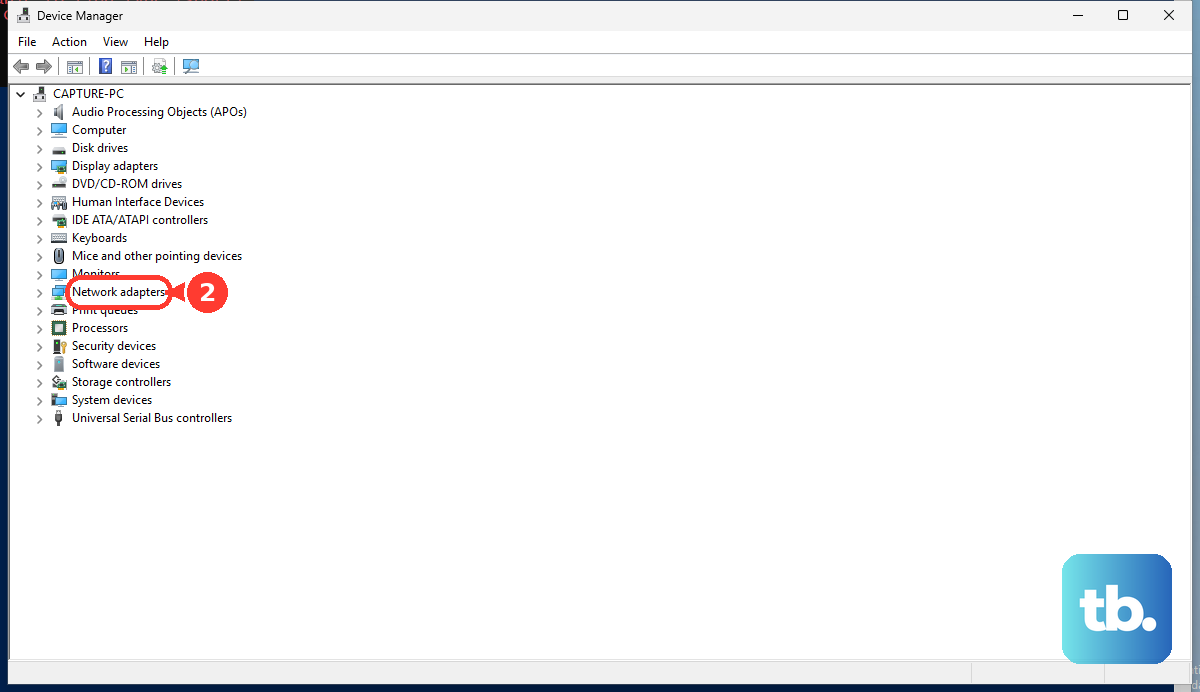
Restart from Start > Power > Restart. After Windows starts, reconnect to Wi-Fi or install the Lenovo driver you downloaded.
If this method fails, use Ethernet, a USB-to-Ethernet adapter, cellular on a Lenovo model with SIM or eSIM, or a phone hotspot so you can download drivers and Windows updates.
Fix connected but no internet problems
When the Lenovo connects to Wi-Fi but websites and apps still fail, check the settings that redirect or block traffic. Open Settings > Network & Internet > Proxy and turn off manual proxy settings unless your network requires them.
A VPN can make a working Wi-Fi connection look broken. Select the taskbar Network, Volume, or Battery icons, open VPN, and toggle the VPN quick setting off, or go to Settings > Network & internet > VPN, select the VPN connection, and disconnect.
For IP and DNS problems, open Network & internet settings, choose Wi-Fi, open Manage known networks, select your network, and next to IP assignment choose Edit. Use Automatic (DHCP) unless you know the exact manual IP and DNS values your network needs.
If only one app or site is blocked, open the Windows Security app and select Firewall & network protection. Allow the blocked app through Microsoft Defender Firewall instead of leaving the firewall off; switch Microsoft Defender Firewall off only briefly for testing, then turn it back on.
Reset Windows networking as a last software fix
Use these options after the Wi-Fi switch, airplane mode, saved network, router, password, diagnostics, and driver fixes have failed.
- 1.Restart the Windows Wi-Fi service by pressing Win+R, typing services.msc, pressing Enter, finding WLAN AutoConfig, right-clicking it, and selecting Restart.
- 2.Run network stack commands from an elevated Command Prompt: select taskbar Search, type command prompt, select Run as administrator, choose Yes, then run netsh winsock reset, netsh int ip reset, ipconfig /release, ipconfig /renew, and ipconfig /flushdns in that order.
- 3.Use Windows Network reset by opening Start > Settings > Network & internet > Advanced network settings > Network reset, then selecting Reset now and Yes.
- 4.Wait for the PC to restart, then connect to Wi-Fi again and re-enter the password.
- 5.For a work or school Lenovo, contact IT because managed Wi-Fi profiles, certificates, proxy settings, Intune policies, Group Policy wireless profiles, and MDM Wi-Fi restrictions can block connection.
Frequently Asked Questions
Why does my Lenovo laptop see Wi-Fi networks but not connect?
The saved network profile is stale, the password changed, the router needs a restart, or the Wi-Fi driver needs repair. Forget the network first, reconnect with the confirmed password, then restart the modem and router.
What should I do if my Lenovo has no Wi-Fi option at all?
Check Wi-Fi, airplane mode, the Lenovo airplane-mode key, and Device Manager. If the Wi-Fi adapter is disabled, enable it. If it is missing after an update or clean Windows install, install the correct Lenovo wireless LAN driver for your exact model.
Can I use my phone to get the Lenovo back online temporarily?
Yes. Turn on your phone hotspot and connect from the Lenovo's Wi-Fi list. You can also use Ethernet, a USB-to-Ethernet adapter, or cellular on Lenovo models with SIM or eSIM support.
Should I turn off Microsoft Defender Firewall to fix Wi-Fi?
Turn it off only briefly for testing, then turn it back on. If one app is blocked, allow that app through Microsoft Defender Firewall instead of leaving the firewall disabled.