A Lenovo IdeaPad 320 keyboard not working can mean a dead keyboard, delayed keys, wrong characters, a silent number pad, or function keys doing the wrong job. Start with fixes that leave your files alone, then move into driver repair, Windows isolation, and Lenovo hardware checks.
The quickest path is to get temporary typing back first, then separate a Windows setting from a driver problem or hardware failure. Follow the sections in order and stop as soon as the keyboard behaves normally again.
Get temporary typing back first
When the built-in keyboard will not type, use the Windows On-Screen Keyboard so you can sign in, search settings, and finish the repair. On Windows 11, open Start > Settings > Accessibility > Keyboard, then turn on On-Screen Keyboard. On Windows 10, open Start > Settings > Ease of Access > Keyboard, then turn on the toggle under Use the On-Screen Keyboard.
You can also press Windows logo key + Ctrl + O to open it. At the sign-in screen, select the Accessibility button on Windows 11, or the Ease of Access button on Windows 10, then choose On-Screen Keyboard.
For short text entry, press Windows logo key + H to open voice typing. On Windows 11, version 22H2 and later, use Voice access when you need broader voice control while you repair the keyboard. Microsoft replaced Windows Speech Recognition with voice access on those builds in September 2024. On Windows 10 and older Windows versions, use Windows Speech Recognition instead.
Restart and check the keyboard hardware
Select Start > Power > Restart.
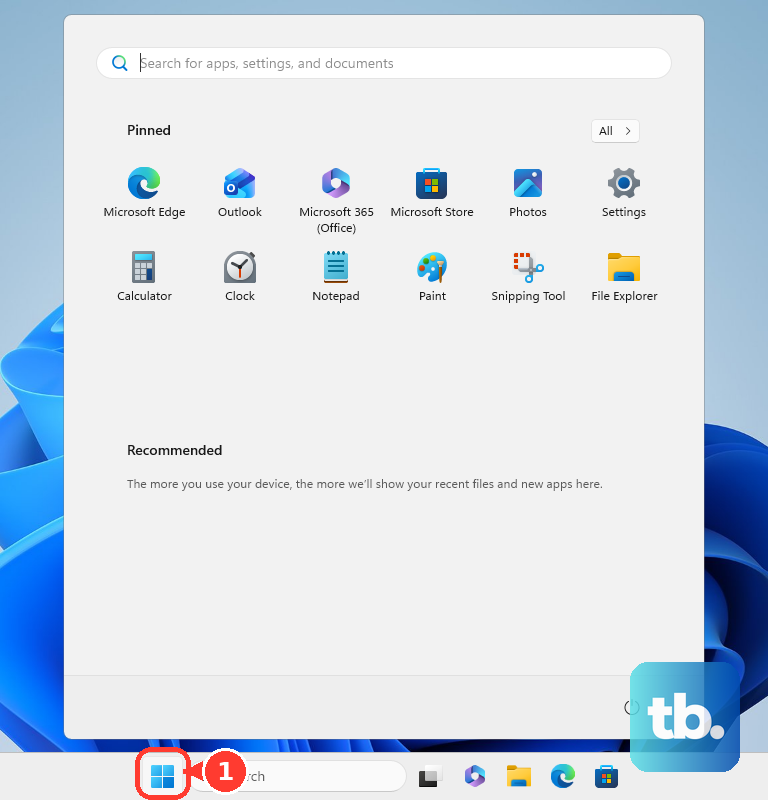
If Windows shows pending updates, select Update and restart.
Shut the laptop down if the keyboard still does not respond after the restart.
Disconnect external keyboards, USB hubs, and other keyboard accessories.
Check the keys for dirt, debris, or visible damage that blocks normal key movement.
When testing with a USB keyboard, unplug it, wait a little while, plug it back in, try another USB port, and avoid an unpowered USB hub.
If an external keyboard works while the built-in keyboard does not, keep going through the Windows and Lenovo checks before treating the internal keyboard as failed.
Turn off accessibility typing settings
This fixes keys that are ignored, delayed, repeating oddly, or behaving like shortcuts instead of normal typing.
On Windows 11, open Start > Settings > Accessibility > Keyboard.
Turn off Filter keys.
Turn off Sticky keys.
Turn off Toggle keys.
On Windows 10, open Start > Settings > Ease of Access > Keyboard.
Turn off Filter keys, Sticky keys, and Toggle keys.
Holding Right Shift for eight seconds toggles Filter Keys, pressing Shift five times toggles Sticky Keys, and holding Num lock for five seconds toggles Toggle Keys.
Fix number pad and wrong character problems
Use this method when the keyboard types, but the number pad will not enter numbers or the keys produce the wrong symbols. That points to a Windows input setting rather than a dead keyboard.
For a number pad issue on Windows 11, open Start > Settings > Accessibility > Mouse.
Turn Mouse keys off.
On Windows 10, open Start > Settings > Ease of Access > Mouse, then turn off Control your mouse with a keypad.
Press Num Lock once to put the keypad in number-entry mode.
For wrong characters on Windows 11, open Start > Settings > Time & language > Language & region.
Select the language menu, open Language options, then use Keyboards to add the right layout or remove the wrong one.
For wrong characters on Windows 10, open Start > Settings > Time & Language > Language.
Select your language, open Options, then check Keyboards.
Reinstall or update the keyboard driver
A driver reset is the next practical fix when the keyboard is still missing, frozen, or unreliable after the simpler settings checks. Right-click Start, open Device Manager, expand Keyboards, right-click the keyboard device, select Uninstall device, then choose Uninstall.
Restart from Start > Shut down or sign out > Restart. Windows attempts to reinstall the keyboard driver after the restart.
To check for a newer driver, return to Device Manager, expand Keyboards, right-click the keyboard device, select Update driver, then choose Search automatically for updated driver software. If Windows does not find one, select Search for updated drivers on Windows update.
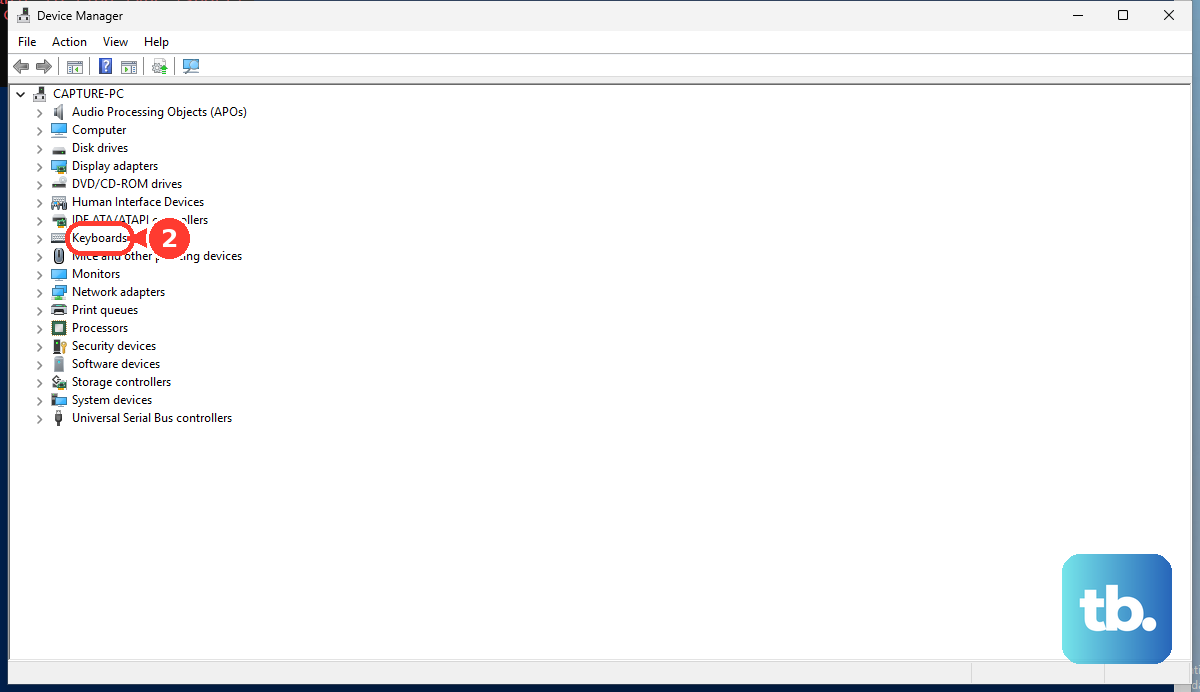
When the keyboard broke after a recent driver or Windows update, open the keyboard device in Device Manager, select Properties > Driver > Roll Back Driver, choose a reason, then select Yes. This option needs administrator permission and appears only when Windows has a previous driver available.
Install Windows and Lenovo updates
This applies when the keyboard problem started after system changes, when drivers are missing, or when Windows has not been updated in a while. Use official update paths only.
In the taskbar search box, type check for updates.
Select Check for updates.
Under Windows Update, select Check for updates, then install available updates.
Open Lenovo Vantage.
Go to System Update.
Select Check for Updates, then install all updates or the selected updates that apply to your laptop.
The official IdeaPad 320 driver and BIOS pages remain Lenovo support references, but the IdeaPad 320 driver stream is legacy and no longer actively developed. Do not use third-party driver portals, and do not treat older IdeaPad 320 BIOS packages as a current repair path.
Check function key behavior
The most common function-row cause is Hotkey Mode or Fn Lock changing what the F1 through F12 keys do.
On Lenovo systems with Fn Lock, press Fn + Esc to enable Fn Lock and disable hotkey functionality.
Press Fn + Esc again to switch back.
To change Hotkey Mode in BIOS, turn the PC off.
Turn it on and immediately press F2 or Fn + F2 repeatedly.
In BIOS, select Configuration > Hotkey Mode.
Choose Disabled or Enabled, then save and exit.
If normal keyboard entry cannot reach firmware, power off the laptop and gently press the Novo button with the tip of an unfolded paper clip or similar tool.
In the Novo Button Menu, choose BIOS Setup, Boot Menu, System Recovery, or Normal Startup.
Use power drain and Safe Mode
Power off the notebook.
Disconnect the AC adapter.
Remove the battery only if your exact IdeaPad 320 has a removable battery.
Press and hold the power button for around one minute.
Reinsert the battery if you removed it, reconnect AC power, and turn the notebook on.
To test software conflicts on Windows 11, open Start > Settings > System > Recovery, then next to Advanced startup select Restart now. On Windows 10, open Start > Settings > Update & Security > Recovery, then under Advanced startup select Restart now.
Choose Troubleshoot > Advanced options > Startup Settings > Restart.
In the Startup Settings list, select Enable Safe Mode (option 4) or Safe Mode with Networking (option 5).
If the keyboard works in Safe Mode, focus on startup software, remappers, security tools, or vendor utilities before replacing hardware.
Move to diagnostics or recovery
Run Lenovo diagnostics when keys are physically damaged, the built-in keyboard fails while other input works, or every Windows fix above fails. On supported Lenovo PCs, restart and press F10 quickly and repeatedly at the Lenovo logo, then run the keyboard or full hardware test.
If diagnostics are not preloaded, use Lenovo Diagnostic Solutions to get the correct Windows, Linux, UEFI, or ChromeOS diagnostic tool. When diagnostics fail or the keyboard has liquid damage, repeated key failure, or likely cable trouble, use Lenovo Support options such as Warranty Lookup, Parts Lookup, Contact Us, and Repair Status Check.
On a work or school IdeaPad, device installation rules can block keyboard or HID drivers, and kiosk setups can suppress specific key combinations. Contact the administrator if the keyboard works outside Windows, in Safe Mode, or before sign-in but fails under your managed account.
Skip the old Windows Keyboard troubleshooter and MSDT keyboard troubleshooter. Microsoft is removing legacy inbox troubleshooters such as Keyboard and retiring MSDT, so use current Windows settings, Get Help troubleshooters when available, driver reinstall, Safe Mode testing, and Lenovo diagnostics.
If this method fails, use Start > Settings > System > Recovery on Windows 11, or Start > Settings > Update & Security > Recovery on Windows 10, for Windows recovery options such as Reset this PC. Select Reset PC on Windows 11 or Get started on Windows 10, and choose Keep my files only after lower-risk fixes fail.
Frequently Asked Questions
Why is my Lenovo IdeaPad 320 keyboard typing the wrong characters?
Windows is using the wrong keyboard layout. Open the language settings for your version of Windows, check Keyboards, then remove the layout you do not use or add the correct one.
What should I do if only the number pad is not working?
Turn off Mouse Keys in Windows Accessibility settings, then press Num Lock once to put the keypad back into number-entry mode.
Can Lenovo Vantage fix an IdeaPad 320 keyboard?
Lenovo Vantage can install Lenovo updates for supported PCs. Use Lenovo Vantage as the official Lenovo update path, not third-party driver sites.
When should I assume the keyboard hardware has failed?
Treat it as hardware failure after driver reinstall, Safe Mode testing, power drain, and Lenovo diagnostics fail, especially when keys are damaged or liquid was involved.