A green laptop screen points to color filters, contrast themes, display profiles, graphics acceleration, display drivers, or hardware. The fastest fix depends on where the green appears: across the whole screen, only in video, only in one app, or before the operating system loads. Start with the quick color checks, then move through profiles, drivers, browser settings, platform tools, and hardware tests.
Disable color filters and contrast modes
When the whole display has a green tint, start with the accessibility color settings. On Windows 11, open Start, then Settings, then Accessibility, then Color filters, and turn Color filters off. If the shortcut is enabled, press Windows logo key + Ctrl + C to toggle it.
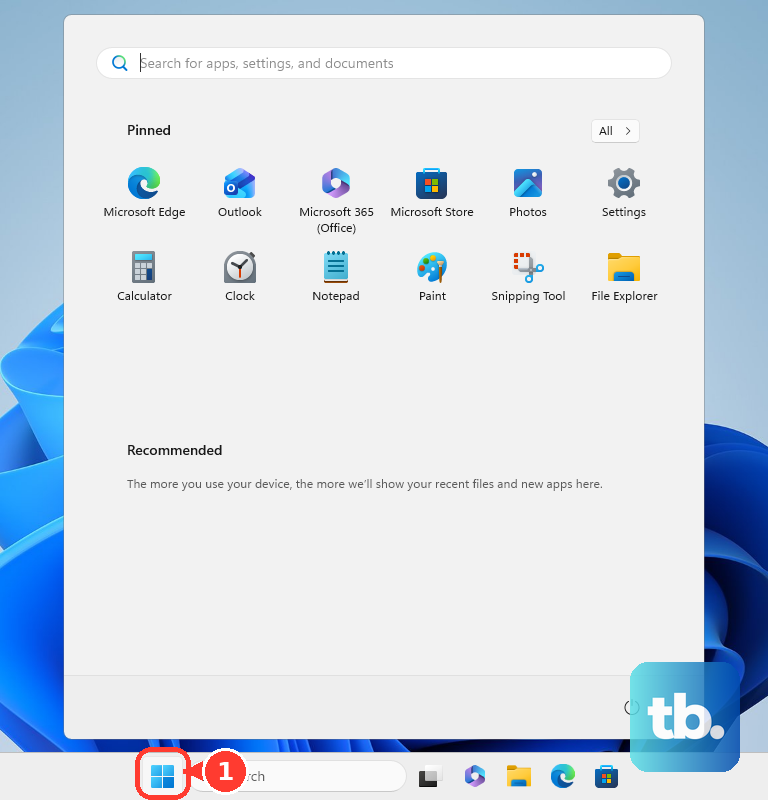
Wrong or inverted colors need the contrast setting next. Open Start, then Settings, then Accessibility, then Contrast themes. Set Contrast themes to None, then select Apply. Press left Alt + left Shift + Print screen to check the high contrast shortcut.
On a Mac, open the Apple menu, then System Settings, then Accessibility, then Display. Turn Color Filters off. Turn Invert colors off when the full color palette looks wrong.
If the screen stays green after those checks, fix the display color profile next.
Reset the display color profile
Use Windows 11 color profile controls to remove a bad profile and set a clean one.
- 1.Open Settings > System > Display > Color profile.
- 2.Select the affected display, expand the current profile, and choose Remove.
- 3.Choose a known-good profile for that display, then select Set profile.
- 4.Select Calibrate display and follow the calibration steps when colors still look wrong.
- 5.On supported Windows 11 displays, toggle Automatically manage color for apps to test app-wide color rendering.
Reset the graphics driver
The most common cause of sudden green, scrambled, blank, or distorted Windows output is a display-driver hang.
Press Windows logo key + Ctrl + Shift + B. A successful reset gives you a beep or a quick screen flicker.
Check whether the distortion affects Windows itself or only one app. Press Ctrl + Alt + Delete, then open Task Manager. If that screen is hard to reach, press Ctrl + Shift + Esc.
If Task Manager shows the same green distortion, move to driver repair or hardware testing. If Task Manager looks normal while one app is green, remove or repair that app.
Update or roll back the display driver
Use this when the green screen started after a driver change, after Windows updates, or after the graphics driver reset worked only briefly. It also applies when Task Manager shows the same green distortion as the rest of the screen.
To roll back a recent driver, use the taskbar search box to open Device Manager. Expand Display adapters, right-click the adapter, open Properties, then Driver, then choose Roll Back Driver. Select Yes and restart. This requires administrator privileges and a previous driver package.
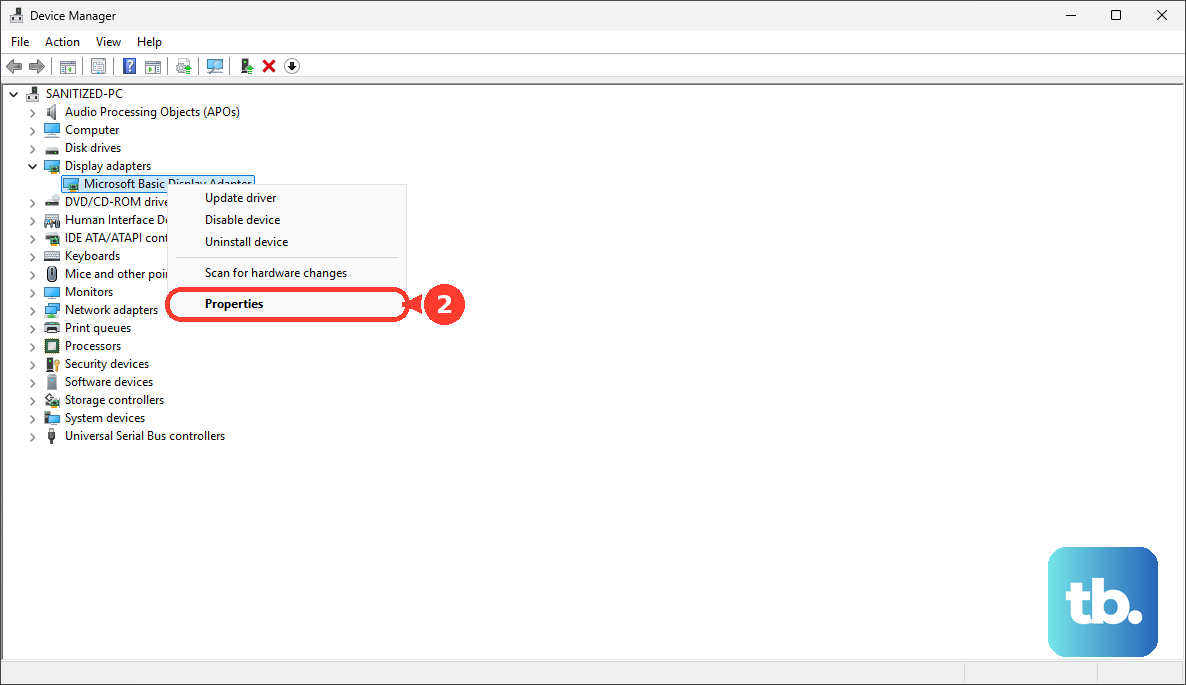
To update the driver, right-click Start, open Device Manager, expand Display adapters, right-click the display adapter, then choose Update driver. Select Search automatically for updated driver software. If Windows does not find one, choose Search for updated drivers on Windows update.
Install Windows updates from Start, then Settings, then Windows Update, then Check for updates. Select Download & install when updates appear, then restart when prompted.
Use the official driver route for your graphics hardware when Windows does not provide the fix. NVIDIA offers the NVIDIA drivers page with NVIDIA App or manual search. Intel offers Intel Driver & Support Assistant. AMD offers AMD Drivers and Support with auto-detect or product search. The auto-detect tool covers Windows 11 and 64-bit Windows 10 version 1809 or later. Use the product search on anything older.
Fix green video in Chrome or Edge
If only videos, browser tabs, or one web app turn green, the laptop display is not the first target. Test browser graphics acceleration before changing drivers.
In Microsoft Edge, open edge://settings/system in the address bar. Toggle Use graphics acceleration when available, then restart Microsoft Edge when prompted.
In Google Chrome, open chrome://settings/system in the address bar. Toggle Use graphics acceleration when available, then select Relaunch.
If the green output happens only in an Edge-installed web app, open Microsoft Edge, then go to edge://apps. Choose Details on the app card, then Uninstall. Select the option to delete app history and data when you want a clean removal.
If browser acceleration does not fix the browser-only green screen, uninstall the suspected display overlay, color, capture, gaming, remote-display, or video app.
Adjust Mac display color settings
The most common Mac cause is a display feature or color profile that shifts the entire screen color.
Open the Apple menu, then System Settings, then Displays, then Night Shift. Turn Night Shift off, change Schedule, or move the color-temperature slider less warm.
For Macs and Apple displays that support True Tone, open the Apple menu, then System Settings, then Displays. Select your display, then toggle True Tone off or on.
When the issue follows a bad profile, open ColorSync Utility. Select Devices, click the arrow next to the display group, choose the display, and change the current profile.
If the green screen persists after display settings, start in Safe Mode to isolate startup software. On Apple silicon, choose Apple menu, then Shut Down, hold the power button until Loading startup options appears, select a volume, hold Shift, then choose Continue in Safe Mode. On Intel, restart and hold Shift during startup, then log in.
Repair ChromeOS green screen issues
Start with a hardware reset, then update ChromeOS before using any reset that erases local data. Back up your Downloads folder first. Google warns that a hard reset might delete some files there.
- 1.Turn off the Chromebook, press and hold Refresh, tap Power, then release Refresh when it starts up.
- 2.Use the alternate reset on supported models by holding Back + Refresh + Power for at least 10 seconds. On a ChromeOS tablet, hold Volume Up + Power for at least 10 seconds.
- 3.Update ChromeOS from the bottom-right time area, then Settings, then About ChromeOS, then Check for updates. If an update downloads, select Restart from the update notification.
- 4.Open Settings, then About ChromeOS, then Diagnostics for hardware triage on ChromeOS version 90 and up. You can also open Launcher, type Diagnostics, and open Diagnostics.
- 5.Use Powerwash only after backing up files and ruling out display-panel failure. Press and hold Ctrl + Alt + Shift + r, choose Restart, then Powerwash, then Continue.
Run the built-in display test
A green screen that appears before the operating system loads, during diagnostics, or inside a laptop maker's display self-test points to panel, cable, or GPU hardware. Your laptop maker's built-in display test separates hardware failure from Windows, macOS, and ChromeOS settings, because it runs outside the operating system. Dell states that its test checks screen hardware only, not Windows settings, graphics drivers, or software. An in-browser screen test is a faster first look, but it runs inside the operating system, so it cannot rule software out.
On Dell laptops with LCD BIST, shut down completely, disconnect external monitors, USB devices, docking stations, and headphones, then connect the power adapter. Hold D, press Power, and keep holding D until the color screens appear. Inspect the black, white, red, green, and blue screens, then press Esc or hold Power for 10 seconds to stop.
On Lenovo ThinkPad, ThinkBook, and supported Lenovo notebooks, turn off the computer and connect the AC power adapter. Press Fn + left Ctrl + Power at the same time, then inspect the solid-color sequence. If solid colors do not appear or defects appear, contact Lenovo Support.
On ASUS Windows laptops, install BIOS and Windows Update updates first for internal display troubleshooting. If color or color-temperature problems continue, open MyASUS, then Device Settings, then Splendid, and adjust the display color settings. If that does not resolve it, open MyASUS, then System Diagnosis, and follow the result guidance.
For Mac laptops, run Apple Diagnostics when display settings and Safe Mode do not clear persistent green tint or lines. Install the latest macOS updates if possible, shut down, disconnect external devices except essentials and AC power, then start the diagnostic. On Apple silicon, hold the power button until Options appears, then press and hold Command-D. On Intel, turn on the Mac and immediately hold D; use Option-D if D does not start diagnostics.
If the vendor test shows lines, dots, dark areas, pattern distortion, LED flash patterns, cracks, pressure marks, or green output outside the operating system, use the manufacturer repair route. For Mac laptops, start with Apple Service and Repair.
Handle work or school restrictions
This method applies when Google Chrome or Microsoft Edge says a setting is managed by your organization, or when a school or company Chromebook says updates are managed by an administrator. Managed policy controls browser acceleration, updates, and device behavior.
Run the checks that remain available to you: restart the device, check display color settings, test browser graphics acceleration if it is unlocked, and run the laptop maker diagnostics.
If the needed setting is locked or updates are blocked, contact workplace or school IT. Tell them exactly where the green appears: all screens, only videos, only one browser, or before sign-in.
Skip old Flash Player hardware-acceleration fixes and Internet Explorer software-rendering fixes. Adobe no longer supports Flash Player and directs users to uninstall it. Microsoft ended support for the Internet Explorer 11 desktop application on certain Windows 10 versions on June 15, 2022. Current browser-only fixes use Chrome or Edge graphics acceleration settings.
Frequently Asked Questions
Why is my laptop screen green only when I watch videos?
Green video points to browser or app rendering. In Chrome or Edge, toggle Use graphics acceleration when available, then relaunch the browser.
Does a green screen mean my laptop screen is broken?
Not by itself. Color filters, contrast themes, color profiles, graphics drivers, and browser acceleration create green output. Hardware is the target when the green appears before the operating system loads or during a built-in display test.
What should I try first on Windows 11?
Turn off Color filters and Contrast themes first. Then press Windows logo key + Ctrl + Shift + B to reset the graphics driver, and check the display color profile.
Can I use old Flash or Internet Explorer fixes for green video?
No. Flash Player is unsupported and Internet Explorer 11 desktop support ended for certain Windows 10 versions. Use current Chrome or Edge graphics acceleration settings instead.