Your Google Nest Hub won’t connect to Wi-Fi, or Google Home keeps showing it as offline. Start with the checks below to find out whether the problem is the connection, the setup app, or your router, then work through the fixes. These steps cover Nest Hub (1st gen), Nest Hub (2nd gen), and Nest Hub Max.
Start with the connection basics
Check these five things before changing any settings.
- 1.Plug the Hub into a working wall outlet.
- 2.Ask it a question or give it a command. A successful assistant response indicates a Wi-Fi connection, even if Google Home shows it as offline.
- 3.Test your home Wi-Fi on another device. If that device also fails, follow the router restart steps below and ask your internet provider about outages or changed settings.
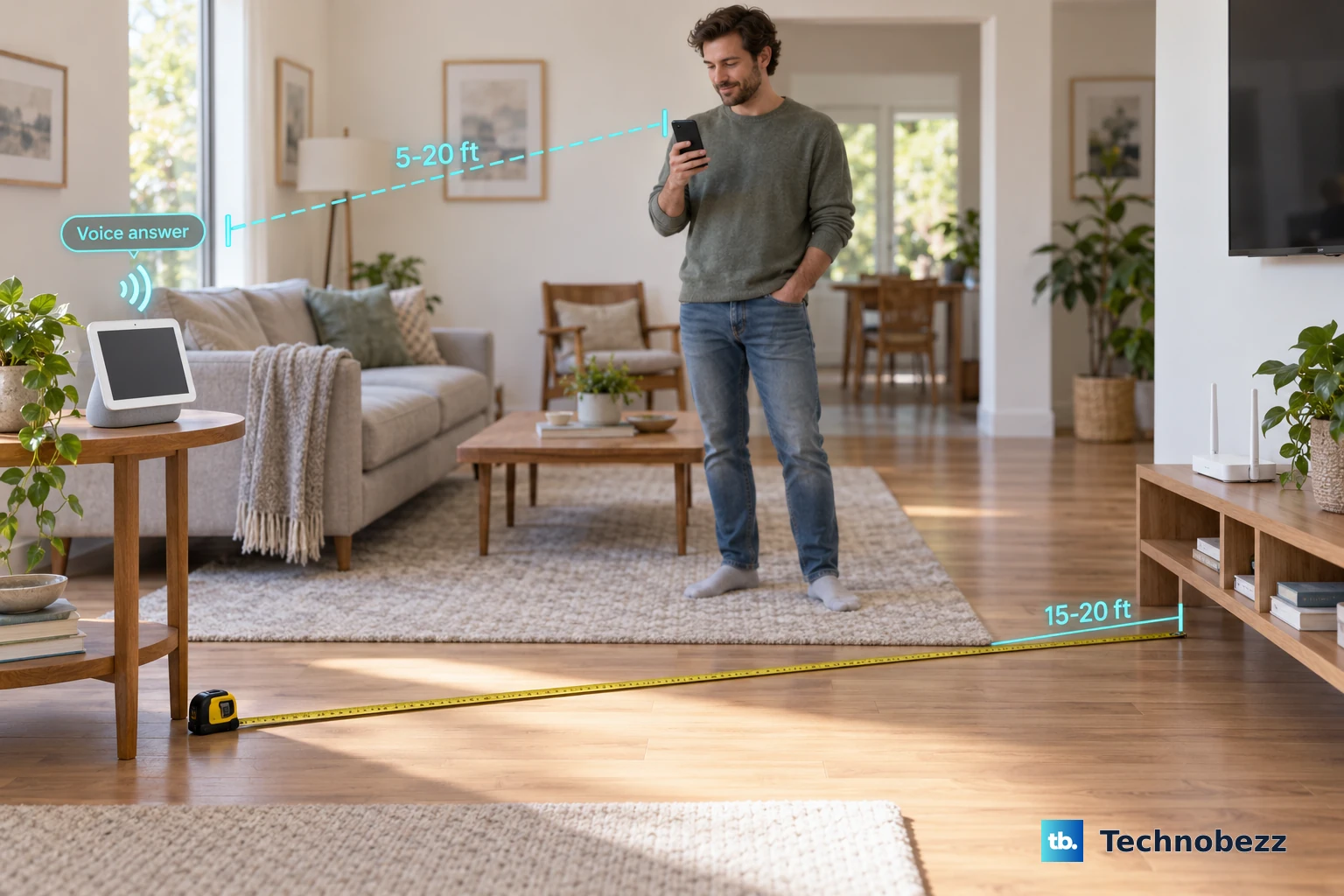
- 4.Place the Hub within 15–20 feet of the router.
- 5.Keep your setup phone within 5–20 feet of the Hub throughout setup, preferably closer.
Restart the Hub and your network
Restarting is the next fix to try when an existing connection stops working.
If the Hub shows Updating with progress, leave its power and Wi-Fi connected. Updates install automatically. Use the restart steps below if the update lasts more than 20 minutes.
Unplug the Hub’s power cord for one minute. Then reconnect the Hub’s power cord. For a standalone router, disconnect its power for one minute. Reconnect the router’s power.
Wait for Wi-Fi to return before retrying setup. For a Nest Wifi Pro, Nest Wifi, or Google Wifi mesh network, disconnect all network equipment instead.
Restore power to the modem first. Wait until the modem is ready, typically two minutes. Restore power to the primary router. Wait until the primary router is ready.
Restore power to the additional mesh points. Reopen Google Home. Retry setup.
If you changed your router or Wi-Fi password
Start here if the Hub lost its connection after you changed your router, password, or internet provider. Use the Google Home mobile app to connect it to the intended network.
Open Google Home and go to Home → Add → Device → Search for device. Complete setup with your intended Wi-Fi network.
If the Hub’s existing settings remain accessible, use its linked Google Account to open Home → All devices. Hold the Hub tile. Select Settings → Device information → Wi-Fi → Forget this network. Run setup again with the new network details.
After replacing a router, another option is to give the replacement the previous network name and password. For a Google router, open Home → Wifi → Network settings. Enter the previous network name. Tap Save.
Restore the previous Wi-Fi password as well.
Password mistakes and missing networks
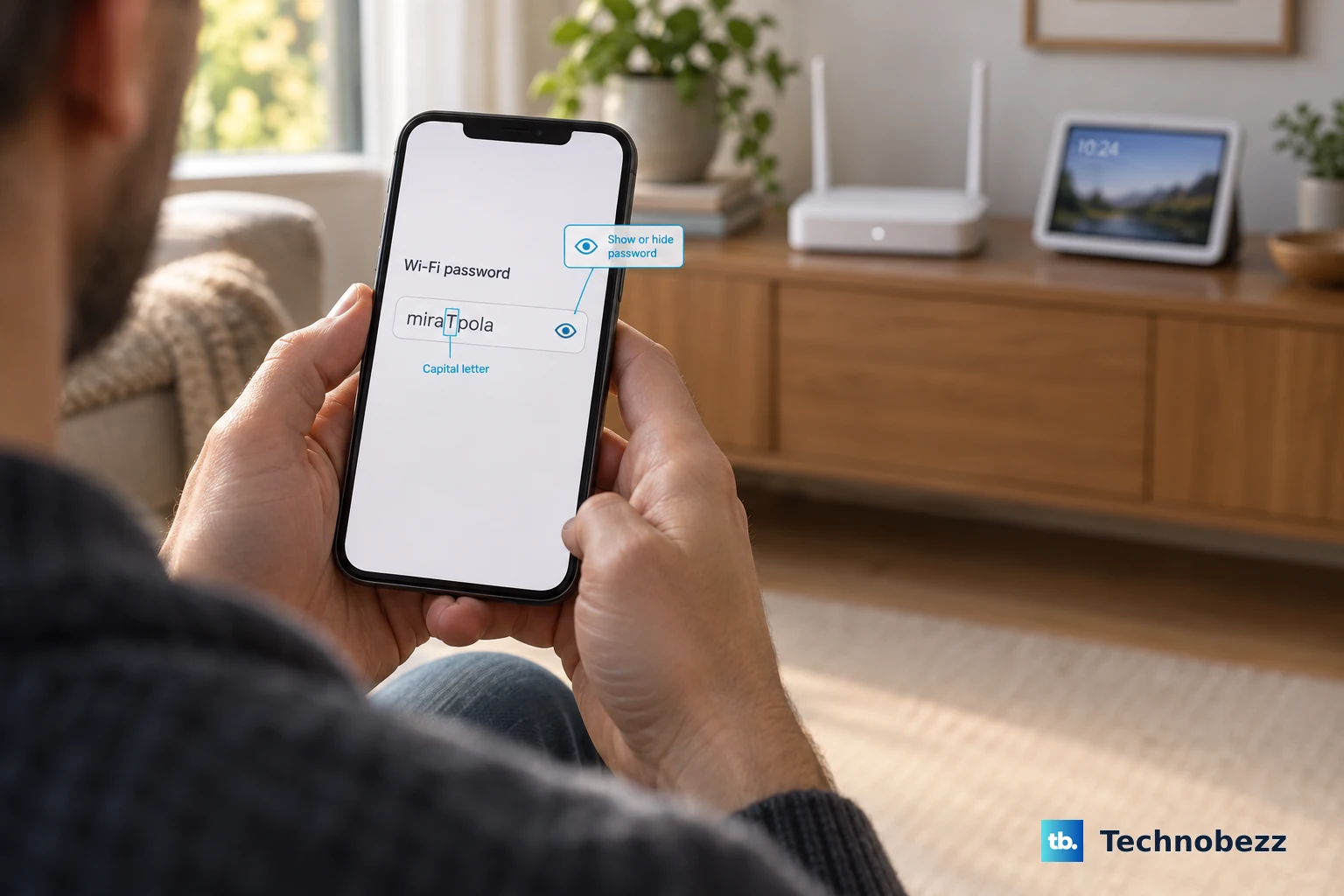
Wi-Fi passwords are case-sensitive. Retry setup with the correct password instead of reusing a saved password that failed.
On Android, choose No thanks when password retrieval fails. Type the password yourself. Tap the eye icon to inspect the entry. On iPhone or iPad, select Show password to check what you entered.
For a router with separately selectable bands, retry setup on 2.4 GHz. If that fails, retry on 5 GHz. Nest Hub supports both bands. Nest Wifi and Google Wifi automatically use one network name across bands; splitting their network is not a setup step.
If your network is missing, tap Network Name during setup to inspect the expanded list. For a hidden network, select Other from the Wi-Fi setup screen’s network dropdown when that option is available. Enter the network name, security type, and password. Tap Set Network.
If the correct network and password still fail, refresh Google Home and check your phone’s setup permissions next.
Give Google Home the access it needs
Open your phone’s recent-apps view. Swipe away the Google Home preview. Reopen Google Home. Retry setup.
If pairing still fails, close Google Home. Restart your phone or tablet. Reopen Google Home. Retry pairing.
Open Search in the Google Play Store or App Store. Search for Google Home. Tap Update when an update is offered.
Turn on the setup phone’s Bluetooth. Disconnect active Bluetooth accessories during pairing. Turn off cellular data during setup, leaving Wi-Fi and Bluetooth enabled.
On Android, open Settings → Location. Turn on Use Location. Open App Location Permissions → Home. Grant the location access Google Home requests, selecting Allow all the time on devices offering that option.
If Home requests Nearby devices access, open Settings → Apps → See all apps → Home → Permissions → Nearby devices. Select Allow.
On iPhone or iPad, open Settings → Privacy & Security → Local Network. Enable Google Home. After Home requests Bluetooth access, open Settings → Privacy & Security → Bluetooth. Enable Google Home if it appears.
Tip: Android permission labels vary by manufacturer, so grant the permissions Google Home actually requests.
When the app cannot find your Hub
If the Hub answers voice commands but appears offline in Google Home, focus on app discovery and account access.
On Android, open Settings → Network & internet → Internet. Android menu names vary by manufacturer. Turn Wi-Fi off. Turn Wi-Fi back on.
Select the intended network. On iPhone or iPad, open Settings → Wi-Fi. Turn Wi-Fi off. Turn Wi-Fi back on.
Select the intended network. For an accessible, configured Hub, open Google Home → Home → All devices. Hold the Hub tile. Open Settings → Device information.
Compare the Hub’s network with your phone’s connected network. If you have multiple Google homes, tap your profile picture or initial in Google Home. Select Switch home. Choose the home containing the Hub.
To check the linked account, open Home → All devices. Hold the Hub tile. Open Settings → Recognition & sharing → Linked account(s). Use one of the listed accounts for troubleshooting.
In a shared household, ask a home administrator to handle adding or removing devices. Ordinary members cannot perform those actions.
When the Hub advertises a temporary setup network, open your phone’s Wi-Fi settings. Join the Hub’s setup network, such as GoogleHomeXXXX or its previously assigned name. Return to Google Home. Retry setup.
If the normal add flow fails, open Add → Device. Select Add a different way when offered. Search for your Hub. Select it to continue setup.
If discovery still fails, install the latest Google Home app on another supported phone or tablet and retry using your Google Account. Google lists Android 9 or later; the iPhone and iPad app requires iOS or iPadOS 17.4 or later.
Check router settings that block the connection
These checks address router restrictions that block setup or communication with your phone.
Temporarily turn off an existing Wi-Fi extender. Retry setup near the main router. If the Hub works nearby but fails in its intended location, improve coverage with a compatible access point.
Disconnect several other Wi-Fi devices. Retry Hub setup to test whether the router’s device limit has been reached.
Open the router or extender’s administrator interface using the manufacturer’s instructions. Disable AP isolation or client isolation. Google also identifies this setting as guest mode; the exact label and location depend on the router.
On applicable NETGEAR Nighthawk routers, disable Access Control. Open Guest Network Setup. Enable Allow guests to see each other and access my local network on models offering that control.
Using your router manufacturer’s instructions, set wireless security to WPA2, as Google recommends. Set channel selection to Auto. Set the DHCP lease duration to at least two hours. Enable multicast.
Enable compatible 802.11 b/g/n modes where needed. For WPA3-related trouble on Nest Wifi Pro, Nest Wifi, or Google Wifi, open Google Home → Wi-Fi → Settings → Advanced Networking. Turn off Use Wi-Fi Protected Access 3. This restarts the network and serves as a compatibility test, not a requirement for every Hub.
For a Hub blocked by a Family Wi-Fi group, open Family Wi-Fi. Select Unpause. Update the router firmware using the manufacturer’s supported procedure.
Use a hotspot to narrow down the failure
A temporary hotspot tests whether the failure is specific to your home network.
- 1.Create a hotspot on another phone. On Android, swipe down, hold Hotspot, and enable Wi-Fi hotspot. On iPhone, open Settings → Personal Hotspot, or Cellular → Personal Hotspot, and enable Allow Others to Join.
- 2.Check the hotspot’s network name and password. On iPhone, check Wi-Fi Password and keep the hotspot screen open while connecting.
- 3.Connect your setup phone or tablet to the hotspot.
- 4.Set up the Hub on that network through Google Home. Success points toward your home network. Google permits this diagnostic test but does not fully support ongoing hotspot use.
- 5.If setup fails, open Google Home and Nest support, sign in, describe the connection failure, and choose an available contact option.
Factory reset as a last resort
Before resetting a Nest Hub (2nd gen), review your Sleep Sensing data. A factory reset erases device data. For Nest Hub Max, save important camera recordings before continuing.
When the device’s settings are accessible, open Google Home → Home → All devices. Removing the device before resetting is required for Nest Hub Max. Hold the Hub tile. Select Settings → Remove device → Remove.
On any of the three Hub models, hold both rear volume buttons simultaneously for about 10 seconds, until the reset is announced. Set up the Hub again through Home → Add → Device → Search for device. For a stalled update that survived Hub and router restarts, use 2.4 GHz for the new setup.
Tip: Factory reset requires the Hub’s physical volume buttons; Google Home and voice commands cannot start it.
Frequently Asked Questions
Can I change the Hub’s Wi-Fi from its touchscreen or a computer?
Use the Google Home mobile app. Google provides no touchscreen Wi-Fi toggle or network-selection procedure for reconnecting a Hub. Google Home for web also has no Hub Wi-Fi setup procedure and requires devices to be added through the mobile app.
Why won’t my Nest Hub connect to hotel or work Wi-Fi?
Enterprise authentication and networks requiring a browser sign-in portal are unsupported. Use a compatible private password-protected network, or ask the network administrator to provide one.
What if my work Google Account cannot use Google Home?
Ask your Workspace administrator to enable Google Home, or use a personal Google Account for setup. If you have lost access to the original Workspace account, Google instructs you to factory reset the device and set it up with another account.
Why does my Hub lose internet access at the same time every day?
Check for a Family Wi-Fi schedule that includes the Hub. In Google Home, open Family Wi-Fi, then the schedule’s More menu. Choose End schedule, Skip, or Delay 30 min. To change recurrence, edit the schedule and tap Done.