A generic Bluetooth adapter can stop working when Bluetooth is switched off, the driver fails, a USB dongle gets stuck after sleep, or an old pairing record breaks the connection. Most fixes live in Windows Settings, Device Manager, or the adapter maker's official driver page. Start with the quick checks, then move into drivers and power settings if the adapter still does not show up.
Turn Bluetooth back on first
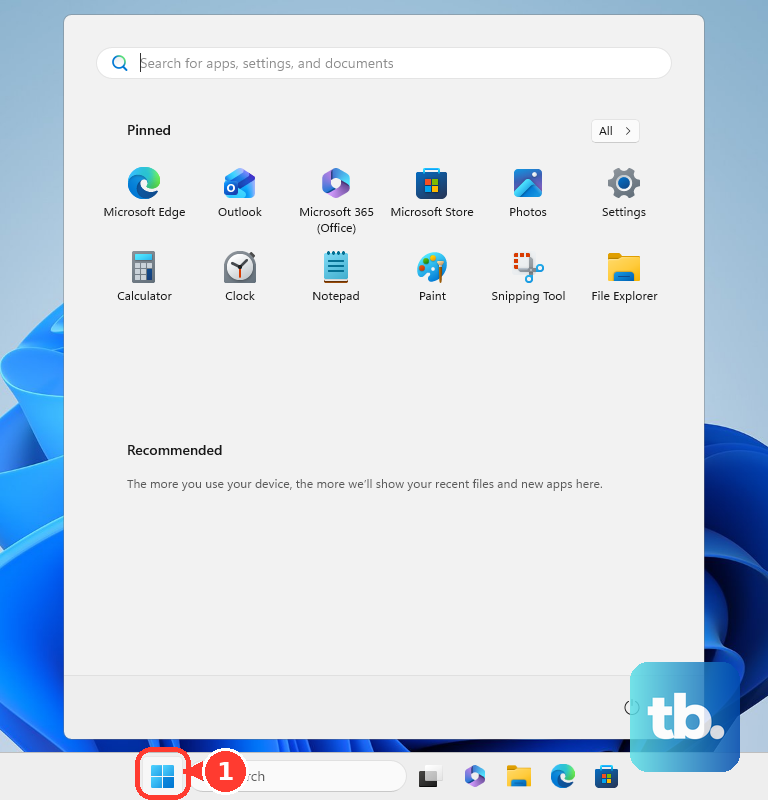
Select the Network, Sound, or Battery icons on the taskbar. Select Bluetooth to turn it on. On Windows 11, open Start, then go to Settings, Bluetooth & devices, and Bluetooth.
Set Bluetooth to On. The Settings paths in this guide are the Windows 11 ones. On Windows 10 the same switch lives under Settings, Devices, and Bluetooth & other devices, and Windows 10 reached end of support on October 14, 2025, so move that PC to Windows 11 if it qualifies.
If Bluetooth turns off again right away, restart the PC once and check the same switch again before moving deeper.
Check Airplane mode and discovery
Airplane mode can shut off wireless radios together, which makes a working adapter look broken. Open Start, then Settings, Network & internet, and Airplane mode, then set it to Off.
Some devices also fail to appear under Windows 11's default discovery behavior. Go to Start, Settings, Bluetooth & devices, and Devices, then under Device settings set Bluetooth devices discovery to Advanced.
On laptops, press the physical wireless switch or keyboard wireless key, then return to Start, Settings, and Bluetooth & devices. Confirm Bluetooth is still On.
Run the Windows Bluetooth troubleshooter
Windows now sends many troubleshooters through the Get Help app. Open Get Help, search for Bluetooth troubleshooter, and follow the guided steps.
Let the tool finish before changing drivers or removing devices. It can catch basic service and configuration problems that are easy to miss manually.
If the troubleshooter does not restore the adapter, check Device Manager next because Windows may see the hardware but leave it disabled or hidden.
Enable the adapter in Device Manager
The most common Device Manager issue is a Bluetooth adapter that exists but is disabled, hidden, or showing an error. Right-click Start and open Device Manager.
Expand Bluetooth and look for entries such as Generic Bluetooth Adapter, Intel Wireless Bluetooth, Realtek Bluetooth, Broadcom Bluetooth, or a similar adapter name. Select the adapter, open Action, and choose Enable device.
If the Bluetooth category is missing, open View and choose Show hidden devices. When the adapter returns, go back to Bluetooth settings and pair again. If it is present but still fails, fix the driver next.
Update or reinstall the Bluetooth driver
Right-click Start and open Device Manager. Expand Bluetooth. Right-click the Bluetooth adapter and choose Update driver. Select Search automatically for drivers.
If that does not help, right-click the adapter again and choose Uninstall device. Select Attempt to remove the driver for this device when Windows shows that option. Choose Uninstall, then restart the PC. After the restart, use Windows Update or the maker's official driver page if the adapter still fails.
Install official driver updates
The most common driver problem after a generic adapter failure is a stale, corrupted, or mismatched Bluetooth driver. Open Start, then Settings, Windows Update, Advanced options, and Optional updates. Under Driver updates, select the Bluetooth or wireless driver, then choose Download & install.
For Dell, HP, and Lenovo PCs, use the maker's official support site or support app to install the Bluetooth, wireless, or network driver for your exact model. Dell uses Drivers & Downloads or SupportAssist, HP uses Software and Driver Downloads or HP Support Assistant, and Lenovo uses PC Support, Lenovo Vantage, or System Update.
For Intel Bluetooth hardware, use Intel's Wireless Bluetooth package or Intel Driver & Support Assistant. On a prebuilt PC, try the PC maker's driver above first: Intel warns that a computer manufacturer may have changed or replaced the Intel driver and recommends working with that manufacturer before installing Intel's, so you do not lose features or customizations.
For TP-Link USB Bluetooth adapters, use TP-Link's Download Center and match the adapter model and hardware version.
Reset the USB Bluetooth dongle
This fixes USB Bluetooth adapters that stopped after a USB detection, dock, hub, or power problem. Shut down Windows. Unplug the USB Bluetooth adapter. Wait briefly.
Plug the adapter directly into another USB port on the PC. Avoid hubs and docks for this test. Start Windows. Open Settings, then Bluetooth & devices, and check Bluetooth.
Stop power saving from shutting it down
USB power saving can make a Bluetooth dongle disappear after sleep or idle time. Open Control Panel, then Hardware and Sound, Power Options, Change plan settings, and Change advanced power settings.
Expand USB settings, open USB selective suspend setting, set it to Disabled, choose OK, then restart and see whether the dongle stays up. Vendor guidance splits on this one: Dell documents disabling USB selective suspend when the feature interferes with a USB device, while Microsoft says it is enabled by default and strongly recommends not disabling it, because it is what lets Windows power down idle USB ports.
Treat it as a reversible test rather than a permanent change. If the adapter still drops, set it back to Enabled and use the per-adapter setting below instead.
For adapters that expose the setting, right-click Start, open Device Manager, expand Bluetooth, right-click the adapter, and choose Properties. On the Power Management tab, clear Allow the computer to turn off this device to save power, then choose OK.
Remove bad pairing records
The most common non-driver cause is an old pairing record that no longer matches the adapter or driver Windows is using. On Windows 11, open Start, then Settings, Bluetooth & devices, and Devices. Select More options for the failed device. Choose Remove device.
Confirm with Yes. Select Add device. Choose Bluetooth. Select the device and pair it again.
On Mac, Apple's Bluetooth documentation covers the Mac's own Bluetooth and its accessories rather than driver installation for a third-party USB Bluetooth dongle, so check the adapter maker's site for macOS support before troubleshooting one. Use Apple menu, System Settings, and Bluetooth to turn Bluetooth off and back on, or click the Info button next to a device and choose Forget This Device before reconnecting it.
For a school or work PC, open Settings, Accounts, and Access work or school to see whether the computer is managed. Ask the administrator whether Bluetooth or device installation is blocked by policy.
Skip older Windows Control Panel pairing shortcuts and old Mac Bluetooth debug reset tips. Use the current Settings, Bluetooth & devices, and Add device path on Windows, and use System Settings, forget, reconnect, restart, and accessory checks on Mac.
Frequently Asked Questions
Why does Windows show Generic Bluetooth Adapter instead of the brand name?
Windows can label internal or USB Bluetooth hardware as Generic Bluetooth Adapter when it is using a general driver or cannot show the exact chipset name. Use the same Device Manager, Windows Update, and official driver fixes.
Should I download Bluetooth drivers from a third-party driver site?
No. Use Windows Update, Device Manager, your PC maker's support page, Intel's official Bluetooth page for Intel hardware, or the adapter maker's support page such as TP-Link.
What should I do if Bluetooth disappears after sleep?
For a USB Bluetooth adapter, plug it directly into another USB port, and try turning USB selective suspend off as a reversible test, since Dell documents that route while Microsoft recommends leaving the feature enabled, so set it back if it does not help. Also check the adapter's Power Management tab in Device Manager and stop Windows from turning it off when that option is available.
Can iPhone, iPad, or Android fixes repair a PC Bluetooth adapter?
No. Phone and tablet Bluetooth settings can forget and reconnect accessories, but they do not repair a Windows USB or internal Bluetooth adapter driver.