Your Dell monitor shows a perfect picture, but touch does nothing, taps land in the wrong place, or input stops after sleep. Start with the fixes that solve the most common Dell touch screen monitor not working cases, then move into driver, firmware, diagnostics, and recovery steps only when the quick checks do not restore touch.
Start with the simple reset and screen check
Use this first when touch stopped suddenly, misses taps, or feels intermittent while the display still works. A restart clears temporary Windows input problems, and a clean touch surface removes the residue that makes touch unreliable.
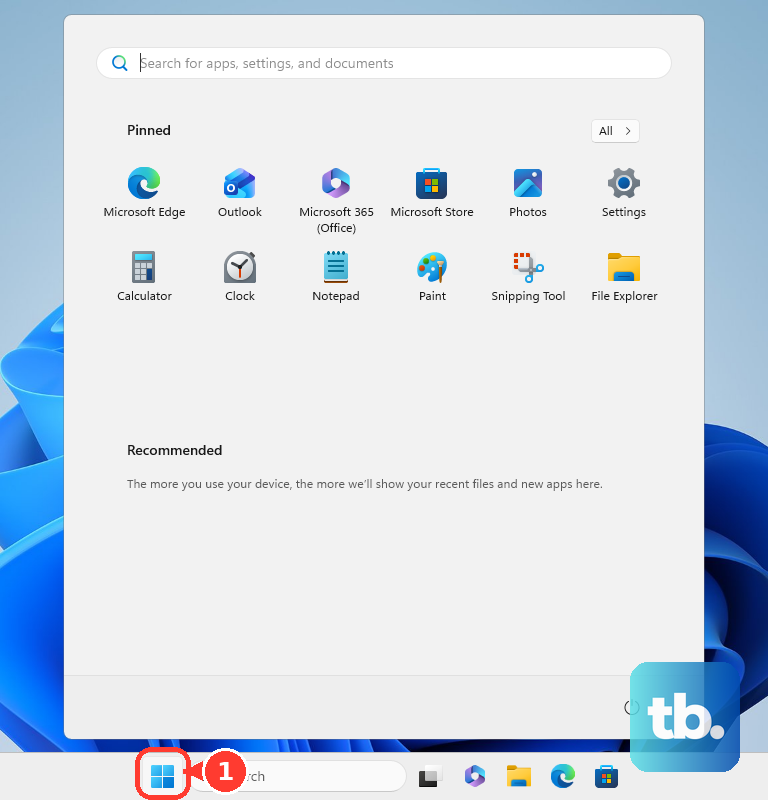
Select Start, choose Power, then select Restart. After Windows restarts, test the Dell touch screen with a few taps and swipes.
Clean the screen with a soft microfiber cloth slightly dampened with water or a screen-safe cleaner. Wipe gently in one direction, and keep abrasive materials and harsh chemicals away from the touch surface.
Check the USB touch connection
The most common cause on an external Dell touch screen monitor is a working video cable with no USB touch data path.
Confirm that the monitor has a USB upstream connection to the computer. On Dell touch-enabled external monitors, HDMI or DisplayPort carries the picture, while USB lets Windows see the touch device.
For a Dell P2424HT using USB-C, connect a USB-C to USB-C cable between the computer and the monitor, then push the connector in fully.
For the P2424HT using DisplayPort or HDMI, connect USB-A on the computer to USB-C on the monitor, then connect the DisplayPort or HDMI video cable.
On Dell Large Frame Monitors P5524QT, P6524QT, P7524QT, and P8624QT, match the video input to the correct USB upstream port. Use HDMI 1 with USB 1, HDMI 2 with USB 2, or HDMI 3 with USB 3, and connect only one video input per computer for touch.
Enable the HID touch device in Windows
When Windows sees the touch controller but it is disabled, turn it back on in Device Manager.
- 1.Right-click Start and select Device Manager.
- 2.Expand Human Interface Devices.
- 3.Right-click HID-compliant touch screen.
- 4.Select Enable device.
- 5.Repeat this for every HID-compliant touch screen entry listed.
Reinstall the Windows touch driver
Use this when the touch device appears in Device Manager but still does not respond. Dell says touch screen drivers are built into Windows 11 and Windows 10, and Windows Update downloads applicable drivers.
Press Windows key + R, type devmgmt.msc, then click OK. In Device Manager, expand Human Interface Devices.
Right-click HID-compliant touch screen, select Uninstall, then click Uninstall in the confirmation window. Restart the computer so Windows reinstalls the touch device.
If this method fails, return to Device Manager, open the Action menu, and select Scan for hardware changes.
Stop touch from failing after sleep
Use this when your Dell touch screen works after a fresh restart but stops after sleep, wake, or a period of inactivity. Windows power management is the fix for that pattern.
Press Windows key + R, type devmgmt.msc, then click OK. Expand Human Interface Devices, right-click HID-compliant touch screen, and open Properties.
Open Power Management, clear Allow the computer to turn off this device to save power, then click OK. If Power Management is not shown for that touch controller, continue with the update steps below.
Calibrate touch when taps land in the wrong place
Calibration is for a screen that responds to touch but places taps away from your finger or sends touch to the wrong display.
Open Control Panel, select Hardware and Sound, then choose Calibrate the screen for pen or touch input under Tablet PC Settings. Under Display options, select the display you want to fix.
In the Tablet PC Settings window, click Calibrate and select Touch input. On the white calibration screen, tap each crosshair as it appears, and keep the resolution unchanged during calibration.
When Windows asks to save calibration data, click Yes, then click OK. Retest touch on the Dell display before changing drivers or firmware.
Install Windows and Dell updates
The most common update-related cause is a missing Windows, BIOS, chipset, video, monitor, or touch panel update.
On Windows 11, right-click Start, open Settings, select Windows Update, then open Advanced options. Turn Receive updates for other Microsoft products on, open Optional updates, select the driver updates you want to install under Driver updates, choose Download and install, return to Windows Update, select Check for updates, install the available updates, and restart.
Microsoft ended Windows 10 support on October 14, 2025, so Windows 11 is the current supported consumer path unless the PC is enrolled in extended support.
On Windows 10, right-click Start, open Settings, go to Update & Security, then Windows Update, and open Advanced options. Turn on Receive updates for other Microsoft products when you update Windows, go back, select Check for updates, and use View optional updates when Windows shows it.
For Dell updates, open SupportAssist from Start, click Update software, then click Start to check for updates. Follow the on-screen prompts to install Dell-provided updates and restart when prompted.
Update Dell monitor firmware
This fixes monitor-side firmware problems after the connection, Windows, calibration, and driver checks have not restored touch.
Connect the Dell monitor directly to the computer with its USB upstream cable.
Keep the firmware update connection direct, without a docking station or USB hub.
Open Dell Display and Peripheral Manager from the system tray or Start menu. DDPM needs Windows 11 or Windows 10 build 17763 or newer, and Dell does not support it on Windows SE, Windows IoT Enterprise, or Windows LTSC. On those editions, or when DDPM has no firmware for your monitor, download the firmware update package for your model from Dell Drivers & Downloads and run Dell's manual update instead.
Select Settings, then choose Check for updates under Updates.
If firmware is listed, click Download and install.
Follow the on-screen instructions.
Keep the USB connection intact and leave the monitor powered on until the monitor restarts.
If Dell Display and Peripheral Manager does not detect the monitor, press the monitor's Menu button.
Open Others or Menu Settings.
Set DDC/CI to On.
Run the firmware update again.
Run Dell diagnostics before resetting Windows
Use diagnostics when the Dell touch screen monitor still is not working after the connection, Windows, calibration, driver, and firmware fixes. The test separates a hardware fault from a Windows configuration problem.
Go to Dell.com/support, identify your Dell computer by model number or Service Tag, then open the Diagnostics tab. Under Custom Component Test, choose Select individual components, select Touch screen under Monitor & screen, and click Run Your Test.
If SupportAssist is not installed, follow Dell's prompt to install it. When Windows is unstable, restart the PC and tap F12 at the Dell screen. Dell offers SupportAssist OS Recovery only on certain models that shipped with a Dell factory-installed Windows 10 or Windows 11 image, so use it only when SupportAssist OS Recovery appears in that menu: select it, approve access to system information, select Scan in the Scan Hardware tile, and select Start Scan. If the option is missing, download Dell's operating system recovery image and use that instead.
Use Windows recovery only after hardware checks and updates are done. If touch broke after a known app, driver, or update, search Control Panel for Recovery, choose Recovery, select Open System Restore, choose the related restore point, select Next, then select Finish.
For a last-resort OS repair, search Start for Reset this PC, select Reset this PC, click Reset PC, and choose Keep my files. For a school or work-managed PC, ask IT to check Turn off Tablet PC touch input when all taps are blocked, or Turn off Touch Panning when only touch scrolling is broken.
Frequently Asked Questions
Does the Dell BIOS touchscreen setting fix an external touch monitor?
No. Dell's BIOS Touchscreen option applies to Dell laptops and all-in-one PCs with built-in touch. External Dell touch monitors provide touch through the USB data connection to the host computer.
Where should I get Dell touch monitor drivers or firmware?
Use Dell Drivers & Downloads or Dell SupportAssist. Dell's guidance is to download drivers only from official Dell support or the device manufacturer, not third-party driver sites.
What should I do if the firmware updater cannot communicate with the monitor?
Turn off the monitor, disconnect power, video, and USB cables, wait 30 seconds, then reconnect only power and the USB upstream cable directly to the computer. Retry the firmware update without a dock, USB hub, other USB devices, or extra monitors attached.
What if only touch scrolling is broken on a work or school PC?
Ask the administrator to check the Turn off Touch Panning policy. If the policy is enabled, it blocks touch panning; the setting has to be disabled or left unconfigured, and the user has to log off after the change.