A Dell laptop crash can look like a frozen screen, sudden restart, blue screen, black screen, or a system that stops responding mid-task. The fastest path is to separate a temporary power or display issue from a driver, Windows, app, heat, malware, storage, or hardware problem. Start with the quick checks, then move into Dell diagnostics, Windows repairs, and recovery only when the simpler fixes do not hold.
Try the fastest checks first
Run these quick fixes before changing drivers, Windows settings, or recovery options.
Turn off the laptop, disconnect the AC adapter, remove the battery only if your model has a removable battery, and unplug USB devices and media. Hold the Power button for 15 to 20 seconds, then reconnect power and turn the laptop back on.
Shut down again and leave printers, scanners, USB storage, discs, card readers, docking stations, port replicators, and recently added hardware unplugged while you test.
If the screen is blank or frozen, press Windows + Ctrl + Shift + B. A beep or screen flicker means Windows reset the graphics driver.
Press Windows + P, tap P again, then press Enter to cycle display modes.
When a blue or black screen shows a stop code or module name, write it down exactly, then search that exact code on Dell Support or Microsoft Support.
Run Dell diagnostics before Windows loads
Dell laptops include preboot diagnostics that test the system before Windows starts. Use them early when crashes return after a restart.
Turn on or restart the laptop. When the Dell logo appears, press F12 several times until the One Time Boot Menu opens, then select Diagnostics.
Let the SupportAssist Pre Boot System Assessment or diagnostic quick test run. If it fails, record the error code, validation code, and Service Tag before you continue.
When the laptop became unstable after BIOS or UEFI changes, restart and press F2 repeatedly during startup. Choose Load Defaults, Restore Settings, or Reset to Default, then save, exit BIOS, and let the laptop restart.
Use SupportAssist for Dell updates and blue screens
SupportAssist is Dell's main tool when Windows still boots. It handles the blue screen repair flow and installs Dell BIOS and driver updates.
Search for and open SupportAssist, select the Support tab, and under View Common Issues, choose Get Started. Under My PC stopped responding or restarted unexpectedly, choose Fix my PC, then select Fix now.
For Dell updates, open the Home tab in SupportAssist, choose Update software, select Start, follow the prompts, and restart when asked.
If SupportAssist is missing, install SupportAssist for Home PCs, choose Install when prompted, and restart after installation. It needs 64-bit Windows 10 version 1809 or later or Windows 11, and you have to be signed in as an administrator to download and install it; on anything older, update through Dell's Drivers & Downloads page instead. If SupportAssist itself is failing, go to Start > Settings > Apps > Installed apps, select Dell SupportAssist, choose Uninstall, restart, then install the latest SupportAssist.
If this method fails, use Dell's official Drivers & Downloads page. Enter the Service Tag or browse for the product, download the needed BIOS or driver, open the downloaded file, follow the installer, and restart when prompted.
Fix Windows Update problems
This fixes crashes tied to missing Windows updates or a recent update that triggered the problem. The Settings paths in this article follow Windows 11; on Windows 10 the same tools sit under Settings > Update & Security, and Windows 10 stopped getting updates and support on October 14, 2025.
Open Start > Settings > Windows Update.
Select Check for updates, install the available updates, and restart when Windows asks.
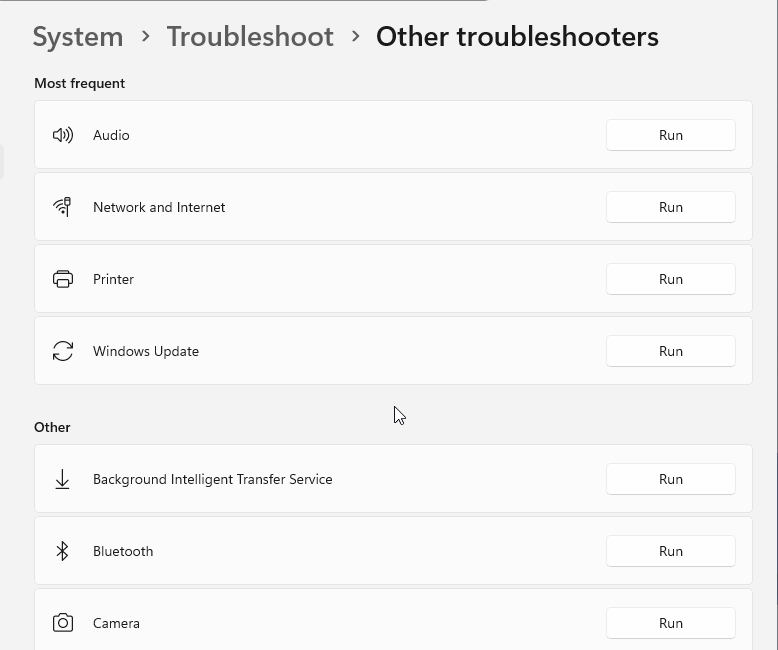
If Windows Update will not finish, open Start > Settings > System > Troubleshoot > Other troubleshooters.
Under Most frequent, select Run next to Windows Update.
Restart the laptop.
Open Windows Update again and select Check for updates.
If crashes began right after an update, open Settings > Windows Update > Update history > Uninstall updates.
Select the most recent update, choose Uninstall, and restart.
Repair the app or driver behind the crash
A specific app or device driver is the most common software cause when the laptop crashes during the same repeated task.
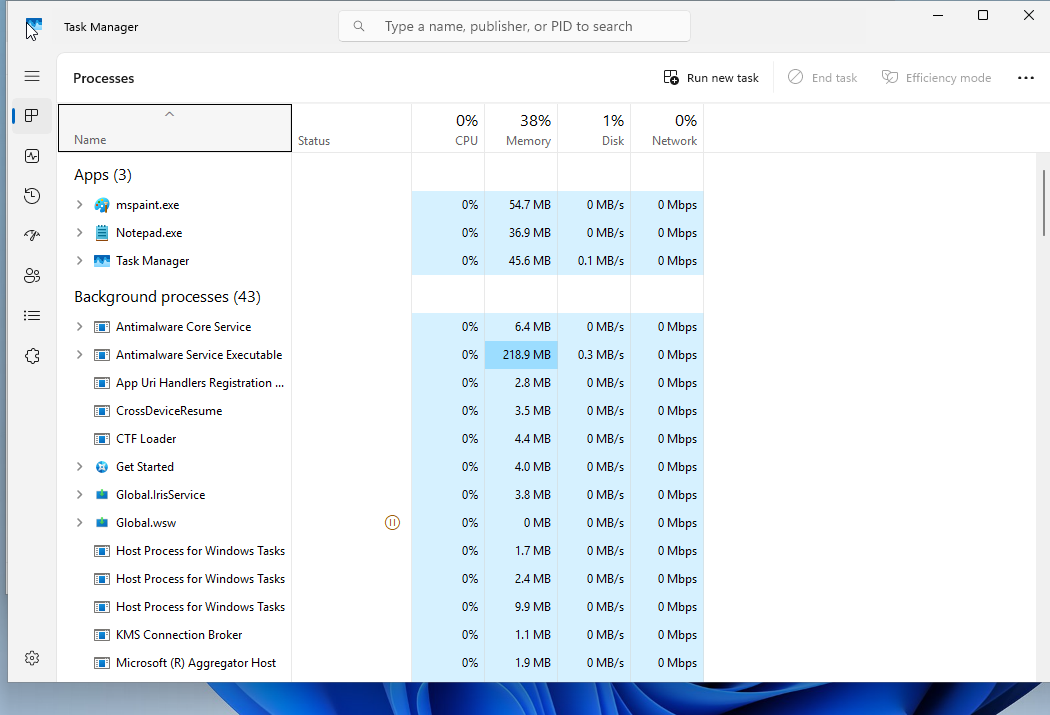
When the laptop only hangs inside one program, press Ctrl + Shift + Esc to open Task Manager. On the Processes tab, select the unresponsive app and choose End Task.
For an app that keeps crashing, open Start > Settings > Apps > Installed apps, find the app, open More, choose Advanced options, then select Repair. If repair is unavailable or does not help, use Reset.
If you need to remove the app, open Start > All apps, find the app, right-click it, and choose Uninstall.
For a desktop program, search for Control Panel, open Programs > Programs and Features, right-click the program, then choose Repair or Change and follow the installer.
For a device with a warning icon, or when a stop code points to a device, right-click Start, open Device Manager, expand the device category, right-click the device, choose Update driver, then select Search automatically for updated driver software. Restart if prompted.
When a driver update made things worse, open the same device in Device Manager, choose Properties, open the Driver tab, select Roll Back Driver, choose a reason, confirm with Yes, and restart if prompted.
If the device driver still looks broken, right-click it in Device Manager, select Uninstall device, choose Uninstall, then restart from Start. Windows attempts to reinstall the driver after the restart.
Clear heat, malware, storage, and antivirus issues
Use this method when crashes feel random, updates will not install, the laptop freezes under load, or you see pop-ups, battery drain, or unusually poor performance. These checks target background problems that make a Dell laptop unstable.
Open the Microsoft Defender dashboard, go to Device details, select Manage in Windows Security, and run a Quick scan. For a deeper check, open Scan options and choose Full scan, Custom scan, or Microsoft Defender Antivirus (offline scan).
If more than one antivirus program is installed, keep one and remove the others. Use Settings > Apps > Installed apps > More > Uninstall, or use Control Panel > Programs > Programs and Features > Uninstall/Change, then restart.
Free disk space with Start > Settings > System > Storage, then turn Storage Sense on.
To make room for Windows updates, open Start > Settings > System > Storage > Cleanup recommendations, review the suggested files, and select Clean up.
For overheating, turn off the laptop, unplug the AC adapter, and remove the battery only if it is removable. Hold compressed air upright at about 90 degrees and 6 to 8 inches from the vents, then blow dust out of the vents.
Start in Safe Mode and repair Windows files
Safe Mode separates Windows, drivers, and startup software from the rest of the system. Use it when the laptop starts but crashes before normal work is possible.
Open the Windows Recovery Environment and choose Troubleshoot > Advanced options > Startup Settings > Restart. Press 4 or F4 for Enable Safe Mode, 5 or F5 for Safe Mode with Networking, or 6 or F6 for Safe Mode with Command Prompt; enter the BitLocker recovery key if Windows asks.
If the laptop keeps restarting too quickly to read the crash details, use the same Startup Settings screen and press 9 or F9 for Disable automatic restart on system failure.
If Windows will not start, hold the Power button to shut down, turn the laptop on, and force shutdown again when the Windows logo appears. Repeat this twice, let Automatic Repair load on the third startup, then open Advanced Options > Troubleshoot > Advanced Options > Startup Repair and follow the prompts.
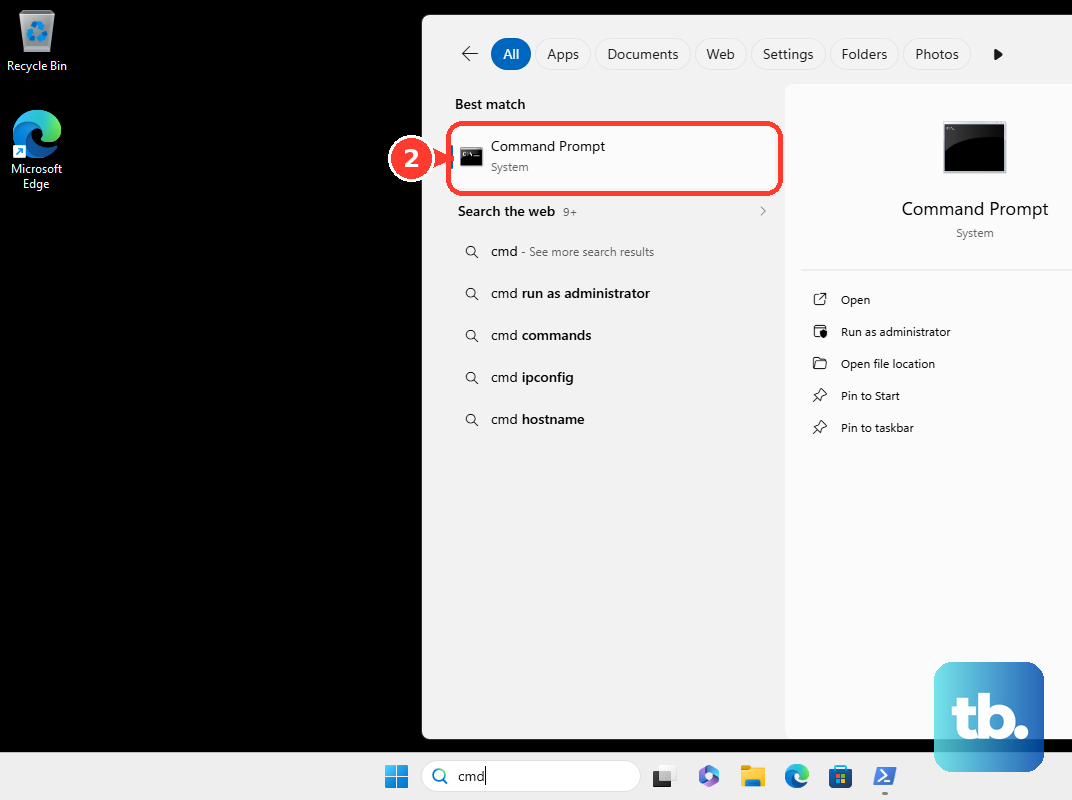
When Windows opens but still feels corrupted, search for cmd, right-click Command Prompt, choose Run as administrator, and allow the prompt. Run DISM.exe /Online /Cleanup-image /Restorehealth, then run sfc /scannow and wait for Verification 100% complete.
If this method fails, try System Restore, a Windows repair reinstall, or SupportAssist OS Recovery before choosing a full reset.
Restore Windows before a full reset
Open Control Panel > Recovery > Open System Restore, or press Windows + R, type rstrui.exe, and press Enter.
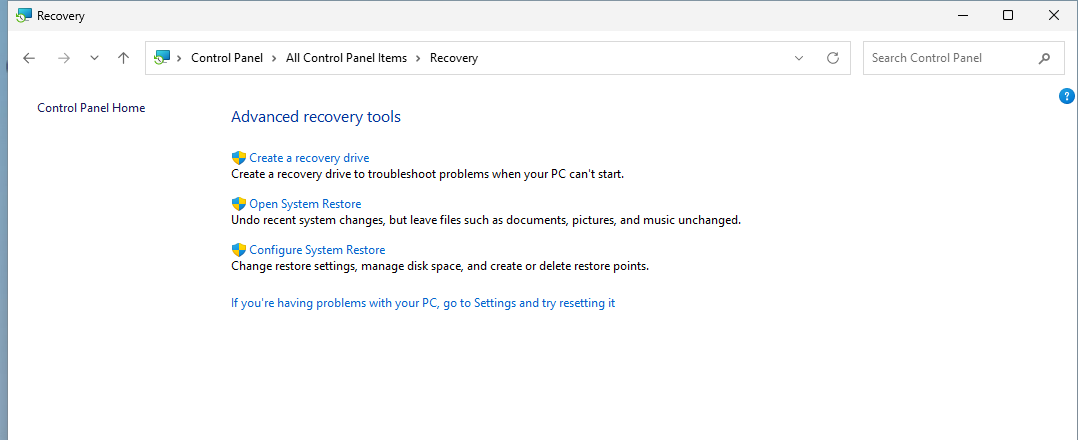
Select Next, choose a restore point, use Scan for affected programs to see what changes, then choose Next and Finish.
If Windows will not start normally, open the Windows Recovery Environment and choose Troubleshoot > Advanced options > System Restore. Follow the prompts, select a restore point, and enter the BitLocker recovery key if asked.
For a repair reinstall that preserves apps, files, and settings, use Windows 11 version 22H2 or later with the February 2024 optional update or later. Open Start > Settings > System > Recovery, then under Fix problems using Windows Update, select Reinstall now, choose whether the PC restarts automatically 15 minutes after installation completes, select OK, and let Windows download and install the repair.
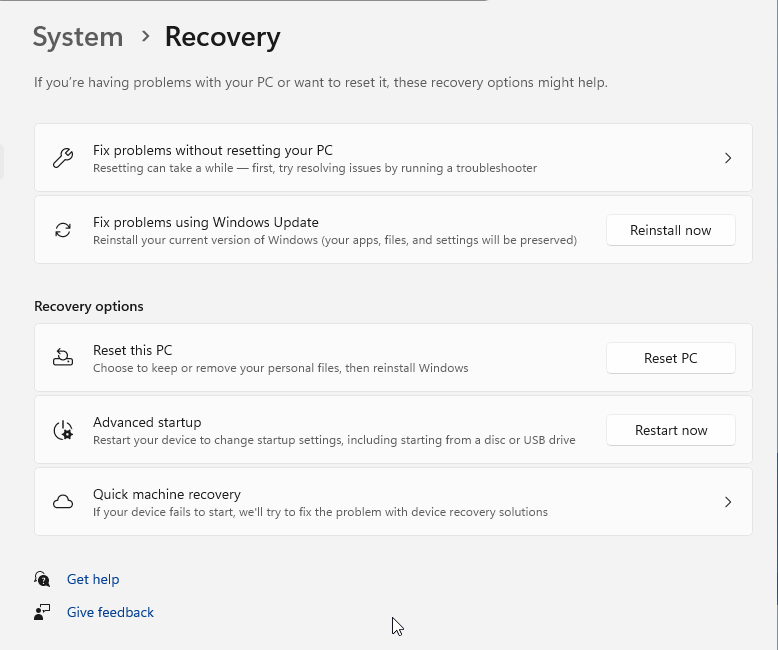
If this is a work or school laptop, update management settings can hide the Windows Update repair reinstall option. Contact the person who manages the device; Dell Command | Update is Dell's supported update tool for many managed Dell commercial systems.
Keep a current backup before moving from repair tools to reset or recovery.
Use Dell recovery or reset the laptop
Use these last; SupportAssist OS Recovery works only on certain Dell models with Dell factory-installed Windows 10 or Windows 11 and does not support Dell computers with Qualcomm processors.
Restart the laptop, press F12 during startup, and select SupportAssist OS Recovery.
If SupportAssist OS Recovery is missing, press F12, select BIOS Setup or System Setup, find SupportAssist under Update, Recovery, or Maintenance, turn BIOSConnect to On or Enabled, make sure SupportAssist OS Recovery is enabled, save, and restart.
To repair Windows through Dell recovery, choose the software repair option or Repair software, enter the BitLocker recovery key if prompted, select Start Repair, and restart after completion.
For a Dell factory reset, select Start Reset, then choose Reset to factory settings or Reset and update. Under Reset to factory settings, choose Yes, back up my files or No, do not back up my files. Under Reset and update, choose Yes, give access and transfer my settings and personal file or No, do not transfer my settings and personal files. Either path permanently deletes all data on the drive and uninstalls the programs and drivers you installed, and Dell asks you to confirm I understand that the reset will delete all of my system data and personal files. The backup choice only copies selected files out before that wipe, so move anything you need off the laptop first.
To reset from Windows, open Settings > System > Recovery > Recovery options > Reset PC, choose the reset options, and follow the prompts.
If Windows cannot start or you need USB recovery media, use the Windows Recovery Environment path Troubleshoot > Reset this PC, or use Dell's official OS Recovery Tool on a Windows 11 or Windows 10 computer to create USB recovery media for the Dell Service Tag.
Frequently Asked Questions
Why does my Dell laptop keep crashing after startup?
Check connected hardware first, then run Dell preboot diagnostics. Repeated crashes after startup often point to a peripheral, recent update, driver, corrupted Windows files, malware, low storage, overheating, or hardware failure.
What should I do when my Dell laptop shows a blue screen code?
Write down the stop code and any module name exactly as shown. Search that exact code on Dell Support or Microsoft Support so the next fix matches the crash.
Can SupportAssist fix Dell laptop crashes?
Yes. When Windows still boots, SupportAssist runs Dell's blue screen repair flow and installs Dell BIOS and driver updates. On supported systems, SupportAssist OS Recovery also offers software repair and reset options.
Does resetting my Dell laptop delete everything?
Yes. Both Dell SupportAssist OS Recovery reset options, Reset to factory settings and Reset and update, permanently delete all data on the drive and uninstall the programs you installed, whichever backup choice you make. The backup choice only decides whether selected files are copied out first, so back up everything you need before using reset or factory recovery.