Your external hard drive connects, but you cannot open your files. Corruption is one explanation; a bad connection or an unmounted volume also blocks access. Start by protecting your data, then work through the connection checks and Windows or Mac repairs below, with recovery options for files that remain inaccessible.
Protect your files before attempting repairs
File-system repairs risk discarding damaged files or metadata, so protect your data first.
- 1.Copy accessible files to another physical drive.
- 2.For needed files you cannot open, use the recovery options below before repair if you have no backup, and always before formatting or initializing the disk.
- 3.If the drive reports I/O errors or you suspect physical failure, prioritize recovery or imaging over repeated repair scans.
- 4.Keep your healthy backup available to restore files to the repaired drive or a replacement.
Rule out a connection problem
Connect the external drive to another USB port. Try another compatible USB cable. Check the drive’s power light.
For a desktop external drive, check its external power adapter. Connect the drive to another computer to check whether it becomes accessible. If a different connection restores access, copy your important files before continuing.
Restore access to a detected Windows disk
A healthy volume needs a drive letter to appear in This PC. In Windows 11, right-click Start and select Disk Management. Locate the external volume and check for a drive letter.
For a healthy volume without a letter, right-click it and choose Change Drive Letter and Paths > Add. Assign an unused letter and select OK.
If the external disk is marked Offline, right-click that disk and select Online. This restores availability; it does not repair corrupted file contents.
Do not initialize an unexpectedly unreadable disk containing files you need. Initialization is a destructive fallback only after data recovery.
Repair a recognized Windows volume
Windows error checking and CHKDSK repair file-system errors on supported, recognized volumes.
Open File Explorer > This PC.
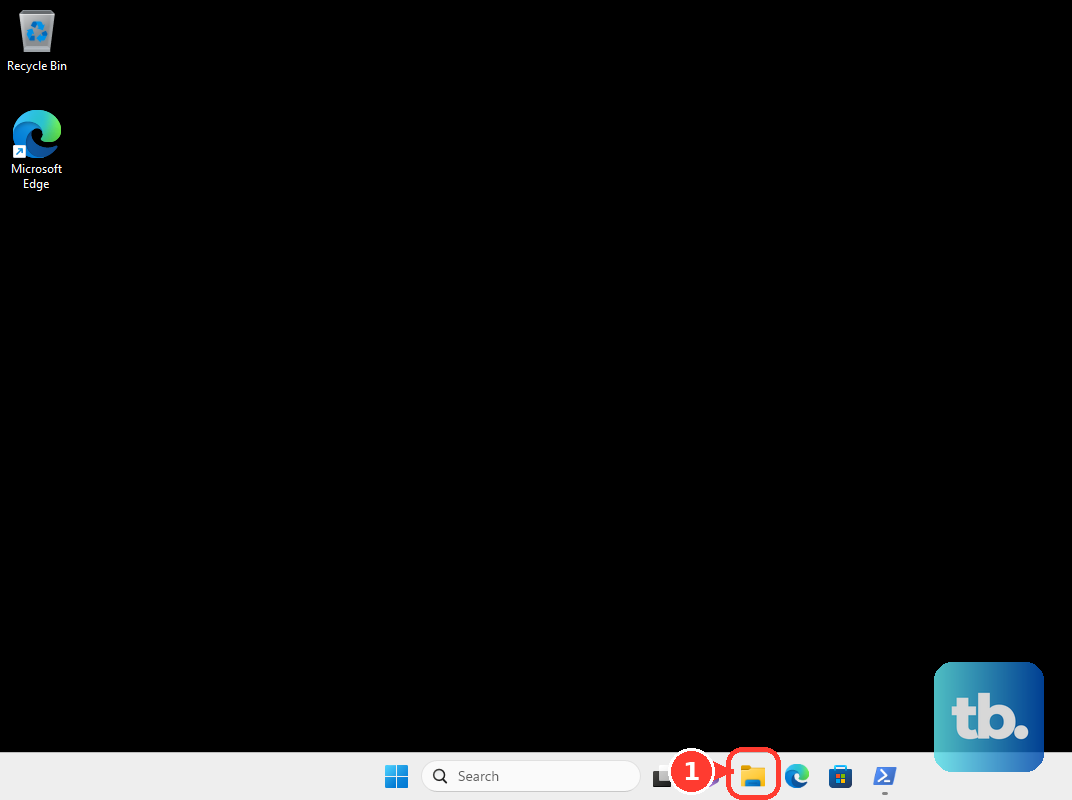
Right-click the external volume and select Properties. Open Tools. Under Error checking, select Check.
Select Scan drive. Follow the repair instructions Windows displays.
To use CHKDSK for a command-line repair, first confirm the external drive’s letter in This PC. Close applications using the external drive. Open Command Prompt using Run as administrator.
Run chkdsk X: /f, replacing X with the confirmed external drive letter. If Windows offers to schedule the check at restart, enter Y. If you accepted that restart check, restart the computer with the external drive connected.
Mount the Mac volume and run First Aid
An unmounted external volume blocks access even when its file system is healthy.
On an Apple silicon Mac laptop, unlock the Mac before approving an accessory connection. Select Allow if the accessory connection prompt appears. Open Applications > Utilities > Disk Utility.
For a detected but unmounted external volume, select it and click Mount. If the drive still needs repair, copy accessible files elsewhere before running First Aid.
In Disk Utility, choose View > Show All Devices. Select the lowest volume listed under the external device. Click First Aid. Select Run.
Enter the requested password if the volume is locked. Repeat First Aid upward through every volume and volume group, then each container, and finally the physical external device.
Recover inaccessible files before going further
Use file recovery when needed files remain inaccessible or the drive is reported as RAW. RAW is a symptom, not a file system CHKDSK repairs, and no recovery tool guarantees success.
On Windows 11, install Microsoft’s Windows File Recovery onto a healthy disk. Open Windows File Recovery from Start. Select Yes at the permission prompt.
Run winfr X: Y: /extensive, replacing X: with the corrupted external drive and Y: with a destination on a different physical disk. Extensive mode supports corrupted NTFS and FAT/exFAT volumes. Enter Y when prompted to start recovery. Never recover files onto the source drive.
For an alternative on Windows, Mac, or Linux, extract the stable TestDisk & PhotoRec 7.2 package onto healthy storage. Run PhotoRec with administrator or root privileges. Select the affected disk. Select its partition.
Choose Search. Select Other for the file-system family unless the partition uses ext2, ext3, or ext4. Choose the whole partition as the search area for corruption recovery. Select a destination on another disk.
Confirm with the displayed key. PhotoRec recovers file contents rather than rebuilding the original directory structure.
If needed files have no backup and software recovery fails, contact a professional recovery provider before erasing or returning the drive.
Diagnose trouble that survives ordinary repairs
After protecting recoverable data, use a deeper Windows scan on a recognized external volume. CHKDSK’s /r option includes /f, scans for bad sectors, and attempts to recover readable information. Expect a scan to take many hours; it cannot repair physically damaged hardware.
Close applications using the drive. Open Command Prompt using Run as administrator. Run chkdsk X: /r, replacing X with the confirmed external drive letter. Do not keep repeating repair scans on a drive with I/O errors.
For supported drives, SeaTools 5 on Windows or Linux also offers hardware diagnostics. Available functions depend on the drive and interface, with fewer features on non-Seagate drives.
Select the drive in SeaTools 5. Open Health. Choose Quick Tests or Extended Tests to diagnose the drive.
If these checks and repairs fail, recover remaining needed files before trying a format. Replace a physically failed drive; formatting cannot repair its hardware.
Reformat only after your files are safe
Formatting erases access to stored files and prepares the drive for reuse, so proceed only after recovery or backup is complete.
- 1.Confirm that you have selected the correct external drive and saved your needed files elsewhere. Follow the Windows or Mac instructions that apply to your computer.
- 2.On Windows 11, right-click Start and open Disk Management. Right-click the existing external volume and choose Format.
- 3.Choose the intended formatting settings, then select OK and OK again. Perform a quick format recreates the file table; it does not fully erase the volume.
- 4.On a Mac, open Disk Utility and choose View > Show All Devices. Select the physical external device and click Erase.
- 5.Set Scheme to GUID Partition Map, choose a Format compatible with the computers that will use the drive, and enter a name. Select Erase, then Done.
- 6.Restore your saved files to the repaired drive or a replacement.
Frequently Asked Questions
Does a BitLocker recovery-key prompt mean the drive is corrupted?
The prompt indicates an encryption barrier, not proof of corruption. If your key was backed up to your personal Microsoft account, sign in at https://aka.ms/myrecoverykey, match the key ID, and use the corresponding recovery key.
Why does one Mac app fail to access an otherwise accessible external drive?
Check that app’s file-access permission. Open Apple menu > System Settings > Privacy & Security > Files & Folders. Inspect the affected app and enable the relevant location permission offered there. This changes app access; it does not repair the file system.
Will a warranty replacement recover my files?
A warranty replacement does not include file recovery. WD states that it does not provide data recovery itself and directs customers to recovery partners. Arrange recovery before returning a drive containing needed files without a backup. Replacement eligibility depends on the warranty.