A controller not working in Rocket League on PC usually comes down to the game launching before the controller is ready, Steam Input taking over, Bluetooth pairing trouble, outdated firmware, or damaged local game data. Start with the connection checks, then move through Steam, Windows, bindings, and repair steps until Rocket League responds normally again.
Reconnect the controller before launching Rocket League
The most common cause is Rocket League starting before Windows, Steam, or Epic properly recognizes the controller.
Close Rocket League.
Connect the controller to your PC before opening the launcher.
Open Epic Games Launcher or Steam, then launch Rocket League after the controller is already connected.
For Epic Games Store split-screen, connect the controllers first, open Epic Games Launcher, and launch Rocket League. At the main menu, Player 2 presses Options on a DualShock 4 controller or Menu on an Xbox One controller to join the party.
Update and reconnect a PlayStation controller
Use this when a DualSense controller does not work in Rocket League through Epic Games Launcher or Steam. The Rocket League-specific fix is to update the controller software, disconnect it, restart the PC, and reconnect it.
For a DualSense controller, install and open PlayStation Accessories on Windows.
Connect the controller and follow the app prompts to update the firmware.
To install the app, open the official PlayStation Accessories download page and select Download for Windows.
After the update, disconnect the controller and restart your PC.
Reconnect the controller with USB or Bluetooth before launching Rocket League again.
Fix Bluetooth pairing in Windows
Bluetooth controllers sometimes stop pairing cleanly after they worked in a previous session. On Windows 11, open Start > Settings > Bluetooth & devices, switch Bluetooth off, then switch Bluetooth back on. On Windows 10, open Start > Settings > Devices > Bluetooth & other devices and switch Bluetooth off, then back on.
If the controller still does not connect on Windows 11, stay in Start > Settings > Bluetooth & devices. Find the controller, select More options, choose Remove device, then select Add device and pair it again. On Windows 10, go to Start > Settings > Devices > Bluetooth & other devices, select the controller, choose Remove device, then select Add Bluetooth or other device and choose Bluetooth to pair it again.
For a DualSense controller, hold Create and PS for at least 3 seconds, then select the controller from the Bluetooth device list. For a DUALSHOCK 4 controller, put it in pairing mode, enable Bluetooth on the PC, and choose it from the Bluetooth device list.
If Bluetooth drops mid-match, open Device Manager, expand Bluetooth, right-click your Bluetooth device, open Power Management, and clear Allow the computer to turn off this device to save power.
Set Steam Input for Rocket League
Open Steam.
Go to Steam > Settings > Controller.
Turn on the controller support option that matches your device: Enable Steam Input for Xbox Controllers, Enable Steam Input for PlayStation Controllers, Enable Steam Input for Switch Pro Controllers, or Enable Steam Input for generic controllers.
Open Steam Library, right-click Rocket League, and choose Properties.
Go to Controller, set Override for Rocket League to Enable Steam Input, close the window, and relaunch the game.
If your buttons are doubled, swapped, or controlling the wrong device, return to Override for Rocket League and choose Disable Steam Input.
When the controller works in Steam but the layout is wrong, open Rocket League’s controller layout screen in Steam and restore a default-style gamepad or XInput mapping.
Close DS4Windows, InputMapper, or similar remapping tools while testing Steam Input so Steam handles the controller directly.
Update Xbox controller firmware
Update the controller before chasing deeper Rocket League settings.
- 1.Install or open Xbox Accessories on your Windows PC.
- 2.Connect the Xbox Wireless Controller, Xbox Elite Wireless Controller, or Xbox Adaptive Controller by USB or a supported wireless method.
- 3.Select the controller in Xbox Accessories.
- 4.Apply any available firmware update.
- 5.Reconnect the controller and launch Rocket League again.
Repair Rocket League files and clear the cache
When the controller connects in Windows but Rocket League ignores it, repair the game files and clear local cached data.
For Epic Games Launcher, open Epic Games Launcher, find Rocket League in Library, click the three dots on the right side of the game line, choose Manage, then click Verify. Wait for validation to finish before launching again.
For Steam, restart your computer, open Steam, go to Library, right-click Rocket League, open Properties, select Installed Files, and choose Verify integrity of game files.
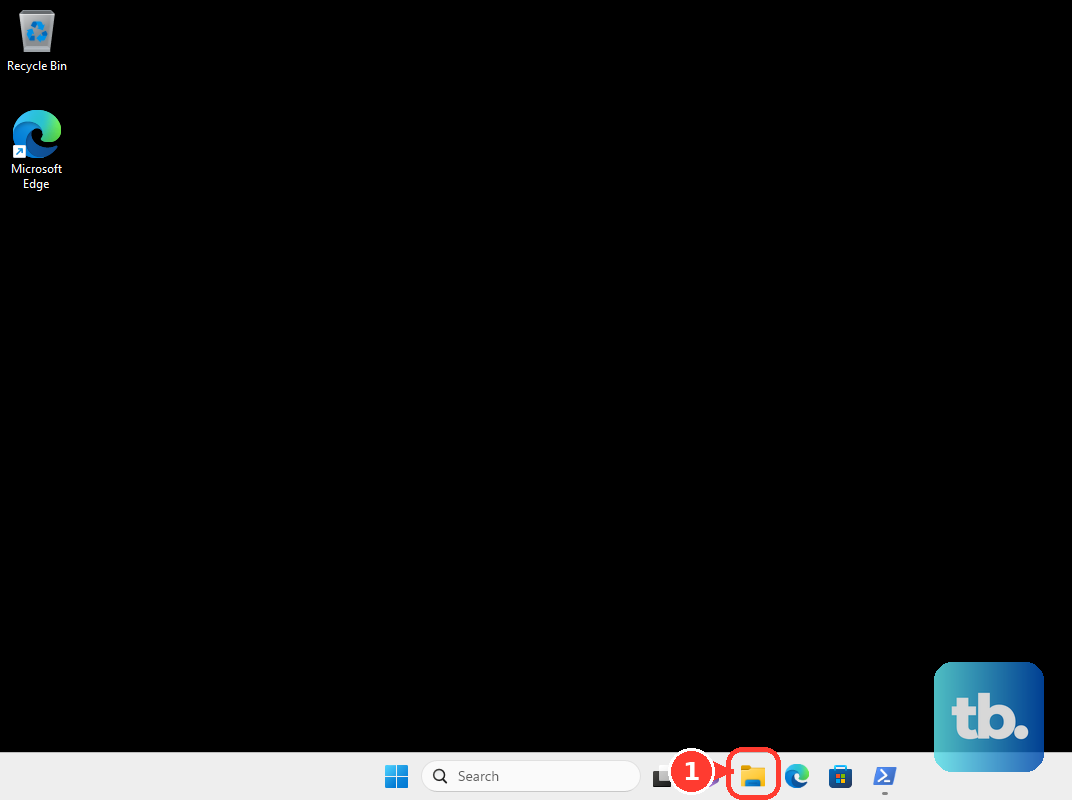
To clear the Rocket League cache, make sure the game is not running, open File Explorer, go to Documents > My Games > Rocket League > TAGame, right-click Cache, select Delete, restart the computer, and launch Rocket League.
If repair and cache clearing fail, test one direct USB connection before moving on to save-file and settings fixes.
Reset bindings Rocket League already detects
The most common cause when the controller is detected but buttons do the wrong thing is a missing, changed, or corrupted control binding.
Open Rocket League.
Go to Settings > Controls > View/Change Bindings.
Review the controller actions and rebind anything that is blank, missing, or assigned to the wrong input.
Rocket League includes Default, Legacy, and Custom control binding presets.
Switch to Default or Legacy without losing your Custom bindings.
Fix settings that will not save
If your controller changes work once and disappear after relaunch, make sure Rocket League can write its settings file.
- 1.Open File Explorer and go to C:\Users\[your username]\Documents\My Games\Rocket League\TAGame\Config.
- 2.Right-click TASystemSettings.ini and choose Properties.
- 3.Clear the Read-Only checkbox.
- 4.Click Apply.
- 5.Launch Rocket League and test your bindings again.
Use last resort repairs for stubborn controller problems
If Rocket League or the launcher is stuck in the background, press CTRL+ALT+DEL, open Task Manager, click Processes, select the game or launcher process, and click End Task. Relaunch Rocket League after the process closes.
For Epic launcher trouble, exit Epic Games Launcher, press Windows key + R, type %localappdata%, and press Enter. Open EpicGamesLauncher > Saved, delete webcache, webcache_4147, and webcache_4430 when present, then relaunch the launcher.
If your local Rocket League save data is corrupted, close Rocket League, open Epic Games Launcher, select Settings, and clear Enable Cloud Saves. Launch Rocket League to create a new save file; local settings can reset and Epic says those settings cannot be restored.
Older fixes sometimes tell you to add -dx9 to Rocket League launch options. Remove -dx9 if it is present, because Rocket League no longer supports PC DirectX 9.
Frequently Asked Questions
Why does my controller work in Windows but not in Rocket League?
Rocket League may have launched before the controller was detected, Steam Input may be overriding the device, or the game’s local cache or bindings may be corrupted.
Should Steam Input be on or off for Rocket League?
Turn it on when Rocket League does not detect your controller through Steam. Turn it off when Steam Input causes double input, wrong button mapping, or the wrong device to control the game.
Can I fix a DualSense controller not working in Rocket League on PC?
Yes. Update the controller with PlayStation Accessories, disconnect it, restart the PC, then reconnect it by USB or Bluetooth before launching Rocket League.
Will verifying Rocket League files delete my saved data?
Epic’s file verification repairs damaged or corrupted game files without affecting saved data. Creating a new save file is different and can reset local settings.