Your computer can get stuck coming out of hibernation when Windows resumes but the screen, keyboard, mouse, driver, or hibernation file does not come back cleanly. Start with the wake controls and display resets that take seconds, then move into power, driver, and repair steps when Windows still refuses to return.
Try the normal wake controls first
The most common starting point is simple wake input that Windows or the PC firmware misses on the first try.
Move the mouse once, press any key on the keyboard, then press and release the Power button. Dell's wake sequence is the mouse and keyboard first, then the Power button if nothing happens. Microsoft notes that the Power button resumes most PCs, though not every PC takes the same wake input.
On a Surface, press and release the Power button. You can also press any key on a Surface Type Cover or keyboard, open the lid and wait for the screen to turn on, or tap the screen on Surface Laptop Studio in Stage or Studio mode.
When the lock screen appears, swipe up from the bottom edge of the screen or press a key, then enter your password at the sign-in screen.
Clear attached devices and charge the laptop
Connected hardware can leave a PC looking dead after hibernation, especially with a dock, external monitor, USB accessory, SD card, or keyboard cover attached.
Disconnect USB drives, SD cards, USB accessories, external monitors, the Type Cover, and anything else plugged into the computer. If you use a Surface Dock, unplug the Surface from the dock.
Connect the power supply designed for the computer and leave it charging for at least 15 minutes. Close and reopen the lid or keyboard, then press the Power button again.
Wake the display when the PC is already on
A black screen after hibernation does not always mean the whole computer is frozen. Windows can be awake while the graphics driver or display output is stuck.
Press Windows + Ctrl + Shift + B. A successful graphics reset gives you a beep or a brief screen flicker.
Next, press Windows + P, tap P again, then press Enter. This cycles display modes such as PC screen only, Duplicate, and Extend when Windows resumed to the wrong screen.
If the screen stays black, force restart the computer, then continue with Safe Mode or driver updates.
Force restart a stuck hibernation session
When the wake controls fail, a forced restart is the supported next move. Dell's guidance for a computer stuck in sleep or hibernation is a hard shutdown, pressing the Power button until the computer shuts off.
Press and hold the Power button for 20 seconds. On Surface, keep holding until the logo screen appears, about 20 seconds.
On a Dell PC that powers on but will not resume from hibernation, hold the Power button until the computer shuts off. Press the Power button again to turn it on.
Unsaved work from before hibernation is lost when you force the PC off, but this is the supported next move when normal wake attempts fail.
Fix a blank screen with a cursor
If Windows shows only a black screen and a cursor, use the security screen first. Press Ctrl + Alt + Del and wait for the Windows security screen.
Open Task Manager. Find Windows Explorer, right-click it, and select Restart.
If Windows Explorer is missing, select File, then Run new task. Type explorer.exe and press Enter.
When Windows comes back, install Windows and driver updates before relying on hibernation again.
Boot into Safe Mode when Windows will not show the desktop
Use Safe Mode when normal restarts still return to a blank screen.
- 1.Hold the Power button for 10 seconds to force the PC off.
- 2.Repeat the forced shutdown two or three times until Windows enters Recovery Mode.
- 3.Choose Troubleshoot, then Advanced options, then Startup Settings.
- 4.Select Restart.
- 5.Press F5 to start Safe Mode with Networking.
Update Windows and device drivers
This fixes failed resume caused by stale Windows files, graphics drivers, chipset drivers, input drivers, Bluetooth, USB, network, or system-device drivers.
On Windows 11, open Start, then Settings, then Windows Update, and select Check for Windows updates. Install available updates with Download & install, then restart when Windows asks.
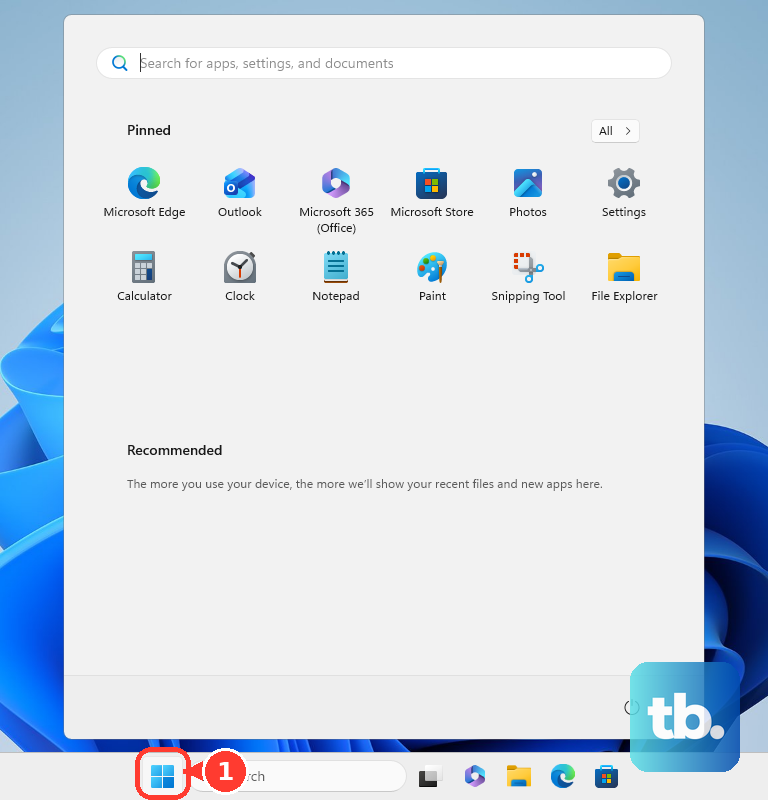
For optional drivers on Windows 11, go to Start, Settings, Windows Update, and Advanced options. Turn on Receive updates for other Microsoft products, open Optional updates, select listed driver updates, and choose Download and install.
On Windows 10, the route is Start, Settings, Update & Security, then Windows Update. For optional drivers there, open Advanced options, turn on Receive updates for other Microsoft products when you update Windows, return to Windows Update, select Check for updates, then open View optional updates when it appears.
To update one device, right-click Start and open Device Manager. Expand the relevant category, right-click the device, choose Update driver, then select Search automatically for updated driver software.
On Dell PCs, use Dell Support with your Service Tag to install the current BIOS, chipset, and video drivers for your exact model. Suspend BitLocker before you flash the BIOS on a PC that has BitLocker enabled. Dell warns that an unsuspended PC does not recognize the BitLocker key on the next reboot and prompts for the recovery key instead.
Refresh hibernation and power behavior
Windows uses the hiberfil.sys file for hibernation, and Microsoft supports refreshing it by turning hibernation off and back on. Disabling hibernation also disables hybrid sleep, and you may lose data if power is lost while the hybrid sleep setting is still turned on. Once hibernation is unavailable, hybrid sleep does not work.
Search for cmd, right-click Command Prompt, and select Run as Administrator. At User Account Control, select Continue.
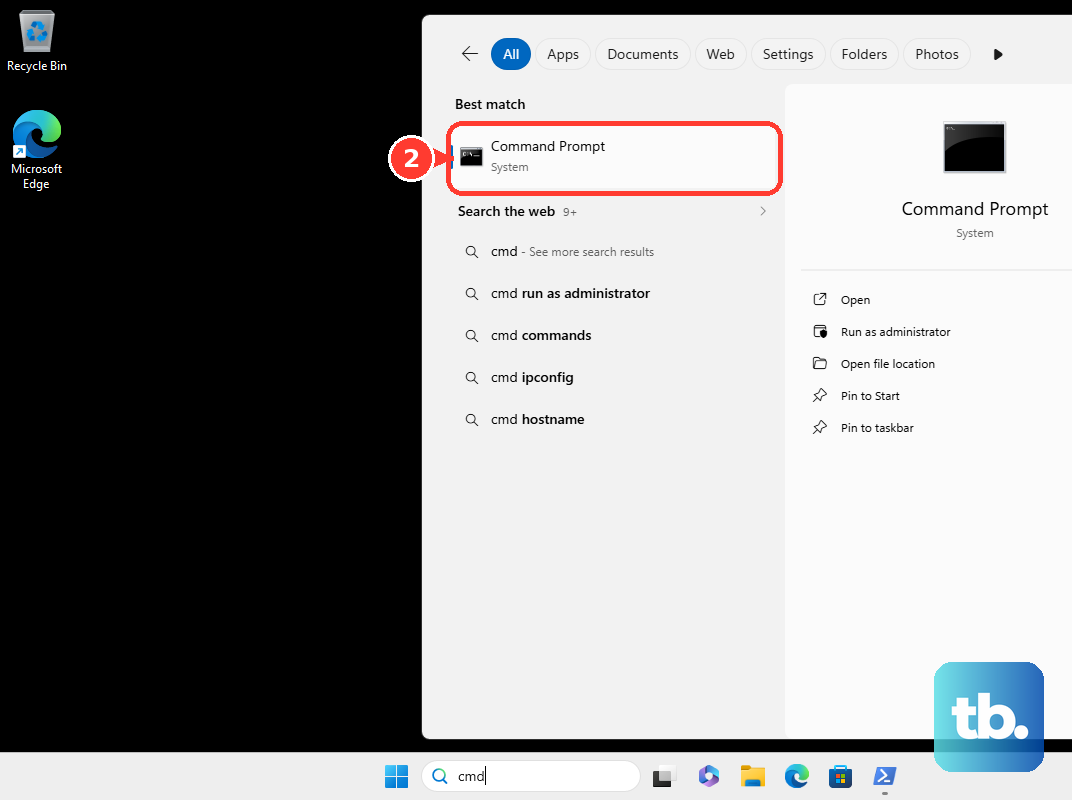
Run powercfg.exe /hibernate off, press Enter, type exit, and press Enter. Restart the computer.
Open administrator Command Prompt again, run powercfg.exe /hibernate on, press Enter, type exit, and press Enter. Restart again and test hibernation.
If this method fails, open Power Options, select Choose what the power buttons do, select Change settings that are currently unavailable, clear Turn on fast startup, and test resume again.
Use Windows repair options when the problem keeps returning
When hibernation failures survive the everyday fixes, move through Windows repair from least disruptive to most disruptive.
Open Settings, then System, then Troubleshoot, then Other troubleshooters, and run the troubleshooter that matches the issue.
Use Startup Repair from Windows Recovery Environment by selecting Troubleshoot, then Advanced options, then Startup Repair, then Restart.
If the problem began after a recent change, use System Restore when a restore point is available. It rolls back system files and settings and leaves your personal files alone.
On Windows 11, go to Settings, then System, then Recovery, and use Reinstall now under Fix problems using Windows Update. This reinstalls the current version without touching your files, apps, or settings, and it needs Windows 11 with the 2022 annual update plus the February 2024 optional update or later.
If the issue started after a Windows update, open Windows Update, then Update history, then Uninstall updates, select the update, and choose Uninstall.
On Windows 11 version 24H2 or later, use Point-in-time restore from Windows Recovery Environment. It rolls the whole system drive back to an automatic restore point from the last 72 hours, including apps, settings, passwords, and personal files, so treat it as a bigger step than System Restore.
Use Reset PC only as a last resort, choosing whether to keep personal files or remove everything.
For work or school computers, recovery and update options are blocked when management policies control Windows Update or recovery. Contact your IT administrator when those buttons are missing.
Frequently Asked Questions
Can I lose files by forcing a computer out of hibernation?
You can lose unsaved work from before hibernation when you hold the power button to force a shutdown. Saved files remain on the drive, but open changes that were never saved are gone.
Why does my computer wake but the screen stays black?
Windows resumed while the graphics driver, Windows Explorer, or display output mode stayed stuck. Use Windows logo key + Ctrl + Shift + B, Windows + P, or Ctrl + Alt + Del depending on what appears on screen.
Should I disable hibernation permanently?
Refresh hibernation with the supported off-and-on command when hiberfil.sys is corrupt. Keeping hibernation off also disables hybrid sleep, which creates data-loss risk if power is lost while hybrid sleep is active.
Does Windows 10 still count for these fixes?
Many of the same paths still exist in Windows 10, but Microsoft ended free updates, technical assistance, and security fixes on October 14, 2025. Windows 11 is the current consumer Windows version.