A yellow computer monitor points to a warm display mode, accessibility tint, color profile, monitor preset, cable, or graphics setting changing how white appears.
Start with the software toggles first. They take a minute and fix the cases where the screen turns yellow after sunset, after a shortcut, or after a display app changes color.
Turn Off The Warm Screen Mode First
On Windows 11, select the Network or Speakers icon on the right side of the taskbar, then select Night light to turn it off.
For the full setting, open Start, Settings, System, Display, Night light. Move Strength left or select Turn off now.
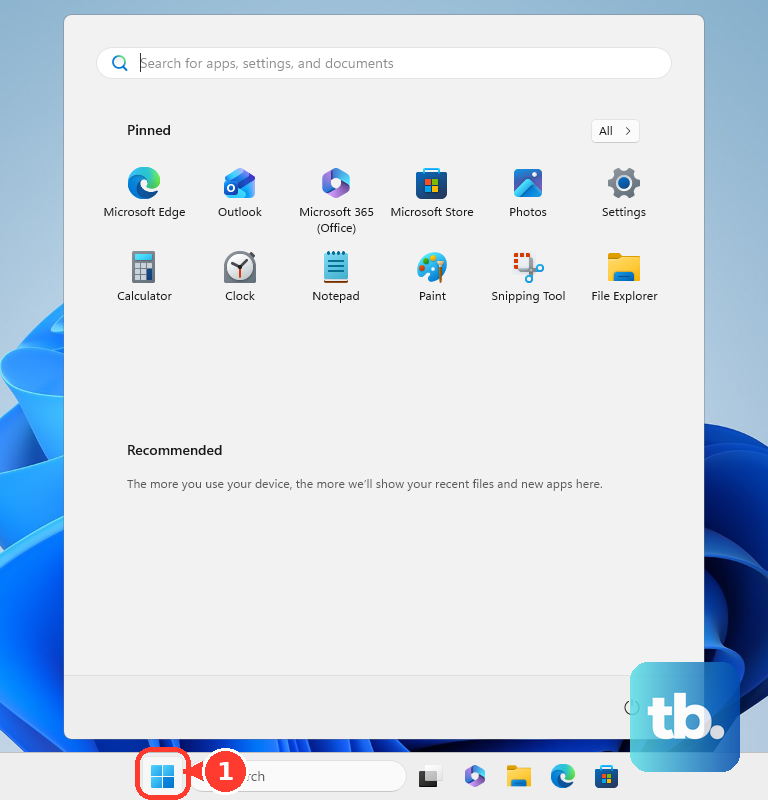
If the yellow tint returns later in the day, stay in Night light and turn off Schedule night light. You can also change Set hours so the warm color stays off during normal use.
On Mac, open the Apple menu, System Settings, Displays, Night Shift. Turn it off, move Color Temperature toward Less Warm, and check the schedule.
Use The Same Fix On ChromeOS Or Ubuntu
This applies when your Chromebook or GNOME desktop shifts to a warmer screen color during evening hours.
On ChromeOS, open Settings, go to Device, then select Displays. Under Night Light, turn it off or move Color temperature toward less warm.
On GNOME or Ubuntu, open Activities and type Displays. Select Displays, choose Night Light, then turn it off or set Color Temperature to a less warm setting.
Switch Off Accessibility Color Filters
The most common cause when the whole desktop, menus, and apps look yellow is an accessibility color filter or tint.
On Windows 11, press Windows logo key plus U, or open Start, Settings, Accessibility, Color filters. Turn Color filters off.
If the shortcut is enabled, press Windows logo key plus Ctrl plus C to toggle color filters.
On Windows PCs that show the setting, open Settings, Accessibility, then under Vision select Screen Tint. Turn Screen tint off, or lower Tint strength and move the tint away from yellow.
On macOS, open the Apple menu, System Settings, Accessibility, Display, Color Filters. Turn Color filters off, or move Filter type away from Color Tint.
Reset The Monitor And Check The Cable
If one external monitor is yellow and your other screen looks normal, check the display hardware next.
- 1.Use the monitor buttons or joystick to open the On-Screen Display menu, choose the reset option, then confirm the factory reset.
- 2.On a Dell or Alienware monitor, open Custom Color, use the individual RGB option, then adjust Red, Green, and Blue until white looks neutral.
- 3.Disconnect docks, dongles, and adapters, then connect the monitor directly to the computer.
- 4.Secure the monitor cable at both ends, then try a different cable.
- 5.Try another video output such as HDMI, DisplayPort, DVI, or VGA, then test the monitor with a different computer.
Restore The Right Color Profile
Open Start, Settings, System, Display, Color profile on Windows 11.
Select the affected display, expand the color profile that looks wrong, then choose Remove.
Add a replacement only when you have a trusted profile for that exact monitor or a newly created calibration profile. In Color profile, select the display, choose Add profile, then locate the correct .icc or .icm file.
On macOS, open the Apple menu, System Settings, Displays. Use the Color profile pop-up menu to choose the recommended profile for the display.
On a Pro Display XDR, Studio Display, Studio Display XDR, or 14-inch or 16-inch MacBook Pro from 2021 or later, Displays shows a Preset pop-up menu with built-in reference modes instead. Select the display at the top of the window, then choose a general-use Apple Display preset rather than a video or print reference mode to return white to normal.
For damaged Mac profiles, open ColorSync Utility, select Profile First Aid, then choose Verify and follow the onscreen instructions.
Use current Windows Color profile settings, the Mac Color profile menu, or official monitor and GPU software. Registry edits, third-party driver portals, and old Windows calibration paths are the wrong tools for this fix.
Update Or Reset Graphics Color Settings
Graphics software applies custom color, saturation, HDR, and range settings that change monitor color.
- 1.Open Start, Settings, Windows Update, Advanced options, Optional updates, Driver updates, then install the relevant display or GPU driver and restart.
- 2.Open Device Manager, expand Display adapters, right-click the graphics device, select Update driver, then choose Search automatically for updated driver software.
- 3.On AMD systems, open AMD Software, go to Display Settings, then turn off Custom Color, set Display Color Enhancement to Disabled, and turn Color Deficiency Correction off.
- 4.On Intel systems, open Intel Graphics Command Center, choose Display, Color, then select Restore to Original Colors or return custom values to neutral.
- 5.On NVIDIA systems, open NVIDIA Control Panel, Display, Adjust desktop color settings, then return Brightness, Gamma, Contrast, and Digital Vibrance to default values.
Fix Browser Pages That Look Yellow
The most common cause when only websites look yellow is a dark-mode, night-mode, reader, color-filter, or accessibility extension changing page colors.
In Chrome, right-select the extension icon next to the address bar and choose Remove from Chrome.
If the icon is hidden, open Chrome, More, Extensions, Manage extensions. On the extension, select Remove, then confirm Remove.
To keep the extension for selected sites, open the Extensions icon, select More next to the extension, point to This can read and change site data, then choose When you select the extension or On current site.
In Microsoft Edge, open the Extensions icon, choose Manage extensions, then turn off the toggle next to the extension. To remove it, right-click the extension icon, choose Remove from Microsoft Edge, then select Remove.
Check HDR And Brand Display Apps
On Windows 11 HDR PCs, install Windows HDR Calibration from the Microsoft Store. Before you start, turn HDR on for that display in Settings, System, Display, and note that the app needs a newer AMD, Intel, or NVIDIA GPU running WDDM 2.7 or later for the saturation step to work.
Open Start, All apps, Windows HDR Calibration, move the app to the HDR-capable display, and run it full screen. Drag each test-pattern slider until the pattern disappears, then set Color saturation and save the profile.
For a built-in laptop or tablet display that can play HDR video, open Start, Settings, System, Display, select the built-in display, choose HDR, then open Display calibration for HDR video and select Calibrate. An ordinary SDR built-in screen does not show these controls, so use the monitor and color profile steps above instead.
On supported Dell displays, open Dell Display and Peripheral Manager, choose Display Settings, then review color settings, automatic brightness or color temperature, and day or night brightness and contrast schedules. Set a neutral preset or disable the schedule.
On supported Lenovo notebooks, open Lenovo Vantage, My Device Settings, Display & Camera, then turn off Eye Care Mode or move the display color tone toward neutral or cooler.
If this method fails, use the monitor’s On-Screen Display to turn off extra picture processing, then factory reset the monitor and update the graphics driver from Windows Update or the official NVIDIA, AMD, Intel, Dell, Lenovo, or PC-maker download page.
Handle Managed Devices And Hardware Checks
The most common cause on a work or school computer is a forced browser extension or policy that restores the tinting tool after you turn it off.
Open Chrome or Edge and check whether the browser says it is managed. You can view chrome://policy or edge://policy, but a force-installed extension has to be changed by the organization that manages the device.
Contact your workplace or school IT admin and say the monitor or browser has a yellow tint caused by a managed extension or display policy. Tell them whether the same monitor looks normal on a personal computer.
On a Mac where the yellow tint survives Night Shift, color filters, profiles, cables, and monitor reset, run Apple Diagnostics. Shut down the Mac, disconnect external devices except keyboard, mouse, display, Ethernet when used, and power, then follow the startup key sequence for Apple silicon or Intel Mac.
Frequently Asked Questions
Why is my computer monitor yellow all of a sudden?
A warm display feature such as Windows Night light, Mac Night Shift, Chromebook Night Light, or GNOME Night Light is the first setting to check. Accessibility color filters, monitor presets, browser extensions, color profiles, cables, and GPU software also change screen color.
Why is only one monitor yellow?
Reset that monitor from its On-Screen Display, check the cable and adapter chain, then remove the color profile assigned to that specific display. Dell and Alienware monitors also include Custom Color RGB controls for matching whites.
Can a browser extension make my screen yellow?
Yes, for web pages. Remove or restrict dark-mode, night-mode, reader, color-filter, and accessibility extensions in Chrome or Edge when only browser content looks yellow.
Should I use an old Windows calibration tool or registry edit?
No. Use Windows 11 Color profile settings, Windows HDR Calibration for HDR displays, Device Manager, Windows Update, or the official NVIDIA, AMD, Intel, Dell, Lenovo, or PC-maker support page.