Your router is blinking green, and you're trying to work out what's wrong. That light has different meanings across models, from normal traffic to an unfinished connection. Start with the indicator itself, then follow the matching checks to find out whether to wait, finish setup, or troubleshoot lost service.
Identify the light before changing anything
This check separates normal activity from a connection problem.
Read the model number on your equipment's label.
Identify the blinking indicator, such as Internet, DSL, Power, or the front status ring.
Match that indicator to your model's LED guide. On CenturyLink tower modems, a flickering green Internet light means data is moving; a blinking DSL light means the modem is trying to connect. Those meanings are specific to that equipment.
Leave the equipment running when the light indicates normal traffic and your internet works. There's nothing to repair.
Let startup, updates, and pairing finish
Startup, firmware updates, and pairing explain the blinking-green states covered here.
For an Xfinity gateway, allow about 15 minutes for its connection cycle. Xfinity groups green with other color combinations indicating connection to its systems; green alone does not identify an upstream or downstream problem.
Contact Xfinity if internet access still fails after that wait.
On a TP-Link Deco whose LED table assigns pulsing green to firmware updates, let the update and reboot finish. This is the general X-series and BE-series pattern; some other Decos pulse white during updates.
With a CenturyLink C4000, let an alternating orange-and-green ring finish its automatic firmware update. An orange-and-white ring indicates an update started through the admin settings.
For a Virgin Media Hub 3, allow startup, WPS pairing, or software installation to finish. A flashing green WiFi LED accompanies startup or WPS; the Internet LED flashes during startup or software installation. Hub 4 and Hub 5 use different indicator arrangements.
On a CenturyLink C4000BG, C4000BZ, C4000LG, C4000LZ, or C4000XG with a blinking green front ring, complete WPS pairing on your intended device. The ring means WPS is searching; it is separate from the rear DSL indicators.
After a failed pairing attempt, wait two minutes for the ring to return to green.
Retry pairing using the correct WiFi network name, or SSID.
Reboot the modem if pairing repeatedly fails.
Rule out an Xfinity service outage
Sign in to the Xfinity app to check your service address. If an outage affects it, select View outage details for the cause, repair status, and estimated restoration information.
For a browser alternative, select View Outage Map on Xfinity's Support page. Enter your service address; no sign-in is required.
Select Report an outage if your service is down but the map lists no outage.
Check your account's payment status if no outage explains the interruption. Resolve any payment-related service interruption with Xfinity. Late payments are another cause of unavailable service, but the green light does not diagnose a billing problem.
Check the connections that match your equipment
Use these checks when internet access remains unavailable after startup or updating has finished. Follow the paragraphs for your equipment type.
For Xfinity equipment with no reported outage, seat the power plugs fully.
Check that the electrical outlet works.
Tighten loose cable connections. During a coax self-installation, Xfinity specifies a finger-tight coax connection.
On a CenturyLink tower modem whose DSL light keeps blinking after several minutes, check the DSL installation. The modem's connection must not pass through a DSL filter.
Reboot the CenturyLink modem after correcting the wiring.
Try another phone jack connected to the same internet line if one is available.
Contact CenturyLink if the DSL connection still fails.
For a NETGEAR router with abnormal Power LED behavior or boot problems, use the power adapter supplied with the router.
Connect that NETGEAR router directly to a wall outlet instead of a surge protector.
Try another outlet if the problem continues.
Disconnect all LAN Ethernet connections if the NETGEAR router still cannot boot normally.
Check whether the router boots with those connections removed.
Reconnect the Ethernet cables individually if removing them lets the router boot. This identifies the problematic device or cable connection.
Eliminate any Ethernet loop identified during that check.
Move a CenturyLink tower modem with overheating and abnormal Power LED behavior to a spot with free airflow, two to three feet from other heat-producing devices. This check applies to those symptoms, not every blinking green light.
Restart using your provider's procedure
Once active updates have finished, choose the restart procedure for your equipment.
- 1.Xfinity manual restart: Disconnect the power cable, wait one minute, and reconnect it. Follow model-specific instructions where they differ for third-party equipment.
- 2.Xfinity app restart: For a supported rented gateway, sign in to the Xfinity app, locate the WiFi icon, tap Troubleshoot, then select Restart your Gateway. Allow approximately 12 minutes.
- 3.AT&T manual restart: Unplug gateway power. Remove the internal backup battery if fitted, and disconnect the phone cord for DSL service. Wait 20 seconds, restore the battery and cables, and allow up to 10 minutes for reconnection.
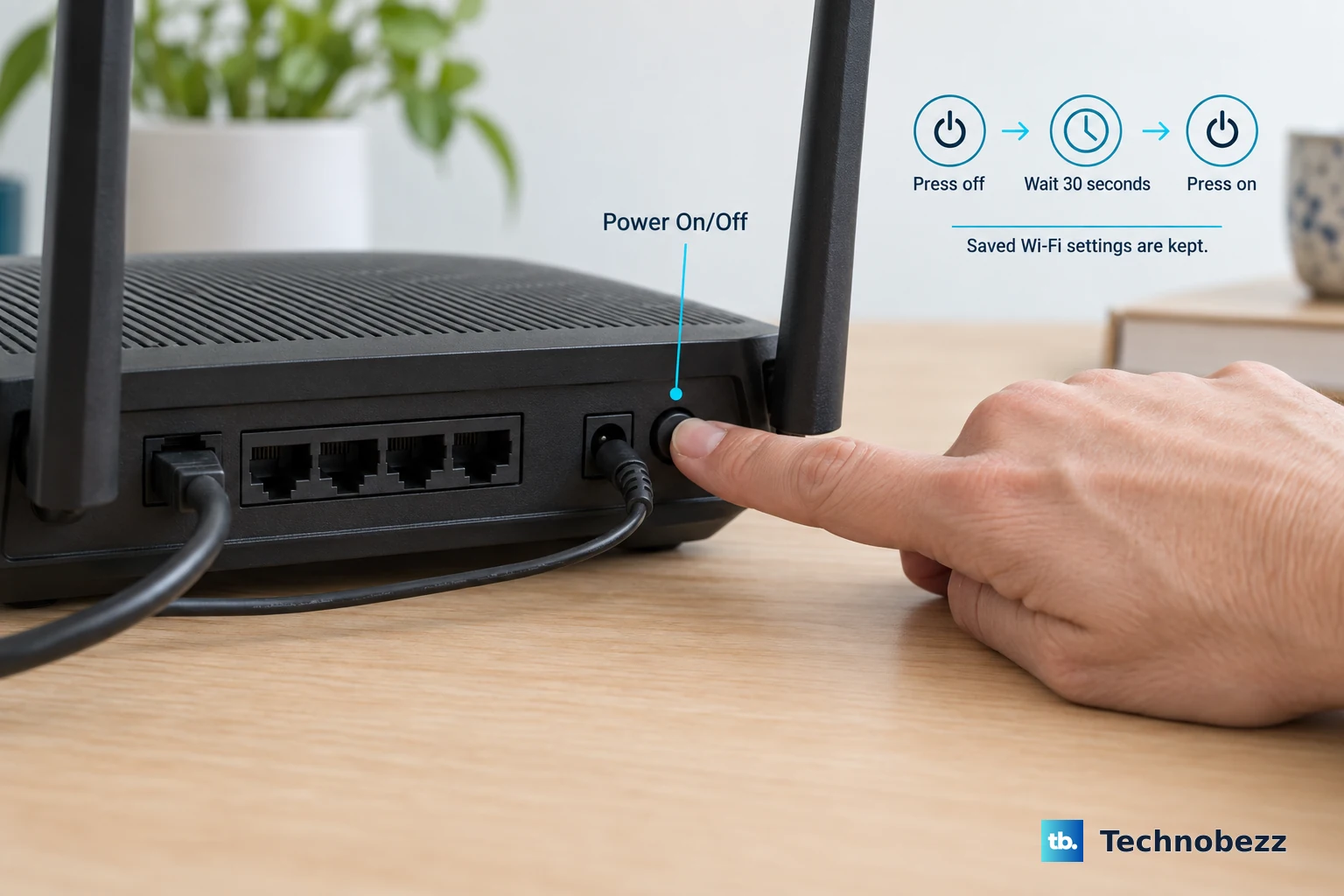
- 4.NETGEAR hardware restart: Press Power On/Off to switch the router off, wait 30 seconds, and switch it on again. For models without that button, unplug the router for 10 seconds before reconnecting it.
- 5.TP-Link Deco app restart: Open Network, tap the network map, select a unit, open its upper-right menu, and select Reboot. For the entire mesh, open the network map's upper-right menu and select Reboot Network.
Finish activation on new equipment
Unfinished activation or device discovery explains the green setup signals below.
For an AT&T BGW320 with a rapidly blinking green service light during initial setup, scan the gateway's QR code. This light means it is ready for activation. Opening Smart Home Manager is the alternative starting point.
Sign in with your AT&T ID.
Complete the guided installation.
For a new Xfinity gateway or approved customer-owned modem, sign in to the Xfinity app as the Primary user or a Manager.
In a community where internet is delivered to the units over fiber, you can't use the Xfinity app to activate. Connect, install, and activate your own Ethernet router or device instead.
Select Get Started for a new installation. For replacement equipment, use Account > Set up equipment or devices > Xfinity Gateway or Modem.
Follow the installation prompts, including WiFi personalization.
During a coax installation, select Ready to Go! > Check Connection when the app reaches the specified light state.
Select Try Another Outlet if the outlet is inactive.
Select I Don’t Have Another Outlet for technician assistance when there is no alternative.
Select Confirm and Finish Up at the end of setup.
For an eero blinking green during Bluetooth setup, follow the eero app's instructions for that unit. A flashing green LED means multiple eeros were detected, and eero directs you to the unit showing green.
Unplug other unconfigured eeros if discovery keeps selecting the wrong unit.
Set up the eeros one at a time.
Keep your phone within Bluetooth range during discovery.
Use Scan barcode if the app still cannot identify the intended eero.
Get help when the connection still fails
These checks address persistent service faults and eero setup failures.
Open Xfinity Assistant online or in the Xfinity app.
Follow its internet troubleshooting flow. Technician scheduling is offered when automated troubleshooting detects an issue it cannot resolve.
Run Virgin Media's broadband connection test from its hub-light help page after checking cables and restarting.
Follow the resulting repair guidance or engineer-booking flow.
For an eero setup failure with a separate modem, connect a laptop directly to the modem by Ethernet.
Test whether websites load.
Contact your internet provider if that direct modem connection does not work.
Disconnect the laptop and other devices before trying eero setup again if the direct test succeeds.
Reconnect the modem and gateway eero by Ethernet.
Restart the modem and gateway eero before retrying setup.
Reserve a factory reset for persistent problems after less disruptive troubleshooting. It erases configuration, and the procedure depends on the exact model; a blinking green light alone is not a reason to reset.
Frequently Asked Questions
Can I check an Xfinity outage by text?
Yes. From a mobile number registered for Xfinity texts, send OUT to 266278. To receive restoration alerts, select Request Text Updates on the outage map, enter your number, and select Get a Text. Messaging charges may apply.
How do I stop the blinking if my internet works?
On supported NETGEAR Nighthawk models, sign in locally at http://www.routerlogin.net. Open ADVANCED > Advanced Setup > LED Control Settings, choose the option that disables activity blinking, and select Apply. On Deco systems with LED controls, open More > LED Control, select Always Off or configure Scheduled off, then select Save. These controls change light visibility, not connection health.
Should I restart a separate modem or router first?
For a cable or DSL modem paired with a NETGEAR router, power down the network equipment and connected devices. Remove the modem's backup battery if necessary. Wait two minutes. Start the modem and allow about five minutes for ISP synchronization. Once it connects, start the router, then restart your devices.
How do I back up CenturyLink settings before a reset?
On models with the documented backup utility, connect locally and sign in at http://192.168.0.1 using the modem's admin credentials. Open Utilities > Configuration Save, then select Download. The restore-defaults utility also offers selective resets on supported models, so use only the reset scope needed.